details sales ingestion fees


To keep automated sales ingestion stable and compatible with frequent distributor and DSP format changes, details applies a small service fee that covers ongoing development and maintenance of ingestion scripts.

Summary

  • Applies to every automated ingestion of a sales statement.
  • Calculated per statement file, based on total turnover.
  • Re-imports of the same file are always free of charge.

Base Fee

The ingestion fee is calculated as a capped per-thousand rate (0) of each statement s total turnover.

Rate Type Value Example
Base fee 1.5 0 (0.15%) Turnover ►1,000 ► Fee ►1.50
Minimum 1 per statement Turnover ►600 ► Fee ►1
Maximum 50 per statement Turnover ►33,333 ► Fee ►50

Special Fees

  • Apple / iTunes: minimum 10 per month (all files of one month counted together)
  • Amazon: minimum 0.50 per statement file

Additional Information

  • Only successful automatic ingestions are charged. Should a sales statement need to be imported multiple times for amendments, only the first import of a statement is charged all subsequent re-imports of the same statement are free.
  • If a statement includes several currencies (e.g. Spotify EUR, USD, GBP), it counts as one statement. Example: a 100,000 Spotify statement split across 3 currencies = ►50 total fee (not 350).
  • For non-euro currencies, turnover is converted to EUR using the average exchange rate of the last month of the reporting period.

Setting Contracts with Mid-Price / Budget Price Conditions

The concept of “Mid-Price” / “Budget Price” harks back to a time when the music industry primarily relied on physical formats for sales, and retail price reductions needed to be factored into royalty calculations, typically based on PPDs (Published Price to Distributors), to avoid high royalty payments on low sales revenues. The idea was that royalties would be reduced with deductions if the actual achieved prices were less than a third, a half, or a quarter of the listed PPDs. Although somewhat outdated, this concept still finds application in retail today and in legacy contracts.

In DETAILS, we offer a solution that follows this logic in royalty calculations based on a ratio between a fixed Product PPD, set in the product itself, and imported prices obtained through sales imports. Users can establish calculation conditions where a certain deduction or royalty rate applies if the ratio between the fixed product PPD and achieved prices falls below a certain threshold.

The deduction rules can be combined with other royalty conditions.


Here are a few examples:

Base :
The fixed PPD of a product must be configured in the product details in CATALOG / PRODUCTS


Example 1:
The regular FULL PRICE condition is defined by default in the physical royalty settings.
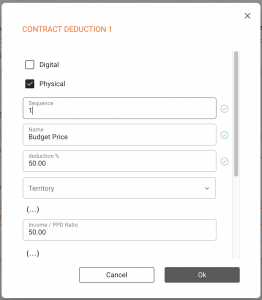
The “Mid Price” and “Budget Price” reductions can be defined a “Contract Deductions”, appearing in the royalty reporting as Deduction 4 or 5.

A reduction of 25% if the applied if prices fall below 75% of the PPD for MID PRICE
A eduction of 50% if the applied if prices fall below 50% of the PPD for BUDGET PRICE.


Contract Deduction:
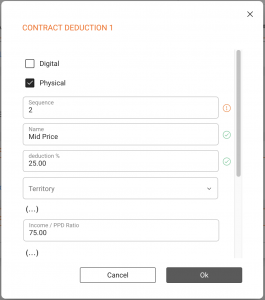
(1) Budget Price: 50.00% reduction when Income/PPD Ratio < 50.00
(2) Mid Price: 25.00% reduction when Income/PPD Ratio < 75.00

Note : It is important that the rule for the budget price is placed earlier in the sequence than the rule for the mid price, so that it applies first when prices are as low.

Mid : Budget in Contract Deduction.png

Example 2 (Setup within physical product rules):

Setting up 3 rules for BUDGET PRICE, MID PRICE, and FULL PRICE (general royalty rate):
(1) Deduction of 50% is applied if prices fall below 50% of the PPD.
(2) Deduction of 33% is applied if prices fall below 75% of the PPD.
(3) No deduction if prices remain up to 75% of the PPD.

MID price.pngBudget Price.pngbudget mid full.png

NEW rules for VAT in the EU from July 2021

New_EU_VAT_rules.jpg

If you have cross-border e-commerce (B2C webshops) with or within the EU please note that new VAT rules will apply on 1 July 2021.

Everyone in the e-commerce supply chain will be affected, but especially online sellers and platforms inside and outside the EU selling to EU customers.

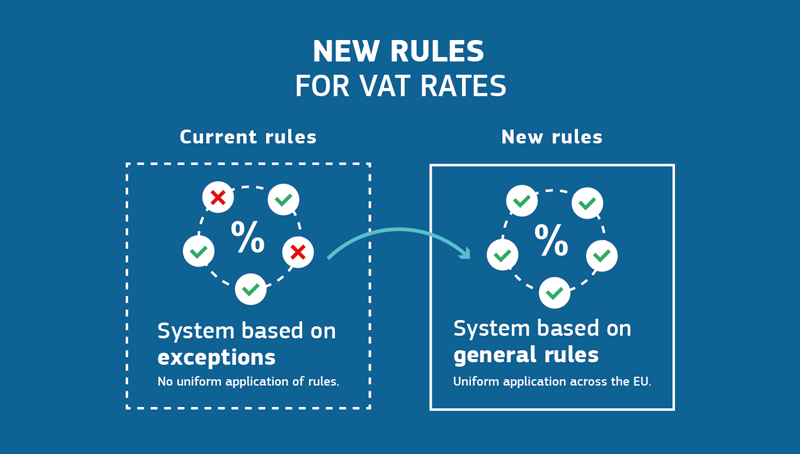
For all our clients involved in e-commerce , please note that we at details are fully aware of the changes and we are currently updating our plattform to enable our clients to manage all european tax classes, tax rates and tax territories.

Bildschirmfoto_2021-05-19_um_11.38.32.png

Since VAT liability for online business is complex and its reform in the EU brings important changes to previous practice, we strongly recommend that everybody concerned seek in-depth advice from their tax advisors.

new-vat-rules.png

We have compiled some information and links to useful articles on the topic below.
Please note, that this article has been compiled for informational purposes only, and is not intended to provide, and should not be relied on for, tax, legal or accounting advice. You need to consult your own tax, legal and accounting advisors!


Official websites of the European Union :

VAT for e-commerce

All You Need To Know About The One-Stop Shop (OSS)

TEDB – “Taxes in Europe” database

VAT rates applied in the Member States


– – – Non-Official Information – – -►

E-commerce EU VAT changes in 2021

How new EU VAT rules for online marketplaces affect your business

What You Must Know About EU VAT If You Have Customers In Europe

Digital Tax Around The World: What To Know About New Tax Rules

UK Association of Independent Music (AIM) s Brexit Business Guidance


– – – Informationen in Deutsch – – -►

Bundeszentralamt f►r Steuern : One-Stop-Shop, EU-Regelung

IHK Berlin : Versandhandel – Verk►ufe an Privatpersonen innerhalb der EU

Offizielle Website der Europ►ischen Union : TEDB Datenbank “Steuern in Europa

IHK M►nchen : Umsatzsteuers►tze in der EU (PDF download)

How to change or remove Balances in Royalty Contracts or Royalty Accounts

If you need to change or remove balances from Royalty Contracts or Royalty Accounts and find they are locked, you may wonder how to proceed.


Balances become locked once they’re included in a royalty statement. At that point, they can’t be altered or removed.

To edit a balance, there must be no statement for that period.
This means the statement(s) linked to a balance must be deleted before any changes can be made.
It’s important to note that changes made to a balance of a royalty account or contract only affect that specific account or contract.

If there are costs or other income associated with multiple royalty accounts and contracts, the process can be complex and may require multiple steps described below.

Note that deleting statements should be done after careful consideration only, best before they are sent out or if a correction has been requested.

Here’s a breakdown of the process and its reversal:

Initial Process:

  1. Import costs or other income into projects or products.
  2. Transfer billable costs or other income (= “Recoupables”) at a certain percentage set in the Royalty contracts (this creates “Balances”).
  3. Include balances on royalty statements based on the balance date and royalty period (statement calculation).

Reversal Process:

  1. Delete all statements related to the affected balances.
  2. Delete all recouped balances or the entire related import (which will delete all balances related to the import at once). Related imports can be deleted via their related (Cost) Invoices.
  3. Adjust costs or other income in projects or products (before recouping them again).

How to solve Error Message from DHTMLSuite.dynamicContent (V1 only)

Note:
This error message only occurs in the legacy Version 1 interface. If you’re using Version 2, you are not affected. We strongly recommend switching to V2, as it is actively maintained and receives all updates and improvements.

If you see the following error message:

“Message from DHTMLSuite.dynamicContent
The ajax request for distribution.pl failed”

…it usually means that your internet connection was temporarily interrupted while trying to load data from the server.

In most cases, a simple browser refresh will solve the issue:

  • Mac: CMD + R
  • Windows: CTRL + R

Alternatively, you can click the icon in your browser to reload the page.

This will reload the data and remove the error message.

How to relate Artist’s bank details to templates

This article will explain the relation between ARTISTS, their related CONTACTS’s bank infos and how to get those into templates for contracts, itineraries etc.

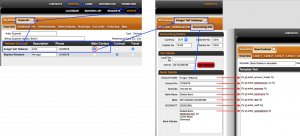
The picture below should give you an idea:


The most important thing to understand is that ARTISTS are related to one or multiple CONTACTS, i.e. real people or companies.

To pull bank details into a contract or itinerary you need to check the MAIN CONTACT, as selected in the list of related contacts with a radio button (highlighted in the picture in red).

Click on the name of the MAIN CONTACT and go to the ACCOUNTING INFO subtab.

Here you will find the fields available for bank details.

The bank infos of the MAIN CONTACT can be pushed to templates via the following VARIABLES:


Account Holder: [% ph.artist_account_holder %]

Account Number: [% ph.artist_bankaccount_no %] (now redundant in EU)

Bank Sort Code: [% ph.artist_sortcode %] (now redundant in EU)

Account IBAN: [% ph.artist_iban %]

Bank SWIFT: [% ph.artist_swift %]

Bank Name: [% ph.artist_bankname %]

Bank Adress: [% ph.artist_bankaddress %]


You can use these variables to pull your ARTIST’s main CONTACT’s bank infos into any TEMPLATE.

Opening balances and Period Result Carryovers

In DETAILS, the handling of royalty statement results across periods is done mostly automaticly, but deserves some explanation:

Automatic Carryover

Royalty statement results are carried over to the next periods under the following conditions:
– The overall period result is negative.
– The overall period result is less than the minimum payment threshold specified in the royalty account settings.

For instance, if the overall period result is -1000 EUR or +30 EUR, both would be automatically carried over as an opening balance to the next period if the minimum payment threshold is set to 50 EUR.
Conversely, total period results equal to or higher than the minimum payment threshold would not be carried over, as DETAILS assumes they are due for payout by default.


Consideration of Cross-Recoupable Contracts

Additional complexity arises when cross-recoupable contracts are involved. Selected contracts may be set as to not be payable unless the overall total of all cross-collectable contracts collectively recoups and exceeds the minimum payout threshold. Further information on cross-collectable contracts can be found in our dedicated article here.


Manual Setting of Opening Balances

DETAILS provides the flexibility to manually include amounts for carryover to royalty periods. This feature is useful when statements were calculated before manually or in another system.

Initial amounts can be entered either at the level of Royalty Contracts or in the Royalty Account as Balances, with the type set as “Closing Balance”.

The date of the balance should correspond to the first day of the period you want the balance to be included in as an opening balance.

How to Set a Fixed Country for Sales Imports


How to Set a Fixed Country for Sales Imports

For some sales imports, you may be missing the country information in the import files OR wish to ensure the sales are associated with a specific country.
In details, this is referred to as setting a “fix country.” This means you are assigning a specific country for sales regardless of the import data. This ensures that sales are accurately linked to the designated country.


Step 1: Open the Account Related to the Sales in DISTRIBUTION Accounts

  1. Navigate to DISTRIBUTION in the left-hand menu.
  2. Click on Accounts and select the relevant account

Step 2: Access IMPORT SETUP within the Account

  1. Click on the IMPORT SETUP tab in the account’s top navigation menu.
  2. If you need to create a new import setup, click on + Add New.
    If modifying an existing setup, select the relevant import setup.

Step 3: Configure the Import Setup

  1. A form will appear when adding a new setup or editing an existing one.
  2. In the Fix Country field, enter the desired country code (e.g., “US” for United States or “FR” for France).

Step 4: Save the Configuration

  1. After entering all necessary information, click Next or Save to confirm the changes.

These steps will ensure your sales are correctly associated with the specified country.
If you have any questions, feel free to ask!

How to transfer metadata between details Databases

We re currently working on an automation to transfer catalog data between details databases.

Until then, you can use the following manual workaround to move releases, products, and track metadata from one client account to another.

Thanks for your patience and stay tuned for a streamlined solution soon!


Step-by-Step Guide

1. Enable the details metadata export template

In the sending database, make sure the details metadata export template is activated for Product Groups. This template ensures the export follows our standardized metadata structure.

If you don t see this template, please contact our support team.

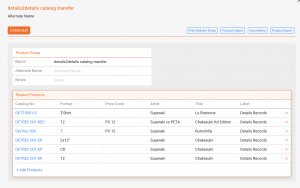
2. Create a Product Group

Go to
CATALOG ► Product Groups,
and click + New Group to create a group for the items you want to transfer.

You can add products by selecting + Add Products within the group interface.


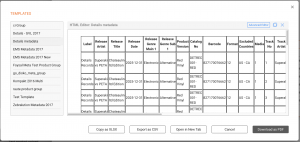
3. Export the Metadata

Once your group is ready:

  • Click the Documents button (top right of the Product Group screen in V2).
  • In the modal that opens, select the template details metadata from the left-hand side.
  • The preview will show your selected product group formatted with standard metadata columns.

You can now:
use the “Copy to Excel” button to copy the data whch you can then paste into any open Excel sheet
or
Download the export as a CSV file and convert it into Excel


4. Import into the Receiving Database

Switch to the receiving database, and go to:
CATALOG MANAGEMENT (V2) ► Excel Upload

There, upload the metadata sheet just like any other catalog import.


Need help?
Feel free to contact our support team if you have questions or want us to enable the export template for you.