How to change or remove Balances in Royalty Contracts or Royalty Accounts

If you need to change or remove balances from Royalty Contracts or Royalty Accounts and find they are locked, you may wonder how to proceed.


Balances become locked once they’re included in a royalty statement. At that point, they can’t be altered or removed.

To edit a balance, there must be no statement for that period.
This means the statement(s) linked to a balance must be deleted before any changes can be made.
It’s important to note that changes made to a balance of a royalty account or contract only affect that specific account or contract.

If there are costs or other income associated with multiple royalty accounts and contracts, the process can be complex and may require multiple steps described below.

Note that deleting statements should be done after careful consideration only, best before they are sent out or if a correction has been requested.

Here’s a breakdown of the process and its reversal:

Initial Process:

  1. Import costs or other income into projects or products.
  2. Transfer billable costs or other income (= “Recoupables”) at a certain percentage set in the Royalty contracts (this creates “Balances”).
  3. Include balances on royalty statements based on the balance date and royalty period (statement calculation).

Reversal Process:

  1. Delete all statements related to the affected balances.
  2. Delete all recouped balances or the entire related import (which will delete all balances related to the import at once). Related imports can be deleted via their related (Cost) Invoices.
  3. Adjust costs or other income in projects or products (before recouping them again).
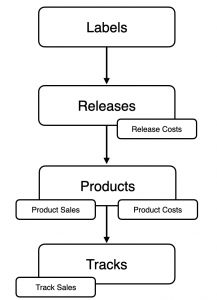
Explained: Costs & Other Income

Every music release or product generates both expenses and sometimes additional income streams.

Costs typically arise at different stages:

  • Production recording sessions, mixing, mastering, artwork, and manufacturing (for physical formats).
  • Marketing & Promotion press campaigns, radio plugging, social media ads, video production.
  • Distribution & Sales digital distribution fees, shipping, warehousing, and retail margins.
  • Operational legal, accounting, or administrative costs linked to releasing music.

On the other side, there may be income beyond direct sales:

  • Marketing budgets contributed by partners (e.g. distributors, DSPs, brands).
  • License flat fees for syncs, compilations, or other usage rights.
  • Subsidies or funding from cultural institutions, grants, or sponsorships.

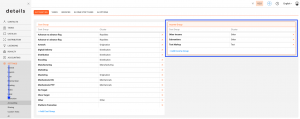
details allows you to manage both sides:

  • Assigning and tracking costs directly to the corresponding release or product.
  • Recording and reconciling additional income streams, ensuring they are included in royalty calculations where relevant. This gives a clear financial picture of each release or product.

► Costs

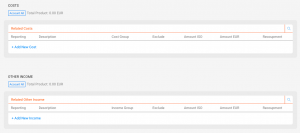
Costs represent all outgoing amounts that reduce the income of a release, product, or track. They can be created manually, imported via Excel, or generated automatically from royalty statements.

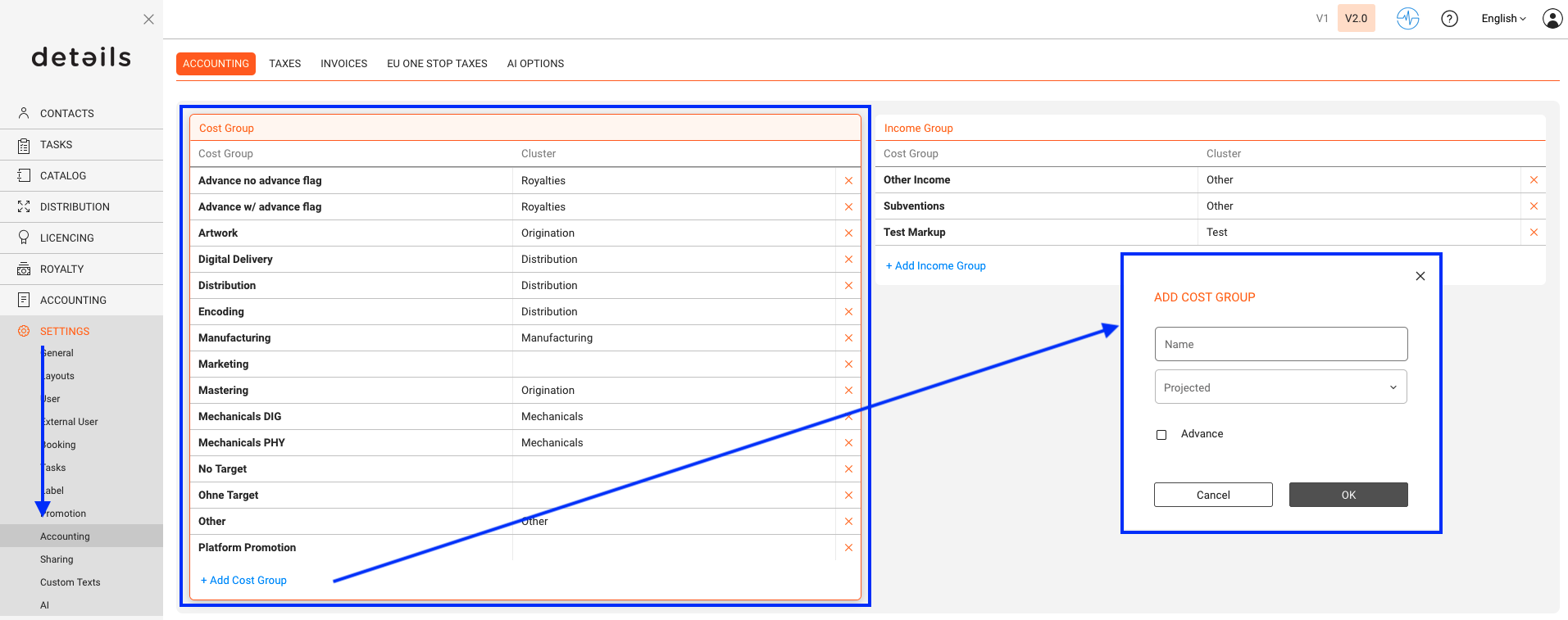
  • Cost Groups: Defined under SETTINGS / ACCOUNTING, they structure your costs into categories (e.g. Marketing, Promotion, Manufacturing).
  • Advances: A special cost group, always 100% recoupable.
  • Recoupment: If costs need to be recouped against royalties, you can define the recoupment rules in the contract setup. More information in the ROYALTY section.

► Income & Other Income

Income normally comes from sales, streams, or licenses. In addition, Other Income can be managed to represent subsidies, sponsorships, or any type of additional funding.

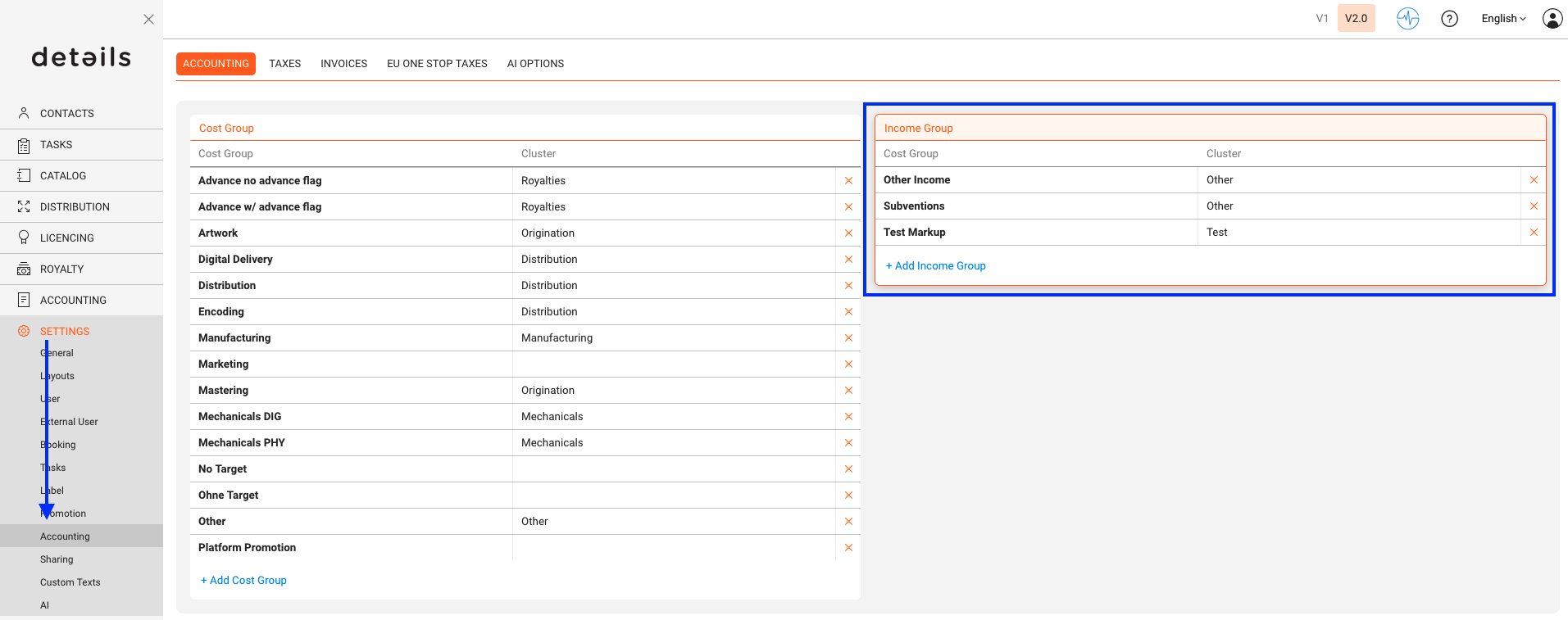
  • Income Groups: Defined under SETTINGS / ACCOUNTING, they structure additional income sources and can be assigned to releases and products.
  • Contract Logic: As with costs, income can be added globally or assigned to specific groups, depending on the contract.

► Interaction in Catalog

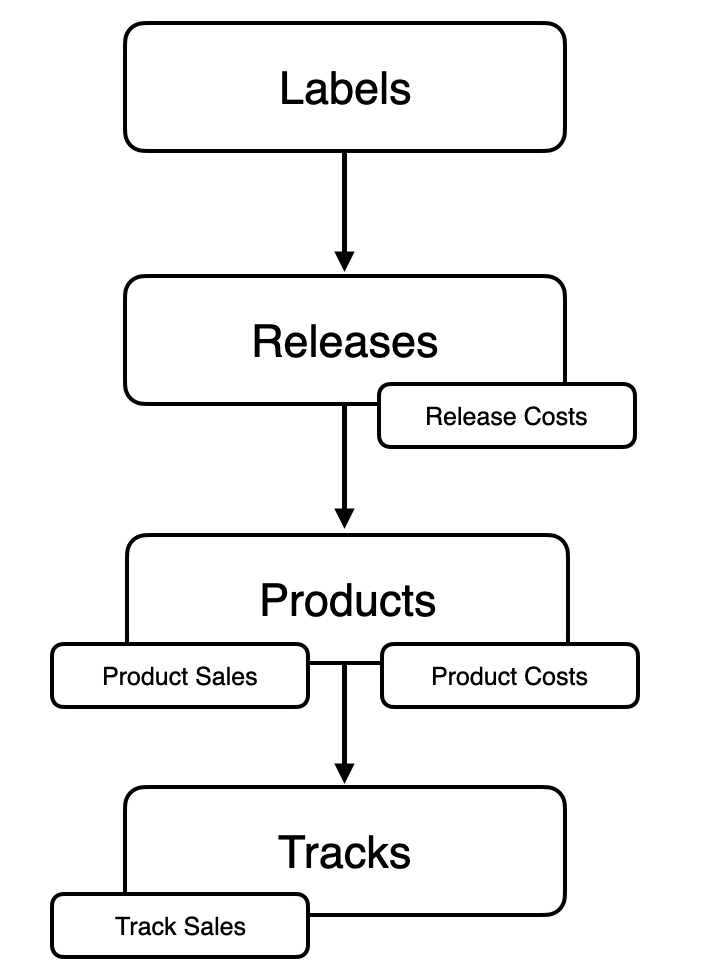
The catalog structure defines where costs and income are placed and how they interact:

  • Releases act as the central hub all financial flows are anchored here.
  • Products (physical and digital) create costs and income that belong to them.

► Proofs

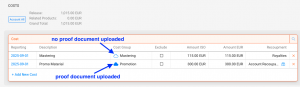
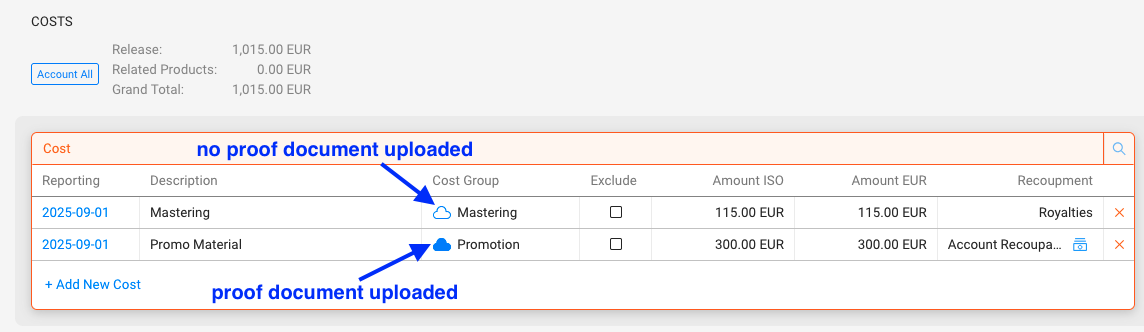
For both Costs and Other Income, you may upload proofs on the Release and Product level. These documents ensure transparency and provide traceability for internal use or for sharing with royalty partners or artist managements.

  • Invoices and Documents: Attach supporting files directly to financial entries.
  • Transparency: Enables partners to review the original documents behind costs or income.

Key points:
” In details, you can track all release- or product-related costs and record additional income streams (like marketing budgets, flat fees, or funding) for a complete financial overview.
“Costs and Other Income are structured by Groups in SETTINGS / ACCOUNTING.
” Proofs can be attached to Releases and Products for both Costs and Other Income.

How to account recoupables

Recoupables are costs which are paid against royalties. Typical recoupable costs are advance payments. Depending on your ROYALTY CONTRACTS also other costs such as video production costs or marketing expenses can be recoupable costs, mostly with a specific share e.g. 50% of costs are recoupable against royalties.

Your costs added in details are NOT automatically recoupable costs. Only once the relevant contract has a recoupable rate, your costs can be forwarded to your artists! If costs appear as NOT RECOUPABLE, the related contract has no recoupable settings enabled.


”Excursion”
WHERE AND HOW TO ADD COSTS in ”details”
How to upload cost documentation

So, to make costs recoupable you need to add costs in ”details” , set up the recoupable settings within the relevant contract and finally account current recoupables to the ROYALTY ACCOUNT before creating the ROYALTY STATEMENT so that royalties are set off against recoupable costs.

First you need to enter costs in ”details” , depending on where they occur.

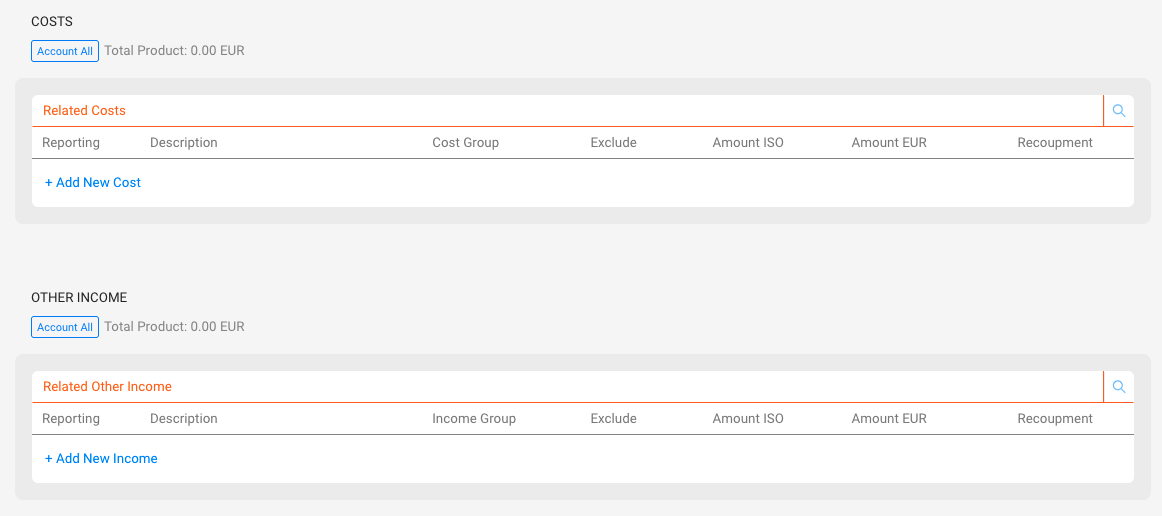
On the RELEASES‘ subtab COSTS you can add all costs that occur for the release as a whole. Typical release costs are advance payments, marketing costs, artwork design etc.
On PRODUCTS‘s subtab COSTS you can now add all costs that occur for the particular product. Typical product costs can be CD manufacturing, LP manufacturing, etc.

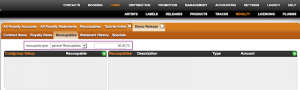
To set up the RECOUPABLES setting of a ROYALTY CONTRACT go to LABEL / ROYALTY and choose the account and related contract.
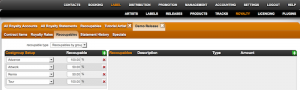
On the contracts subtab RECOUPABLES you can choose a RECOUPABLE TYPE from the drop down menu.

There are the following options:

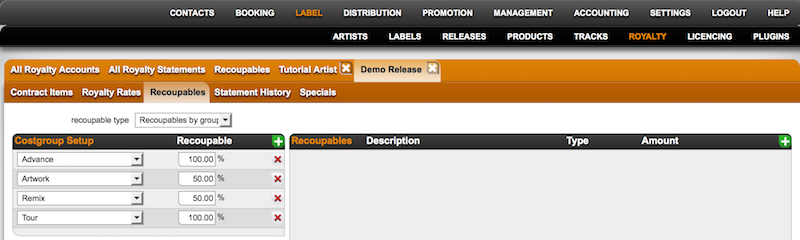
1) If advance payments and / or other particular recoupable costs are agreed on in your royalty contract, choose RECOUPABLE BY GROUPS.


Now click [+] on top right of the Costgroup Setup box and choose the cost group and the split e.g your contract includes an advance pament which is paid against royalties 100% you add the costgroup advance and give it a split of 100.
If your contract also includes a recoupable split of 50% on remix costs, just add the cost group Remix and give it a split of 50.
100% of the advance payment and 50% of the remix costs will now be paid against royalties.

It is essential that your costs have the correct COST GROUP. ”details” automatically identifies the costs by its cost group so that these will be accounted according to the above settings.

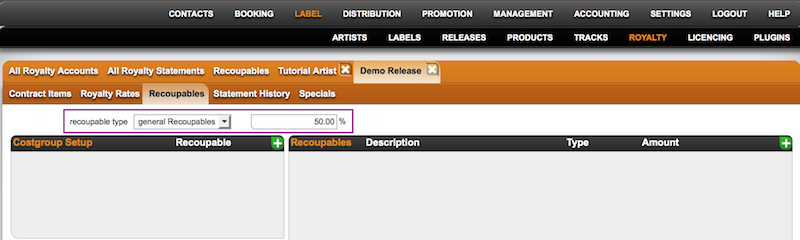
2) If all RELEASE RELATED COSTS and all PRODUCT RELATED COSTS are recoupable costs (e.g. 50/50 deal), choose GENERAL RECOUPABLES and type in the split.


Please note that advance payments have a default split of 100%. You can adjust the amount if necessary once it’s been accounted in the Recoupables Box right next to the Setup box or while you account the advance payment separately on RELEASE / COSTS.

3) If you do not have any RECOUPABLES included in your contract, choose NO RECOUPMENT.

Once you have entered the RECOUPABLES and set up / double checked the settings of the ROYALTY CONTRACT you can account them. ”details” will then automatically transfer all ACCOUNTED AMOUNTS to the related ROYALTY ACCOUNT.

There are multiple ways to account RECOUPABLES.

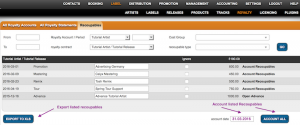
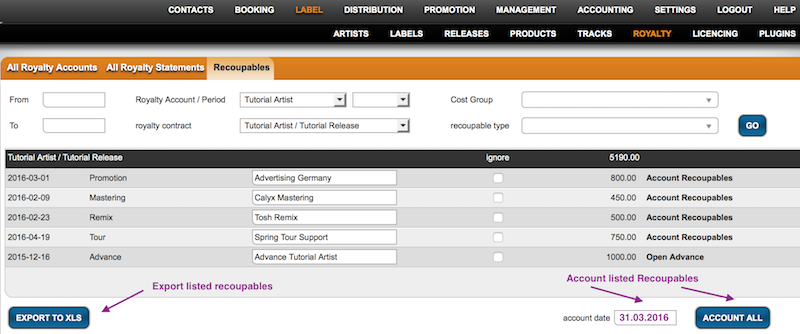
To account recoupables in a batch across all releases & products go to Royalty / Recoupables.
Select a start and end date of your current royalty period and add more filters if needed.
To account all, click the Account All Button at the bottom of the page.


To exclude single items of the compiled list, you can still tick IGNORE and these will not be accounted as recoupables.

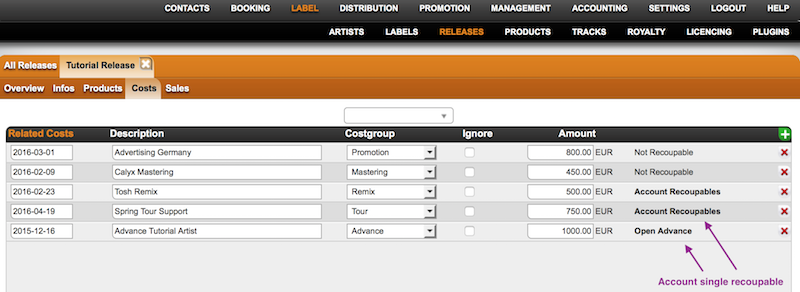
Alternativley you can account single recoupable costs where you have previously set them up, e.g.
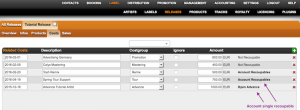
after you have added costs on the RELEASES subtab COSTS you can account them by clicking on the bold text ACCOUNT RECOUPABLES which will appear according to the royalty settings of the selected RELEASE. If it appears NOT RECOUPABLE instead, you will need to adjust the royalty settings.


It will be the same workflows for product related costs on the products subtab costs.

Once you have accounted the recoupables, they will be set off against royalties in your next royalty statement.

How to change or remove Balances in Royalty Contracts or Royalty Accounts

If you need to change or remove balances from Royalty Contracts or Royalty Accounts and find they are locked, you may wonder how to proceed.


Balances become locked once they’re included in a royalty statement. At that point, they can’t be altered or removed.

To edit a balance, there must be no statement for that period.
This means the statement(s) linked to a balance must be deleted before any changes can be made.
It’s important to note that changes made to a balance of a royalty account or contract only affect that specific account or contract.

If there are costs or other income associated with multiple royalty accounts and contracts, the process can be complex and may require multiple steps described below.

Note that deleting statements should be done after careful consideration only, best before they are sent out or if a correction has been requested.

Here’s a breakdown of the process and its reversal:

Initial Process:

  1. Import costs or other income into projects or products.
  2. Transfer billable costs or other income (= “Recoupables”) at a certain percentage set in the Royalty contracts (this creates “Balances”).
  3. Include balances on royalty statements based on the balance date and royalty period (statement calculation).

Reversal Process:

  1. Delete all statements related to the affected balances.
  2. Delete all recouped balances or the entire related import (which will delete all balances related to the import at once). Related imports can be deleted via their related (Cost) Invoices.
  3. Adjust costs or other income in projects or products (before recouping them again).
Explained: Costs & Other Income

Every music release or product generates both expenses and sometimes additional income streams.

Costs typically arise at different stages:

  • Production recording sessions, mixing, mastering, artwork, and manufacturing (for physical formats).
  • Marketing & Promotion press campaigns, radio plugging, social media ads, video production.
  • Distribution & Sales digital distribution fees, shipping, warehousing, and retail margins.
  • Operational legal, accounting, or administrative costs linked to releasing music.

On the other side, there may be income beyond direct sales:

  • Marketing budgets contributed by partners (e.g. distributors, DSPs, brands).
  • License flat fees for syncs, compilations, or other usage rights.
  • Subsidies or funding from cultural institutions, grants, or sponsorships.

details allows you to manage both sides:

  • Assigning and tracking costs directly to the corresponding release or product.
  • Recording and reconciling additional income streams, ensuring they are included in royalty calculations where relevant. This gives a clear financial picture of each release or product.

► Costs

Costs represent all outgoing amounts that reduce the income of a release, product, or track. They can be created manually, imported via Excel, or generated automatically from royalty statements.

  • Cost Groups: Defined under SETTINGS / ACCOUNTING, they structure your costs into categories (e.g. Marketing, Promotion, Manufacturing).
  • Advances: A special cost group, always 100% recoupable.
  • Recoupment: If costs need to be recouped against royalties, you can define the recoupment rules in the contract setup. More information in the ROYALTY section.

► Income & Other Income

Income normally comes from sales, streams, or licenses. In addition, Other Income can be managed to represent subsidies, sponsorships, or any type of additional funding.

  • Income Groups: Defined under SETTINGS / ACCOUNTING, they structure additional income sources and can be assigned to releases and products.
  • Contract Logic: As with costs, income can be added globally or assigned to specific groups, depending on the contract.

► Interaction in Catalog

The catalog structure defines where costs and income are placed and how they interact:

  • Releases act as the central hub all financial flows are anchored here.
  • Products (physical and digital) create costs and income that belong to them.

► Proofs

For both Costs and Other Income, you may upload proofs on the Release► and Product level►. These documents ensure transparency and provide traceability for internal use or for sharing with royalty partners or artist managements.

  • Invoices and Documents: Attach supporting files directly to financial entries.
  • Transparency: Enables partners to review the original documents behind costs or income.

Key points:
” In details, you can track all release- or product-related costs and record additional income streams (like marketing budgets, flat fees, or funding) for a complete financial overview.
“Costs and Other Income are structured by Groups in SETTINGS / ACCOUNTING.
” Proofs can be attached to Releases and Products for both Costs and Other Income.

How to account recoupables

Recoupables are costs which are paid against royalties. Typical recoupable costs are advance payments. Depending on your ROYALTY CONTRACTS also other costs such as video production costs or marketing expenses can be recoupable costs, mostly with a specific share e.g. 50% of costs are recoupable against royalties.

Your costs added in details are NOT automatically recoupable costs. Only once the relevant contract has a recoupable rate, your costs can be forwarded to your artists! If costs appear as NOT RECOUPABLE, the related contract has no recoupable settings enabled.


”Excursion”
WHERE AND HOW TO ADD COSTS in ”details”
How to upload cost documentation

So, to make costs recoupable you need to add costs in ”details” , set up the recoupable settings within the relevant contract and finally account current recoupables to the ROYALTY ACCOUNT before creating the ROYALTY STATEMENT so that royalties are set off against recoupable costs.

First you need to enter costs in ”details” , depending on where they occur.

On the RELEASES‘ subtab COSTS you can add all costs that occur for the release as a whole. Typical release costs are advance payments, marketing costs, artwork design etc.
On PRODUCTS‘s subtab COSTS you can now add all costs that occur for the particular product. Typical product costs can be CD manufacturing, LP manufacturing, etc.

To set up the RECOUPABLES setting of a ROYALTY CONTRACT go to LABEL / ROYALTY and choose the account and related contract.
On the contracts subtab RECOUPABLES you can choose a RECOUPABLE TYPE from the drop down menu.

There are the following options:

1) If advance payments and / or other particular recoupable costs are agreed on in your royalty contract, choose RECOUPABLE BY GROUPS.


Now click [+] on top right of the Costgroup Setup box and choose the cost group and the split e.g your contract includes an advance pament which is paid against royalties 100% you add the costgroup advance and give it a split of 100.
If your contract also includes a recoupable split of 50% on remix costs, just add the cost group Remix and give it a split of 50.
100% of the advance payment and 50% of the remix costs will now be paid against royalties.

It is essential that your costs have the correct COST GROUP. ”details” automatically identifies the costs by its cost group so that these will be accounted according to the above settings.

2) If all RELEASE RELATED COSTS and all PRODUCT RELATED COSTS are recoupable costs (e.g. 50/50 deal), choose GENERAL RECOUPABLES and type in the split.


Please note that advance payments have a default split of 100%. You can adjust the amount if necessary once it’s been accounted in the Recoupables Box right next to the Setup box or while you account the advance payment separately on RELEASE / COSTS.

3) If you do not have any RECOUPABLES included in your contract, choose NO RECOUPMENT.

Once you have entered the RECOUPABLES and set up / double checked the settings of the ROYALTY CONTRACT you can account them. ”details” will then automatically transfer all ACCOUNTED AMOUNTS to the related ROYALTY ACCOUNT.

There are multiple ways to account RECOUPABLES.

To account recoupables in a batch across all releases & products go to Royalty / Recoupables.
Select a start and end date of your current royalty period and add more filters if needed.
To account all, click the Account All Button at the bottom of the page.


To exclude single items of the compiled list, you can still tick IGNORE and these will not be accounted as recoupables.

Alternativley you can account single recoupable costs where you have previously set them up, e.g.
after you have added costs on the RELEASES subtab COSTS you can account them by clicking on the bold text ACCOUNT RECOUPABLES which will appear according to the royalty settings of the selected RELEASE. If it appears NOT RECOUPABLE instead, you will need to adjust the royalty settings.


It will be the same workflows for product related costs on the products subtab costs.

Once you have accounted the recoupables, they will be set off against royalties in your next royalty statement.