How to Set a Fixed Country for Sales Imports


How to Set a Fixed Country for Sales Imports

For some sales imports, you may be missing the country information in the import files OR wish to ensure the sales are associated with a specific country.
In details, this is referred to as setting a “fix country.” This means you are assigning a specific country for sales regardless of the import data. This ensures that sales are accurately linked to the designated country.


Step 1: Open the Account Related to the Sales in DISTRIBUTION Accounts

  1. Navigate to DISTRIBUTION in the left-hand menu.
  2. Click on Accounts and select the relevant account

Step 2: Access IMPORT SETUP within the Account

  1. Click on the IMPORT SETUP tab in the account’s top navigation menu.
  2. If you need to create a new import setup, click on + Add New.
    If modifying an existing setup, select the relevant import setup.

Step 3: Configure the Import Setup

  1. A form will appear when adding a new setup or editing an existing one.
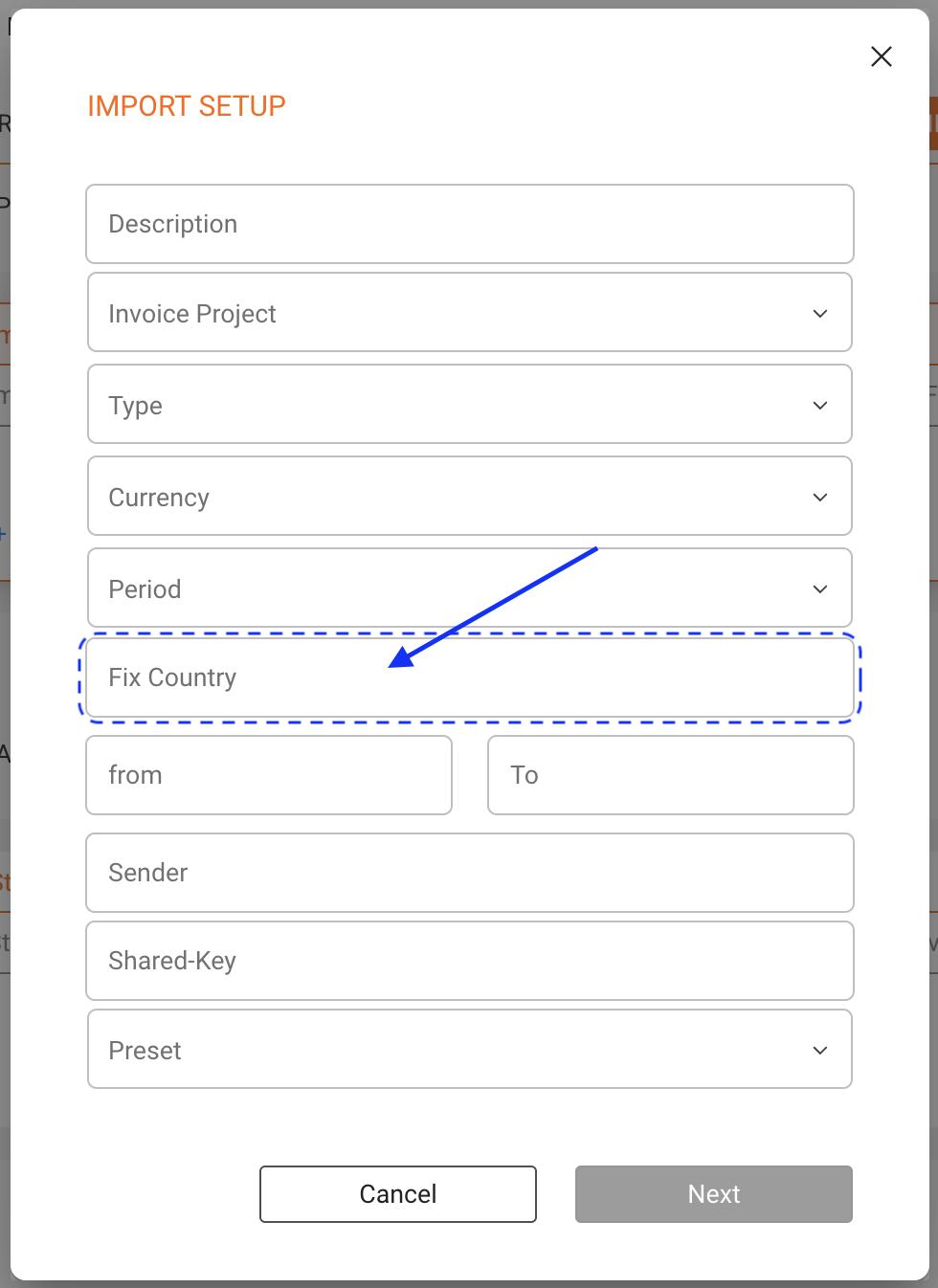
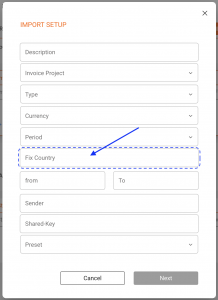
  2. In the Fix Country field, enter the desired country code (e.g., “US” for United States or “FR” for France).

Step 4: Save the Configuration

  1. After entering all necessary information, click Next or Save to confirm the changes.

These steps will ensure your sales are correctly associated with the specified country.
If you have any questions, feel free to ask!
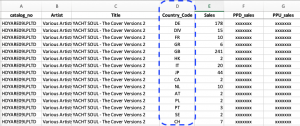
Focus : Country Information in Sales Processing


Correctly defining and maintaining country information in details is essential, as royalties may differ depending on where products and tracks are sold.

Always ensure that the country data is accurate when creating orders or importing statements. Incorrect or missing country information can lead to inaccurate royalty calculations.

Note: Only use valid countries or ISO2 codes. Do not enter region names such as Benelux or North America these are not accepted as countries in details.


Orders

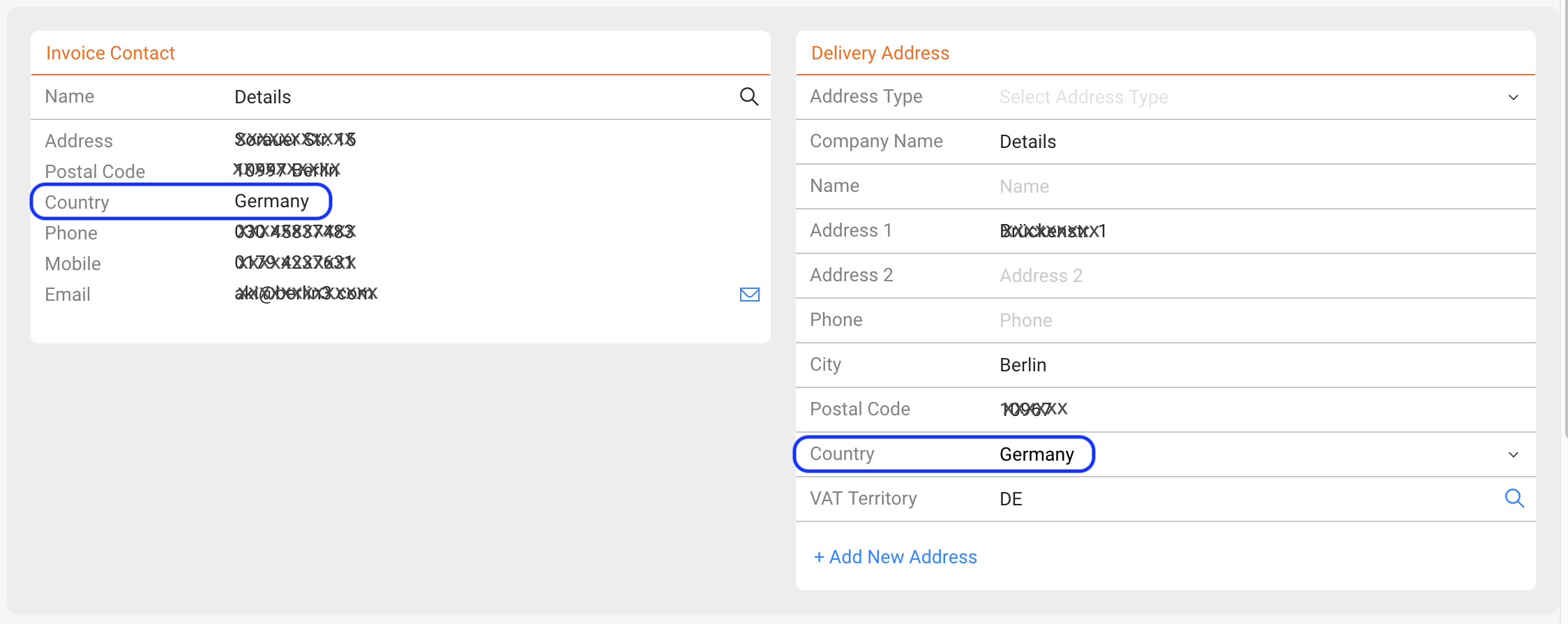
For orders, the delivery address defines the country of sale. If no delivery address is available, the invoice recipient’s country will be used instead.

Therefore, when creating new customers, always include billing and delivery contact information with valid country data.


Imported Sales Statements

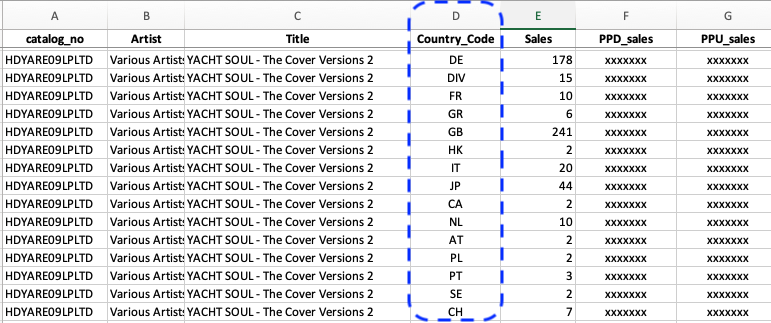
When importing sales statements, the country of sale is often included in each line of the file. Tag the corresponding column with the “Country” import tag to import this information per line.

If no country information is available in the statement, you can assign a fixed country to the import. To do this, go to DISTRIBUTION / ACCOUNTS ► select the account ► IMPORT SETUP ► select the Import Setup ► and enter the country name or ISO2 code in the Fix Country field.

How to Set a Fixed Country for Sales Imports


How to Set a Fixed Country for Sales Imports

For some sales imports, you may be missing the country information in the import files OR wish to ensure the sales are associated with a specific country.
In details, this is referred to as setting a “fix country.” This means you are assigning a specific country for sales regardless of the import data. This ensures that sales are accurately linked to the designated country.

Step 1: Open the Account Related to the Sales in DISTRIBUTION Accounts

  1. Navigate to DISTRIBUTION in the left-hand menu.
  2. Click on Accounts and select the relevant account

Step 2: Access IMPORT SETUP within the Account

  1. Click on the IMPORT SETUP tab in the account’s top navigation menu.
  2. If you need to create a new import setup, click on + Add New.
    If modifying an existing setup, select the relevant import setup.

Step 3: Configure the Import Setup

  1. A form will appear when adding a new setup or editing an existing one.
  2. In the Fix Country field, enter the desired country code (e.g., “US” for United States or “FR” for France).

Step 4: Save the Configuration

  1. After entering all necessary information, click Next or Save to confirm the changes.

These steps will ensure your sales are correctly associated with the specified country.
If you have any questions, feel free to ask!
Focus : Country Information in Sales Processing

Table of contents

Correctly defining and maintaining country information in details is essential, as royalties may differ depending on where products and tracks are sold.

Always ensure that the country data is accurate when creating orders or importing statements. Incorrect or missing country information can lead to inaccurate royalty calculations.

Note: Only use valid countries or ISO2 codes. Do not enter region names such as Benelux or North America these are not accepted as countries in details.


Orders

For orders, the delivery address defines the country of sale. If no delivery address is available, the invoice recipient’s country will be used instead.

Therefore, when creating new customers, always include billing and delivery contact information with valid country data.


Imported Sales Statements

When importing sales statements, the country of sale is often included in each line of the file. Tag the corresponding column with the “Country” import tag to import this information per line.

If no country information is available in the statement, you can assign a fixed country to the import. To do this, go to DISTRIBUTION / ACCOUNTS  select the account  IMPORT SETUP  select the Import Setup  and enter the country name or ISO2 code in the Fix Country field.