Add a QR Code to Your Invoice Layout (for SEPA Payments)
You can add a SEPA payment QR code to your invoice PDFs. Your customers can scan the QR code with a compatible banking app and automatically import the payment information.
The QR code includes the beneficiary, IBAN, invoice amount and payment reference. It is generated dynamically for each invoice.
Requirements
The SEPA QR code uses the payment information already entered in the E-Invoice Issuer section of your Invoice Project.
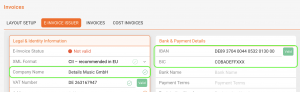
Open your Invoice Project and make sure that the highlighted E-Invoice Issuer fields contain at least the following information:
- Beneficiary or account holder name
- Valid IBAN
- BIC, where applicable
No separate bank account configuration is required. The same payment details are used for both electronic invoices and SEPA QR codes.
When is the QR code available?
A SEPA payment QR code can be generated when all of the following requirements are met:
- A beneficiary name is available.
- A valid IBAN is available.
- The invoice currency is EUR.
- The total amount due is greater than zero.
- The invoice contains a payment reference.
The overall E-Invoice validation status does not determine whether the QR code is generated. Missing information unrelated to the payment, such as a VAT number or company registration number, does not prevent QR code generation.
Add the QR code to your invoice layout
Open the HTML template of your invoice layout and insert the following code where you want the QR code to appear:
<!-- SEPA payment QR code -->
<img
    src="https://YOUR-DETAILS-DOMAIN/accounting.pl?section=invoices&action=generate_sepa_qr_code&invoice_id=[% invoice.DATA.invoice_id %]"
    alt="EPC SEPA payment QR code"
    style="
        display:block;
        width:135px;
        height:135px;
        margin:0 auto;
    "
/>
Replace https://YOUR-DETAILS-DOMAIN with the URL of your details database.
For example:
https://app.details.eu/YOURDATABASE/accounting.pl?section=invoices&action=generate_sepa_qr_code&invoice_id=[% invoice.DATA.invoice_id %]Example inside an invoice table
The following example places the QR code inside a centered table cell:
<!-- QR code -->
<td style="
    vertical-align:top;
    text-align:center;
    padding:12px 8px;
    border-right:1px solid #000000;
">
    <img
        src="https://YOUR-DETAILS-DOMAIN/accounting.pl?section=invoices&action=generate_sepa_qr_code&invoice_id=[% invoice.DATA.invoice_id %]"
        alt="EPC SEPA payment QR code"
        style="
            display:block;
            width:135px;
            height:135px;
            margin:0 auto;
        "
    />
</td>
You can adjust the width, height, padding and border styles to match your existing invoice design.
Result on the invoice
When the invoice is generated, details creates an individual QR code using the payment information and total amount due from that invoice.
The customer can scan the code with a banking app that supports EPC or SEPA payment QR codes. The following information is then filled in automatically:
- Beneficiary
- IBAN
- BIC, where required
- Total amount due
- Invoice reference or remittance information
Important information
SEPA payment QR codes are available for invoices in EUR and bank accounts that support SEPA Credit Transfers.
The feature is not limited to companies located in the European Union. It can also be used by clients in other SEPA countries, provided that the bank account supports SEPA payments.
When the required payment information is missing or invalid, no usable SEPA payment QR code is generated.