How to set Return Reserves

Reserves Against Returns
or “Return Reserves” are a certain amount of physical records or percentage of royalties (from physical sales) which are withheld off the top from the artist by the record label to guard against the label paying royalties on physical records that may be returned by retailers in the future.

The reserves are based on clauses you may find in Artist Contracts such as

“Label shall have the right to establish a royalty reserve against anticipated returns and credits, of up to twenty (20%) percent of the royalty earnings associated with the units of each Record reported as distributed to its customers in that period. Each royalty reserve shall be liquidated equally and in full over the four (4) semi-annual accounting periods following the accounting period during which the applicable reserve is originally established.” *see the end of this article for corresponding settings in details


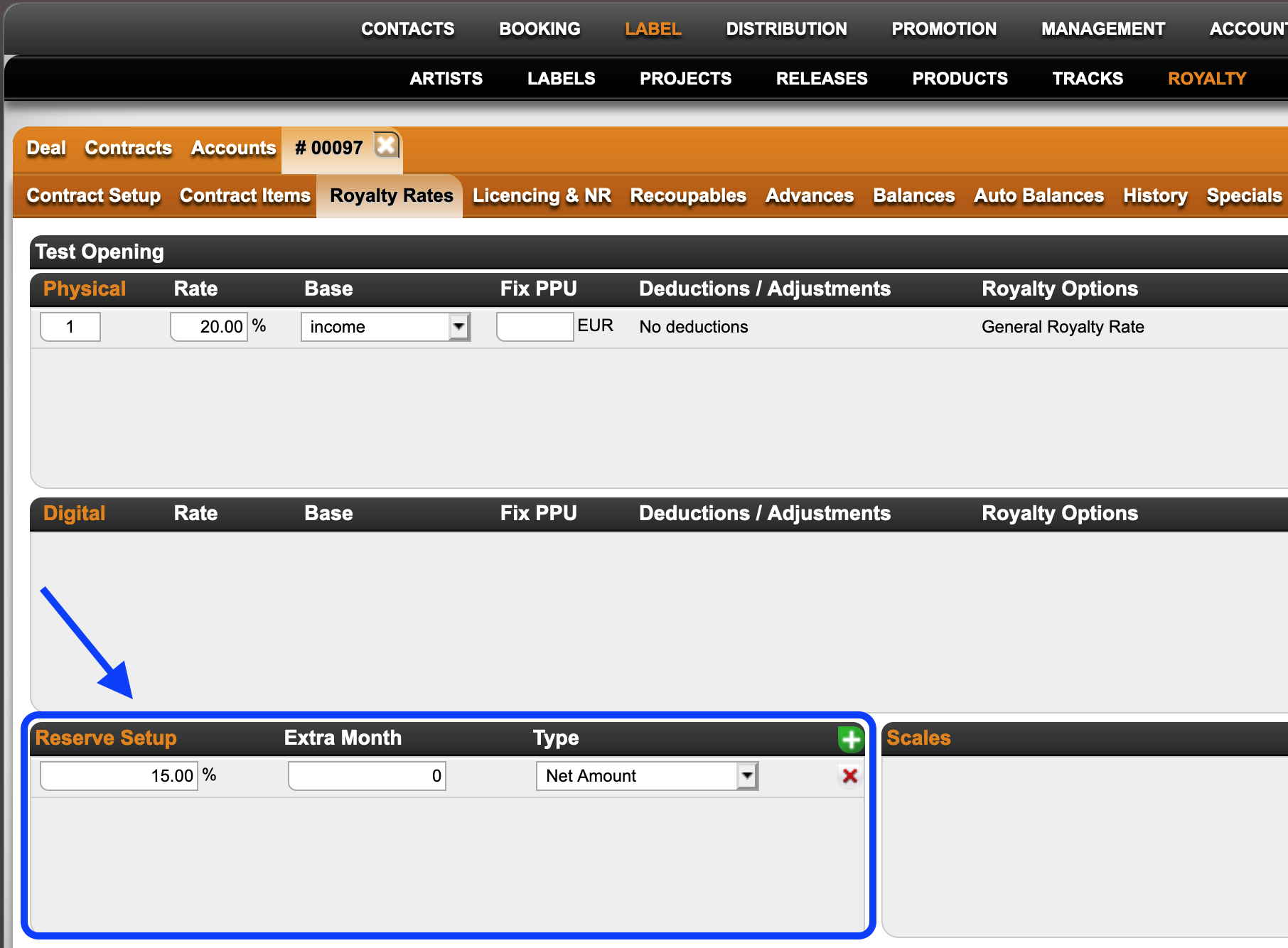
In details you can set up return reserves in your royalty CONTRACT on LABEL / ROYALTY.

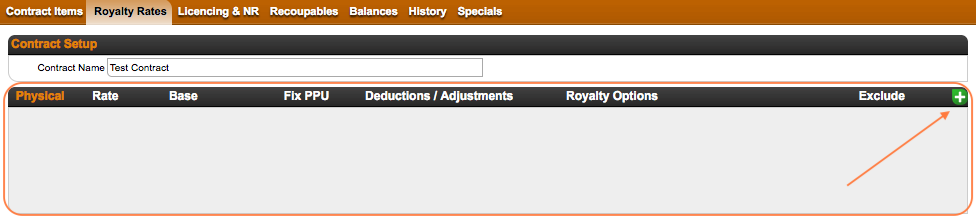
1) Select the royalty contract and go to the subtab Royalty Rates.
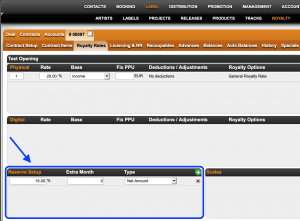


2) Click the green [+] icon to add a reserve and add your reserve percentage and type of reserve you want to add it to.

Catalog No will calculate the reserve to selected products only
Net Amount will calculate the reserve to all physical products included in the specific royalty contract

details will create a return reserve in the current royalty period and by default release it in the next.
 
Extra Month will add additional time to this rule.
NOTE : As this is easy to misinterprete, please read the instructions at the end of this article if you want to apply this option.


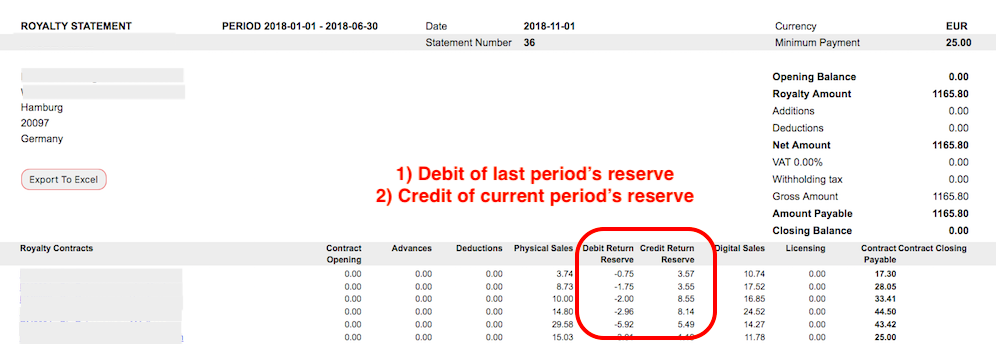
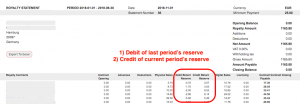
3) The reserves and credits of past reserves will be listed on the royalty statement accordingly.


How to apply the Extra Month option:


Royalty Periods can be
monthly = period of 1x month
quarterly = period of 3x months
semester = period of 6x months


IF X is current royalty period, then next period X+1 is
X + 1 month for monthly
X + 3 months for quarterly
X + 6 months for semester


details will create a Return Reserve in X and by default release it in X+1
=> the setting for the default is EMPTY or 0 Extra Months
so
M1 => M2 for monthly
Q1 => Q2 for quarterly
H1 => H2 for semester


If you are setting Extra Months they will be applied ON TOP of X +1


(1) example “shift”
for use of Extra Month to shift a return release 3 months into the future
M1+ 3 => M4 for monthly
Q1+ 3 => Q3 for quarterly (Q2 plus three additional months on top)
H1+ 3 => H2 + 3 month = effectively next H1 for semester (3 months does not make sense)


(2) example “split”
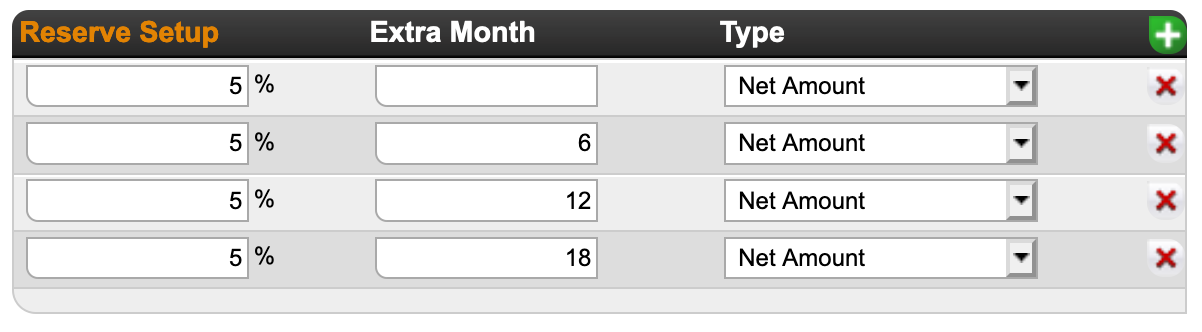
for use of Extra Month to split a 20% return release into 4 parts over 4 periods

The contract clause at the beginning of this article withheld a percentage (20%) of royalty earnings (not income) in the current royalty period and plans to pay it out in 4 equal parts of 5% over a period of the 4 following royalty half-year periods (over 2 years in total). The settings in details would be

Bildschirmfoto_2021-02-11_um_19.01.12.png

(3) example “Distribution scenario”
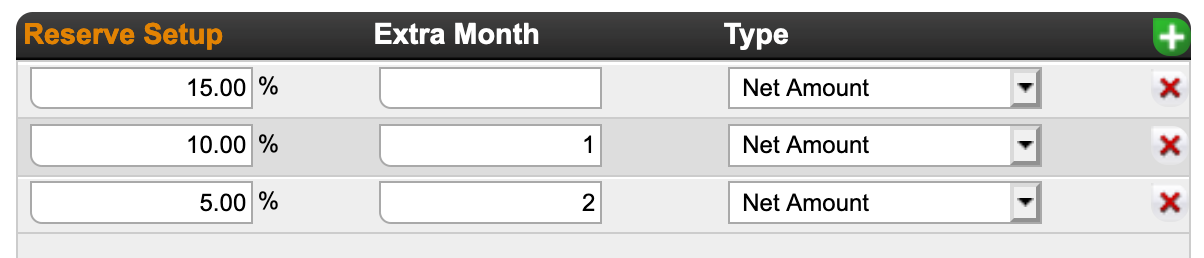
for use of Extra Month set to split a 30% reserve into 3 unequal parts over 3 months :
15% in the next month, 10% the second month and 5% in tthe third month.►

Bildschirmfoto_2021-02-11_um_19.07.27.png


If in doubt, contact our Label Team if you need our help!
 

How to set royalty options for physical sales


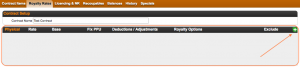
If you want to account physical sales to your royalty accounts, you will need to add one or multiple rules for physical royalty rates. Click the [+] icon on the contract’s Royalty Rate tab.


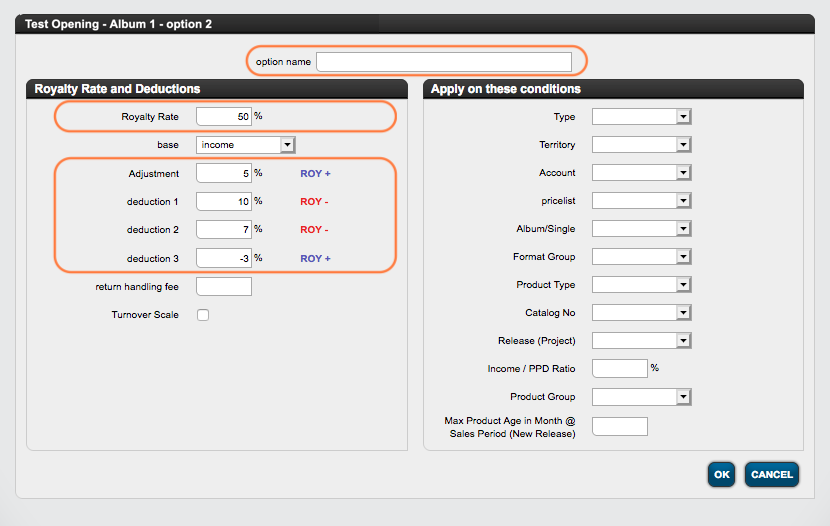
You will see a modal window with multiple options to set your royalty rate etc. for physical sales:

  • First, please give your calculation rule an option name. It helps both you and the artist if you have multiple royalty rules.

  • Then, of course, the most important information is the royalty rate on the top left of the modal window. This is the multiplier that is negotiated in contracts with rights holders.
    NOTE that the rate you enter here is the rate that your Royalty Account is supposed to receive as per contract (not your own share!).

  • Another important factor for the royalty calculation is the accounting base. This can be either the income, the retail price, thePublished Price of the Distributor (PPD) or any of the other
    options in details.

  • There are also options to add deductions to the royalty rate on the fields Deduction 1, Deduction 2, Deduction 3 and Adjustments. When a deduction/adjustment is applied, you will see whether it is added to or subtracted from the royalty rate, depending on the sign of the deduction/adjustment.
    NOTE : While the deductions are displayed to the royalty owner in his statement, an adjustment remains undisclosed. An adjustment is therefore a percentage based reduction of the royalty calculation without any indication in the statement.

  • Return handling fees are a more traditional deduction from royalties. Those are fixed amounts deducted per unit returned, i.e. 0.50  per unit.

On the right-hand side of the modal window, you can define the conditions for which the current calculation rule will apply. Find out more about the available conditions here!
Think of the conditions as a filter that triggers the application of the current rule.


IMPORTANT NOTE : If you have more than one royalty option in one contract, please be aware that the calculation in details starts with the first rule and then continues with 2,3, etc. until the last one – the general royalty rule, which catches all sales that do not fall into any of the previous options.


Setting Contracts with Mid-Price / Budget Price Conditions

The concept of “Mid-Price” / “Budget Price” harks back to a time when the music industry primarily relied on physical formats for sales, and retail price reductions needed to be factored into royalty calculations, typically based on PPDs (Published Price to Distributors), to avoid high royalty payments on low sales revenues. The idea was that royalties would be reduced with deductions if the actual achieved prices were less than a third, a half, or a quarter of the listed PPDs. Although somewhat outdated, this concept still finds application in retail today and in legacy contracts.

In DETAILS, we offer a solution that follows this logic in royalty calculations based on a ratio between a fixed Product PPD, set in the product itself, and imported prices obtained through sales imports. Users can establish calculation conditions where a certain deduction or royalty rate applies if the ratio between the fixed product PPD and achieved prices falls below a certain threshold.

The deduction rules can be combined with other royalty conditions.


Here are a few examples:

Base :
The fixed PPD of a product must be configured in the product details in CATALOG / PRODUCTS


Example 1:
The regular FULL PRICE condition is defined by default in the physical royalty settings.
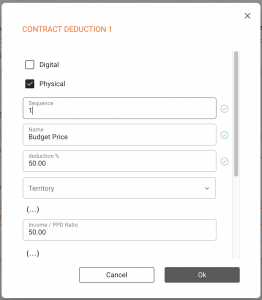
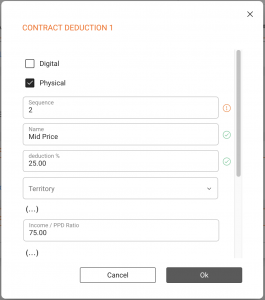
The “Mid Price” and “Budget Price” reductions can be defined a “Contract Deductions”, appearing in the royalty reporting as Deduction 4 or 5.

A reduction of 25% if the applied if prices fall below 75% of the PPD for MID PRICE
A eduction of 50% if the applied if prices fall below 50% of the PPD for BUDGET PRICE.


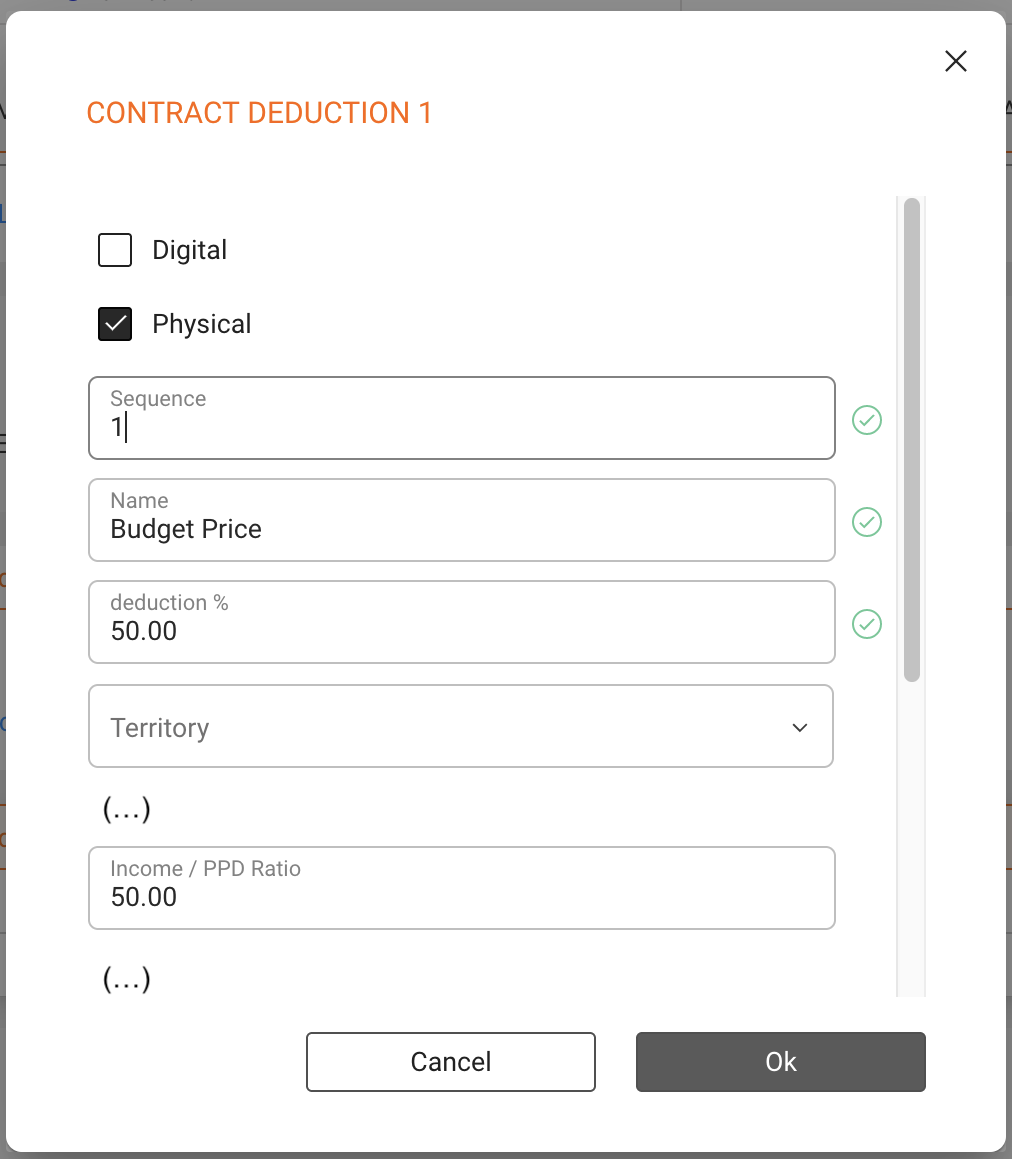
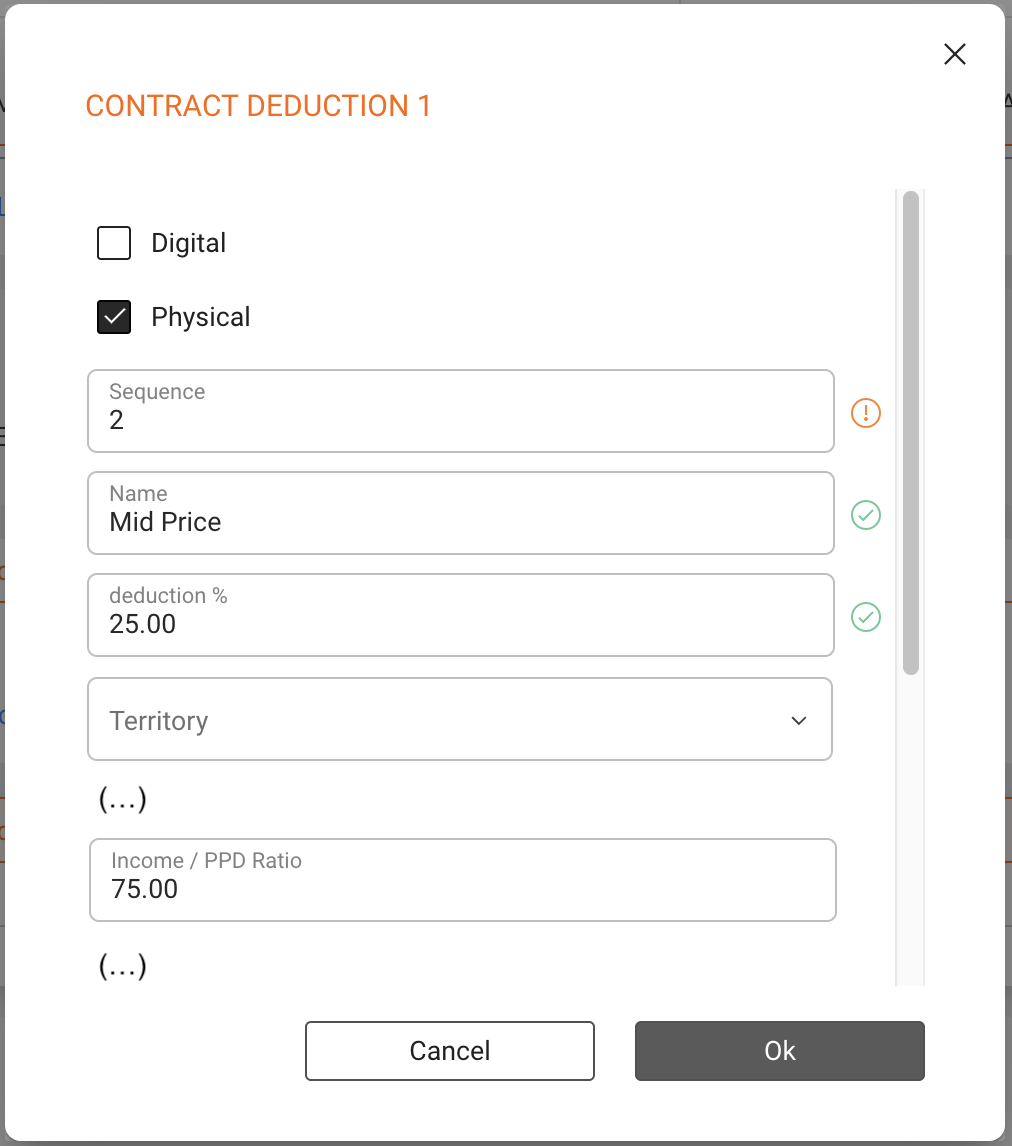
Contract Deduction:
(1) Budget Price: 50.00% reduction when Income/PPD Ratio < 50.00
(2) Mid Price: 25.00% reduction when Income/PPD Ratio < 75.00

Note : It is important that the rule for the budget price is placed earlier in the sequence than the rule for the mid price, so that it applies first when prices are as low.

Mid : Budget in Contract Deduction.png

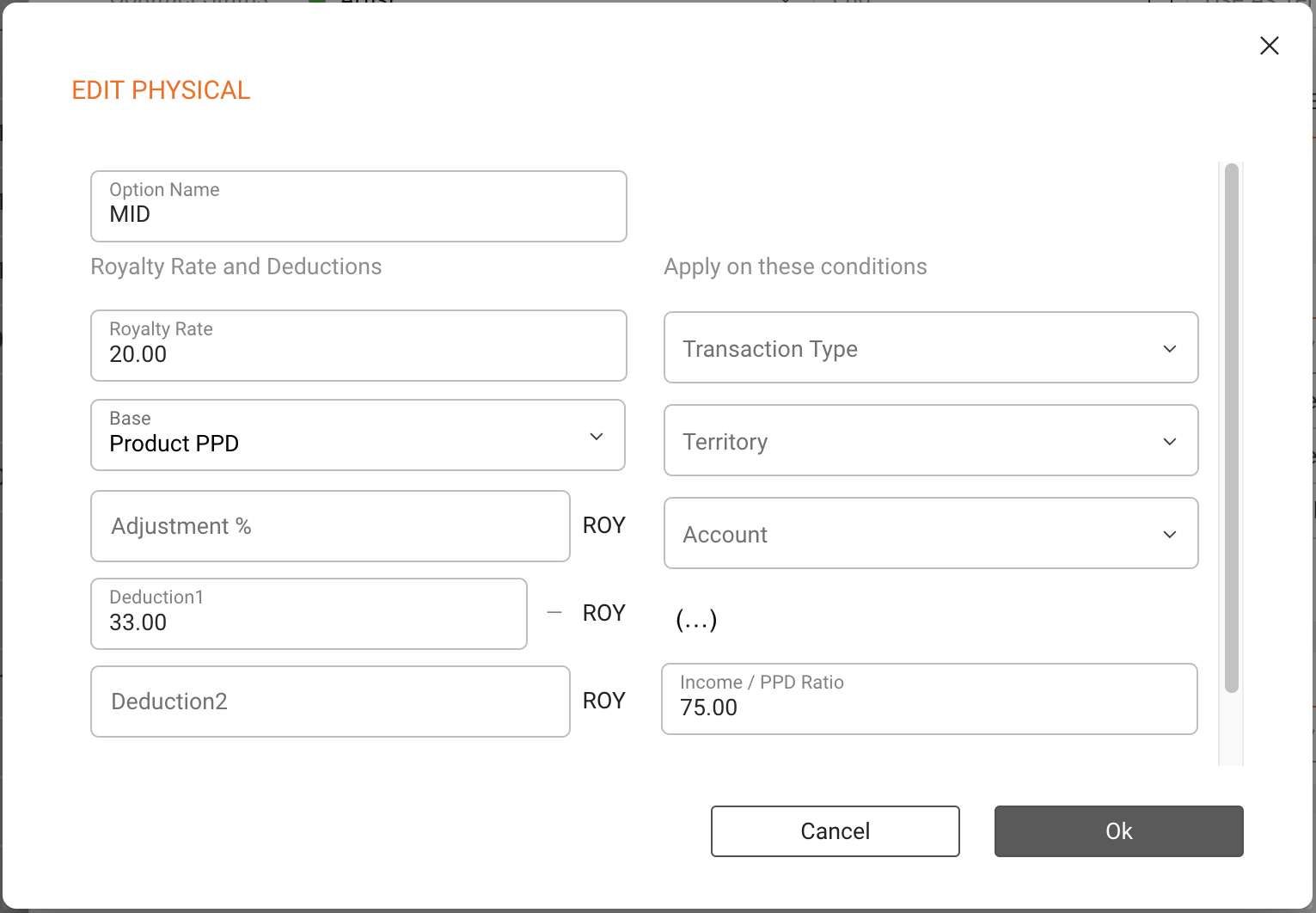
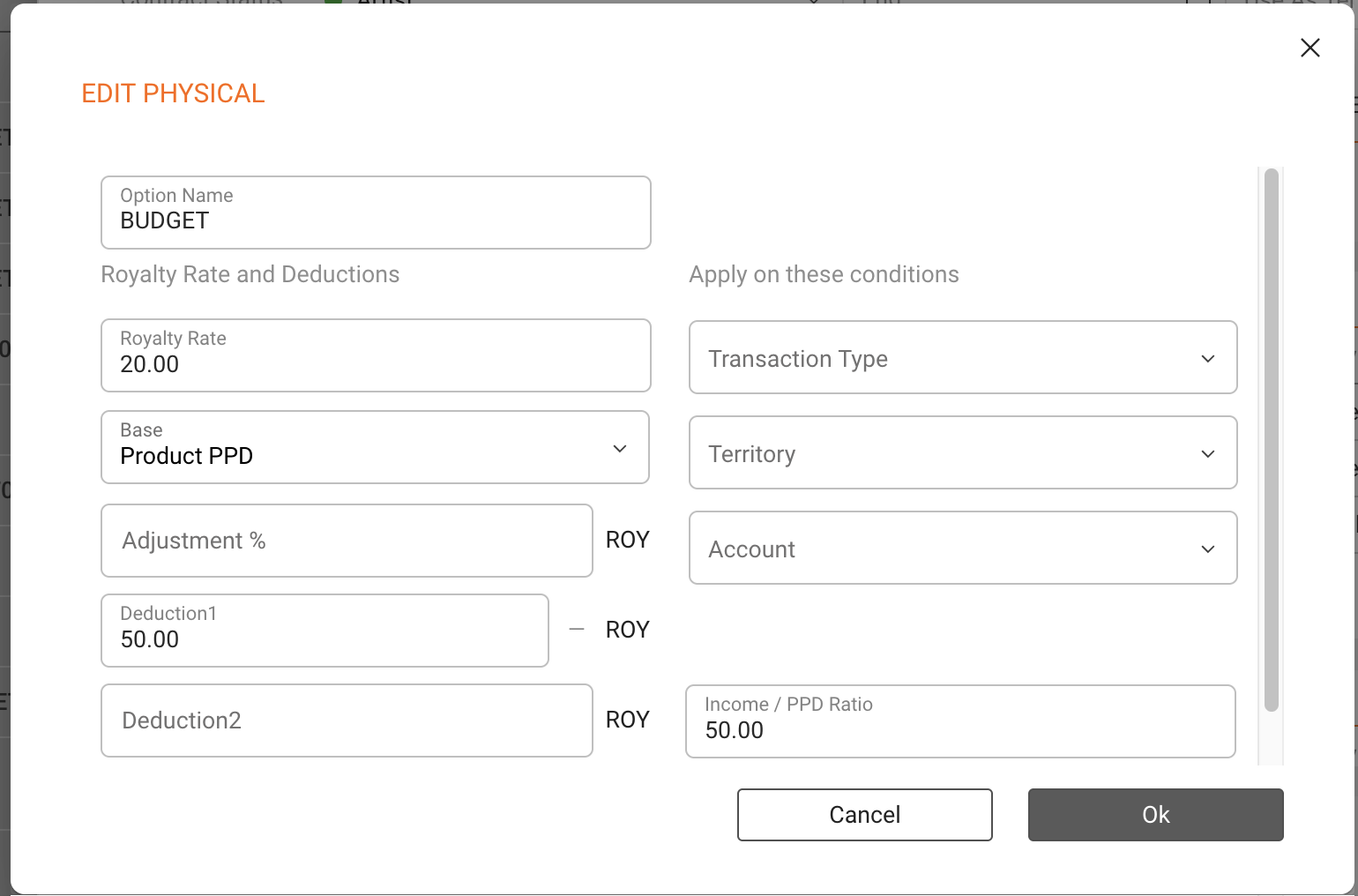
Example 2 (Setup within physical product rules):

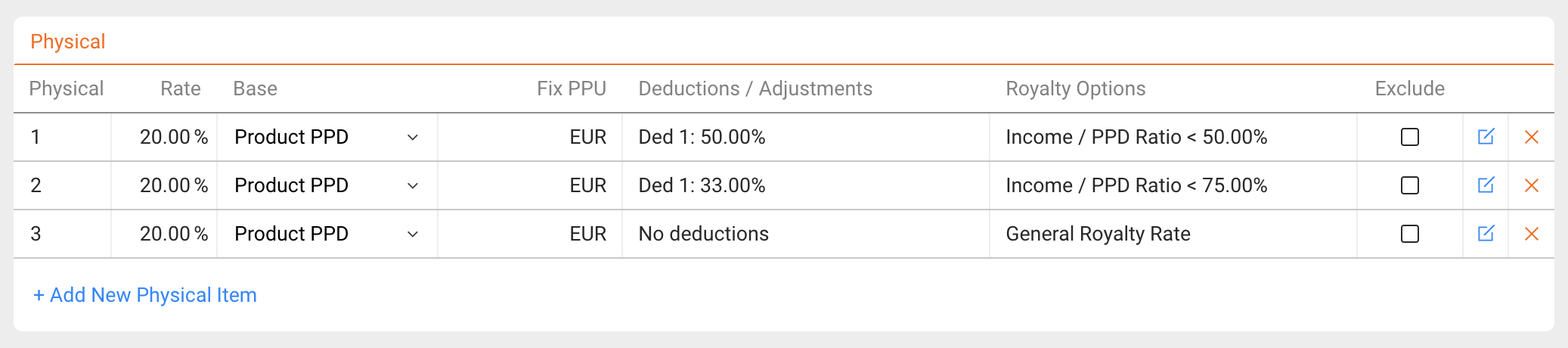
Setting up 3 rules for BUDGET PRICE, MID PRICE, and FULL PRICE (general royalty rate):
(1) Deduction of 50% is applied if prices fall below 50% of the PPD.
(2) Deduction of 33% is applied if prices fall below 75% of the PPD.
(3) No deduction if prices remain up to 75% of the PPD.

MID price.pngBudget Price.pngbudget mid full.png

How to set Return Reserves

Reserves Against Returns
or “Return Reserves” are a certain amount of physical records or percentage of royalties (from physical sales) which are withheld off the top from the artist by the record label to guard against the label paying royalties on physical records that may be returned by retailers in the future.

The reserves are based on clauses you may find in Artist Contracts such as

“Label shall have the right to establish a royalty reserve against anticipated returns and credits, of up to twenty (20%) percent of the royalty earnings associated with the units of each Record reported as distributed to its customers in that period. Each royalty reserve shall be liquidated equally and in full over the four (4) semi-annual accounting periods following the accounting period during which the applicable reserve is originally established.” *see the end of this article for corresponding settings in details


In details you can set up return reserves in your royalty CONTRACT on LABEL / ROYALTY.

1) Select the royalty contract and go to the subtab Royalty Rates.


2) Click the green [+] icon to add a reserve and add your reserve percentage and type of reserve you want to add it to.

Catalog No will calculate the reserve to selected products only
Net Amount will calculate the reserve to all physical products included in the specific royalty contract

details will create a return reserve in the current royalty period and by default release it in the next.
 
Extra Month will add additional time to this rule.
NOTE : As this is easy to misinterprete, please read the instructions at the end of this article if you want to apply this option.


3) The reserves and credits of past reserves will be listed on the royalty statement accordingly.


How to apply the Extra Month option:

Royalty Periods can be
monthly = period of 1x month
quarterly = period of 3x months
semester = period of 6x months

IF X is current royalty period, then next period X+1 is
X + 1 month for monthly
X + 3 months for quarterly
X + 6 months for semester

details will create a Return Reserve in X and by default release it in X+1
=> the setting for the default is EMPTY or 0 Extra Months
so
M1 => M2 for monthly
Q1 => Q2 for quarterly
H1 => H2 for semester


If you are setting Extra Months they will be applied ON TOP of X +1

(1) example “shift”
for use of Extra Month to shift a return release 3 months into the future
M1+ 3 => M4 for monthly
Q1+ 3 => Q3 for quarterly (Q2 plus three additional months on top)
H1+ 3 => H2 + 3 month = effectively next H1 for semester (3 months does not make sense)

(2) example “split”
for use of Extra Month to split a 20% return release into 4 parts over 4 periods

The contract clause at the beginning of this article withheld a percentage (20%) of royalty earnings (not income) in the current royalty period and plans to pay it out in 4 equal parts of 5% over a period of the 4 following royalty half-year periods (over 2 years in total). The settings in details would be

(3) example “Distribution scenario”
for use of Extra Month set to split a 30% reserve into 3 unequal parts over 3 months :
15% in the next month, 10% the second month and 5% in tthe third month.


If in doubt, contact our Label Team if you need our help!
 

How to set royalty options for physical sales


If you want to account physical sales to your royalty accounts, you will need to add one or multiple rules for physical royalty rates. Click the [+] icon on the contract’s Royalty Rate tab.


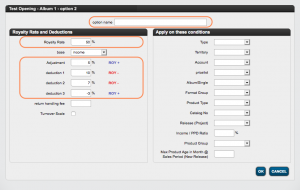
You will see a modal window with multiple options to set your royalty rate etc. for physical sales:

  • First, please give your calculation rule an option name. It helps both you and the artist if you have multiple royalty rules.

  • Then, of course, the most important information is the royalty rate on the top left of the modal window. This is the multiplier that is negotiated in contracts with rights holders.
    NOTE that the rate you enter here is the rate that your Royalty Account is supposed to receive as per contract (not your own share!).

  • Another important factor for the royalty calculation is the accounting base. This can be either the income, the retail price, thePublished Price of the Distributor (PPD) or any of the other
    options in details.

  • There are also options to add deductions to the royalty rate on the fields Deduction 1, Deduction 2, Deduction 3 and Adjustments. When a deduction/adjustment is applied, you will see whether it is added to or subtracted from the royalty rate, depending on the sign of the deduction/adjustment.
    NOTE : While the deductions are displayed to the royalty owner in his statement, an adjustment remains undisclosed. An adjustment is therefore a percentage based reduction of the royalty calculation without any indication in the statement.

  • Return handling fees are a more traditional deduction from royalties. Those are fixed amounts deducted per unit returned, i.e. 0.50  per unit.

On the right-hand side of the modal window, you can define the conditions for which the current calculation rule will apply. Find out more about the available conditions here!
Think of the conditions as a filter that triggers the application of the current rule.


IMPORTANT NOTE : If you have more than one royalty option in one contract, please be aware that the calculation in detYils starts with the first rule and then continues with 2,3, etc. until the last one – the general royalty rule, which catches all sales that do not fall into any of the previous options.


Setting Contracts with Mid-Price / Budget Price Conditions

The concept of “Mid-Price” / “Budget Price” harks back to a time when the music industry primarily relied on physical formats for sales, and retail price reductions needed to be factored into royalty calculations, typically based on PPDs (Published Price to Distributors), to avoid high royalty payments on low sales revenues. The idea was that royalties would be reduced with deductions if the actual achieved prices were less than a third, a half, or a quarter of the listed PPDs. Although somewhat outdated, this concept still finds application in retail today and in legacy contracts.

In DETAILS, we offer a solution that follows this logic in royalty calculations based on a ratio between a fixed Product PPD, set in the product itself, and imported prices obtained through sales imports. Users can establish calculation conditions where a certain deduction or royalty rate applies if the ratio between the fixed product PPD and achieved prices falls below a certain threshold.

The deduction rules can be combined with other royalty conditions.


Here are a few examples:

Base :
The fixed PPD of a product must be configured in the product details in CATALOG / PRODUCTS


Example 1:
The regular FULL PRICE condition is defined by default in the physical royalty settings.
The “Mid Price” and “Budget Price” reductions can be defined a “Contract Deductions”, appearing in the royalty reporting as Deduction 4 or 5.

A reduction of 25% if the applied if prices fall below 75% of the PPD for MID PRICE
A eduction of 50% if the applied if prices fall below 50% of the PPD for BUDGET PRICE.


Contract Deduction:
(1) Budget Price: 50.00% reduction when Income/PPD Ratio < 50.00
(2) Mid Price: 25.00% reduction when Income/PPD Ratio < 75.00

Note : It is important that the rule for the budget price is placed earlier in the sequence than the rule for the mid price, so that it applies first when prices are as low.


Example 2 (Setup within physical product rules):

Setting up 3 rules for BUDGET PRICE, MID PRICE, and FULL PRICE (general royalty rate):
(1) Deduction of 50% is applied if prices fall below 50% of the PPD.
(2) Deduction of 33% is applied if prices fall below 75% of the PPD.
(3) No deduction if prices remain up to 75% of the PPD.