Licensing in details Overview

This article explains the structure and purpose of LABEL / LICENSING in details.

Licensing applies when you own the rights and license them to third parties (e.g. compilations, sync, territory deals). Royalties apply when you license music from others and owe them payments.

► ROYALTIES VS LICENSING

In details, we clearly separate two business perspectives:

  • ROYALTIES  You license music from rights holders and pay them.
  • LICENSING  You license music to third parties and receive income.
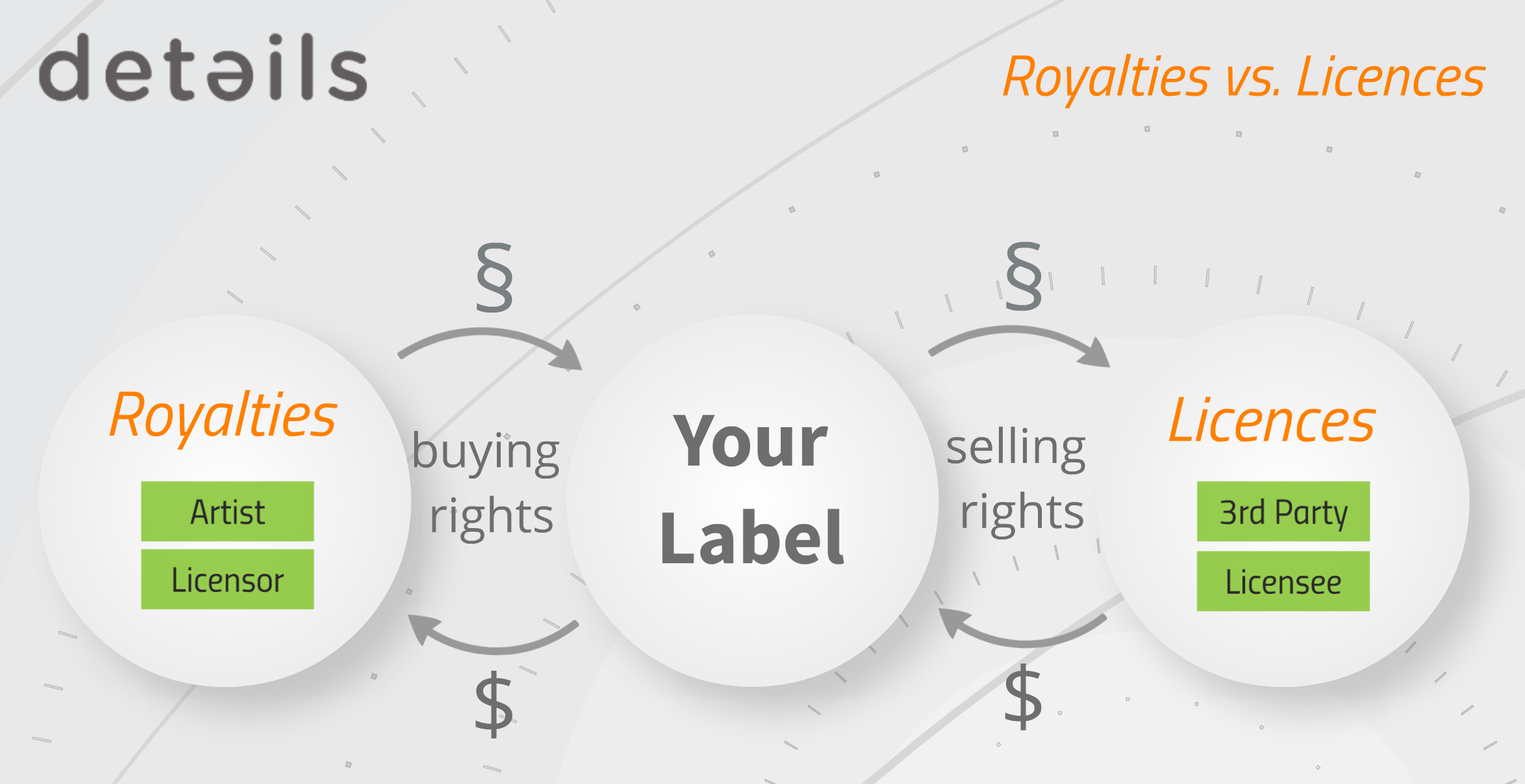
Licensing therefore focuses on managing your licensees, the agreements with them, and the income generated from those agreements.

► WHERE TO FIND LICENSING

Go to LABEL / LICENSING.

The section is structured around:

  • Licence Accounts your business partners (licensees)
  • Licences the individual agreements
  • Invoices financial execution of those agreements

Licensing in details is organized account-first: a Licence Account can contain multiple Licences and related Invoices.

► ASSET-BASED LICENSING

In V2, licences are no longer limited to individual tracks.

You can license:

  • Single Tracks
  • Entire Products
  • Complete Releases

This allows you to handle:

  • Sync deals
  • Compilation placements
  • Territory sub-licensing
  • Project-based brand or campaign deals

Asset selection automatically connects the licensed repertoire with the relevant Royalty Accounts.

► HOW LICENSING CONNECTS TO ACCOUNTING & ROYALTIES

Licensing is not only contract management. It is a bridge between:

  • Catalog (Tracks / Products / Releases)
  • Accounting (Invoices & Payments)
  • Royalty Accounting (Royalty Statements)

The basic flow is:

  1. Create a Licence
  2. Add Income
  3. Create an Invoice
  4. Mark the invoice as PAID
  5. The Payment Date determines the royalty period
  6. Income is distributed to the linked Royalty Accounts

Only paid licence income becomes relevant for royalty statements. The payment date defines the accounting period.

► WORKFLOW & REPORTING

Each Licence includes:

  • OVERVIEW deal setup and terms
  • TASKS internal workflow management
  • ASSETS licensed repertoire
  • INCOME financial entries

Reporting is available via:

  • Standard Excel Exports
  • Plugins (custom SQL-based reports on request)
  • Licence Reminders for overdue statements

Licensing in details is designed as a structured deal management system that connects legal agreements, financial execution, and royalty distribution in one workflow.

details Pricing Update 2026 for Booking

Since 2024, we have been actively working on integrating AI into details in a meaningful and practical way.

Our goal is to make a complex platform like details more efficient for both you and our team. We developed ways for our customized detailsGPT to understand the application from the inside and the outside, and trained it on real issues, workflows and support requests we have received over the years.

As this system has matured, most routine questions and configuration topics in BOOKING can now be resolved instantly inside the app.

Because of this shift, we are now able to adjust the Booking-Only pricing model starting 01 2026:

  • 59/month → 49/month
  • 590 → 490 per year (annual subscription)

All prices are net of VAT.

How Booking Support Works Going Forward

The following support model applies exclusively to Booking-Only users and Booking-related support topics.

To keep subscription costs low while maintaining reliable support, we are introducing an AI-first workflow for Booking:

When you need help with Booking, please first consult detailsGPT inside the application. In most cases, you will receive an answer immediately.

If detailsGPT cannot resolve your Booking-related issue, you can email booking_team@details.eu and we will assist you at no charge (if the request is within reasonable limits). Template-related issues are not included in free support.

Important: Booking support requests submitted directly without first consulting detailsGPT will be billed if the issue is already covered by the assistant.

What Does Not Change

  • Human support remains available.
  • Complex or exceptional issues are handled personally.
  • Annual subscription discounts remain unchanged.
  • The Booking-Only module scope remains the same.
  • Support for other modules remains billed according to existing agreements.

This adjustment reflects how the platform has evolved. Automation allows us to reduce recurring costs while focusing human support where it is truly needed.

Booking is only the first step. We are continuing to expand AI-supported workflows across reporting, contracting, and other operational areas inside details.

If you have questions about this update, please reach out to us.

Setting Up Your details Account

Create Your details Account

This guide explains how to create your new details account and set up your database correctly from the beginning.

Important: Some decisions made during sign-up—especially your database name and business currency—have long-term implications. Please choose carefully.

1. Start the Sign-Up Process

Go to www.details.eu and click Sign Up in the top-right corner.

Follow the guided steps to create your database.

2. Choose Your Database Name

Your database name becomes part of your login URL and all shared links.

Your login URL will look like this:

https://app.details.eu/YOUR_DATABASE_NAME/v2/#/main/login

  • Keep it short and easy to remember
  • Use your brand name where possible
  • Avoid using your full legal company name

This name will also appear on royalty statements, contract links, and shared documents.

Once you have chosen the name, confirm by checking I understand.

3. Select Your Business Currency

Your Business Currency becomes your system currency.

  • Income, costs, and royalties are converted into this currency by default
  • Invoices can still be created in other currencies

Note: Changing the system currency later can be complex. Choose the currency you primarily work with.

4. Upload Your Logo

You can upload your company logo during setup or later in Settings.

  • Format: PNG
  • Use a transparent background
  • Recommended size: 300 × 120 px
  • Use a light version of your logo for better visibility on dark backgrounds

5. Create Your User Account

Enter the following information:

  • Email address
  • Language
  • Password

Password Requirements

  • At least one letter
  • At least one uppercase letter
  • At least one number
  • At least one special character: ~ ! @ # $ % ^ & * - _ = . ; : '
  • Minimum 8 characters

6. Choose Your Plan Options

Booking Only

Select Booking Only if you only need access to the following areas:

  • Contacts
  • Booking
  • Accounting
  • Settings

Annual Payment

Select Annual Payment to receive 12 months for the price of 10.

7. Select Your Support Package

Choose the onboarding support level that best fits your needs:

  • Essential Package – Basic template and training support
  • Professional Package – Extended template and training support
  • Premium Package – Full onboarding support
  • No Support – Future support will be billed at the standard rate

Support packages are available as a one-time onboarding option.

8. After Sign-Up

Once the process is complete:

  • Your database is active
  • Your login URL is ready to use
  • You can begin adding catalog, contracts, and sales data

If you selected a support package, onboarding will be scheduled with you.

Royalty Accounts Explained


Royalty Accounts represent the partners who receive statements and payments related to your catalog in details.

Depending on your business model, these may be royalty statements for rights holders or revenue statements for distribution clients.

These statements may relate to different types of rights, such as master recording rights, performance rights, or publishing rights.

In other royalty systems this entity may be referred to as a payee, licensor, or rights holder.
In details, all of these roles are represented by a Royalty Account.

A royalty account therefore represents the person or organisation that is financially entitled to receive revenue generated by catalog assets such as songs, tracks, products, or releases.

Royalty Accounts group all contracts, statements, and balances for the same partner in one place, making it easier to track financial results and generate royalty statements.

Note: Royalty Accounts are used by labels and publishers managing licensing relationships, as well as by distributors providing distribution services. In all cases, the royalty account represents the entity that receives statements and payments.

► WHERE TO FIND ROYALTY ACCOUNTS

Navigate to ROYALTY / ROYALTY ACCOUNTS to view the list of all royalty accounts.

From this list, you can:

  • create a new royalty account
  • search and filter existing accounts
  • select an account to view its details
  • delete accounts if necessary

Selecting a royalty account opens its configuration and financial information.

► WHAT A ROYALTY ACCOUNT REPRESENTS

A royalty account represents the partner who receives revenue generated from the exploitation of catalog assets.

Typical examples include:

  • artists
  • labels
  • producers
  • publishers
  • managers
  • distribution clients

For labels and rights owners, royalty accounts usually represent licensors who have granted rights to recordings or compositions.

For distributors, royalty accounts represent the artists or labels that receive revenue collected from streaming services, download stores, or other distribution channels.

Regardless of the business model, the royalty account represents the partner who ultimately receives the financial results of the catalog.

► ROYALTY ACCOUNT STRUCTURE

When you select a royalty account, several tabs allow you to manage the financial relationship with that partner.

SETUP

The SETUP tab contains the main configuration of the royalty account.

This section allows you to configure:

  • royalty account name and status
  • royalty period
  • minimum payout amount
  • account base
  • royalty project configuration
  • main contact information
  • tax parameters
  • royalty dashboard users

CONTRACTS

The CONTRACTS tab lists all royalty contracts assigned to the account.

Contracts define how revenue from catalog assets is converted into royalties and which assets are included in the calculation.

STATEMENTS

The STATEMENTS tab contains all statements generated for the selected account.

Statements summarize the financial activity for each royalty period.

BALANCES

The BALANCES tab displays financial adjustments related to the royalty account.

Balances may include:

  • advances
  • recoupable costs
  • return reserves
  • carried-forward balances
  • royalty adjustments

These balances influence the final amount payable to the partner.

► RELATIONSHIP BETWEEN ROYALTY ACCOUNTS AND CONTRACTS

Royalty accounts and royalty contracts serve different purposes.

Royalty Account = who receives the payment
Royalty Contract = how the payment is calculated

Multiple contracts may be assigned to a single royalty account. All royalties generated by those contracts are collected within the same account and included in the same statements.

This structure allows details to calculate royalties across multiple catalog assets and agreements while keeping financial reporting organised per partner.

Managing Shares Users & Access (details User Guide)


This guide explains how to create, manage, and control access to .shares users in details.

In details, access to .shares is always managed by you as the client.

Users who access the dashboard are called External Users. These are typically artists, managers, labels, or other partners who need to view royalty statements and analytics.

External Users only have access to .shares and cannot access the main details application.

As a details user, you are responsible for:

  • Creating and managing External Users
  • Controlling which royalty accounts they can access
  • Ensuring that access is granted only to the right people

This setup gives you full control over sensitive financial data and how it is shared.

Note: External users cannot create accounts themselves. Access is always created and controlled by the details client.

► CREATE AND MANAGE SHARES USERS

You can create and manage users directly inside a royalty account.

Where to find it

Go to ROYALTY / SELECTED ROYALTY ACCOUNT and open Royalty Dashboard Users.

Create a new user

  1. Click [+ Add Shares User]
  2. Enter the name and check if the user already exists
  3. If not, add an email address
  4. Send the invitation

If the user already exists, you can directly link them to the royalty account.

You can also edit or remove users at any time from this section.

► VIEW ALL SHARES USERS

To see all users across all royalty accounts, go to:

SETTINGS / EXTERNAL USERS

Here you can:

  • View all existing users
  • See which royalty accounts they are linked to
  • Edit or remove access

► PASSWORD MANAGEMENT

Passwords are always defined by the external user.

This means:

  • You cannot see user passwords
  • You cannot set or change passwords for users

If a user forgets their password, they can reset it themselves:

  1. Click Reset Password on the login page
  2. Enter username or email
  3. Follow the link received by email

► INVITATION & INITIAL PASSWORD

The invitation is mainly used for the first access to .shares.

When sending an invitation:

  • An initial password is automatically generated
  • The user receives login details by email
  • The user is prompted to change the password immediately

Important: The initial password is sent by email and should not be used permanently.

Every time you send a new invitation:

  • The current password is overwritten
  • A new initial password is generated

Only use the invitation for the first setup or if access needs to be reset.

► TROUBLESHOOTING

User did not receive invitation

You can resend the invitation, but keep in mind that this will overwrite the current password.

Anything else

If you encounter any issue, please contact label_team@details.eu.