Overview on 01 2026 Update

01 / 2026 Product Update

The first Update in 2026 update brings a set of important improvements across details, focusing on automation, clarity, and easier everyday workflows.

Below is an overview of what s new with links to detailed guides where available.


E-Invoicing

details now supports the creation of electronic invoices.

You can generate:

  • Structured XML invoices (EN 16931 / PEPPOL-compatible)
  • PDF/A invoices with embedded XML (Factur-X / ZUGFeRD)

This allows you to stay compliant with current and upcoming e-invoicing requirements while continuing to work with familiar invoice layouts. For more information, see E-Invoicing in details.


Spotify Catalog Import

Several new tools have been added to CATALOG MANAGEMENT, focusing on faster setup and easier cleanup of existing catalogs.

You can now import catalog data directly from Spotify:

  • Digital releases, products, and tracks
  • Full metadata and artwork

This is ideal for onboarding new catalogs or filling gaps in existing data. For more information, see How to Import Your Catalog from Spotify and the Spotify Import Interface Overview .


Move Products Between Releases

You can now move a product from one release to another using a controlled and validated workflow.

This helps fix catalog structure issues safely for example when a product was assigned to the wrong release. For more information, see How to Move Products Between Releases.


New MERLIN Sales Importers

Four new automated MERLIN DSS formats have been added:

  • MERLIN Tencent (TME)
  • MERLIN Twitch (TWI)
  • MERLIN Lickd (LIC)
  • MERLIN Rythm (RHM)

With these additions, details now supports a total of 33 automated MERLIN sales ingestions.

This completes coverage of the standard MERLIN delivery formats and further reduces the need for manual sales handling.


Video Catalog Imports from IDOL

To close a previous gap, details now allows the import of video metadata from IDOL.

Video products delivered via Labelcamp can now be imported and managed consistently alongside audio releases, improving catalog completeness.


Improved Confirmation Workflow for Multiple Sales Statements

The Current Statements box now includes additional filter controls, making it easier to:

  • Narrow down visible statements
  • Focus on specific periods, currencies or accounts

This is a small UI change with a big impact on day-to-day navigation.


Contract Item Exports

New export options make it easier to extract contract item data for internal reviews. You can export Excel sheets per contract or per royalty account, including all related items such as releases, products, and tracks.


If you have questions or would like a walkthrough of any new feature, feel free to reach out to us at label_team@details.eu or booking_team@details.eu.

Billing in details: Where to find invoices and manage your billing details

This article explains how billing works in details, where you can find your invoices, and how to update your billing and payment information.

Who is this for?
This article is written for clients of details who want to access their invoices or manage their billing information.

► WHERE TO FIND YOUR DETAILS INVOICES

Whenever details charges you for subscriptions, support, or additional services, the invoice is always available directly inside the application.

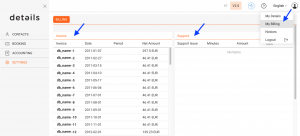
In Version 2, you can find all billing invoices under:

  • DOCUMENTS / BILLING
  • or via the profile icon (top right) ► My Invoices

The billing overview lists all invoices with their invoice date, billing period, and net amount.

To retrieve invoices:

  • Click an individual invoice number to view it
  • Or select one or multiple invoices and use [Download PDFs] to download them directly as PDF files

This allows you to download several invoices at once without using your browser s print function.

► WHAT DETAILS BILLS FOR

details provides several types of services that may appear on your invoices.

  • Platform usage
    Ongoing access to the platform and its modules, billed monthly or annually depending on your subscription.
  • Support & onboarding services
    Assistance with data migration, setup, training, or ongoing support.
  • Custom development & plugins
    Additional features or integrations developed specifically for your needs.

Pricing, billing cycles, and available plans may vary. For the current and authoritative pricing information, please refer to:

www.details.eu

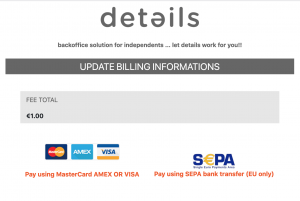
► UPDATE PAYMENT INFORMATION

details uses a certified external payment provider to process automatic billing securely.

For security reasons:

  • Your payment details are not stored inside details
  • The details team has no access to your credit card or bank account information
  • Please never send payment details by email

To update your payment information:

  1. Go to DOCUMENTS / BILLING
  2. Click [Edit Payment Info]
  3. You will be redirected to the secure payment interface where you can update your card or SEPA mandate

Changes apply immediately and will be used for the next billing run.

► UPDATE YOUR INVOICE ADDRESS

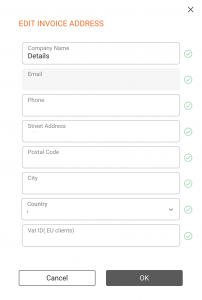
In Version 2 of details, you can update your invoice address directly in the app. This allows you to keep your legal and billing information up to date without contacting support.

To update your invoice address:

  1. Go to DOCUMENTS / BILLING
  2. Click [Edit Invoice Address]

You can update:

  • Company or legal entity name
  • Street, postal code, city, and country
  • VAT number (if applicable)

Important:
Changes to the invoice address only apply to future invoices. Already issued invoices cannot be changed for legal and accounting reasons.

► BILLING CYCLES & PAYMENTS

Billing is handled automatically based on your subscription and usage.

  • Monthly billing is charged after the end of the respective usage month
  • Annual subscriptions are billed upfront and may include discounted terms
  • Support and custom services are billed after the service has been delivered

If you have questions about a specific invoice or billing position, please contact the details support team with the invoice number for reference.

Licensing in details Overview

This article explains the structure and purpose of LABEL / LICENSING in details.

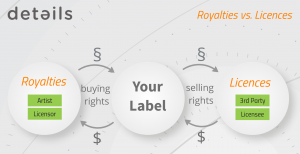
Licensing applies when you own the rights and license them to third parties (e.g. compilations, sync, territory deals). Royalties apply when you license music from others and owe them payments.

► ROYALTIES VS LICENSING

In details, we clearly separate two business perspectives:

  • ROYALTIES  You license music from rights holders and pay them.
  • LICENSING  You license music to third parties and receive income.

Licensing therefore focuses on managing your licensees, the agreements with them, and the income generated from those agreements.

► WHERE TO FIND LICENSING

Go to LABEL / LICENSING.

The section is structured around:

  • Licence Accounts your business partners (licensees)
  • Licences the individual agreements
  • Invoices financial execution of those agreements

Licensing in details is organized account-first: a Licence Account can contain multiple Licences and related Invoices.

► ASSET-BASED LICENSING

In V2, licences are no longer limited to individual tracks.

You can license:

  • Single Tracks
  • Entire Products
  • Complete Releases

This allows you to handle:

  • Sync deals
  • Compilation placements
  • Territory sub-licensing
  • Project-based brand or campaign deals

Asset selection automatically connects the licensed repertoire with the relevant Royalty Accounts.

► HOW LICENSING CONNECTS TO ACCOUNTING & ROYALTIES

Licensing is not only contract management. It is a bridge between:

  • Catalog (Tracks / Products / Releases)
  • Accounting (Invoices & Payments)
  • Royalty Accounting (Royalty Statements)

The basic flow is:

  1. Create a Licence
  2. Add Income
  3. Create an Invoice
  4. Mark the invoice as PAID
  5. The Payment Date determines the royalty period
  6. Income is distributed to the linked Royalty Accounts
Only paid licence income becomes relevant for royalty statements. The payment date defines the accounting period.

► WORKFLOW & REPORTING

Each Licence includes:

  • OVERVIEW deal setup and terms
  • TASKS internal workflow management
  • ASSETS licensed repertoire
  • INCOME financial entries

Reporting is available via:

  • Standard Excel Exports
  • Plugins (custom SQL-based reports on request)
  • Licence Reminders for overdue statements

Licensing in details is designed as a structured deal management system that connects legal agreements, financial execution, and royalty distribution in one workflow.

details Pricing Update 2026 for Booking

Since 2024, we have been actively working on integrating AI into details in a meaningful and practical way.

Our goal is to make a complex platform like details more efficient for both you and our team. We developed ways for our customized detailsGPT to understand the application from the inside and the outside, and trained it on real issues, workflows, and support requests we have received over the years.

As this system has matured, most routine questions and configuration topics in Booking can now be resolved instantly inside the app.

Because of this shift, we are now able to adjust the Booking-Only pricing model starting January 2026.

Booking-Only Pricing Update

Subscription type Previous price New price from January 2026
Monthly subscription €59/month €49/month
Annual subscription €590/year €490/year

All prices are net of VAT.

How Booking Support Works Going Forward

The following support model applies exclusively to Booking-Only users and Booking-related support topics.

To keep subscription costs low while maintaining reliable support, we are introducing an AI-first workflow for Booking.

  1. When you need help with Booking, please first consult detailsGPT inside the application.
  2. In most cases, you will receive an answer immediately.
  3. If detailsGPT cannot resolve your Booking-related issue, you can email booking_team@details.eu and we will assist you at no charge, provided the request is within reasonable limits.

Important: Booking support requests submitted directly without first consulting detailsGPT will be billed if the issue is already covered by the assistant.

Template-related issues are not included in free support.

What Does Not Change

  • Human support remains available.
  • Complex or exceptional issues are handled personally.
  • Annual subscription discounts remain unchanged.
  • The Booking-Only module scope remains the same.
  • Support for other modules remains billed according to existing agreements.

This adjustment reflects how the platform has evolved. Automation allows us to reduce recurring costs while focusing human support where it is truly needed.

Booking is only the first step. We are continuing to expand AI-supported workflows across reporting, contracting, and other operational areas inside details.

Royalty Accounts Explained


Royalty Accounts represent the partners who receive statements and payments related to your catalog in details.

Depending on your business model, these may be royalty statements for rights holders or revenue statements for distribution clients.

These statements may relate to different types of rights, such as master recording rights, performance rights, or publishing rights.

In other royalty systems this entity may be referred to as a payee, licensor, or rights holder.
In details, all of these roles are represented by a Royalty Account.

A royalty account therefore represents the person or organisation that is financially entitled to receive revenue generated by catalog assets such as songs, tracks, products, or releases.

Royalty Accounts group all contracts, statements, and balances for the same partner in one place, making it easier to track financial results and generate royalty statements.

Note: Royalty Accounts are used by labels and publishers managing licensing relationships, as well as by distributors providing distribution services. In all cases, the royalty account represents the entity that receives statements and payments.

► WHERE TO FIND ROYALTY ACCOUNTS

Navigate to ROYALTY / ROYALTY ACCOUNTS to view the list of all royalty accounts.

From this list, you can:

  • create a new royalty account
  • search and filter existing accounts
  • select an account to view its details
  • delete accounts if necessary

Selecting a royalty account opens its configuration and financial information.

► WHAT A ROYALTY ACCOUNT REPRESENTS

A royalty account represents the partner who receives revenue generated from the exploitation of catalog assets.

Typical examples include:

  • artists
  • labels
  • producers
  • publishers
  • managers
  • distribution clients

For labels and rights owners, royalty accounts usually represent licensors who have granted rights to recordings or compositions.

For distributors, royalty accounts represent the artists or labels that receive revenue collected from streaming services, download stores, or other distribution channels.

Regardless of the business model, the royalty account represents the partner who ultimately receives the financial results of the catalog.

► ROYALTY ACCOUNT STRUCTURE

When you select a royalty account, several tabs allow you to manage the financial relationship with that partner.

SETUP

The SETUP tab contains the main configuration of the royalty account.

This section allows you to configure:

  • royalty account name and status
  • royalty period
  • minimum payout amount
  • account base
  • royalty project configuration
  • main contact information
  • tax parameters
  • royalty dashboard users

CONTRACTS

The CONTRACTS tab lists all royalty contracts assigned to the account.

Contracts define how revenue from catalog assets is converted into royalties and which assets are included in the calculation.

STATEMENTS

The STATEMENTS tab contains all statements generated for the selected account.

Statements summarize the financial activity for each royalty period.

BALANCES

The BALANCES tab displays financial adjustments related to the royalty account.

Balances may include:

  • advances
  • recoupable costs
  • return reserves
  • carried-forward balances
  • royalty adjustments

These balances influence the final amount payable to the partner.

► RELATIONSHIP BETWEEN ROYALTY ACCOUNTS AND CONTRACTS

Royalty accounts and royalty contracts serve different purposes.

Royalty Account = who receives the payment
Royalty Contract = how the payment is calculated

Multiple contracts may be assigned to a single royalty account. All royalties generated by those contracts are collected within the same account and included in the same statements.

This structure allows details to calculate royalties across multiple catalog assets and agreements while keeping financial reporting organised per partner.

Managing Shares Users & Access (details User Guide)


This guide explains how to create, manage, and control access to .shares users in details.

In details, access to .shares is always managed by you as the client.

Users who access the dashboard are called External Users. These are typically artists, managers, labels, or other partners who need to view royalty statements and analytics.

External Users only have access to .shares and cannot access the main details application.

As a details user, you are responsible for:

  • Creating and managing External Users
  • Controlling which royalty accounts they can access
  • Ensuring that access is granted only to the right people

This setup gives you full control over sensitive financial data and how it is shared.

Note: External users cannot create accounts themselves. Access is always created and controlled by the details client.

► CREATE AND MANAGE SHARES USERS

You can create and manage users directly inside a royalty account.

Where to find it

Go to ROYALTY / SELECTED ROYALTY ACCOUNT and open Royalty Dashboard Users.

Create a new user

  1. Click [+ Add Shares User]
  2. Enter the name and check if the user already exists
  3. If not, add an email address
  4. Send the invitation

If the user already exists, you can directly link them to the royalty account.

You can also edit or remove users at any time from this section.

► VIEW ALL SHARES USERS

To see all users across all royalty accounts, go to:

SETTINGS / EXTERNAL USERS

Here you can:

  • View all existing users
  • See which royalty accounts they are linked to
  • Edit or remove access

► PASSWORD MANAGEMENT

Passwords are always defined by the external user.

This means:

  • You cannot see user passwords
  • You cannot set or change passwords for users

If a user forgets their password, they can reset it themselves:

  1. Click Reset Password on the login page
  2. Enter username or email
  3. Follow the link received by email

► INVITATION & INITIAL PASSWORD

The invitation is mainly used for the first access to .shares.

When sending an invitation:

  • An initial password is automatically generated
  • The user receives login details by email
  • The user is prompted to change the password immediately

Important: The initial password is sent by email and should not be used permanently.

Every time you send a new invitation:

  • The current password is overwritten
  • A new initial password is generated

Only use the invitation for the first setup or if access needs to be reset.

► TROUBLESHOOTING

User did not receive invitation

You can resend the invitation, but keep in mind that this will overwrite the current password.

Anything else

If you encounter any issue, please contact label_team@details.eu.

When Do Recoupable Costs Get Accounted?

If you’ve read our article on the Royalty Account Base for sales, you already know that the when of royalty accounting is a deliberate choice — not something that just happens automatically. Costs and recoupables work differently from sales, but the underlying idea is the same: you are in control of when they land in a royalty period, as long as you understand the logic.

Here’s how it works.


Costs don’t follow the Account Base

The Account Base setting (Sales Period, Invoice Date, Payment Period) on a Royalty Account applies to sales only.

Costs follow their own set of rules, which are based on how you enter or import them — not on invoice or payment dates.

This means two things worth noting upfront: the invoice date and payment date fields on a cost document have no effect on royalty accounting. They’re useful for internal bookkeeping and profit reporting, but details ignores them when assigning a cost to a royalty period.

What matters is how the cost date is handled at the point of entry.


Costs and recoupables — what’s the difference?

In details, costs are expenses you’ve entered in the system — production costs, advances, marketing spend, and so on. A cost becomes a recoupable once it has been accounted against a royalty contract, meaning it will be set off against the royalties owed to that payee.

The royalty period logic described in this article applies to costs at the point of entry into the system — before the recoupable step. Once a cost is accounted as a recoupable on a contract, it carries the royalty date assigned at entry into the royalty statement.


How details determines the royalty date for costs

Option 1 — Costs entered manually

When you enter a cost directly in details — an advance payment, a production cost, a sync fee received — you set a specific date on that line. That date is what details uses as the royalty date. Whatever month you enter, that’s the period it will be recouped in.

This is the most direct form of control: you decide the date, details uses it.

Option 2 — Per line dates in a cost import (System Date)

If you import costs via file upload and the file contains a date per row, importing it as System Date means each line carries its own royalty date. Lines within the same import can land in different royalty periods, which gives you the most granular control for batch insertions.

This is useful when you’re importing a batch of costs that span different periods and want each one to land exactly where it belongs.

If you want to import a date column for reference only — without it affecting royalty accounting — choose “Document Date (info only)” or “Payment Date (info only)” when mapping the import. The date is stored on the line and visible in the system, but details ignores it for royalty purposes.

Option 3 — No date imported (import month default)

If no System Date is imported, details uses the month of the import as the cost date for every line in that batch. An import done in tile 1 applies as January costs, tile 3 as March costs, and so on.

This is the simplest approach and works well for regular, recurring cost imports where the period is obvious from the timing of the import itself.


One more degree of control: overriding the date at recoupment

All of the above determines the royalty date at the point a cost enters the system — either manually or via import. But details gives you one additional opportunity to adjust: when you process recoupables.

In ROYALTY / RECOUPABLES, when you account costs as recoupables against a contract, you can choose a different recoupment date — overriding whatever date was originally assigned to the cost. This is useful when, for example, you want to hold a cost back to a later period or align a batch of recoupables to a specific statement cycle, regardless of when the underlying costs were entered or imported.

This override happens at the recoupment step only. It doesn’t change the original cost date stored on the line — it only affects which period the recoupable is applied to in the statement.


The same logic applies to recoupable income

Costs are the most common item set off against royalties — but details also supports the inverse: additional income that is treated like a recoupable credit.

This covers situations where you receive income that needs to be attributed to a payee — a sponsoring, a grant, or a sync fee, for example. That income is credited against their royalty balance in the same way a cost would be debited.

In details, this is handled as a negative recoupable — and it follows exactly the same royalty period logic as costs. The same rules apply: the date entered manually, the System Date per line, the import month default, and the same forward-shifting behaviour if a statement has already been processed for that payee.


Costs won’t get lost in the past

Here’s the rule that matters most in day-to-day work:

If a royalty statement has already been processed for a payee, that period is locked and won’t accept new recoupables for this specific account. Rather than letting costs disappear unrecouped into a period that’s already closed, details automatically shifts their royalty date forward to the next open period for that payee.

This applies whenever you’re importing costs into a period that already has a statement for a specific payee — even a test run.

A few practical examples of what this means:

  • You import costs dated March, but a Q1 statement has already been calculated for a payee → those costs move to April 1st, into the next available period.
  • You import costs into a past tile → same rule, during the recoupment process details finds the next open period and applies the costs there.

This behaviour is per royalty account. A single cost import could land in March for most payees, but in April for one payee whose Q1 statement was already calculated — even in test mode.

If you want costs to land in March for everyone: make sure no statement has been run for March, Q1, or S1 for any payee before the import. This includes test calculations.


Why this design makes sense

The logic above exists to protect your statements. Once a royalty period is closed for a payee, the numbers shouldn’t change retroactively — that would mean reissuing statements, creating confusion, and potentially triggering disputes. By pushing new costs and recoupables to the next open period, details keeps past statements clean and stable.

It also means you don’t need to be perfectly organised about the order in which you do things. You can import costs at any time; details will place them correctly based on what’s already been processed.


Quick reference

Scenario What happens
Cost entered manually Uses the date entered on the line
System Date imported per line Each line uses its own imported date
No System Date imported All lines use the month of the import
Recoupment date in RECOUPABLES Overrides the original cost date for that recoupable
Period already has a statement for payee Cost / recoupable pushed to next open period (per payee)
Cost invoice date or payment date No effect on royalty accounting
Other income (negative recoupable) Same logic as costs

One practical tip

If you’re doing test runs of statements during setup — which is perfectly reasonable — be aware that even test calculations count as “processed” from details’ perspective. Any cost imports you do after a test run will be pushed to the next period for the affected payees. That’s usually not a problem, but worth knowing before you start.

If you have a complex cost import coming up and you’re not sure how it will be handled, reach out. The details team can help you map the import correctly before anything lands in the wrong period.

Get in touch with the details team →


This article is part of a series on royalty accounting in details.
Previous: When Do Sales Get Reported? Understanding Account Base