Track Interface


In CATALOG / TRACKS, you can manage all tracks in your catalog. Tracks are the final layer in the hierarchy of details:

  • Release the commercial campaign combining multiple products
  • Product the specific format (digital, CD, vinyl, etc.)
  • Track the actual recording, where sales and royalties are calculated

For a track to be royalty-billable, it must always be connected to at least one Product. Tracks without this relation cannot generate statements.
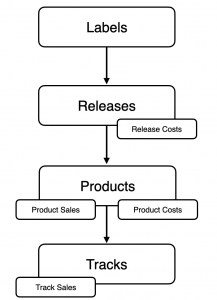
 

► TRACK LIST & NAVIGATION

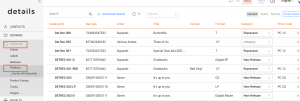
The list in CATALOG / TRACKS is the entry point for managing your catalog. It gives you a full overview of all stored tracks.

Columns & Search

  • Track Title, Version, Artist the visible identification of each track.
  • ISRC the international recording code; every track should have a valid code to be recognized in sales reporting.
  • Main Catalog No – the identifier of the Main Product a track belongs to; required for royalty accounting, as income is only reported when both track and its main product are linked.
  • Licencors – the name of the Royalty Account(s) a track is related to. The Licencors contain the Royalty Contracts that are mandatory for the royalty billing of a track.
  • Track Type defines if the item is an Audio, Video, or Mix.

Search

  • You can search by Title, Version, Artist, or ISRC.
  • The Advanced Search lets you also look for Writers, Publishers, Accounts or Metadata values. Results can be exported into Excel for further use.

Error Indicator (!!!)

Tracks marked with !!! contain errors that must be fixed. Typical causes:

  • Missing or invalid Catalog Number
  • Missing or invalid ISRC

Read more about fixing these errors.
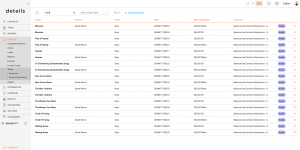
 

► OVERVIEW

The OVERVIEW tab displays all essential metadata of a track.

  • Artist, Title, Version the core identification of the recording. The Version field distinguishes between e.g. Live, Remix or Instrumental versions.
  • ISRC the mandatory international identifier of every recording. Tracks without a valid ISRC cannot be matched correctly in statements.
  • Product / Main Product shows to which product(s) the track is connected. One of these must be defined as the Main Product, otherwise the track is not royalty-billable.
    If sales data does not include a clear product reference (e.g. barcode), the system uses the Main Product as a fallback to ensure the track can still be reported and billed correctly.
  • Type defines the format of the track. Options are:
    • Audio standard sound recording.
    • Video music video or audiovisual version.
    • Mix long continuous recordings, common in electronic music (e.g., DJ mixes of 40+ minutes). This type exists to differentiate such content from standard audio tracks.
  • Playtime displayed in hours, minutes and seconds; this is important for distribution and rights collection.
  • Country indicates Country of Recording at track-level. This is distinct from Country of Origin at release-level, which may be required for registrations (e.g. GVL, GEMA).
  • Language selectable from a predefined list, including dialects and regional variants.
  • Digital Rights – defines how a track can be used in digital distribution.
    • Full Rights: The track can be streamed, downloaded, and sold as a single.
    • Download-only: The track may only be downloaded but not streamed.
    • Bundle-only: The track cannot be sold individually. It can only be purchased as part of an album or compilation.
  • Explicit Lyrics a simple flag that is mandatory for distribution.
  • (P) Year and (P) Line publication year and phonogram line.

Additional Sections

  • Track Credits official credits such as Composer, Writer or Publisher. Credits can be filled in automatically via Default Credits in an ARTIST account.
  • Additional Info non-official credits like remixer or instrumentalist, useful for internal documentation but not part of Label Copy.
  • Related Files upload audio or video files. Storage limits may apply for very large archives.
  • Genres up to four genre slots (two main, two sub genres) can be assigned.

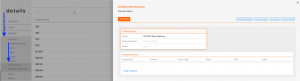
The [Label Copy] button allows you to quickly send an email containing the Overview and Credits of a track.
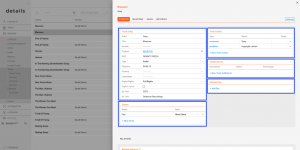
► RELATIONS

The RELATIONS tab lists all items connected to the track.

  • Releases & Products a track can be linked to multiple releases and products. Every track must be connected to a Main Product to be billable.
  • Contracts multiple licensors can be connected. Each relation is tied to a contract and defines the percentage shares. Contract Share shows the distribution of shares across licensors. Always verify that shares add up correctly (should not exceed 100%).
  • Manual Matches manually assigned matches from imports, used when automatic ISRC matching fails. They are read-only in the track view and cannot be created directly here.
  • External IDs IDs from external services (Apple ID, YouTube ID, etc.) used to improve mapping.
  • Licences shows third-party usage, e.g. when the track is part of a sync licence.
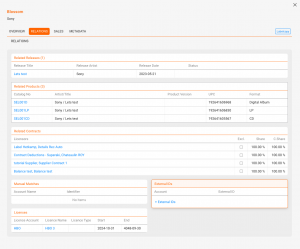
► SALES

The SALES tab displays all sales linked to the selected track.

  • Sales Account the source of the sales data.
  • Statement Reference links the entry to a specific royalty statement.
  • Country sales territory.
  • Quantity & Type number of units sold and the transaction type.
  • PPD, PPU, Cost PU reported prices per unit.
  • Currency currency used in the statement.
  • Total Turnover total value converted to standard currency.

You can filter results by period, sales account, country or transaction type.
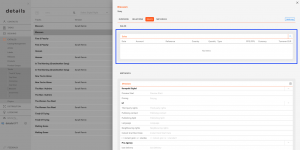
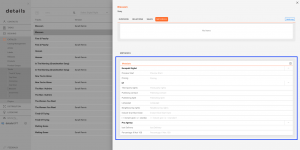
► METADATA

The METADATA tab lets you manage additional fields that go beyond the standard track setup. These fields are often client-specific and can be used for exports, internal IDs, or publisher shares.

If you require additional custom export fields, please contact the details support team.

Related

Product Interface

In the PRODUCTS section, you can manage all items and services that you want to sell or account for physical or digital, musical or not. This includes CDs, LPs, digital albums, merchandise like T-shirts or posters, and even services like mastering or shipping.

To understand how products fit into the overall structure of details, it is important to look at their relationships:

  • Releases are the central unit. Each release belongs to exactly one label.
  • Products are always linked to a release and represent the concrete commercial item (physical or digital). A release can contain multiple products.
  • Tracks are the musical works. Tracks can appear on multiple products (e.g. a track on both a CD and a digital album).
Note: Products can be physical (e.g. vinyl, CDs, box sets) or digital (e.g. download albums, streaming bundles). While they share core properties, some tabs and fields differ depending on the product type.

Each product consists of various details and is structured across multiple tabs. Below, you’ll find an overview of the general layout and the specific functionalities of each tab.

General Layout

► PRODUCT LIST

This is the default view under CATALOG / PRODUCTS and shows all available products in your database.

  • Search by catalog number, artist, title, version, or barcode
  • Advanced Search allows combining fields (e.g. format, label, channel, release date range, categories, price codes, accounts, stock locations) and to export the results as an Excel file.
  • Barcode checks help to identify duplicate UPCs and Catalog Numbers. These are shown by [!!!] and can be filtered separately.

► PRODUCT GROUPS

Product Groups let you organize products into collections (e.g. New Releases , Compilations , Limited Editions ). Groups can be exported as lists, including price lists or metadata sheets, and used for sales materials or newsletters. A product can belong to multiple groups at once.

Product Layout

► OVERVIEW

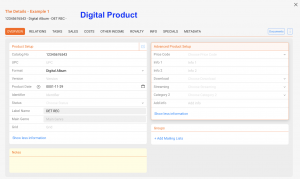
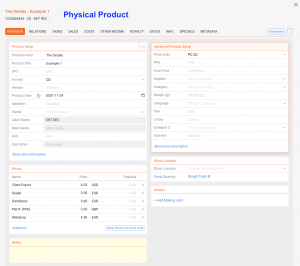
The OVERVIEW tab contains the core setup of a product. While digital and physical products share some common elements, there are also product-type-specific fields and sections.

Product Setup (all products)

  • Catalog No: Internal identifier, often printed on artwork or packaging
  • UPC: Barcode number for distribution and sales matching
  • Format: Defines type of product (e.g. CD, Vinyl, Digital Album), formats are created in SETTINGS / LABEL
  • Version: Differentiates editions (e.g. limited edition, colored vinyl)
  • Product Date: Specific availability date of the product (can differ from Release Date)
  • Identifier: Additional code for internal or accounting purposes
  • Status: Color-coded product status for filtering
  • Label Name: Connected label (redundant, as the release already belongs to one label)
  • Genre: Shown from the related release; can be displayed for quick reference
  • Grid: Optional industry identifier, rarely used outside large distributors
Note: Product Dates are independent of Release Dates. A product can be made available earlier or later than the release (e.g. vinyl shipped earlier to indie stores).

Advanced Product Setup

The advanced setup contains additional parameters for pricing, distribution, and classification. The fields differ slightly between digital and physical products.

Product Setup (digital products)

  • Price Code: Links the product to a predefined price list. Used mainly for auto-filling prices, though often less relevant for digital products.
  • Info 1 / Info 2: Free text fields. Can be used flexibly for internal remarks, marketing notes, or additional classification.
  • Download: Defines if the product is available for download.
  • Streaming: Defines if the product is available on streaming platforms. Often used for compilations where streaming rights are not licensed.
  • Category 2: Secondary categorization for internal structuring, in addition to the main category. Managed in label settings.
  • Add Info: Another free field for internal use (similar to Info 1/2).

Product Setup (physical products)

  • Price Code: Same logic as for digital, but more frequently used for auto-filling physical prices.
  • PPD (Published Price to Dealer): The base price charged to dealers before distribution margins (basis for dealer pricing; differs from PPU shown in the SALES tab).
  • Cost Price: Internal cost or manufacturing price of the product. Useful for profit calculations.
  • Supplier: Defines the supplier or manufacturer (e.g. pressing plant).
  • Category 2: Secondary categorization for internal structuring, in addition to the main category. Managed in label settings.
  • Weight: Physical weight of the product (in grams). Important for shipping and logistics.
  • Language: Relevant for media products such as books, films, or multilingual editions.
  • Size: Physical size (e.g. T-shirt sizes, or package dimensions).
  • Colour: Used for colored vinyl, merchandise variants, or packaging details.
  • Add Info: Additional free text field for custom information.
Note: Not all advanced fields are relevant for both product types. For example, Download and Streaming apply only to digital products, while Weight, Supplier, and PPD are only used for physical products.


Prices (physical only)

Defines sales prices per channel or partner (e.g. Dealer, Distributor, Webshop). Prices can be auto-filled from Price Codes or overridden at product level for exceptions.

Stock Location (physical only)

Shows stock quantities per location. Stock is calculated automatically from manufacturing and sales transactions, not edited manually. Supports multi-warehouse setups and helps optimize logistics.

Note: Inventory shows all units physically available, while Available shows only the unreserved quantity that can still be sold.

Groups & Notes (all products)

  • Groups: Products can be assigned to groups (e.g. for exports, mailing lists, sales campaigns)
  • Notes: Free text field for internal notes and comments

► RELATIONS

Shows the product s connections:

  • Release: Each product is linked to exactly one release
  • Tracklist: Products can contain multiple tracks; bonus tracks can be flagged and are excluded from prorata calculations
  • Playtime: Can differ per product/track relation; the [UPDATE PLAYTIME] button syncs values
  • Manual Matches: Store distributor-specific identifiers for the same product
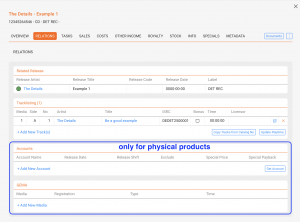
  • Physical Products only: Accounts (special pricing, release shifts, exclusions) and GEMA registrations
Note: Use the bonus flag specifically for tracks that shouldn t participate in revenue shares (e.g. bonus download , hidden tracks). The prorata pool will ignore these tracks; unflag to include them again.


► TASKS

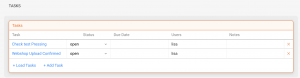
Link tasks to products (e.g. check test pressing, confirm webshop upload). Tasks can be assigned to team members and managed within the product context.
Read more about how Tasks works and how to set it up.

► SALES

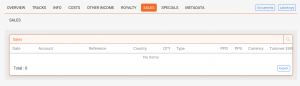
Displays sales data per product, including sales account, quantity, PPD (price to dealer), PPU (net price after distribution fee), turnover, and more. Includes filtering, export options, and links to invoices.

► COSTS

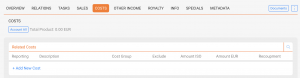
Enter costs manually or import via Excel. Costs can be categorized (e.g. manufacturing, artwork), linked with invoices, and marked as recoupable or excluded for royalty calculations.

► OTHER INCOME

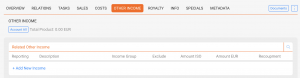
Enter additional revenues such as grants or subsidies. Other income is added to the project balance and shared with artists if defined in contracts.

► ROYALTY

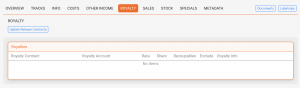
Shows all royalty accounts linked to the product. Displays shares, pro rata allocations, and recoupables. Compilations may include many contracts, while most products have only a few.

► STOCK (only for physical products)

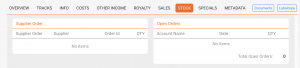
The STOCK tab is available only for physical products. It shows current stock levels, manufacturing orders, supplier deliveries, backorders, and open orders. It helps manage logistics, track inventory, and optimize warehouse flows.

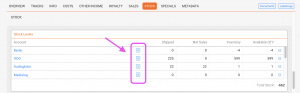
Stock Levels

Displays stock quantities per account or warehouse location. The table shows:

  • Shipped: Total units shipped to the account
  • Net Sales: Units sold after returns
  • Inventory: Physically available units in stock
  • Available Quantity: Units available for sale (inventory minus reserved quantities)
Note: Inventory shows the total units physically present, while Available shows only the unreserved quantity that can still be sold.

Manufacturing

Lists all manufacturing orders linked to this product. Each order includes Order Date, Supplier, Status, and Quantity. Use [ADD NEW MANUFACTURING] to record a new production batch.

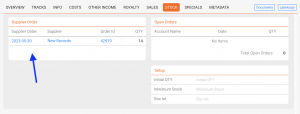
Supplier Orders

Shows orders placed with suppliers (e.g. pressing plants). Supplier orders are displayed while they are open, meaning the goods have not yet arrived and are still in transit.

Once a supplier order is accounted, it is no longer displayed here. At that point, the goods are considered delivered and become part of available inventory.

Backorders

Displays unfulfilled customer orders. Each entry contains Account Name, Date, and Quantity. Use [ADD NEW BACKORDER] to record pending requests.

Open Orders

Lists ongoing product orders that are not yet completed. Each order includes Account Name, Date, and Quantity. Orders can be exported via [Export Excel].

Setup

Defines product-specific stock settings:

  • Total Order Quantity: Aggregated quantity from all open orders
  • Minimum Stock: Threshold to trigger reordering
  • Box Lot: Packaging unit size (e.g. 25 CDs per box, 15 vinyl per box)

These parameters help to plan production, prevent stock-outs, and manage packaging logistics.

Note: Stock data such as levels, orders, backorders, and manufacturing are synchronized with the DISTRIBUTION module. The STOCK tab shows the product-specific perspective of these processes.
Tip: Use detailed stock reports in the STOCK tab to track movements and availability per product and per location.

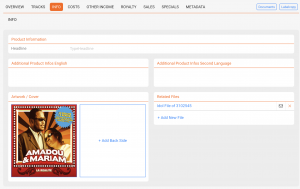
► INFO

Store product descriptions in multiple languages, upload artworks and files. Product-level information overrides release-level information.

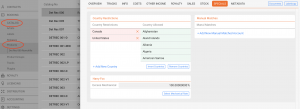
► SPECIALS

Manage country restrictions and special cases (e.g. Harry Fox mechanical rights for the US). These functions are mostly relevant for physical products.

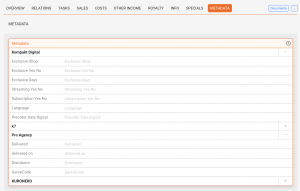
► METADATA

Custom metadata sets can be enabled per customer (e.g. GVL, Publishing, K7). These provide additional text fields for storing client-specific information. Metadata is optional and mainly relevant for specialized workflows.

Note: Availability and naming of metadata fields are configured by our team. Fields are free-text unless otherwise specified.

► TOP-BAR ACTIONS

  • [DOCUMENTS] Opens a list of HTML-based templates configured by details (e.g., one-sheets, product info sheets, manufacturing orders). Preview and export (PDF/CSV/Excel) or copy the rendered document.
  • [►] ► Label Copy Creates a ready-to-send email via your local mail client with a static label copy: product metadata plus the complete track list.
  • [►] ► Stock Move Quickly move on-hand units between stock accounts/warehouses for the selected physical product (decreases the source, increases the destination; no order, no shipping documents, no invoice).

Related

Basic Actions: Artists

This section covers the basic actions you can perform in the CATALOG / ARTISTS list view in details.

► ADD NEW ARTIST

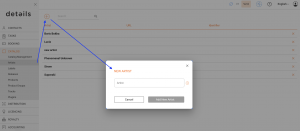
Click the [+] at the top left of the artist list and enter the required information.

► EDIT ARTIST

Click the artist s bold name to open the full artist interface and update any tab.

► DELETE ARTIST

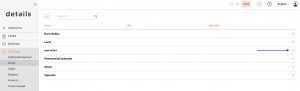
Click the [x] next to the artist s name in the list to remove the entry.

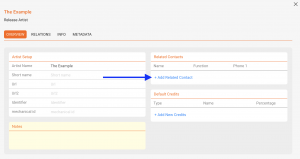
► LINK CONTACTS (MANAGERS & MORE)

Open the artist, then link relevant contacts (e.g., managers) so your team can quickly find key people when working on releases or tasks.
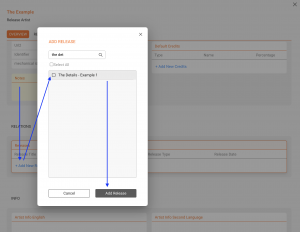
► ADD RELEASE

To create a discography view for better navigation you can link existing releases to the artists by clicking [+ Add New Release].


Note: Artists listed in CATALOG / ARTISTS represent your managed roster. They are not automatically matched with credits on RELEASES, PRODUCTS or TRACKS.

Artist Interface

In the CATALOG / ARTISTS section, you manage the artist roster of your catalog in details. This view focuses on your own label artists (you don t need to add external compilation-only contributors).

► OVERVIEW

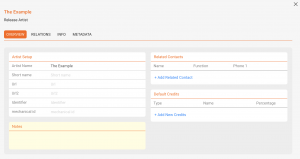
Edit core artist data and manage helpful defaults and context for downstream work.

  • Artist Setup: Set Name and Short Name. Add Web URLs as needed.
    You have also the option to add an Identifier, e.g. the AMG ID.
    The Mechanical ID field allows you to store a registration ID.
  • Related Contacts: Link people like managers or other points of contact for quick reference and navigation.
  • Default Credits: Define typical roles (e.g., Composer, Writer, Publisher) you want to suggest when you later create tracks/releases for this artist.
  • Notes: Keep internal notes such as band members, live musicians, or role details you want your team to see.
Note: Default credits are conveniences for faster data entry; they don t change existing works automatically.


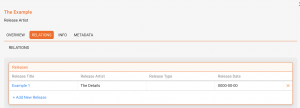
► RELATIONS

See and manage the releases linked to this artist. This creates a lightweight discography view and helps you navigate to related releases quickly.

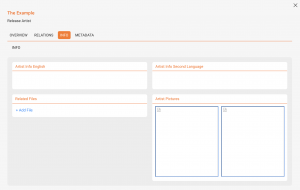
► INFO

Store Biographies, upload Images, and attach Audio/Files that are relevant for your team s workflows.

► METADATA

Maintain distribution- and registration-relevant fields (e.g., Producing Country, SENA Country Number) required by certain collection societies or delivery contexts.

To activate metadata fields contact our team.

How the Catalog works in details

The Catalog is the foundation of repertoire management in details. It combines a music-specific track layer with a highly flexible product model that can represent physical items, digital goods, merchandise, tickets, and even services. This flexibility is a core differentiator from generic ERP systems that usually lack a track level.

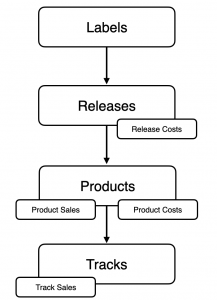
Key idea: Sales happen on Products and Tracks. For reporting, Releases compile these results together with the costs recorded on Releases and Products.

► Catalog hierarchy

Four levels

  1. Labels Host and unite multiple releases. Labels act as the organisational containers at the very top of your catalog structure.
  2. Releases Group products and tracks (albums, EPs, singles, compilations). Releases are organisational bundles and are not sold directly.
  3. Products The sellable items. Formats are configurable and customer-specific: physical (CD, vinyl), digital, web-shop items, tickets, or services (e.g., selling studio/programming time). Every product has a quantity, a price, and ideally an identifier (product code, barcode, catalogue number).
  4. Tracks The music-specific layer for individual recordings (rare in generic ERPs). This enables granular selling and accounting on single tracks.

Because details is product-agnostic, you can model anything you can sell.

► Sales & Costs

Where sales happen

  • Product sales money is exchanged for a product (physical, digital, merch, ticket, service).
  • Track sales money is exchanged for an individual track.

Releases are never sold; they aggregate the sales of their products and tracks for reporting.

Where costs live

  • Release costs expenses affecting the whole release (e.g., artwork, promo agency, video shoot).
  • Product costs expenses tied to a specific product (e.g., manufacturing, stickers, packaging, mechanicals).

► Getting catalog data into details

Entry modes

  • Manual entry add data by hand.
  • Spreadsheet import upload structured tables.
  • Auto-Ingestion automate inbound sales/cost/order data from external sources; this is increasingly emphasised to reduce manual work.

Auto-Ingestion channels

  • Webshops, Bandcamp, iTunes, Amazon, and others.
  • details-to-details Connect automatic transfers when one details account invoices another.

Booking Dashboard

We are excited to introduce the new Dashboard, giving you instant access to key financial data for selected artists and a clear overview of both artist and agent performance at a glance.

You can find the dashboard under the Booking tab in the main menu.

The dashboard helps you review financial activity, compare performance, and filter booking-related data quickly from one central place.

Booking dashboard overview

Enable the Dashboard

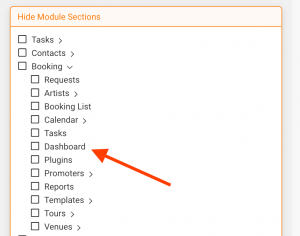
If the dashboard is disabled for your user account, it can be enabled in Settings > User Settings.

Important: This setting can only be changed by users with admin permissions.

To make the dashboard available, go to Settings > User Settings and uncheck the Dashboard box.

Dashboard setting in user settings

Dashboard Filters

You can set filters in the top right area of the dashboard. After selecting your filters, click the Apply Filter button to update the dashboard results.

Filter Available options Purpose
Type Fee, Booking Fee Choose which financial value should be displayed.
Kind Invoice, Payment, Booking Choose the data source or activity type.
Artist Selected artist Filter the dashboard for one specific artist.
User Agent Filter the dashboard by responsible user or agent.

After changing any filter, always click Apply Filter to refresh the dashboard data.

Distribution Accounts Interface


The DISTRIBUTION / ACCOUNTS module contains all partners you work with for physical and/or digital distribution aggregators, logistics partners, individual shops, your own warehouse, and (optionally) artist accounts for tour stock. This article explains the interface and the purpose of each tab.

Distribution Account List

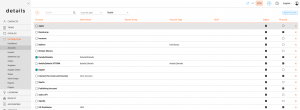
The ACCOUNTS OVERVIEW is the entry point to all distribution partners managed in details. It displays a list of all existing accounts, their status, and essential information at a glance.

  • Navigation: Open via DISTRIBUTION / ACCOUNTS. Use the search bar or filters (by name, account type, or digital/physical channel) to locate specific partners.
  • Clickable Columns: The account name opens its detailed window. The Status color, Currency, or Staff column may also include quick filters or dropdowns.
  • [+]: Creates a new account. Choose between shop, warehouse, distributor, artist, or promo partner during setup.
  • [EXPORT]: Exports the current list view with all visible filters and settings applied.
  • Icons and Links: Each entry includes clickable icons for editing, deleting (depending on permissions), and opening related documents or statements.
  • Account Colors: Color labels help distinguish key partner types (e.g., physical vs. digital). These can be customized in SETTINGS ► ACCOUNTS.

Each account entry serves as a gateway to deeper detail. Clicking the account name opens its dedicated account window with multiple tabs explained below.

Account Window Tabs

Each tab within the account window focuses on a specific area from general setup and catalogue management to financial data, imports, and statements. Together they provide a complete overview of how each partner interacts with your distribution workflows.

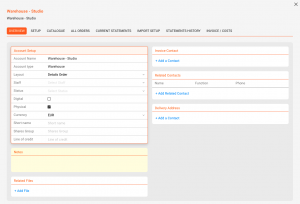
► OVERVIEW

The OVERVIEW tab contains general data for each account.

  • Identity & Billing: Set Account Type, Layout (invoice issuer), Status/Color, assigned Staff, and default Currency.
  • Shortname: Optional short label used in selected UIs and exports.
  • Invoice Contact vs Delivery Address: Choose who receives invoices and where goods are delivered. Delivery addresses appear on shipping and customs documents; both can differ from the office address.
  • Related Contacts: Add additional roles (e.g., Accounting, Logistics, Promo) with phone/email for quick access.
  • Related Files: Upload agreements, logos, price lists, or logistics notes.
  • Line of Credit: Optional credit limit concept for outstanding order value before accepting new orders (rarely used).
  • Shares Group: Groups this account for aggregated views in .shares. Use it to cluster revenue sources (e.g., B2C Webshops , Vinyl Stores , Retail Chains ). In .shares, these groups appear in pie charts and summaries, letting artists and managers see which account clusters contribute what share of revenue over time.

► SETUP

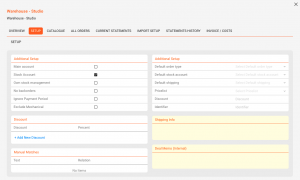
The SETUP tab defines how the account behaves in operations and accounting.

Core switches

  • Main Account: Highlights this account in product stock and sales views to keep it top of mind in daily operations.
  • Stock Account: Tracks stock movements (in/out) for this location. Required for consignment locations and warehouses.
  • Own Stock: Marks accessible locations you can ship from (included in total available stock). Use together with Stock Account for your own warehouses.
  • No Backorders: Prevents automatic carry over of undelivered quantities into the next order.

Advanced options

  • Ignore Payment Period (advanced): For royalty calculations, uses the sales date instead of the payment date, even if the artist s contract is configured to pay on receipt. Typical for large retail chains where payment reliability is assumed; enables reporting and settlements by sales period regardless of when invoices are paid.
  • Exclude Mechanical (advanced): Excludes this account s sales from mechanical rights reporting (e.g., GEMA, Harry Fox). Useful for accounts like promo agencies or artist consignment where mechanical reporting would be inappropriate.

Defaults & pricing

  • Default Order Type: Preselects how orders are booked (e.g., Invoice, Consignment, Return/Credit, Promo). Affects stock and/or value movements.
  • Default Stock Account: Preselects the source warehouse for orders to avoid repetitive selection on every order.
  • Default Shipping: Preselects the usual carrier/service for this account (e.g., UPS, postal service, freight forwarder).
  • Price List (Price Code System): Assign the customer s price list so prices are set automatically on order lines. Without a price list, automatic pricing will not apply.
  • Discounts: Define account specific discounts globally and/or per price code (these stack; e.g., 10% global + 5% on T shirts).
  • Identifier: Optional external shop code (often required by large chains) printed on documents and used in electronic transfers.
  • Manual Matches (read only): Displays learned mapping rules from statement imports, showing how external references map to your product catalog.

► CATALOGUE

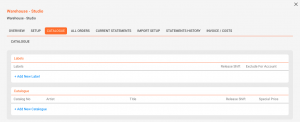
The CATALOGUE tab defines which labels and products are supplied through the account.

  • Add or exclude Labels and assign Release Shifts per label (negative values for early delivery, positive for delayed availability).
  • Add Products and define Special Prices or product specific Release Shifts for this account.

► ALL ORDERS

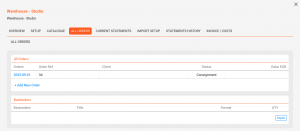
The ALL ORDERS tab lists every order linked to the account.

  • Review current and completed orders; create a new one via [ADD NEW ORDER] (the account and default warehouse are preselected).
  • Track and manage Backorders items previously undeliverable that can now be fulfilled.
  • Export the order list as an Excel file using [EXPORT].

► CURRENT STATEMENTS

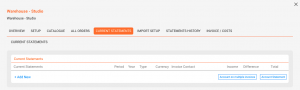
The CURRENT STATEMENTS tab displays recently imported statement files for quick verification prior to reconciliation.

  • Review latest imports for accuracy and completeness of expected fields.
  • Use this view for a fast sanity check after each upload.

► IMPORT SETUP

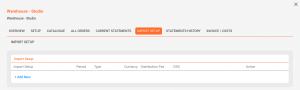
The IMPORT SETUP tab allows configuration of importers for different data types. Each importer appears in DISTRIBUTION / IMPORTS and defines the source, format, and currency for incoming data.

  • Create importers for Digital Sales, Physical Sales, Costs, Performance Income, and Other Income.
  • Use this area to assign formats, currencies, and import sources. Over time, manual product mappings become Manual Matches and will auto apply in future imports.

► STATEMENTS HISTORY

The STATEMENTS HISTORY tab lists all previously imported statement records for long term reference and audits.

  • View older statement versions and cross check invoice numbers and related uploads.

► INVOICE / COSTS

The INVOICE / COSTS tab provides an overview of financial documents linked to the account.

  • Review all invoices and cost entries connected to this partner.
  • Use this section for reconciliation and cross checking against imported financial data and credit notes.

Sales Imports – Interface


The Sales Imports section in details is the central workspace for importing, monitoring, and managing all incoming sales statements. It connects your distribution accounts with imported statements and provides a clear overview of your digital and physical revenue streams.

Tip: Each tile in this interface represents one Import Setup. You can create, track, and confirm sales statements directly from here.

OVERVIEW

Go to DISTRIBUTION / IMPORTS in the main navigation. The page displays a grid of tiles that represent your import setups per distributor, period, and currency.

Each tile corresponds to one importer and sales period. From here, you can upload files, view automated ingestions, or check already confirmed statements.

COLOR & STATUS INDICATIONS

The color of each tile indicates the import s current status:

Color Status Meaning
Yellow Expected An import setup exists, but no statement has been uploaded or received yet.
Orange Matching Incomplete A file has been uploaded, but the line matching is incomplete and has to be finished manually before the next steps can be taken.
  Matching Complete A file has been uploaded, and line matching is complete, but the import is not yet confirmed.
Green Confirmed The import has been verified and accounted. The statement is now linked to an invoice.
Blue Auto-Import Available An Import is available via auto-ingestion, if configured.
Red Double-accounted Imported statement was accounted twice. Delete both related invoices and re-account.
Grey Not expected No statement expected for this period.

ACCESSING IMPORT DETAILS

Click on any tile to open the corresponding side panel. From there, you can:

  • See the import summary and statement period
  • Open the related invoice or delete the import if needed
  • Trigger automated ingestion processes (if configured)

NAVIGATION STRUCTURE

Inside each Distribution Account you ll find tabs that help manage related import settings:

  • Current Statements All active sales imports
  • Import Setup Configuration for automated or manual imports
  • Archived Statements Confirmed and accounted historical imports

Explained: Distribution Dashboard

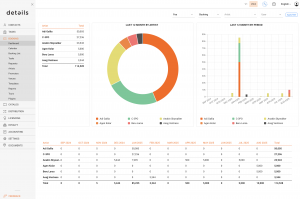
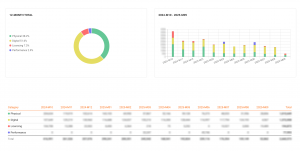
The Distribution Dashboard in details gives you a quick, visual overview of your distribution revenue performance across the last twelve months. It is designed as a high-level report that helps you identify trends and evaluate total sales without diving into individual transactions.

Note: The Distribution Dashboard shows net revenue that means sales after returns and before taxes. It focuses on physical and digital sales channels, and may also include Licensing or Performance data when available.

Data Source

The dashboard is automatically populated from your imported data in DISTRIBUTION / IMPORTS and DISTRIBUTION / ORDERS. There is no manual input required. The values reflect all confirmed and imported sales from your connected distribution accounts.

Visualization

The Distribution Dashboard presents your net revenue in three visual formats:

  • Pie chart: shows the overall revenue distribution across channels (digital, physical, etc.).
  • Monthly table: displays exact values for each of the twelve months.
  • Bar chart: provides a color-based monthly comparison for easier trend recognition.

These elements together offer both numeric and visual perspectives of your revenue trends.

Interaction

The dashboard is a fixed report it cannot be edited or customized. There are no filters, sliders, or settings. Categories only appear if data exists for them; empty categories remain hidden.

Use Cases

The Distribution Dashboard helps you quickly understand sales performance across your physical and digital channels. It is ideal for label managers or teams who want to monitor growth, detect drops, and track consistency month by month. For in-depth analyses or transaction details, refer to DISTRIBUTION / IMPORTS or DISTRIBUTION / REPORTS.

Note: The dashboard updates automatically as new imports are processed. If a recent month shows lower numbers, it may simply mean that not all sales have been imported yet.

E-Invoices in Details


E-Invoicing in Details

E-invoicing is becoming the new standard across Europe. Many countries now require invoices to follow the EN 16931 data model and to be exchanged in a structured format such as PEPPOL BIS 3.0. This allows accounting systems, public institutions, and tax authorities to process invoices automatically without manual entry.

Details stays fully within its functional scope: you can continue creating invoices exactly the way you always have. Nothing about your workflow changes. The platform simply adds the ability to export invoices in official, compliant e-invoice formats.

  • a validated PDF/A-3 invoice, a human-readable hybrid format, known as Factur-X1.07 (France) and ZUGFeRD 2.3 (Germany), and
  • a compliant PEPPOL BIS 3.0 XML file (machine-readable EU standard).

The PDF and XML contain the same invoice information and follow all applicable European requirements, including VAT classification rules (standard VAT, reverse charge, export). This ensures that your invoices can be uploaded into modern accounting platforms or shared with business partners.

Important: Before exporting e-invoices, you need to review your invoice layout once to complete the mandatory issuer fields. After that, every invoice created from that layout is automatically e-invoice ready.

Below you will find an overview of what Details covers in the context of e-invoicing, and how to prepare, export, validate, and distribute your invoices.

► Scope of E-Invoicing in details

What details covers

Details is a specialized warehouse system for music companies. It manages catalog data, metadata, sales statements, royalty calculations, bookings and invoicing workflows.

Within this scope, Details allows you to create and export e-invoices that meet the legal and technical requirements for small and medium-sized businesses (SMEs) in the EU.

  • Invoices follow the EN 16931 data model
  • Export as PDF/A-3 hybrid invoices (Factur-X / ZUGFeRD)
  • Export as PEPPOL BIS 3.0 XML in CII format (machine-readable EU standard) after modification in your PEPPOL-compatible application
  • Automatic handling of VAT scenarios (standard VAT, reverse charge, export)

The exported files are compatible with modern accounting systems, auditors, and public-sector requirements. details currently focuses on CII as the default XML format; UBL support remains available in the background and will be rolled out if needed.

What details does not cover

Details is not an accounting system and not a PEPPOL access point.

  • Details creates compliant e-invoice files, but does not transmit invoices into the PEPPOL network
  • Tax authority routing, clearance models, or real-time reporting are not handled in Details

If your business needs to send invoices via the PEPPOL network, you must use a PEPPOL access point, typically provided by your accounting software or an external service provider.

Important: Details focuses on compliant invoice creation. Transmission, reporting, and accounting remain the responsibility of your accounting or ERP system.

Optional integrations: Details can be extended to connect directly to specific accounting systems via their APIs in order to transfer e-invoice data automatically.

Such integrations are not part of the standard product and are implemented on request. Development is handled within our programming cost-split model, where interested clients contribute to the initial development costs.

Learn more about how feature developments and custom programming are handled: About feature developments and custom programming

What changes for you

Your invoice creation workflow stays exactly the same. Details simply adds the option to export each invoice as a PDF/A-3 file or a PEPPOL BIS 3.0 XML file (in CII format).

► Preparing Your Invoice Layout

1. Open your layouts

Go to SETTINGS / LAYOUTS. Only administrators can access this section.

2. E-Invoice Status overview

In the layout list, you will see a column called E-Invoice Status. It shows whether the layout currently meets all technical e-invoicing requirements.

  • Valid All mandatory issuer data is complete
  • Invalid Required fields are missing or invalid
  • Unknown Layout has not yet been reviewed

Note: This status is read-only. It does not block invoice creation and does not change your workflow.

3. Complete the issuer fields

Open the tab [E-INVOICE ISSUER] and fill in all mandatory fields:

  • Company name and legal form
  • Full postal address
  • Valid VAT number
  • Email
  • IBAN

► Exporting E-Invoices

Once configured, each invoice can be exported as:

  • PDF/A-3 (hybrid e-invoice)
  • XML (PEPPOL BIS 3.0, CII format)

Both options are available from the invoice view and the invoice list.

► Validating Your E-Invoices

E-invoices generated by Details comply with supported EU standards. If needed, you may validate your files using external validators.

Official EU validator (PEPPOL BIS 3.0 XML)

https://www.itb.ec.europa.eu/invoice/upload

Private validator (PDF/A & hybrid formats)

For Germany : mustangserver.com

For France : facturxapi.com

► Sending Your E-Invoices

Depending on your workflow, you may:

  • send the files directly to the recipient, or
  • upload them into your accounting system and distribute them via the PEPPOL network.

All exported formats follow EN 16931 and are compatible with modern European accounting systems.