Add a QR Code to Your Invoice Layout (for SEPA Payment)

Add a QR Code to Your Invoice Layout (for SEPA Payments)

You can add a SEPA payment QR code to your invoice PDFs. Your customers can scan the QR code with a compatible banking app and automatically import the payment information.

The QR code includes the beneficiary, IBAN, invoice amount and payment reference. It is generated dynamically for each invoice.

Requirements

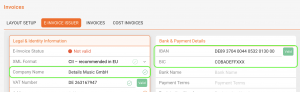
The SEPA QR code uses the payment information already entered in the E-Invoice Issuer section of your Invoice Project.

Open your Invoice Project and make sure that the highlighted E-Invoice Issuer fields contain at least the following information:

  • Beneficiary or account holder name
  • Valid IBAN
  • BIC, where applicable

No separate bank account configuration is required. The same payment details are used for both electronic invoices and SEPA QR codes.
When is the QR code available?

A SEPA payment QR code can be generated when all of the following requirements are met:

  • A beneficiary name is available.
  • A valid IBAN is available.
  • The invoice currency is EUR.
  • The total amount due is greater than zero.
  • The invoice contains a payment reference.

The overall E-Invoice validation status does not determine whether the QR code is generated. Missing information unrelated to the payment, such as a VAT number or company registration number, does not prevent QR code generation.

Add the QR code to your invoice layout

Open the HTML template of your invoice layout and insert the following code where you want the QR code to appear:

<!-- SEPA payment QR code -->
<img
    src="https://YOUR-DETAILS-DOMAIN/accounting.pl?section=invoices&action=generate_sepa_qr_code&invoice_id=[% invoice.DATA.invoice_id %]"
    alt="EPC SEPA payment QR code"
    style="
        display:block;
        width:135px;
        height:135px;
        margin:0 auto;
    "
/>

Replace https://YOUR-DETAILS-DOMAIN with the URL of your details database.

For example:

https://app.details.eu/YOURDATABASE/accounting.pl?section=invoices&action=generate_sepa_qr_code&invoice_id=[% invoice.DATA.invoice_id %]

Example inside an invoice table

The following example places the QR code inside a centered table cell:

<!-- QR code -->
<td style="
    vertical-align:top;
    text-align:center;
    padding:12px 8px;
    border-right:1px solid #000000;
">
    <img
        src="https://YOUR-DETAILS-DOMAIN/accounting.pl?section=invoices&action=generate_sepa_qr_code&invoice_id=[% invoice.DATA.invoice_id %]"
        alt="EPC SEPA payment QR code"
        style="
            display:block;
            width:135px;
            height:135px;
            margin:0 auto;
        "
    />
</td>

You can adjust the width, height, padding and border styles to match your existing invoice design.

Result on the invoice

When the invoice is generated, details creates an individual QR code using the payment information and total amount due from that invoice.

Invoice with SEPA payment QR code

The customer can scan the code with a banking app that supports EPC or SEPA payment QR codes. The following information is then filled in automatically:

  • Beneficiary
  • IBAN
  • BIC, where required
  • Total amount due
  • Invoice reference or remittance information

Important information

SEPA payment QR codes are available for invoices in EUR and bank accounts that support SEPA Credit Transfers.

The feature is not limited to companies located in the European Union. It can also be used by clients in other SEPA countries, provided that the bank account supports SEPA payments.

When the required payment information is missing or invalid, no usable SEPA payment QR code is generated.
Billing in details: Where to find invoices and manage your billing details

This article explains how billing works in details, where you can find your invoices, and how to update your billing and payment information.

Who is this for?
This article is written for clients of details who want to access their invoices or manage their billing information.

► WHERE TO FIND YOUR DETAILS INVOICES

Whenever details charges you for subscriptions, support, or additional services, the invoice is always available directly inside the application.

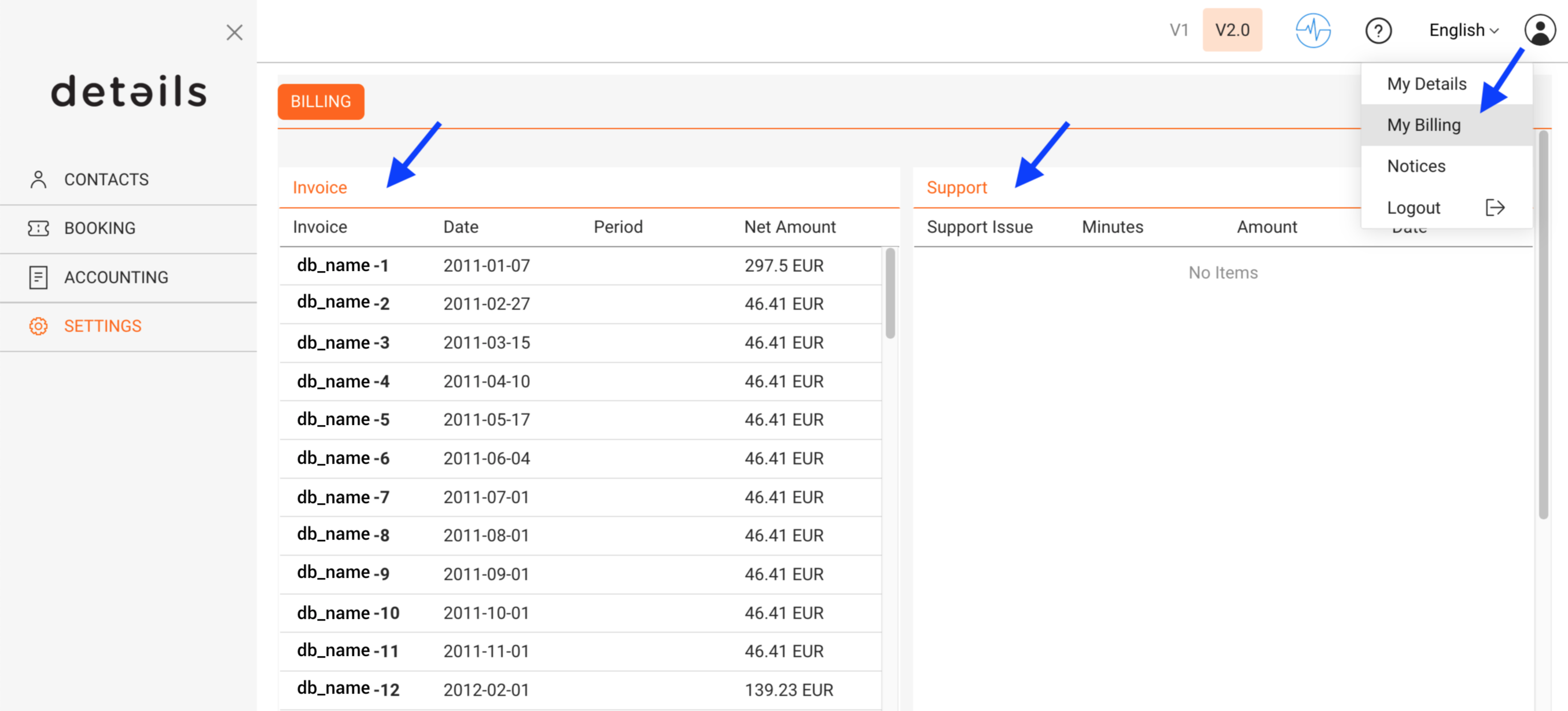
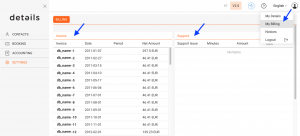
In Version 2, you can find all billing invoices under:

  • DOCUMENTS / BILLING
  • or via the profile icon (top right) ► My Invoices

The billing overview lists all invoices with their invoice date, billing period, and net amount.

To retrieve invoices:

  • Click an individual invoice number to view it
  • Or select one or multiple invoices and use [Download PDFs] to download them directly as PDF files

This allows you to download several invoices at once without using your browser s print function.

► WHAT DETAILS BILLS FOR

details provides several types of services that may appear on your invoices.

  • Platform usage
    Ongoing access to the platform and its modules, billed monthly or annually depending on your subscription.
  • Support & onboarding services
    Assistance with data migration, setup, training, or ongoing support.
  • Custom development & plugins
    Additional features or integrations developed specifically for your needs.

Pricing, billing cycles, and available plans may vary. For the current and authoritative pricing information, please refer to:

www.details.eu

► UPDATE PAYMENT INFORMATION

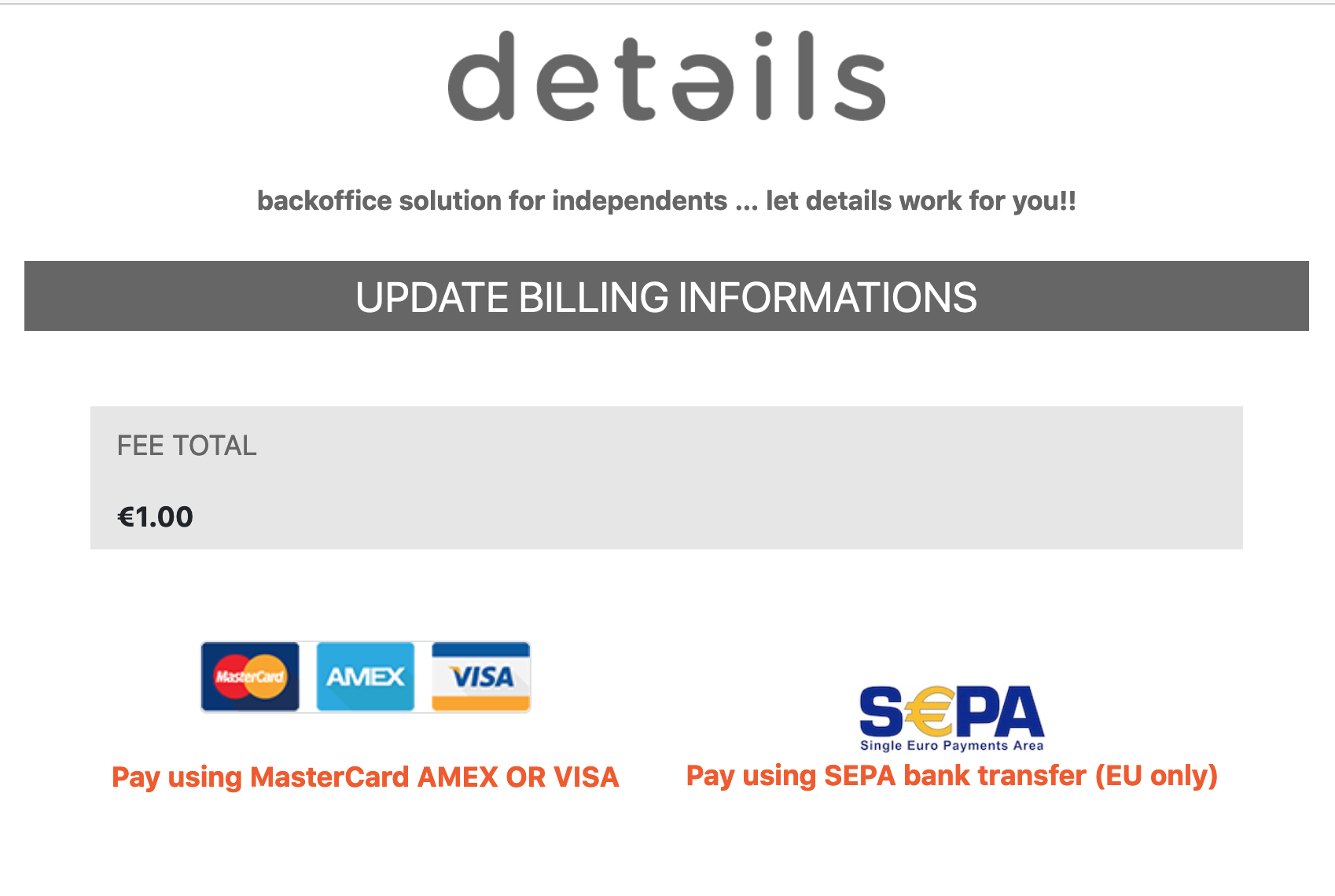
details uses a certified external payment provider to process automatic billing securely.

For security reasons:

  • Your payment details are not stored inside details
  • The details team has no access to your credit card or bank account information
  • Please never send payment details by email

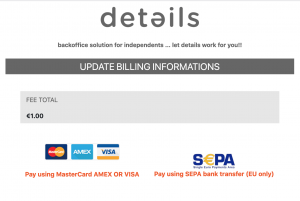
To update your payment information:

  1. Go to DOCUMENTS / BILLING
  2. Click [Edit Payment Info]
  3. You will be redirected to the secure payment interface where you can update your card or SEPA mandate

Changes apply immediately and will be used for the next billing run.

► UPDATE YOUR INVOICE ADDRESS

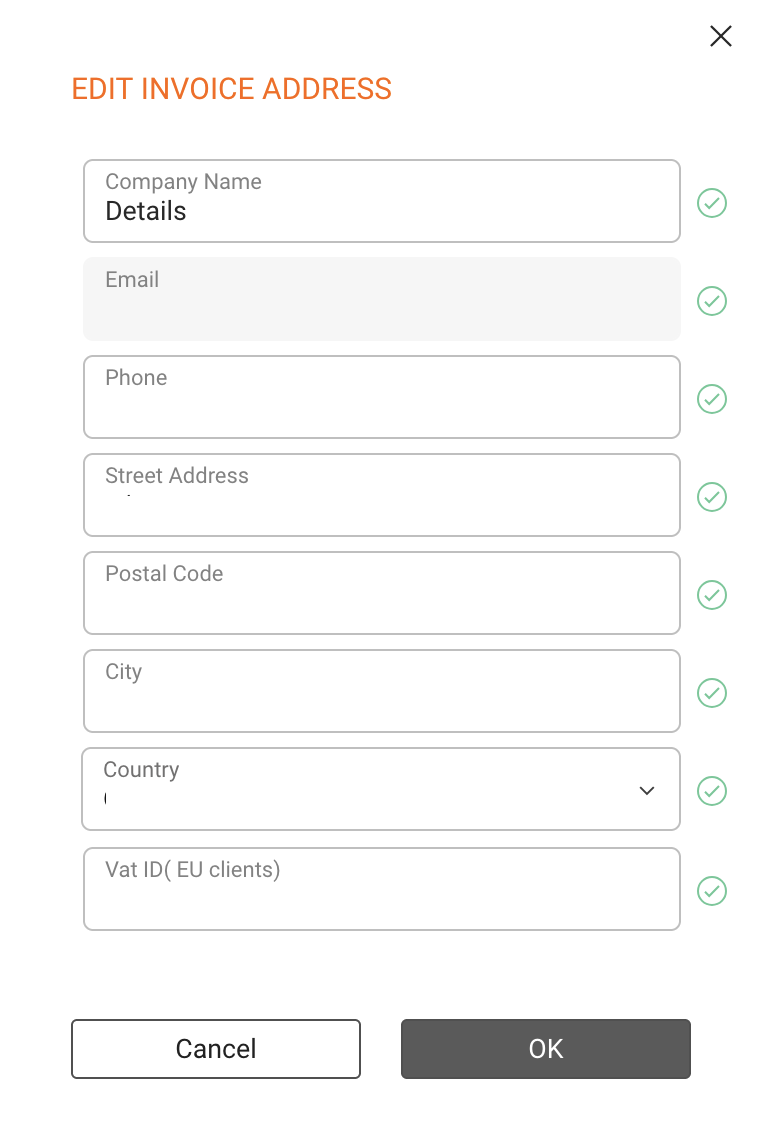
In Version 2 of details, you can update your invoice address directly in the app. This allows you to keep your legal and billing information up to date without contacting support.

To update your invoice address:

  1. Go to DOCUMENTS / BILLING
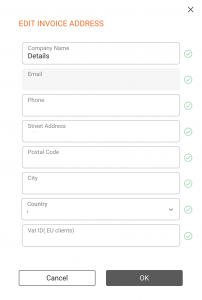
  2. Click [Edit Invoice Address]

You can update:

  • Company or legal entity name
  • Street, postal code, city, and country
  • VAT number (if applicable)

Important:
Changes to the invoice address only apply to future invoices. Already issued invoices cannot be changed for legal and accounting reasons.

► BILLING CYCLES & PAYMENTS

Billing is handled automatically based on your subscription and usage.

  • Monthly billing is charged after the end of the respective usage month
  • Annual subscriptions are billed upfront and may include discounted terms
  • Support and custom services are billed after the service has been delivered

If you have questions about a specific invoice or billing position, please contact the details support team with the invoice number for reference.

Billing in details: Where to find invoices and manage your billing details

This article explains how billing works in details, where you can find your invoices, and how to update your billing and payment information.

Who is this for?
This article is written for clients of details who want to access their invoices or manage their billing information.

► WHERE TO FIND YOUR DETAILS INVOICES

Whenever details charges you for subscriptions, support, or additional services, the invoice is always available directly inside the application.

In Version 2, you can find all billing invoices under:

  • DOCUMENTS / BILLING
  • or via the profile icon (top right) ► My Invoices

The billing overview lists all invoices with their invoice date, billing period, and net amount.

To retrieve invoices:

  • Click an individual invoice number to view it
  • Or select one or multiple invoices and use [Download PDFs] to download them directly as PDF files

This allows you to download several invoices at once without using your browser s print function.

► WHAT DETAILS BILLS FOR

details provides several types of services that may appear on your invoices.

  • Platform usage
    Ongoing access to the platform and its modules, billed monthly or annually depending on your subscription.
  • Support & onboarding services
    Assistance with data migration, setup, training, or ongoing support.
  • Custom development & plugins
    Additional features or integrations developed specifically for your needs.

Pricing, billing cycles, and available plans may vary. For the current and authoritative pricing information, please refer to:

www.details.eu

► UPDATE PAYMENT INFORMATION

details uses a certified external payment provider to process automatic billing securely.

For security reasons:

  • Your payment details are not stored inside details
  • The details team has no access to your credit card or bank account information
  • Please never send payment details by email

To update your payment information:

  1. Go to DOCUMENTS / BILLING
  2. Click [Edit Payment Info]
  3. You will be redirected to the secure payment interface where you can update your card or SEPA mandate

Changes apply immediately and will be used for the next billing run.

► UPDATE YOUR INVOICE ADDRESS

In Version 2 of details, you can update your invoice address directly in the app. This allows you to keep your legal and billing information up to date without contacting support.

To update your invoice address:

  1. Go to DOCUMENTS / BILLING
  2. Click [Edit Invoice Address]

You can update:

  • Company or legal entity name
  • Street, postal code, city, and country
  • VAT number (if applicable)

Important:
Changes to the invoice address only apply to future invoices. Already issued invoices cannot be changed for legal and accounting reasons.

► BILLING CYCLES & PAYMENTS

Billing is handled automatically based on your subscription and usage.

  • Monthly billing is charged after the end of the respective usage month
  • Annual subscriptions are billed upfront and may include discounted terms
  • Support and custom services are billed after the service has been delivered

If you have questions about a specific invoice or billing position, please contact the details support team with the invoice number for reference.