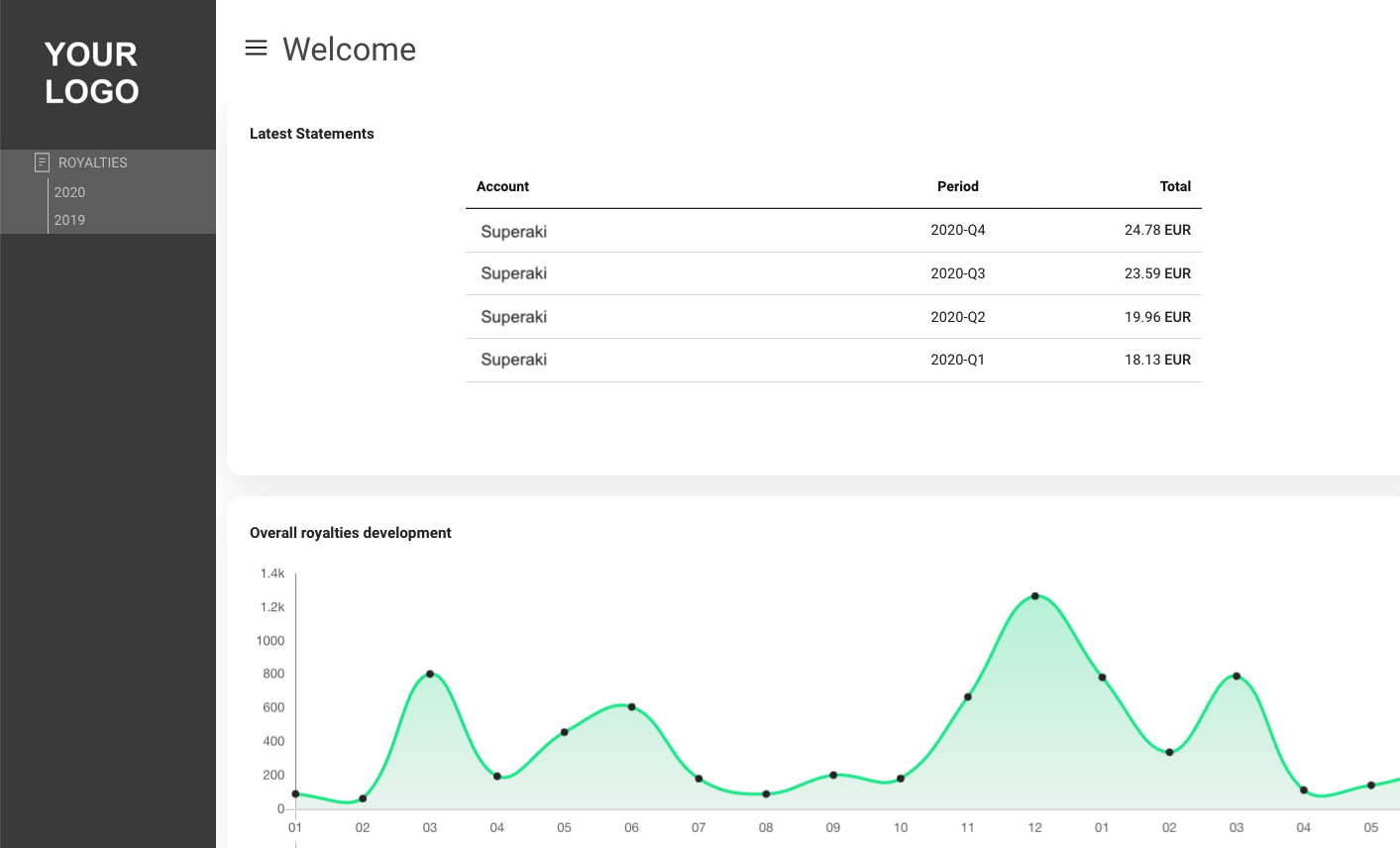
How to preview the SHARES royalty dashboard for a specific Royalty Account

You may wonder what the SHARES Royalty Dashboard looks like for a specific royalty account before sending out the login credentials, just to make sure you are on the safe side.

Fortunately, DETAILS allows logged in users to preview the dashboard quickly and hassle-free.

You do not need to know the link, login, or password; you only need to have access to the royalty section and the royalty account in details.


Accessing Your Royalty Account Preview

Log into details: Only users logged into details with access to the ROYALTY section can benefit from the direct access.

Select Royalty Account: Navigate to the ROYALTY section and within the ROYALTY ACCOUNTS, select the royalty account you wish to check.

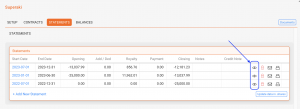
Click the [Eye] icon: In the “Statements” section of the royalty account, look for the eye icon. Click on the icon to access a selection of external users you may select from for your preview.

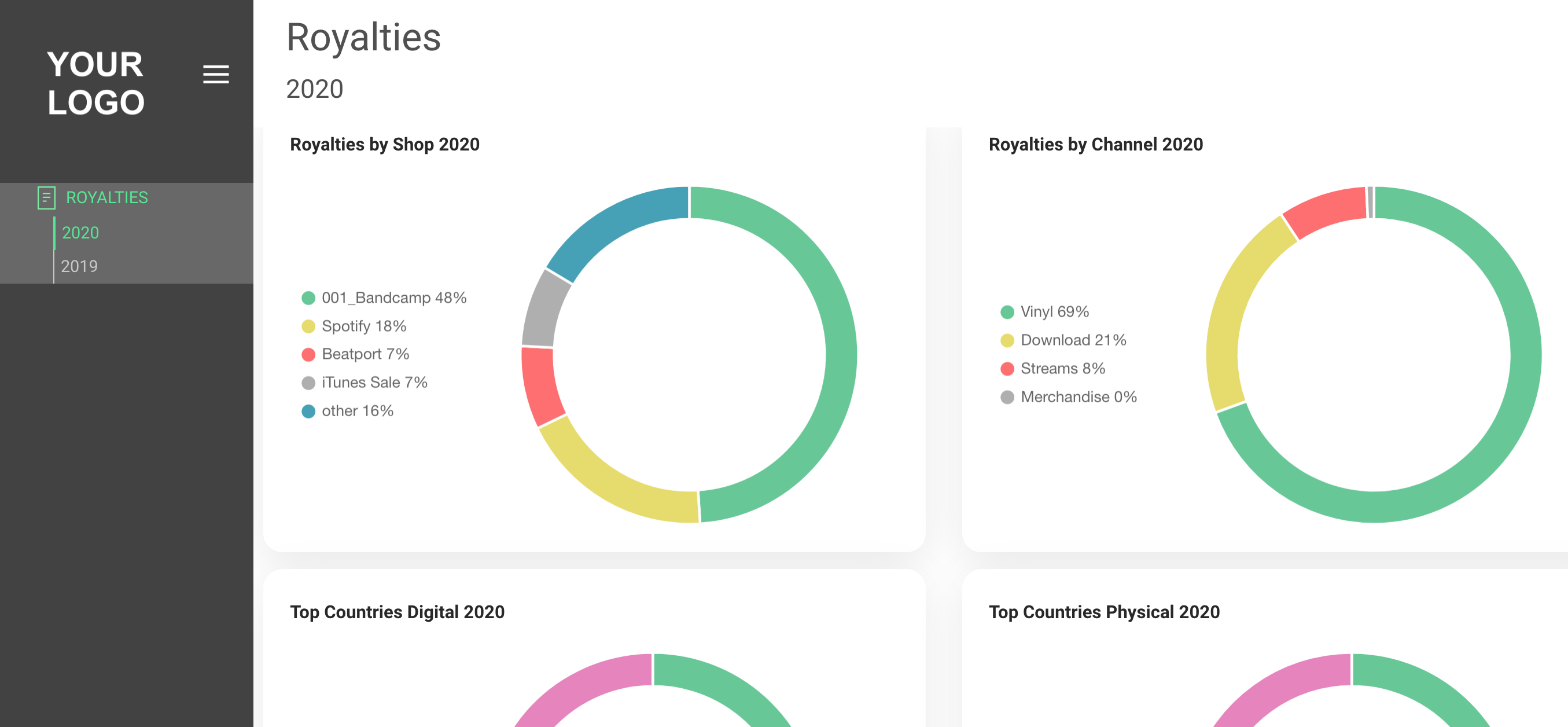
Preview Your Account: Upon selection, a preview window will open, displaying exactly what is being shown to the selected external user.
 

What You Can Expect to See

When previewing a royalty account in the SHARES royalty dashboard, you can:

  • Evaluate the data visualization and overall visual impression.
  • See the financial overview of your royalty account, including the most recent statements and a 24-month royalty graph.
  • Check the current year or previous years, including graphs on revenue generated from digital and/or physical sales, depending on your royalty account display settings.


No Password Required: Accessing an account preview does not require knowing their password if and as long as you are a logged-in details user with access to the royalty section. The preview function provides a secure way to access a SHARES account without compromising the account security.

But do not change their passwords: While previewing your account, do not change the account’s password unless requested by the account. Only alter their password if you want to provide a new password or to block access.
Royalty Accounts Explained


Royalty Accounts represent the partners who receive statements and payments related to your catalog in details.

Depending on your business model, these may be royalty statements for rights holders or revenue statements for distribution clients.

These statements may relate to different types of rights, such as master recording rights, performance rights, or publishing rights.

In other royalty systems this entity may be referred to as a payee, licensor, or rights holder.
In details, all of these roles are represented by a Royalty Account.

A royalty account therefore represents the person or organisation that is financially entitled to receive revenue generated by catalog assets such as songs, tracks, products, or releases.

Royalty Accounts group all contracts, statements, and balances for the same partner in one place, making it easier to track financial results and generate royalty statements.

Note: Royalty Accounts are used by labels and publishers managing licensing relationships, as well as by distributors providing distribution services. In all cases, the royalty account represents the entity that receives statements and payments.

► WHERE TO FIND ROYALTY ACCOUNTS

Navigate to ROYALTY / ROYALTY ACCOUNTS to view the list of all royalty accounts.

From this list, you can:

  • create a new royalty account
  • search and filter existing accounts
  • select an account to view its details
  • delete accounts if necessary

Selecting a royalty account opens its configuration and financial information.

► WHAT A ROYALTY ACCOUNT REPRESENTS

A royalty account represents the partner who receives revenue generated from the exploitation of catalog assets.

Typical examples include:

  • artists
  • labels
  • producers
  • publishers
  • managers
  • distribution clients

For labels and rights owners, royalty accounts usually represent licensors who have granted rights to recordings or compositions.

For distributors, royalty accounts represent the artists or labels that receive revenue collected from streaming services, download stores, or other distribution channels.

Regardless of the business model, the royalty account represents the partner who ultimately receives the financial results of the catalog.

► ROYALTY ACCOUNT STRUCTURE

When you select a royalty account, several tabs allow you to manage the financial relationship with that partner.

SETUP

The SETUP tab contains the main configuration of the royalty account.

This section allows you to configure:

  • royalty account name and status
  • royalty period
  • minimum payout amount
  • account base
  • royalty project configuration
  • main contact information
  • tax parameters
  • royalty dashboard users

CONTRACTS

The CONTRACTS tab lists all royalty contracts assigned to the account.

Contracts define how revenue from catalog assets is converted into royalties and which assets are included in the calculation.

STATEMENTS

The STATEMENTS tab contains all statements generated for the selected account.

Statements summarize the financial activity for each royalty period.

BALANCES

The BALANCES tab displays financial adjustments related to the royalty account.

Balances may include:

  • advances
  • recoupable costs
  • return reserves
  • carried-forward balances
  • royalty adjustments

These balances influence the final amount payable to the partner.

► RELATIONSHIP BETWEEN ROYALTY ACCOUNTS AND CONTRACTS

Royalty accounts and royalty contracts serve different purposes.

Royalty Account = who receives the payment
Royalty Contract = how the payment is calculated

Multiple contracts may be assigned to a single royalty account. All royalties generated by those contracts are collected within the same account and included in the same statements.

This structure allows details to calculate royalties across multiple catalog assets and agreements while keeping financial reporting organised per partner.

How to set Return Reserves

Reserves Against Returns
or “Return Reserves” are a certain amount of physical records or percentage of royalties (from physical sales) which are withheld off the top from the artist by the record label to guard against the label paying royalties on physical records that may be returned by retailers in the future.

The reserves are based on clauses you may find in Artist Contracts such as

“Label shall have the right to establish a royalty reserve against anticipated returns and credits, of up to twenty (20%) percent of the royalty earnings associated with the units of each Record reported as distributed to its customers in that period. Each royalty reserve shall be liquidated equally and in full over the four (4) semi-annual accounting periods following the accounting period during which the applicable reserve is originally established.” *see the end of this article for corresponding settings in details


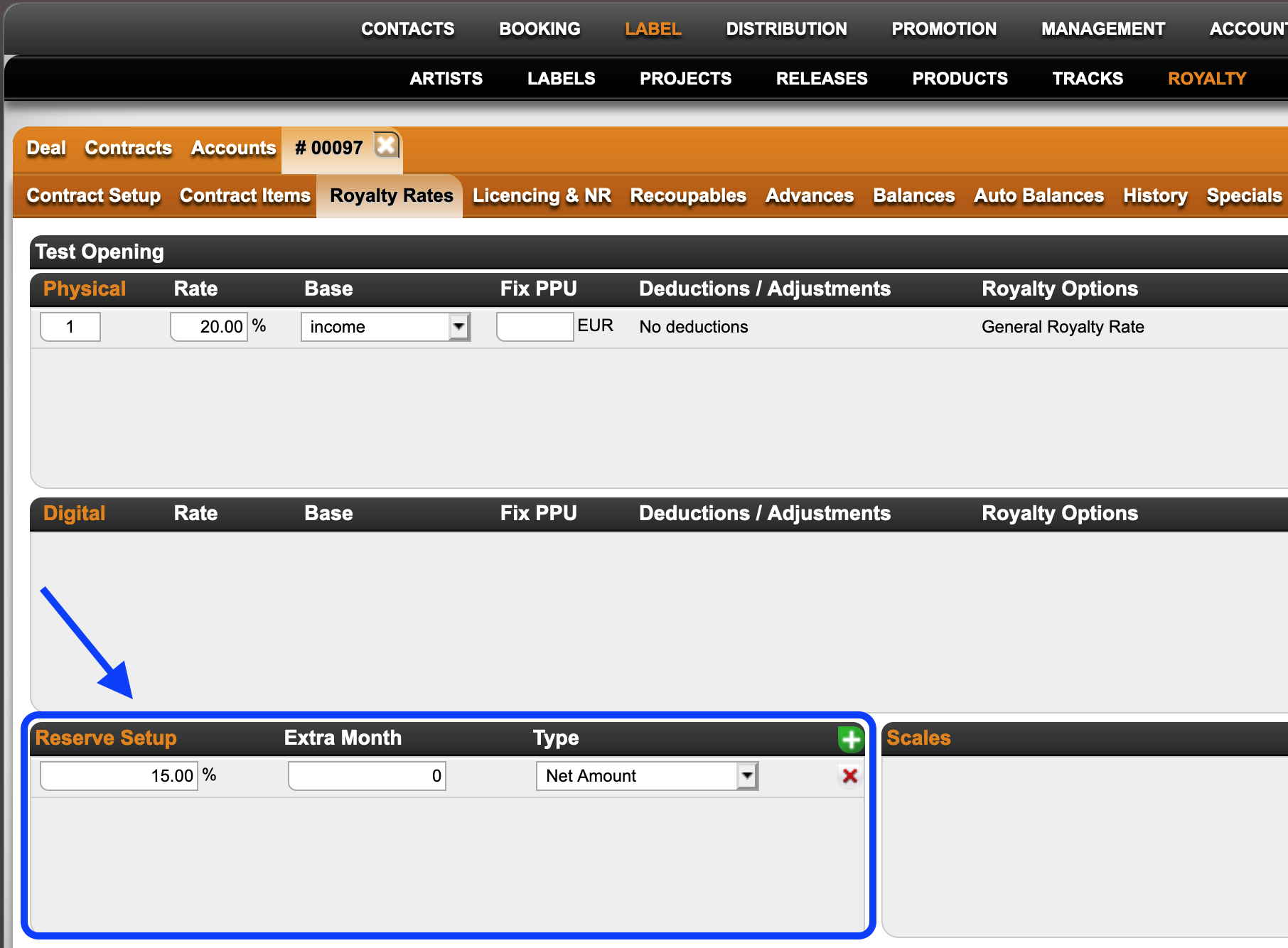
In details you can set up return reserves in your royalty CONTRACT on LABEL / ROYALTY.

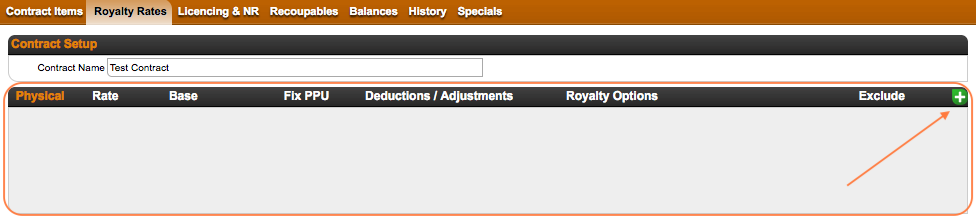
1) Select the royalty contract and go to the subtab Royalty Rates.


2) Click the green [+] icon to add a reserve and add your reserve percentage and type of reserve you want to add it to.

Catalog No will calculate the reserve to selected products only
Net Amount will calculate the reserve to all physical products included in the specific royalty contract

details will create a return reserve in the current royalty period and by default release it in the next.
 
Extra Month will add additional time to this rule.
NOTE : As this is easy to misinterprete, please read the instructions at the end of this article if you want to apply this option.


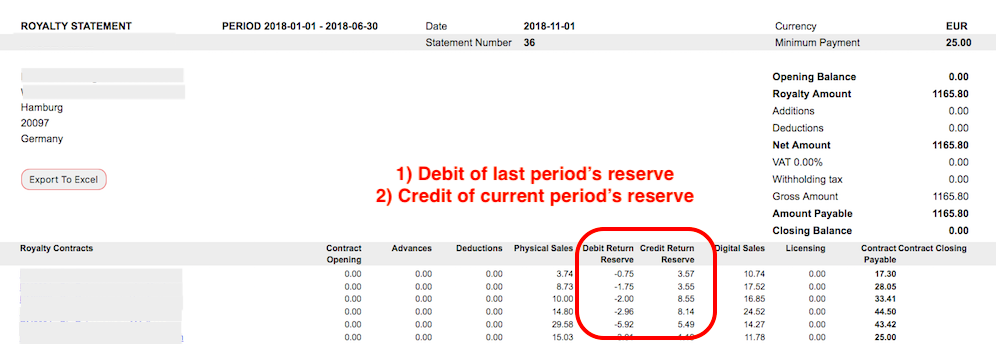
3) The reserves and credits of past reserves will be listed on the royalty statement accordingly.


How to apply the Extra Month option:

Royalty Periods can be
monthly = period of 1x month
quarterly = period of 3x months
semester = period of 6x months

IF X is current royalty period, then next period X+1 is
X + 1 month for monthly
X + 3 months for quarterly
X + 6 months for semester

details will create a Return Reserve in X and by default release it in X+1
=> the setting for the default is EMPTY or 0 Extra Months
so
M1 => M2 for monthly
Q1 => Q2 for quarterly
H1 => H2 for semester


If you are setting Extra Months they will be applied ON TOP of X +1

(1) example “shift”
for use of Extra Month to shift a return release 3 months into the future
M1+ 3 => M4 for monthly
Q1+ 3 => Q3 for quarterly (Q2 plus three additional months on top)
H1+ 3 => H2 + 3 month = effectively next H1 for semester (3 months does not make sense)

(2) example “split”
for use of Extra Month to split a 20% return release into 4 parts over 4 periods

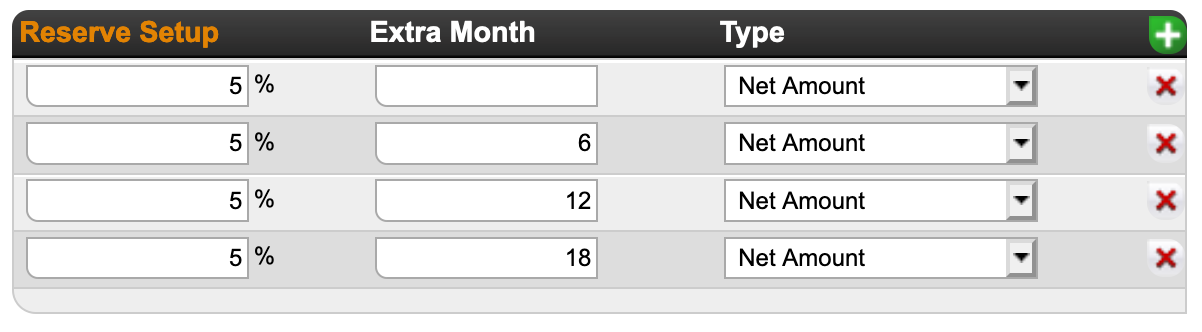
The contract clause at the beginning of this article withheld a percentage (20%) of royalty earnings (not income) in the current royalty period and plans to pay it out in 4 equal parts of 5% over a period of the 4 following royalty half-year periods (over 2 years in total). The settings in details would be

(3) example “Distribution scenario”
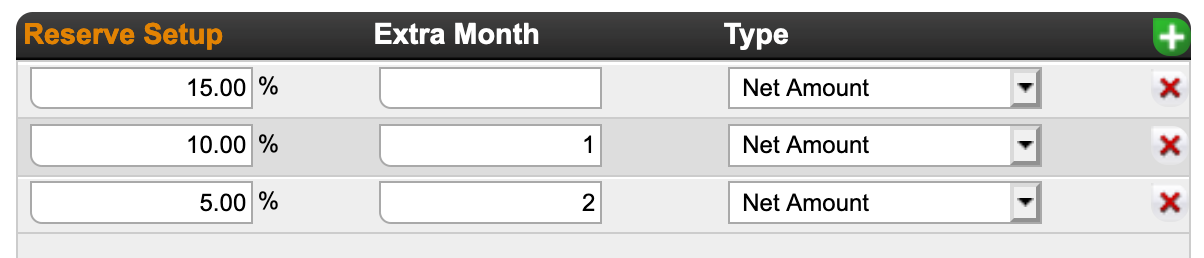
for use of Extra Month set to split a 30% reserve into 3 unequal parts over 3 months :
15% in the next month, 10% the second month and 5% in tthe third month.


If in doubt, contact our Label Team if you need our help!


ROYALTY ACCOUNTS and how to set them up

Royalty Accounts are your business partners from whom you have licensed music etc. and to whom you must send royalty statements.

If you have different contracts with one account, you can just add multiple contracts to one account.

Watch a TUTORIAL videop about how to create ROYALTY ACCOUNTS and CONTRACTS for artist releases here.

Each ROYALTY ACCOUNT has the subtabs Setup, Contracts, Recoupable/Costs, Statements and Balances which are explained step by step below.

”Excursions”
* HOW TO SET UP A NEW CONTRACT – ARTIST RELEASE
* HOW TO SET UP A NEW CONTRACT – COMPILATION
* CREATE ROYALTY STATEMENT

To create a new ROYALTY ACCOUNT, go to LABEL / ROYALTY and click [+] on top right of the list.

Enter the ACCOUNT NAME, ROYALTY PERIOD and choose an INVOICE PROJECT for the statements.
Click OK and you will be directed to the account’s SET UP subtab where you can choose a main contact and add more contacts if wished, add notes and upload related files such as Licence agreements, HOAs etc.

It is essential to choose an ACCOUNT BASE for the statements which defines to which date/period the income of a sale is collected to and hence accounted to your royalty statements.
There are three options:
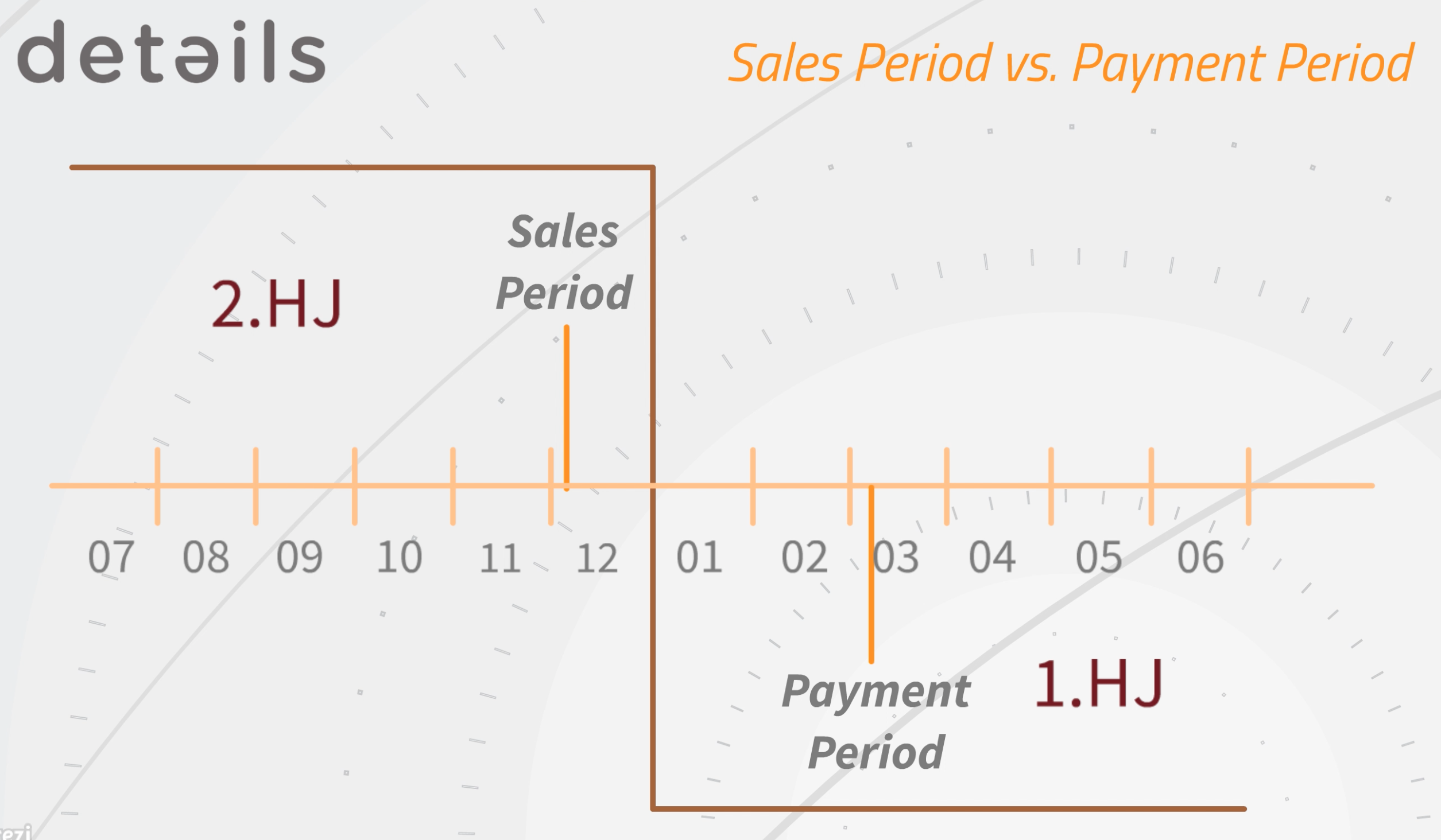
* Payment Period: All income of sales will be collected to the period in which the invoice for the sales income has been paid by the sales account.
* Sales Period: All income of sales will be collected to the period of the actual sale.
* Invoice Date: All income of sales will be collected to the period in which invoice has been created.


”Example”
Your records have been sold in December 2016. This is the SALES PERIOD.
If you select SALES PERIOD as royalty base, the income will be accounted in the royalty period 2HJ 2016 or Q4 2016 if you account quarterly.

You will probably receive and import the sales statement from your distributor in January 2017 and create an invoice or receive a credit note dated January 30th 2016. This is the INVOICE DATE.
If you select INVOICE DATE as royalty base, the income will be accounted to the period 1HJ 2017 or Q1 if you account per quarter or 01 2016 if you account monthly.

Then you will probably not receive any money and the invoice in ”details” will not be selected as “paid” before March 2016. This is the PAYMENT PERIOD.
If you select PAYMENT PERIOD as royalty base, the income will be accounted in the period 1HJ 2017 or Q1 if you account per quarter.

Please note that you should NEVER change the account base after you have created and send out a royalty statement.
If you change the ACCOUNT BASE after you have already created a sales statement for your royalty account, it will happen that you account particular sales in several periods OR that you do not account particular sales at all.
Contact details support if you need help!

On the subtab CONTRACTS you can ADD A NEW ROYALTY CONTRACT, edit and delete existing contracts.

The subtab RECOUPABLE/COSTS shows you all costs related to the specific ROYALTY ACCOUNT.
The button ACCOUNT ALL RECOUPABLES will account all listed RECOUPABLE COSTS in one go if not accounted yet.
By ticking Ignore you can exclude single COSTS.

On the subtab STATEMENTS you can look up all past ROYALTY STATEMENTS for this ROYALTY ACCOUNT.

The subtab BALANCES shows allover royalty account related costs of the current royalty period
such as return reserves and closing balances of past royalty statements. If you create your first royalty statements with►details these might need to be set up manually. Ongoing, credit return reserves and closing balances are automatically created and carried over.
All contract related RECOUPABLES of the current royalty period are listed here as well.

It is important to know that contract related recoupables will be separately set off against royalties from the particular contract only, whereas balances (general royalty account costs) will be set off against the sum of all contract’s royalties.

To set up balances manually, click [+] on top right of the list.
Here you can add the DATE, DESCRIPTION, TYPE and AMOUNT.
Negative amounts will be accounted as DEDUCTIONS, positive amounts as ADDITIONS.


How to set Royalty Rates in Royalty Contracts

The calculation of royalties depends largely on the terms of the license agreement and the resulting accounting rules.

Put simply, royalties are calculated by multiplying a sales quantity at a specific base price with a royalty rate. A simple example would be 1.000 CDs * 7  PPD * 20% royalty rate = 1.400 .

However, if royalty calculation was always this simple, there would be no need for a database solution like detYils. This article shows you how to set up more complex rules for royalty calculation correctly.


In detYils you can manage rules for royalty calculation separately for each channel

  1. physical sales
  2. digital sales
  3. licensing / thirdparty revenue
  4. performance revenue

Each channel can have one or multiple rules or royalty options as we call them.


Please check below to find out …

how to set royalty rates for digital sales

how to set royalty rates for physical sales

how to set conditions for royalty options


How to set royalty options for physical sales


If you want to account physical sales to your royalty accounts, you will need to add one or multiple rules for physical royalty rates. Click the [+] icon on the contract’s Royalty Rate tab.


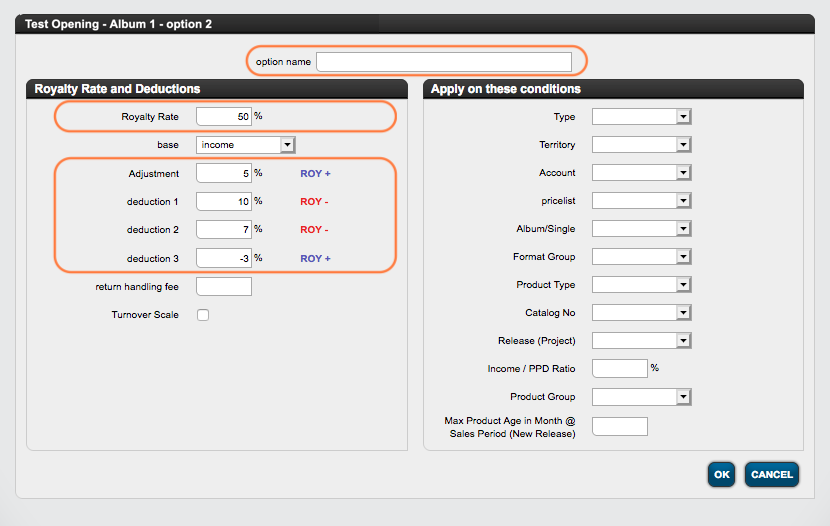
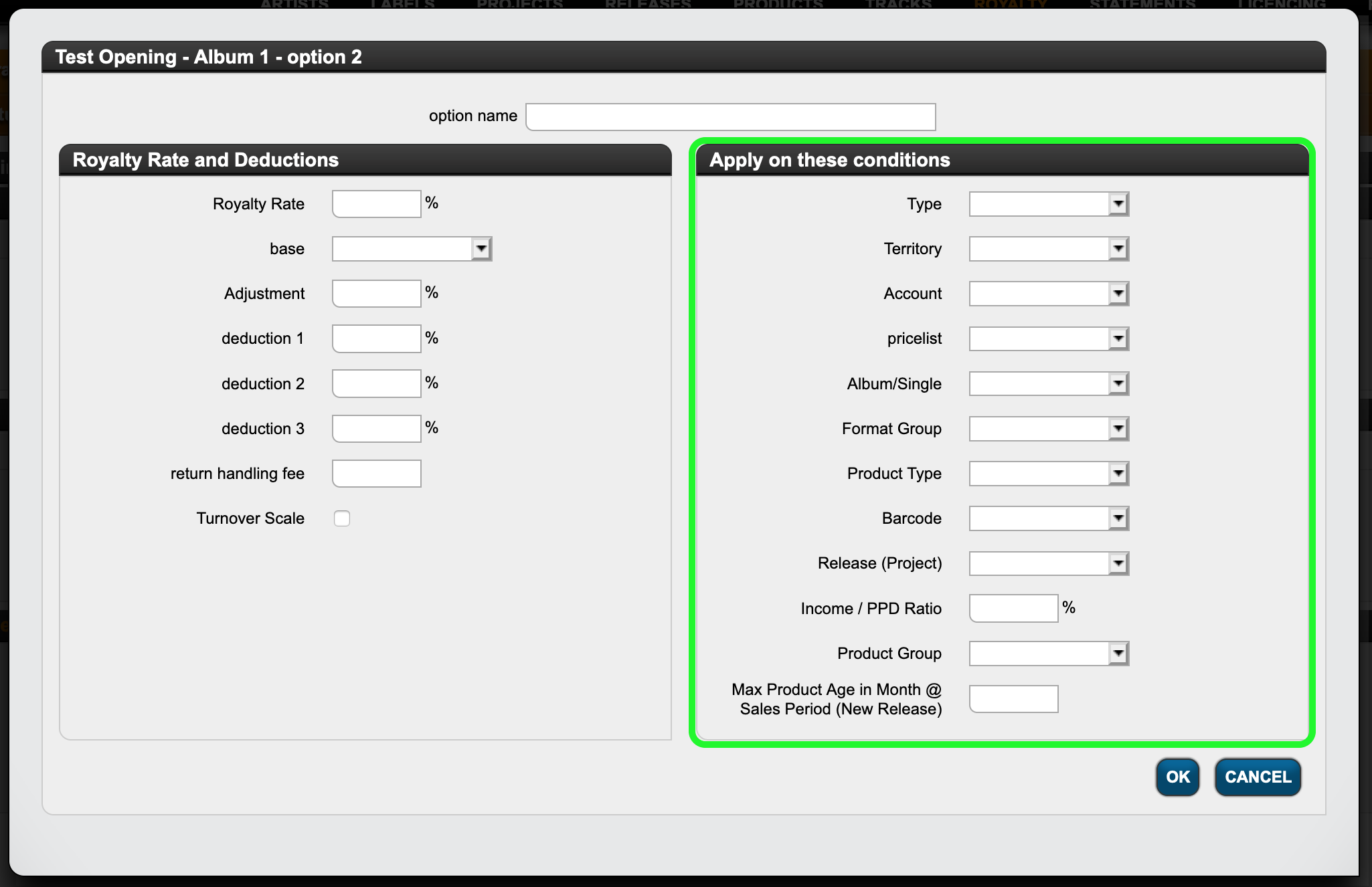
You will see a modal window with multiple options to set your royalty rate etc. for physical sales:

  • First, please give your calculation rule an option name. It helps both you and the artist if you have multiple royalty rules.

  • Then, of course, the most important information is the royalty rate on the top left of the modal window. This is the multiplier that is negotiated in contracts with rights holders.
    NOTE that the rate you enter here is the rate that your Royalty Account is supposed to receive as per contract (not your own share!).

  • Another important factor for the royalty calculation is the accounting base. This can be either the income, the retail price, thePublished Price of the Distributor (PPD) or any of the other
    options in details.

  • There are also options to add deductions to the royalty rate on the fields Deduction 1, Deduction 2, Deduction 3 and Adjustments. When a deduction/adjustment is applied, you will see whether it is added to or subtracted from the royalty rate, depending on the sign of the deduction/adjustment.
    NOTE : While the deductions are displayed to the royalty owner in his statement, an adjustment remains undisclosed. An adjustment is therefore a percentage based reduction of the royalty calculation without any indication in the statement.

  • Return handling fees are a more traditional deduction from royalties. Those are fixed amounts deducted per unit returned, i.e. 0.50  per unit.

On the right-hand side of the modal window, you can define the conditions for which the current calculation rule will apply. Find out more about the available conditions here!
Think of the conditions as a filter that triggers the application of the current rule.


IMPORTANT NOTE : If you have more than one royalty option in one contract, please be aware that the calculation in detYils starts with the first rule and then continues with 2,3, etc. until the last one – the general royalty rule, which catches all sales that do not fall into any of the previous options.


How to set royalty rates for digital sales


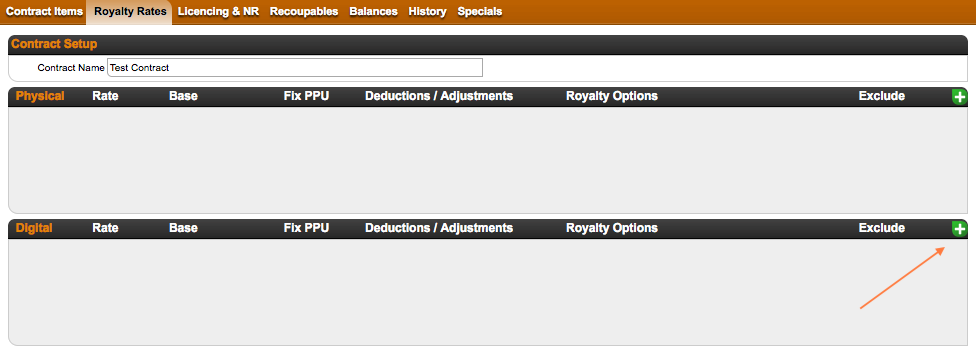
If you want to account digital income to your royalty accounts in detYils, you will need to add one or more digtal royalty options. Click the (+) icon on the contract’s Royalty Rate tab.


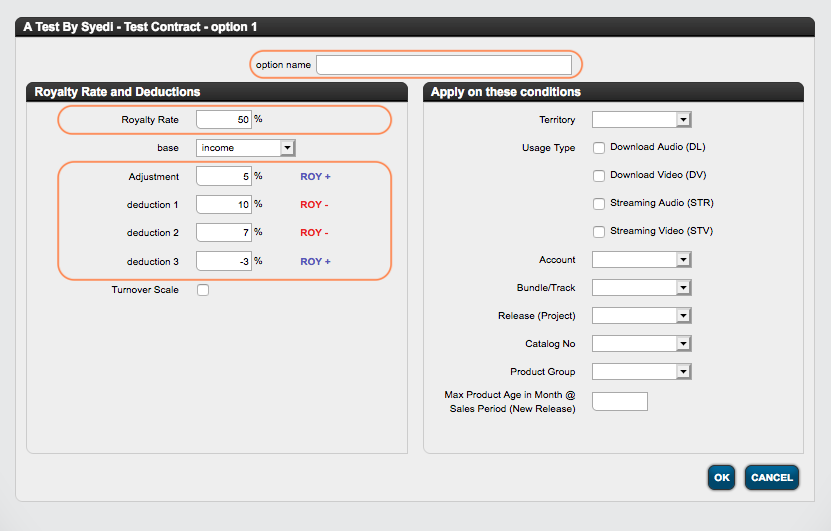
You will see a modal window with multiple options to set your royalty rate etc. for digital sales:

  • If you have multiple calculation rules, please give your calculation rule an option name.
  • In the field royalty rate field on the left side of the modal window, enter the digital royalty rate, which you want your royalty account to receive according to the contract.

  • Establishing the base for the calculation is the next important step. For Digital this is most likely to be “income“, as other available base options are not common for digital sales.

  • For each calculation rule you may also set adjustments and up to three optional deductions, which be applied to the calculation depending on the sign of the deduction/adjustment.

    NOTE : While the deductions are displayed to the royalty owner in his statement, an adjustment remains undisclosed. An adjustment is therefore a percentage based reduction of the royalty calculation without any indication in the statement.

On the right-hand side of the modal window, you can define the conditions for which the current calculation rule will apply. Find out more about the available conditions here!
Think of the conditions as a filter that triggers the application of the current rule.


IMPORTANT NOTE : If you have more than one royalty option in one contract, please be aware that the calculation in detYils starts with the first rule and then continues with 2,3, etc. until the last one – the general royalty rule, which catches all sales that do not fall into any of the previous options.


Conditions for Royalty Options

As our name suggests, we would never restrict our clients to a static set of royalty calculation types to choose from. In fact, quite the opposite:
In the detYils you will probably discover so many ways to calculate royalties that you may even be surprised that such terms actually exist! Well, yes, they do ….


Here is an overview of options to choose from that can be applied to royalty options in Royalty Contracts.

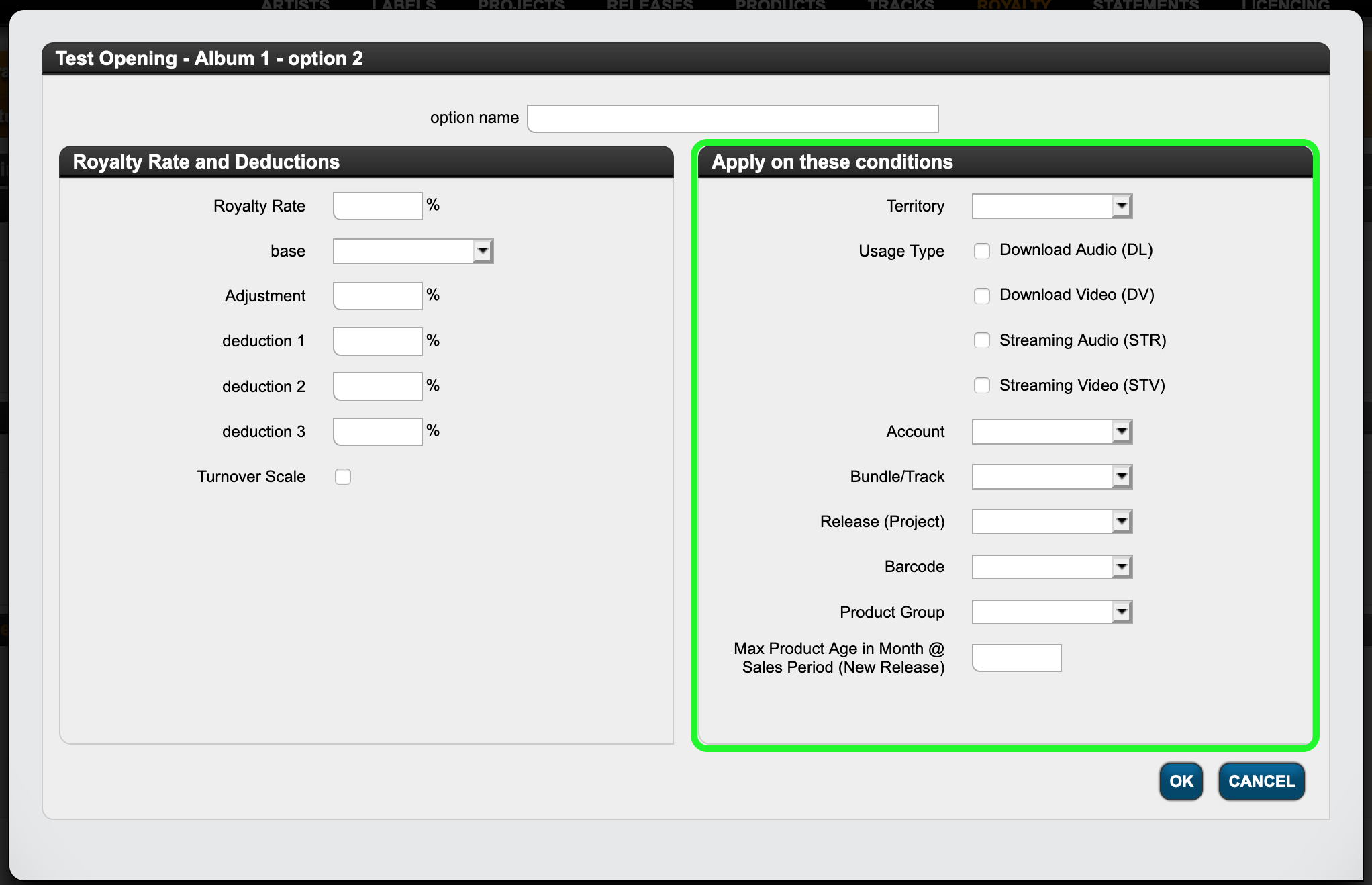
You can find those conditions on the right-hand side of the modal window to set your royalty rates.

Think of the conditions as a filter that triggers the application of the current rule:

IF the conditions on the right are met, THEN the rate and deductions on the left will be applied.

Let’s start with digital :

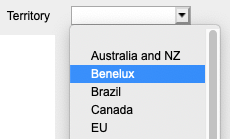
  • In the detYils you may apply a royalty option to a selected territory.Territories are customizable groups of countries which can be set in SETTINGS / GENERAL.
  • You can also specify which type of digital sale should be affected by the current rule.
    We differentiate 4 different usage types in detYils:
    Audio Download
    (“DL”)
    Video Download
    (“DV”)
    Audio Streaming
    (“STR”)
    Video Streaming
    (“STV”)

    NOTE: If you do not explicitly pick one of these options, the system will include all of them in the calculation. If you select specific ones, however, the current rule only applies to sales of those usage types.

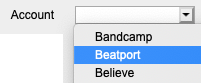
  • Another filter option is by distribution account, i.e. by source. With this option you may select to have sales accounted on a specifc rate when sold by a specific digital distributor / aggregator.


  • You can also choose to apply a royalty option specifically on bundle (album) or track sales only.

  • If you have contracts that include multiple releases and you want a particular rate to apply to a particular one only, specify the release covered by the royalty option.

  • The same applies to products. If you have contracts that cover multiple products and you want a specific rate to apply to only one product, enter the barcode for that royalty option.

  • If, however, you want to combine not only one product but several products at your own discretion and have them processed according to one rule, create a product group and select it for this rule.

  • If your contract states a specific term for a royalty rate, set the duration of rule application from product release in months. This rule will apply only within the period since product release, which is the release date plus any product release shift.
    The period is defined in months, i.e. one year = “12” and three years = “36”.
    This rule will apply for sales made within the set period only and not beyond.

    Example: If you want a royalty option to change after x months after the product release, you will first have to define one of these rules, and then another rule with the royalty rate to follow after the end of the initial period.


For physical sales some options are the same, others are different:

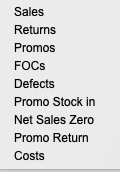
  • One particular aspect is the indication by type of sale. This condition allows you to set different royalty rates for sales than for returns, etc. See the list of sales types below.

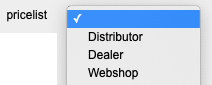
  • Another characteristic of physical sales is that they can be settled according to customised price lists. More information on price lists and price codes can be found here.

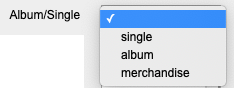
  • You can also create royalty options for predefined product categories, explicitly albums, singles and merchandise.
  • In addition you can customize your own product groups and set specific royalty rates accordingly.

Opening balances and Period Result Carryovers

In DETAILS, the handling of royalty statement results across periods is done mostly automaticly, but deserves some explanation:

Automatic Carryover

Royalty statement results are carried over to the next periods under the following conditions:
– The overall period result is negative.
– The overall period result is less than the minimum payment threshold specified in the royalty account settings.

For instance, if the overall period result is -1000 EUR or +30 EUR, both would be automatically carried over as an opening balance to the next period if the minimum payment threshold is set to 50 EUR.
Conversely, total period results equal to or higher than the minimum payment threshold would not be carried over, as DETAILS assumes they are due for payout by default.


Consideration of Cross-Recoupable Contracts

Additional complexity arises when cross-recoupable contracts are involved. Selected contracts may be set as to not be payable unless the overall total of all cross-collectable contracts collectively recoups and exceeds the minimum payout threshold. Further information on cross-collectable contracts can be found in our dedicated article here.


Manual Setting of Opening Balances

DETAILS provides the flexibility to manually include amounts for carryover to royalty periods. This feature is useful when statements were calculated before manually or in another system.

Initial amounts can be entered either at the level of Royalty Contracts or in the Royalty Account as Balances, with the type set as “Closing Balance”.

The date of the balance should correspond to the first day of the period you want the balance to be included in as an opening balance.