How to account recoupables

Recoupables are costs which are paid against royalties. Typical recoupable costs are advance payments. Depending on your ROYALTY CONTRACTS also other costs such as video production costs or marketing expenses can be recoupable costs, mostly with a specific share e.g. 50% of costs are recoupable against royalties.

Your costs added in details are NOT automatically recoupable costs. Only once the relevant contract has a recoupable rate, your costs can be forwarded to your artists! If costs appear as NOT RECOUPABLE, the related contract has no recoupable settings enabled.


”Excursion”
WHERE AND HOW TO ADD COSTS in ”details”
How to upload cost documentation

So, to make costs recoupable you need to add costs in ”details” , set up the recoupable settings within the relevant contract and finally account current recoupables to the ROYALTY ACCOUNT before creating the ROYALTY STATEMENT so that royalties are set off against recoupable costs.

First you need to enter costs in ”details” , depending on where they occur.

On the RELEASES‘ subtab COSTS you can add all costs that occur for the release as a whole. Typical release costs are advance payments, marketing costs, artwork design etc.
On PRODUCTS‘s subtab COSTS you can now add all costs that occur for the particular product. Typical product costs can be CD manufacturing, LP manufacturing, etc.

To set up the RECOUPABLES setting of a ROYALTY CONTRACT go to LABEL / ROYALTY and choose the account and related contract.
On the contracts subtab RECOUPABLES you can choose a RECOUPABLE TYPE from the drop down menu.

There are the following options:

1) If advance payments and / or other particular recoupable costs are agreed on in your royalty contract, choose RECOUPABLE BY GROUPS.
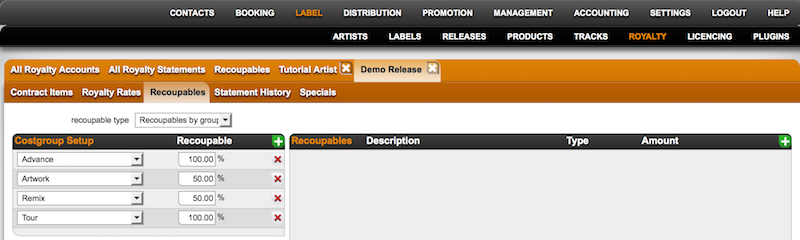

Now click [+] on top right of the Costgroup Setup box and choose the cost group and the split e.g your contract includes an advance pament which is paid against royalties 100% you add the costgroup advance and give it a split of 100.
If your contract also includes a recoupable split of 50% on remix costs, just add the cost group Remix and give it a split of 50.
100% of the advance payment and 50% of the remix costs will now be paid against royalties.

It is essential that your costs have the correct COST GROUP. ”details” automatically identifies the costs by its cost group so that these will be accounted according to the above settings.

2) If all RELEASE RELATED COSTS and all PRODUCT RELATED COSTS are recoupable costs (e.g. 50/50 deal), choose GENERAL RECOUPABLES and type in the split.
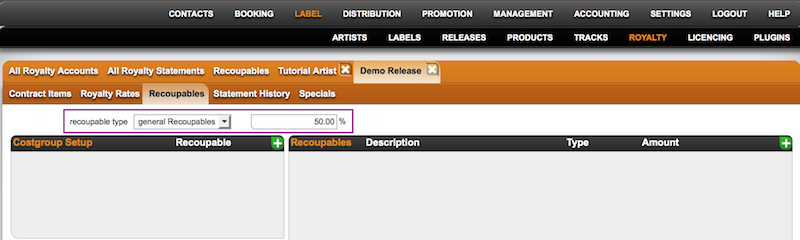

Please note that advance payments have a default split of 100%. You can adjust the amount if necessary once it’s been accounted in the Recoupables Box right next to the Setup box or while you account the advance payment separately on RELEASE / COSTS.

3) If you do not have any RECOUPABLES included in your contract, choose NO RECOUPMENT.

Once you have entered the RECOUPABLES and set up / double checked the settings of the ROYALTY CONTRACT you can account them. ”details” will then automatically transfer all ACCOUNTED AMOUNTS to the related ROYALTY ACCOUNT.

There are multiple ways to account RECOUPABLES.

To account recoupables in a batch across all releases & products go to Royalty / Recoupables.
Select a start and end date of your current royalty period and add more filters if needed.
To account all, click the Account All Button at the bottom of the page.
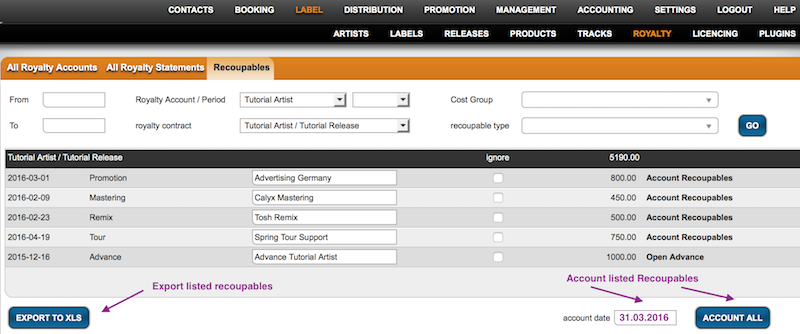

To exclude single items of the compiled list, you can still tick IGNORE and these will not be accounted as recoupables.

Alternativley you can account single recoupable costs where you have previously set them up, e.g.
after you have added costs on the RELEASES subtab COSTS you can account them by clicking on the bold text ACCOUNT RECOUPABLES which will appear according to the royalty settings of the selected RELEASE. If it appears NOT RECOUPABLE instead, you will need to adjust the royalty settings.
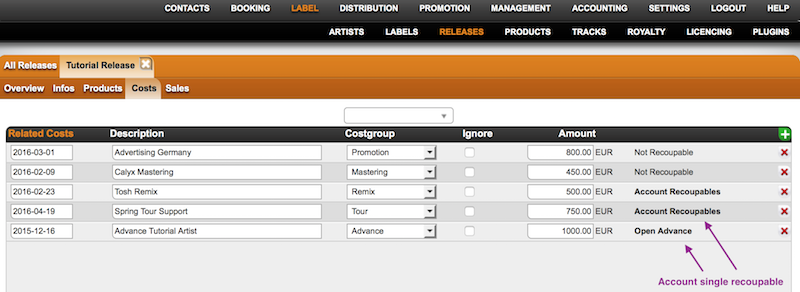

It will be the same workflows for product related costs on the products subtab costs.

Once you have accounted the recoupables, they will be set off against royalties in your next royalty statement.

How to set up royalty statement emails for .shares


For giving a person access to the B2B section you first need to set up the person as an External User.
(see HERE how to set up external user).When this is done go to SETTINGS – IDENTITIES and choose the invoice layout.


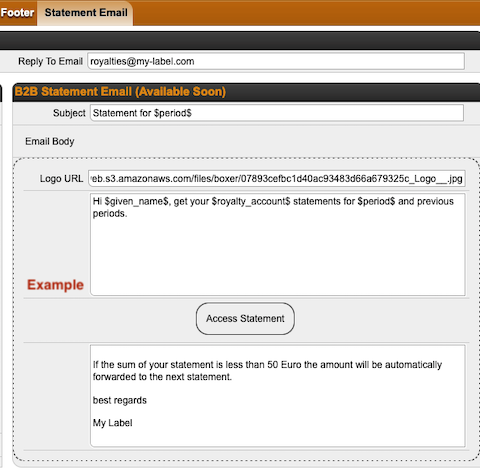
(Then go to the SHARES EMAIL tab and fill out the subject. It is possible, but not mandatory, to add a variable period to the subject field, so the respective period(s) will automatically be inserted to the email subject.
Please note that the period is the only variable that can be used in the subject.

To insert the period variable in the subject you need to add $period$(e.g. “Statement for $period$”


For the email text you can create a standard text with the variables GIVEN NAME $given_name$, ROYALTY ACCOUNT NAME $royalty_account$ and PERIOD $period$.

e.g. “Hi $given_name$,( get your $royalty_account$ statements for $period$ and previous periods.”

You also be able to add a trailing text, that will appear under the ACCESS STATEMENT Button.


(To add your logo to the email you need to follow this steps unless you have not already uploaded a logo into Details:


1) go to CONTACTS / FILES and upload your new picture, logo file etc. to FILES.(NOTE: Don’t forget to name the file in a way that you will allow you to find it again.


2) Right Click on the uploaded file and select “Copy link location”.(This will copy the link of the file into the clipboard and allows you to paste the URL to the Logo URL field. ((


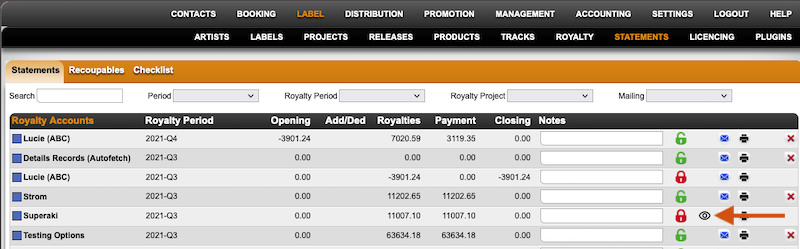
To have an overview of all Royalty Accounts that give access to external user we’ve added a new icon.
Bildschirmfoto_2022-01-11_um_13.28.45.png

In the LABEL – ROYALTY ACCOUNT – STATEMENT list and in the LABEL – STATEMENTS list overview you will find the icon beside all relevant statements.


(All statements showing this icon allow one or more external user(s) access to the royalty account. By clicking on the icon you will find all users that have access to the respective account.

Please note, that only locked statements allow access to external user and will be used for the reporting overview.

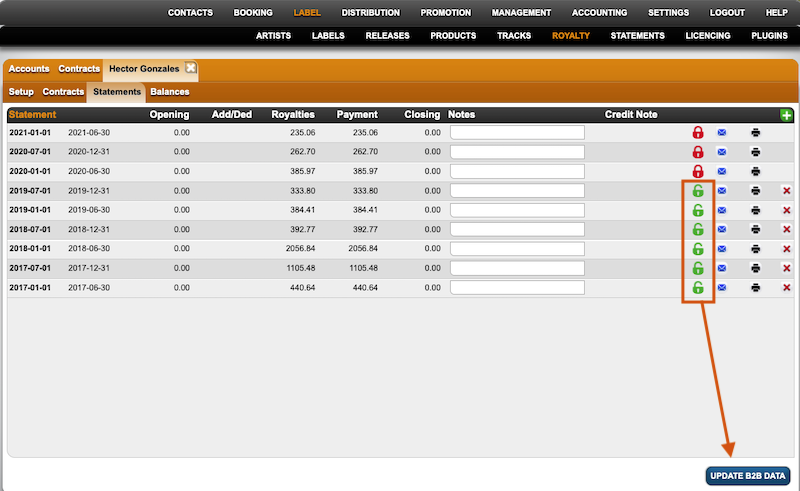
If you want to add the complete statement history (incl. unlocked statements) to the B2B data you can go to LABEL – ROYALTY – SELECTED ROYALTY ACCOUNT – STATEMENTS.
(There you find the button UPDATE B2B DATA.


By clicking this button all unlocked statements will be locked and all sales data will be included to the sales history in the B2B account.
(By sending the statement, every external user will receive a link for a landing page where to register or to log in.


How to preview the SHARES royalty dashboard for a specific Royalty Account

You may wonder what the SHARES Royalty Dashboard looks like for a specific royalty account before sending out the login credentials, just to make sure you are on the safe side.

Fortunately, DETAILS allows logged in users to preview the dashboard quickly and hassle-free.

You do not need to know the link, login, or password; you only need to have access to the royalty section and the royalty account in details.


Accessing Your Royalty Account Preview

Log into details: Only users logged into details with access to the ROYALTY section can benefit from the direct access.

Select Royalty Account: Navigate to the ROYALTY section and within the ROYALTY ACCOUNTS, select the royalty account you wish to check.

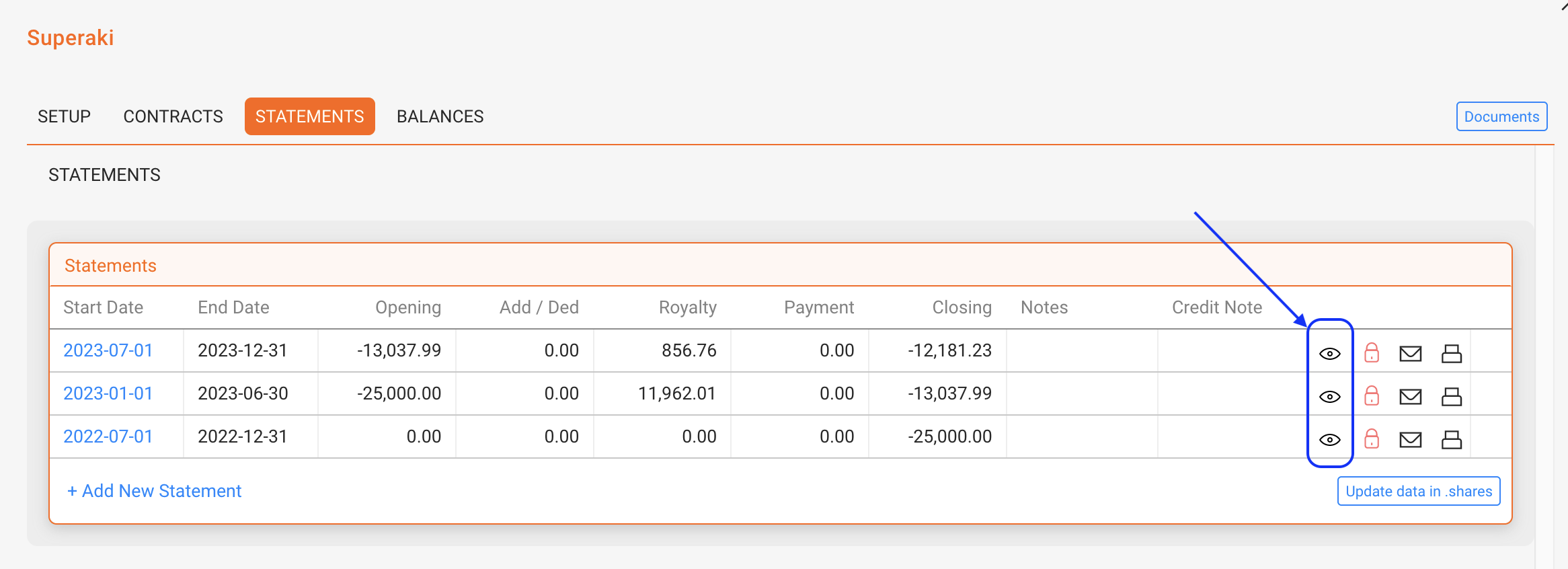
Click the [Eye] icon: In the “Statements” section of the royalty account, look for the eye icon. Click on the icon to access a selection of external users you may select from for your preview.

Preview Your Account: Upon selection, a preview window will open, displaying exactly what is being shown to the selected external user.


What You Can Expect to See

When previewing a royalty account in the SHARES royalty dashboard, you can:

  • Evaluate the data visualization and overall visual impression.
  • See the financial overview of your royalty account, including the most recent statements and a 24-month royalty graph.
  • Check the current year or previous years, including graphs on revenue generated from digital and/or physical sales, depending on your royalty account display settings.


No Password Required: Accessing an account preview does not require knowing their password if and as long as you are a logged-in details user with access to the royalty section. The preview function provides a secure way to access a SHARES account without compromising the account security.

But do not change their passwords: While previewing your account, do not change the account’s password unless requested by the account. Only alter their password if you want to provide a new password or to block access.

Royalty Accounts Explained


Royalty Accounts represent the partners who receive statements and payments related to your catalog in details.

Depending on your business model, these may be royalty statements for rights holders or revenue statements for distribution clients.

These statements may relate to different types of rights, such as master recording rights, performance rights, or publishing rights.

In other royalty systems this entity may be referred to as a payee, licensor, or rights holder.
In details, all of these roles are represented by a Royalty Account.

A royalty account therefore represents the person or organisation that is financially entitled to receive revenue generated by catalog assets such as songs, tracks, products, or releases.

Royalty Accounts group all contracts, statements, and balances for the same partner in one place, making it easier to track financial results and generate royalty statements.

Note: Royalty Accounts are used by labels and publishers managing licensing relationships, as well as by distributors providing distribution services. In all cases, the royalty account represents the entity that receives statements and payments.

► WHERE TO FIND ROYALTY ACCOUNTS

Navigate to ROYALTY / ROYALTY ACCOUNTS to view the list of all royalty accounts.

From this list, you can:

  • create a new royalty account
  • search and filter existing accounts
  • select an account to view its details
  • delete accounts if necessary

Selecting a royalty account opens its configuration and financial information.

► WHAT A ROYALTY ACCOUNT REPRESENTS

A royalty account represents the partner who receives revenue generated from the exploitation of catalog assets.

Typical examples include:

  • artists
  • labels
  • producers
  • publishers
  • managers
  • distribution clients

For labels and rights owners, royalty accounts usually represent licensors who have granted rights to recordings or compositions.

For distributors, royalty accounts represent the artists or labels that receive revenue collected from streaming services, download stores, or other distribution channels.

Regardless of the business model, the royalty account represents the partner who ultimately receives the financial results of the catalog.

► ROYALTY ACCOUNT STRUCTURE

When you select a royalty account, several tabs allow you to manage the financial relationship with that partner.

SETUP

The SETUP tab contains the main configuration of the royalty account.

This section allows you to configure:

  • royalty account name and status
  • royalty period
  • minimum payout amount
  • account base
  • royalty project configuration
  • main contact information
  • tax parameters
  • royalty dashboard users

CONTRACTS

The CONTRACTS tab lists all royalty contracts assigned to the account.

Contracts define how revenue from catalog assets is converted into royalties and which assets are included in the calculation.

STATEMENTS

The STATEMENTS tab contains all statements generated for the selected account.

Statements summarize the financial activity for each royalty period.

BALANCES

The BALANCES tab displays financial adjustments related to the royalty account.

Balances may include:

  • advances
  • recoupable costs
  • return reserves
  • carried-forward balances
  • royalty adjustments

These balances influence the final amount payable to the partner.

► RELATIONSHIP BETWEEN ROYALTY ACCOUNTS AND CONTRACTS

Royalty accounts and royalty contracts serve different purposes.

Royalty Account = who receives the payment
Royalty Contract = how the payment is calculated

Multiple contracts may be assigned to a single royalty account. All royalties generated by those contracts are collected within the same account and included in the same statements.

This structure allows details to calculate royalties across multiple catalog assets and agreements while keeping financial reporting organised per partner.