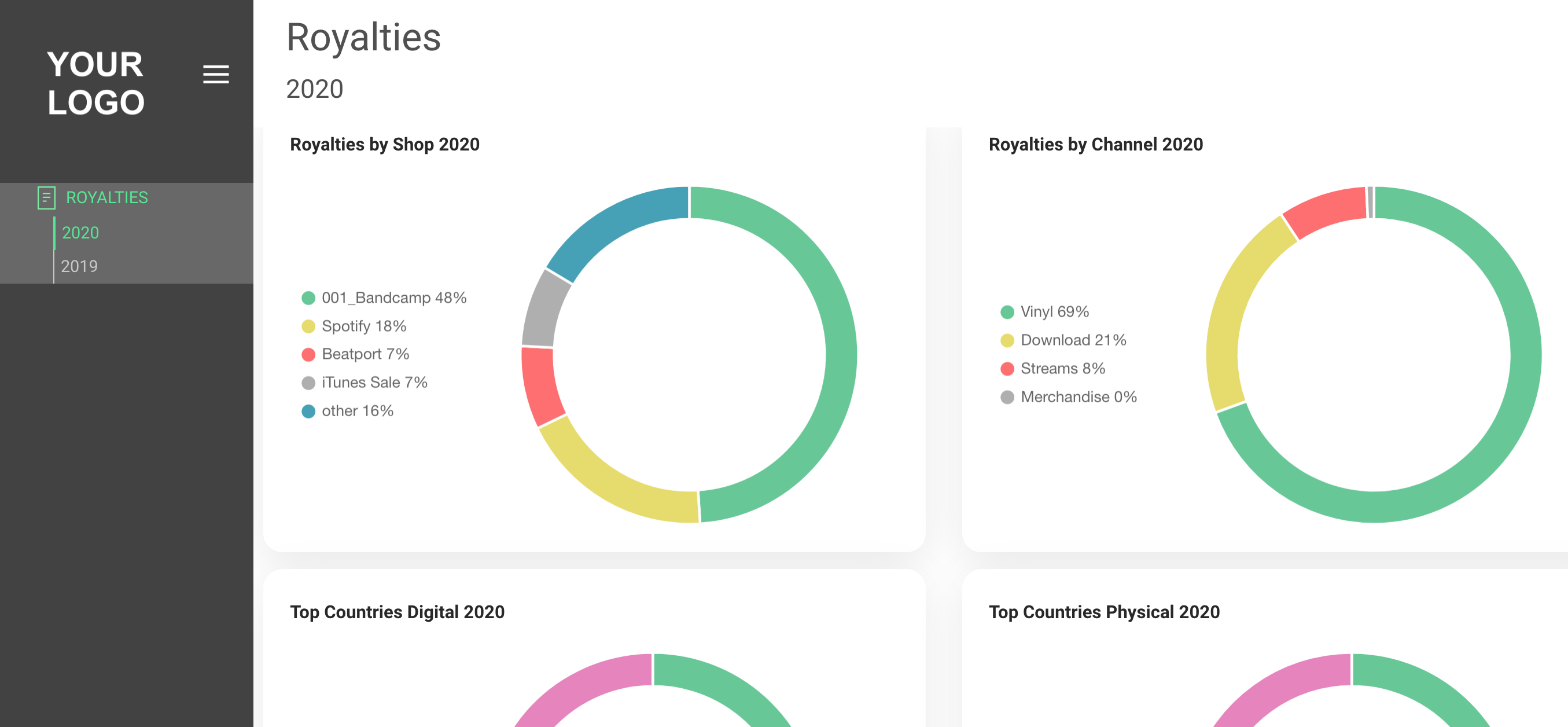
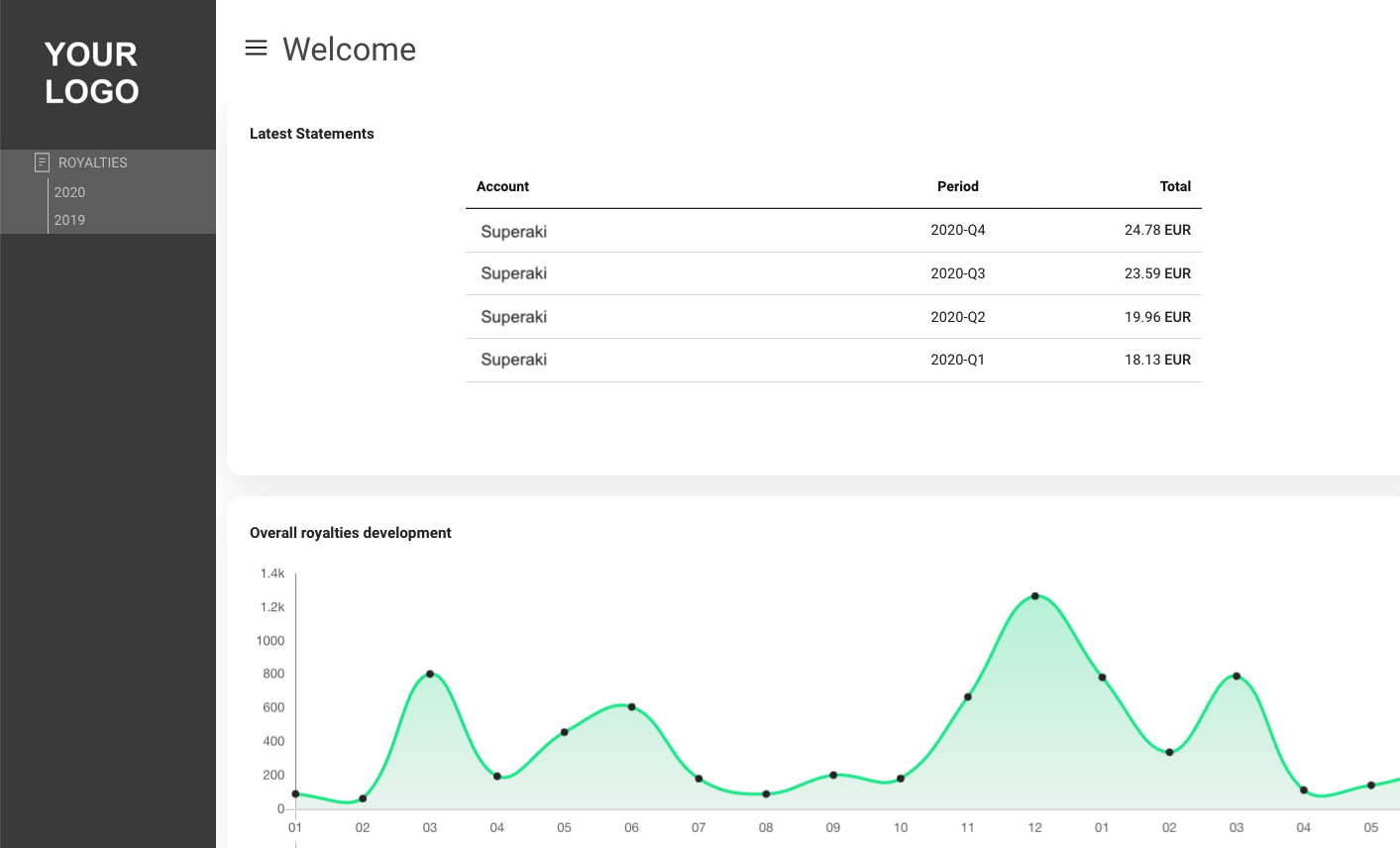
Our Label and Label Service clients are now able to provide royalty statements to their royalty accounts in a custom b2b area with access to royalty statements and analytics.
This feature comes FREE without additional costs to our clients
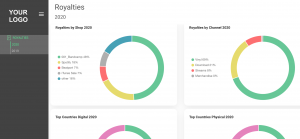
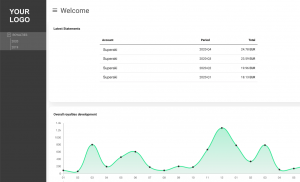
Our Label and Label Service clients are now able to provide royalty statements to their royalty accounts in a custom b2b area with access to royalty statements and analytics.
This feature comes FREE without additional costs to our clients
For giving a person access to the B2B section you first need to set up the person as an External User.
(see HERE how to set up external user).
When this is done go to SETTINGS – IDENTITIES and choose the invoice layout.
(Then go to the SHARES EMAIL tab and fill out the subject. It is possible, but not mandatory, to add a variable period to the subject field, so the respective period(s) will automatically be inserted to the email subject.
Please note that the period is the only variable that can be used in the subject.
To insert the period variable in the subject you need to add $period$(e.g. “Statement for $period$”
For the email text you can create a standard text with the variables GIVEN NAME $given_name$, ROYALTY ACCOUNT NAME $royalty_account$ and PERIOD $period$.
e.g. “Hi $given_name$,( get your $royalty_account$ statements for $period$ and previous periods.”
You also be able to add a trailing text, that will appear under the ACCESS STATEMENT Button.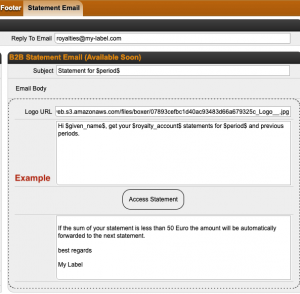
(To add your logo to the email you need to follow this steps unless you have not already uploaded a logo into Details:
1) go to CONTACTS / FILES and upload your new picture, logo file etc. to FILES.(NOTE: Don’t forget to name the file in a way that you will allow you to find it again.
2) Right Click on the uploaded file and select “Copy link location”.(This will copy the link of the file into the clipboard and allows you to paste the URL to the Logo URL field. ((

To have an overview of all Royalty Accounts that give access to external user we’ve added a new icon.
In the LABEL – ROYALTY ACCOUNT – STATEMENT list and in the LABEL – STATEMENTS list overview you will find the icon beside all relevant statements.
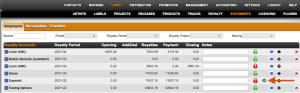
(All statements showing this icon allow one or more external user(s) access to the royalty account. By clicking on the icon you will find all users that have access to the respective account.
Please note, that only locked statements allow access to external user and will be used for the reporting overview.
If you want to add the complete statement history (incl. unlocked statements) to the B2B data you can go to LABEL – ROYALTY – SELECTED ROYALTY ACCOUNT – STATEMENTS.
(There you find the button UPDATE B2B DATA.
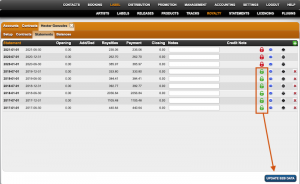
By clicking this button all unlocked statements will be locked and all sales data will be included to the sales history in the B2B account.
(By sending the statement, every external user will receive a link for a landing page where to register or to log in.
You may wonder what the SHARES Royalty Dashboard looks like for a specific royalty account before sending out the login credentials, just to make sure you are on the safe side.
Fortunately, DETAILS allows logged in users to preview the dashboard quickly and hassle-free.
You do not need to know the link, login, or password; you only need to have access to the royalty section and the royalty account in details.
Accessing Your Royalty Account Preview
Log into details: Only users logged into details with access to the ROYALTY section can benefit from the direct access.
Select Royalty Account: Navigate to the ROYALTY section and within the ROYALTY ACCOUNTS, select the royalty account you wish to check.
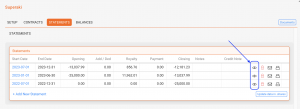
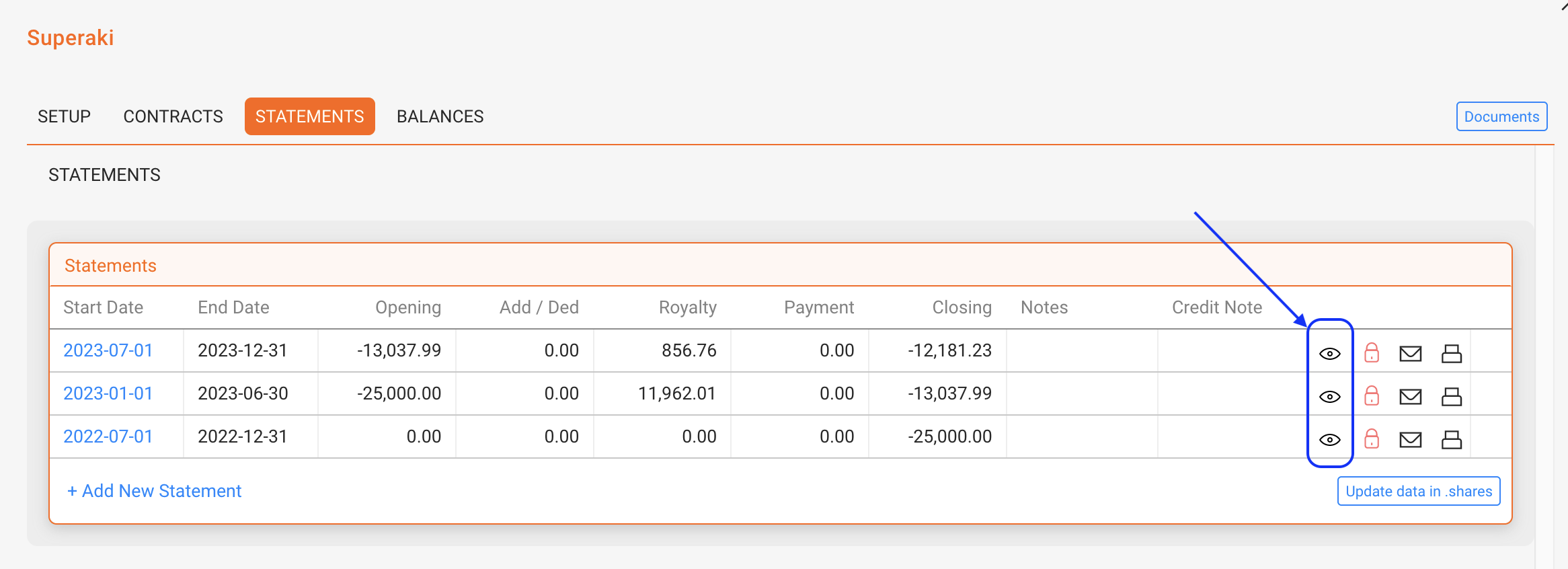
Click the [Eye] icon: In the “Statements” section of the royalty account, look for the eye icon. Click on the icon to access a selection of external users you may select from for your preview.
Preview Your Account: Upon selection, a preview window will open, displaying exactly what is being shown to the selected external user.
What You Can Expect to See
When previewing a royalty account in the SHARES royalty dashboard, you can:
No Password Required: Accessing an account preview does not require knowing their password if and as long as you are a logged-in details user with access to the royalty section. The preview function provides a secure way to access a SHARES account without compromising the account security.
But do not change their passwords: While previewing your account, do not change the account’s password unless requested by the account. Only alter their password if you want to provide a new password or to block access.
Our Label and Label Service clients are now able to provide royalty statements to their royalty accounts in a custom b2b area with access to royalty statements and analytics.
This feature comes FREE without additional costs to our clients
For giving a person access to the B2B section you first need to set up the person as an External User.
(see HERE how to set up external user).When this is done go to SETTINGS – IDENTITIES and choose the invoice layout.
(Then go to the SHARES EMAIL tab and fill out the subject. It is possible, but not mandatory, to add a variable period to the subject field, so the respective period(s) will automatically be inserted to the email subject.
Please note that the period is the only variable that can be used in the subject.
To insert the period variable in the subject you need to add $period$(e.g. “Statement for $period$”
For the email text you can create a standard text with the variables GIVEN NAME $given_name$, ROYALTY ACCOUNT NAME $royalty_account$ and PERIOD $period$.
e.g. “Hi $given_name$,( get your $royalty_account$ statements for $period$ and previous periods.”
You also be able to add a trailing text, that will appear under the ACCESS STATEMENT Button.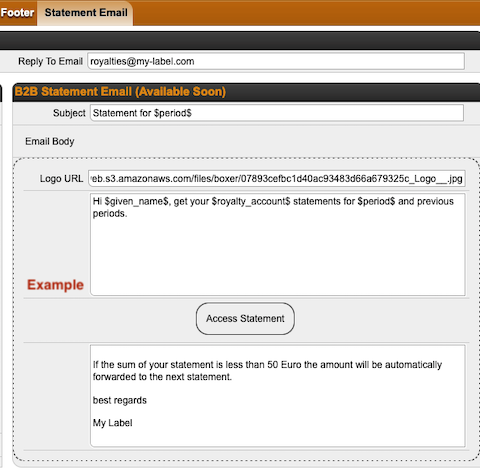
(To add your logo to the email you need to follow this steps unless you have not already uploaded a logo into Details:
1) go to CONTACTS / FILES and upload your new picture, logo file etc. to FILES.(NOTE: Don’t forget to name the file in a way that you will allow you to find it again.
2) Right Click on the uploaded file and select “Copy link location”.(This will copy the link of the file into the clipboard and allows you to paste the URL to the Logo URL field. ((

To have an overview of all Royalty Accounts that give access to external user we’ve added a new icon.
In the LABEL – ROYALTY ACCOUNT – STATEMENT list and in the LABEL – STATEMENTS list overview you will find the icon beside all relevant statements.
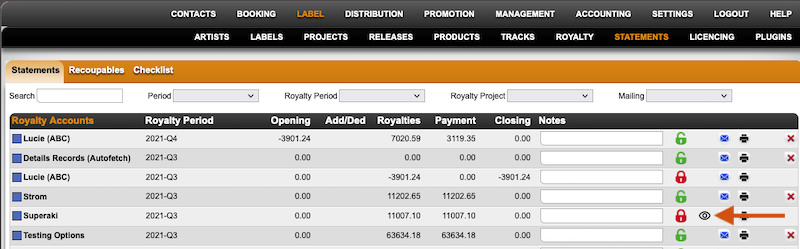
(All statements showing this icon allow one or more external user(s) access to the royalty account. By clicking on the icon you will find all users that have access to the respective account.
Please note, that only locked statements allow access to external user and will be used for the reporting overview.
If you want to add the complete statement history (incl. unlocked statements) to the B2B data you can go to LABEL – ROYALTY – SELECTED ROYALTY ACCOUNT – STATEMENTS.
(There you find the button UPDATE B2B DATA.
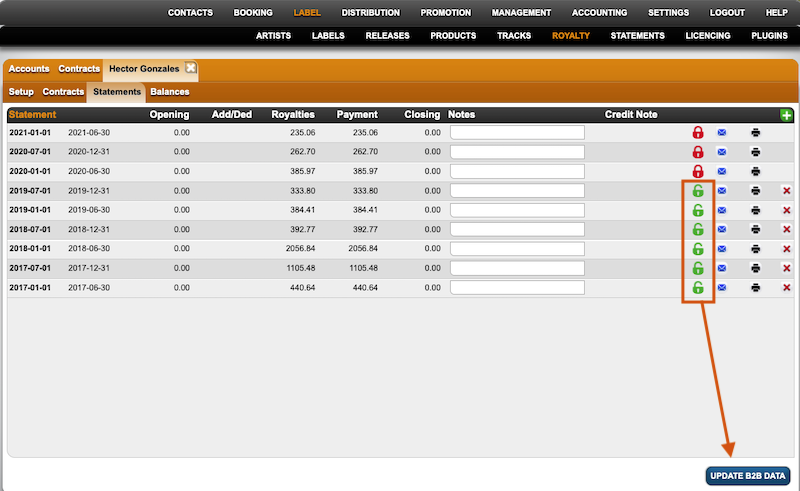
By clicking this button all unlocked statements will be locked and all sales data will be included to the sales history in the B2B account.
(By sending the statement, every external user will receive a link for a landing page where to register or to log in.
You may wonder what the SHARES Royalty Dashboard looks like for a specific royalty account before sending out the login credentials, just to make sure you are on the safe side.
Fortunately, DETAILS allows logged in users to preview the dashboard quickly and hassle-free.
You do not need to know the link, login, or password; you only need to have access to the royalty section and the royalty account in details.
Accessing Your Royalty Account Preview
Log into details: Only users logged into details with access to the ROYALTY section can benefit from the direct access.
Select Royalty Account: Navigate to the ROYALTY section and within the ROYALTY ACCOUNTS, select the royalty account you wish to check.
Click the [Eye] icon: In the “Statements” section of the royalty account, look for the eye icon. Click on the icon to access a selection of external users you may select from for your preview.
Preview Your Account: Upon selection, a preview window will open, displaying exactly what is being shown to the selected external user.
What You Can Expect to See
When previewing a royalty account in the SHARES royalty dashboard, you can:
No Password Required: Accessing an account preview does not require knowing their password if and as long as you are a logged-in details user with access to the royalty section. The preview function provides a secure way to access a SHARES account without compromising the account security.
But do not change their passwords: While previewing your account, do not change the account’s password unless requested by the account. Only alter their password if you want to provide a new password or to block access.