Accounting Recoupables: Recoupable date

When accounting your recoupables, please note the recoupable dates are set by the following rules:

  1. If the artist has no royalty statement yet, the release date of the artist’s record will be used as the recoupable date so that recoupables will be included on the first statement.
  2. If the royalty period is not accounted for the cost date yet, recoupable date will equal cost date.
  3. If the royalty period is accounted for the cost date already, the recoupable date will be the last day of the current royalty statement period plus one day.

How to import your catalog via IDOL Labelcamp

The Labelcamp Import feature is available in the Catalog Management section of details.
It allows you to connect your IDOL Labelcamp account and ingest new catalogue entries into your database with a single click.

This import tool is designed to simplify catalogue updates and eliminate manual data entry. It supports automatic matching for products and tracks to prevent duplicates.


► How to Import Your Catalogue

Steps

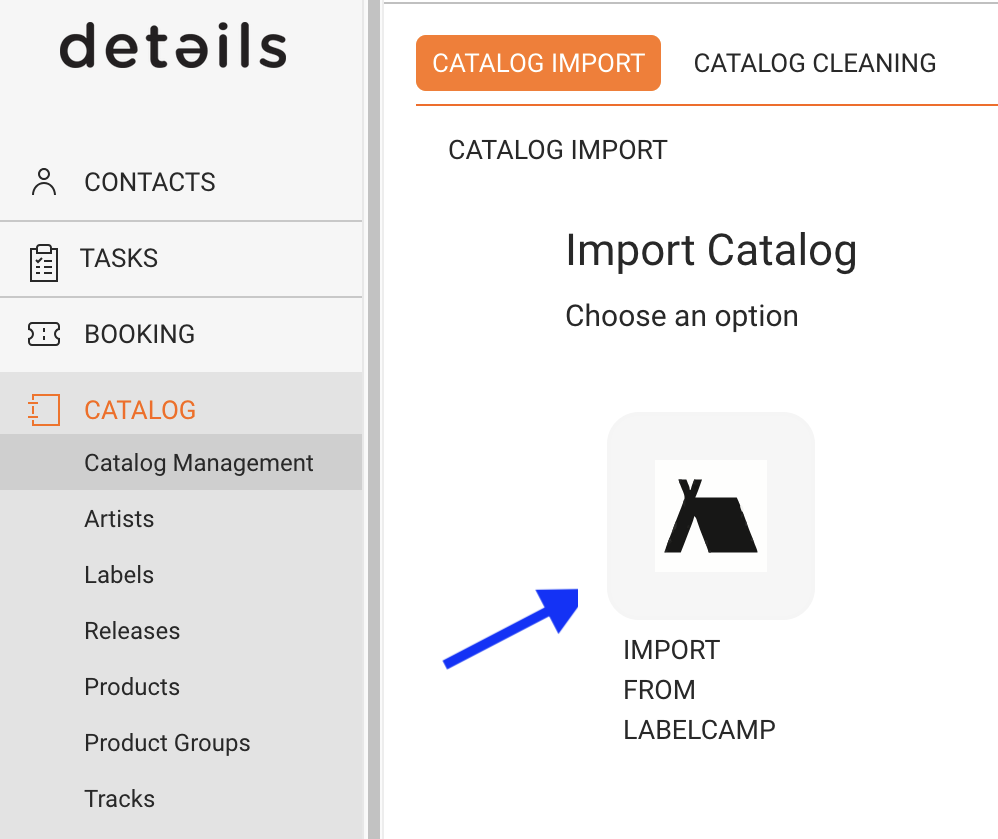
  1. Go to CATALOG > MANAGEMENT.
  2. Select Labelcamp Import.
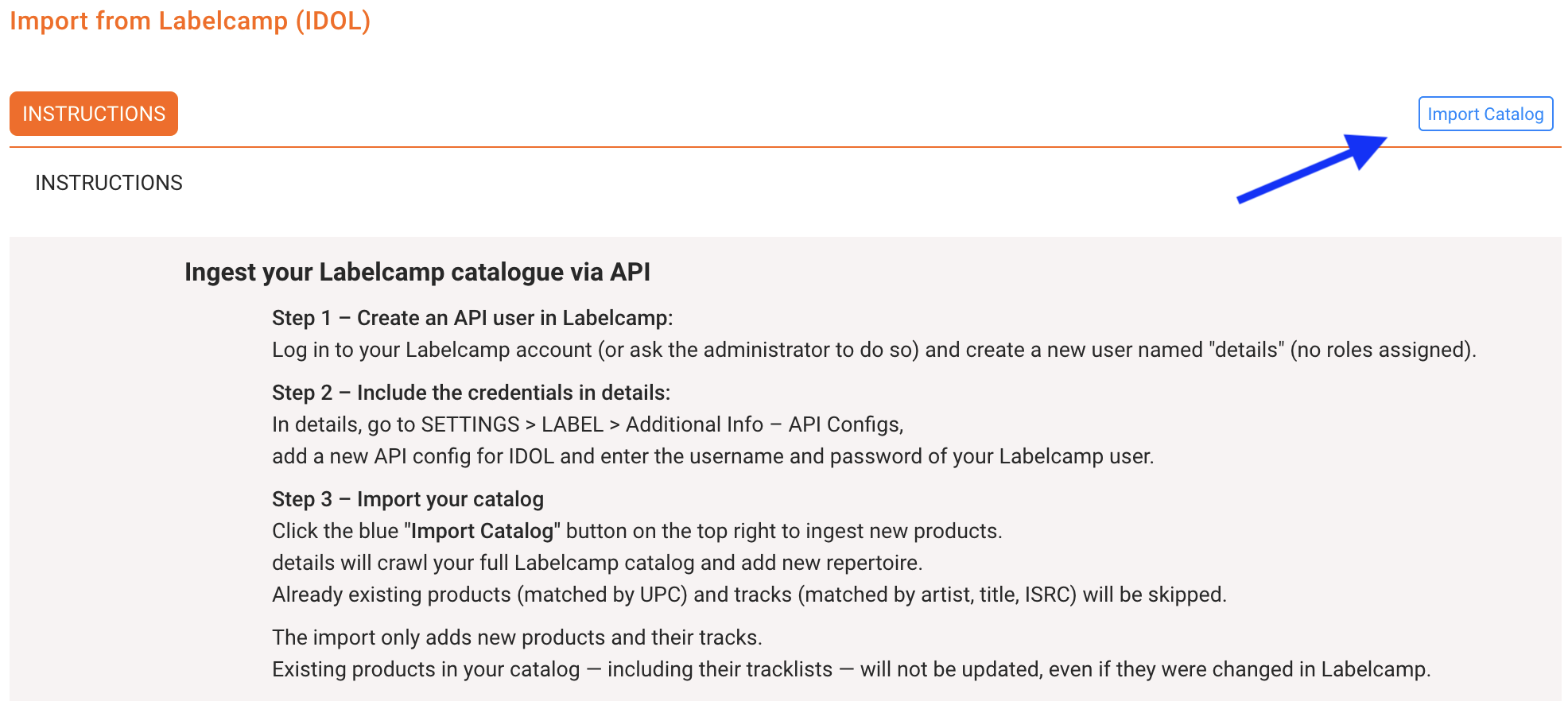
  3. Click Import Catalog to start the import process.

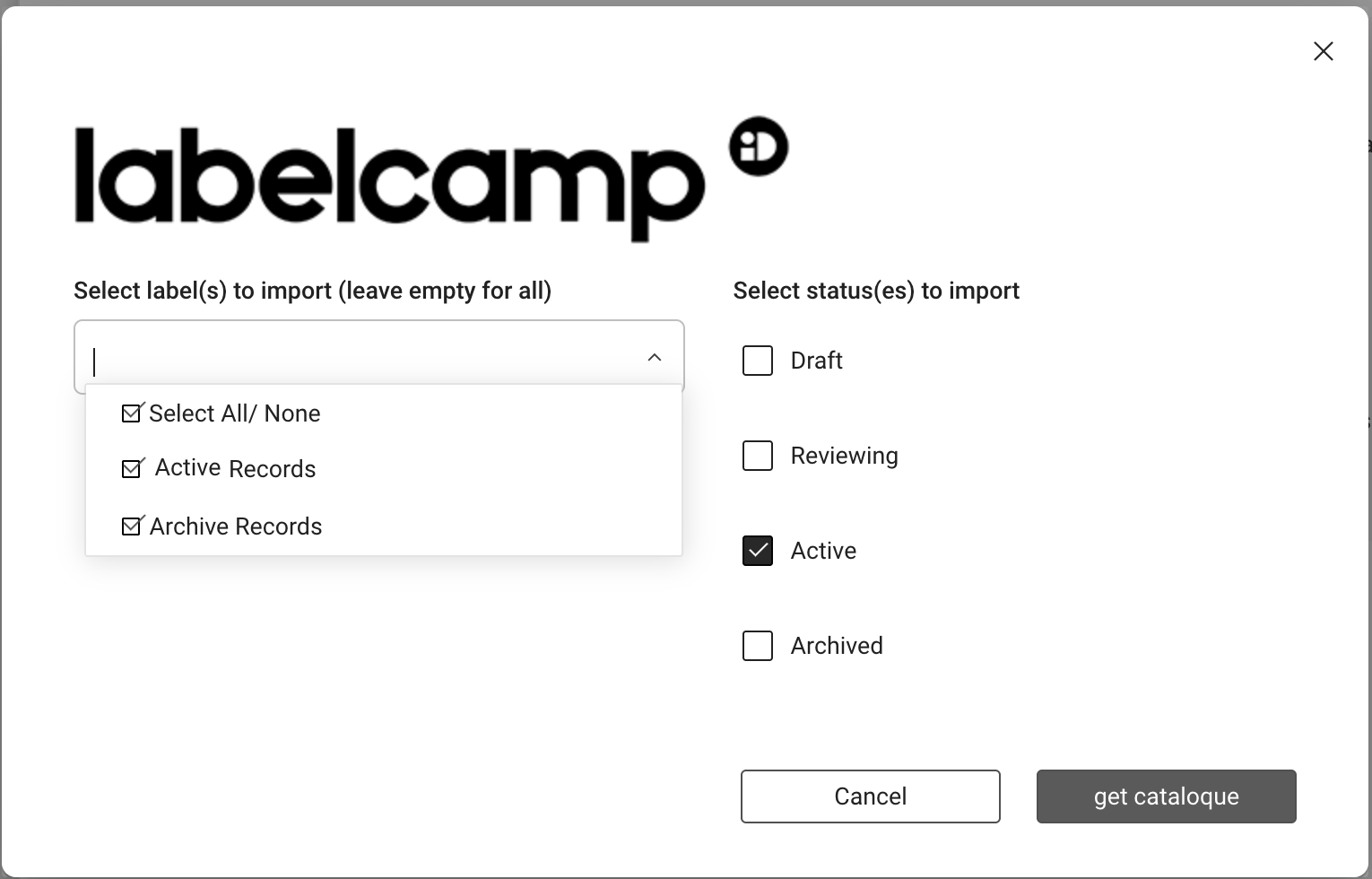
The system will connect to your Labelcamp account and load all labels connected to your account, plus the available product statuses (e.g. Draft, Reviewing, Active, Archived).

As a user, you can select one, multiple, or all labels from your account.

You should also decide whether details should retrieve only Active products (recommended), or also Draft, Reviewing, or Archived products.

Once your selection is complete, click Get Catalogue. The system will then retrieve all new products and tracks not already loaded into details.

Depending on your catalogue size, this may take a few minutes or longer.

Tip
Keep your Labelcamp credentials saved in SETTINGS > LABEL > Additional Info API Configs to allow faster imports in the future.

► Import Logic

Matching Rules

  • Products are matched by UPC (barcode).
  • Tracks are matched by Artist, Title, and ISRC.
  • Only new products and tracks will be added; existing items are skipped automatically.
  • Metadata from existing products or tracks is not updated during import.

► Initial Setup Required

One-Time API Connection

Before using the import feature, a one-time API setup is required to connect details with your Labelcamp account.

  1. Create an API user in Labelcamp:
    An administrator from your team must log in to Labelcamp and create a user named details. This user should have no assigned roles or permissions.
  2. Enter credentials in details:
    In SETTINGS > LABEL > Additional Info API Configs, create a new configuration for IDOL and enter the username and password of the Labelcamp user.
  3. Activate the plugin:
    Go to LABEL > PLUGINS > API and activate Auto-Ingest new products from idol.io. This enables the secure API connection.

► Support and Further Tools

If you need assistance during setup or encounter issues with the import process, our support team is available to help.

Explained: Costs & Other Income

Every music release or product generates both expenses and sometimes additional income streams.

Costs typically arise at different stages:

  • Production recording sessions, mixing, mastering, artwork, and manufacturing (for physical formats).
  • Marketing & Promotion press campaigns, radio plugging, social media ads, video production.
  • Distribution & Sales digital distribution fees, shipping, warehousing, and retail margins.
  • Operational legal, accounting, or administrative costs linked to releasing music.

On the other side, there may be income beyond direct sales:

  • Marketing budgets contributed by partners (e.g. distributors, DSPs, brands).
  • License flat fees for syncs, compilations, or other usage rights.
  • Subsidies or funding from cultural institutions, grants, or sponsorships.

details allows you to manage both sides:

  • Assigning and tracking costs directly to the corresponding release or product.
  • Recording and reconciling additional income streams, ensuring they are included in royalty calculations where relevant. This gives a clear financial picture of each release or product.

► Costs

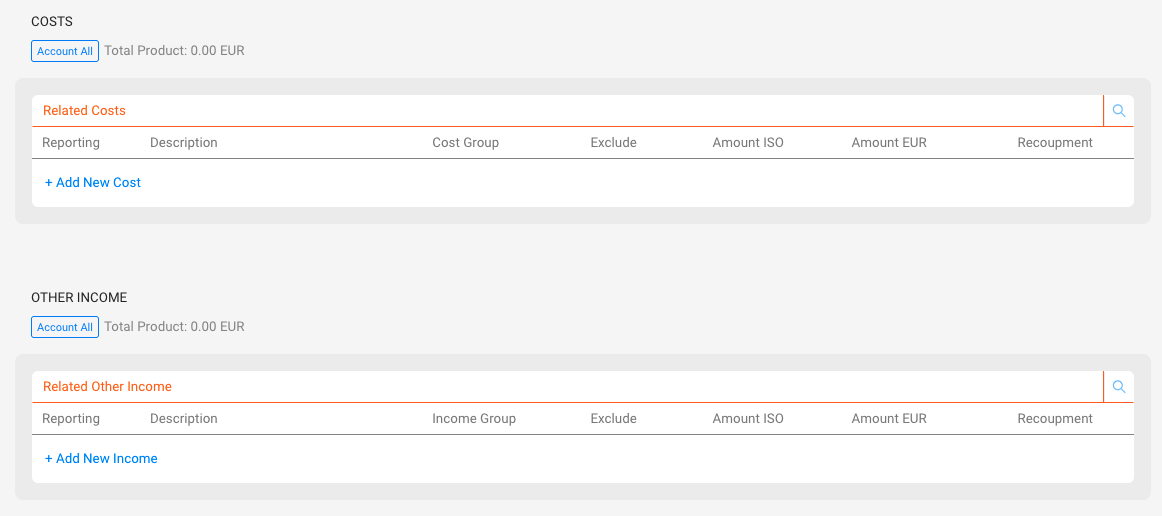
Costs represent all outgoing amounts that reduce the income of a release, product, or track. They can be created manually, imported via Excel, or generated automatically from royalty statements.

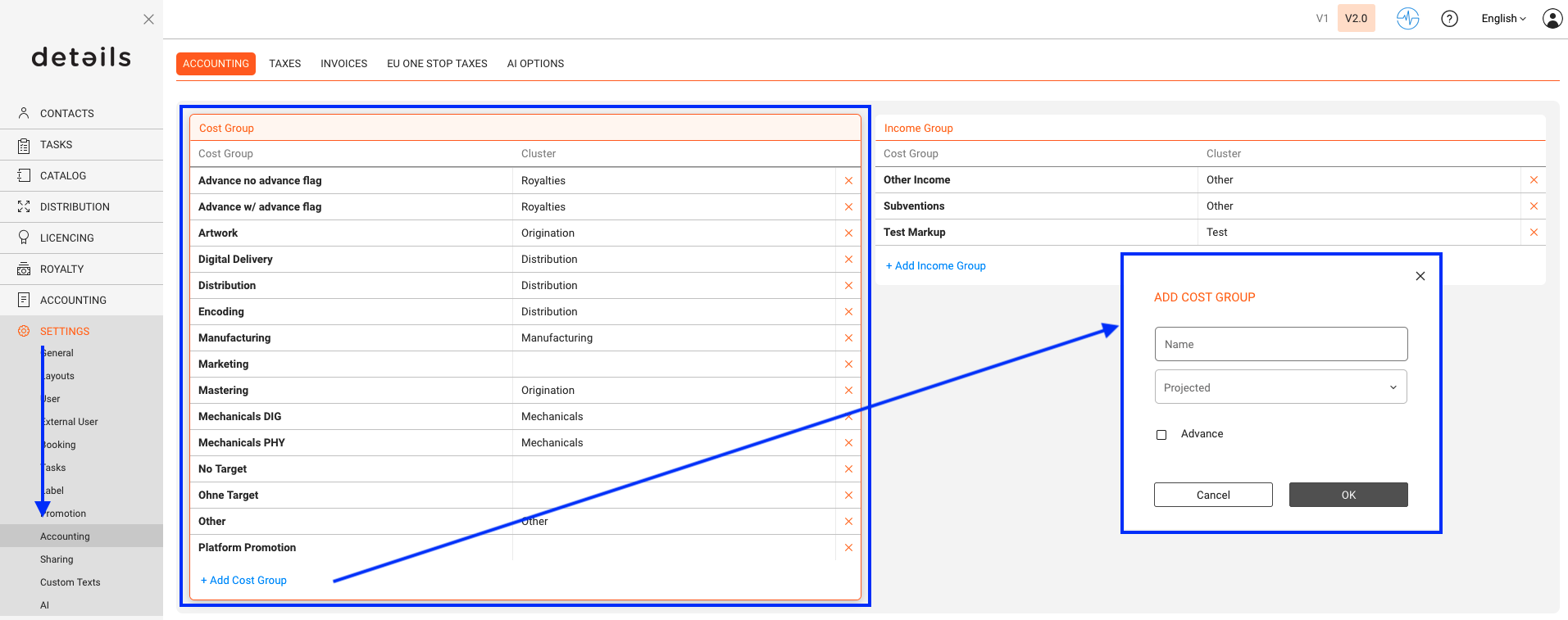
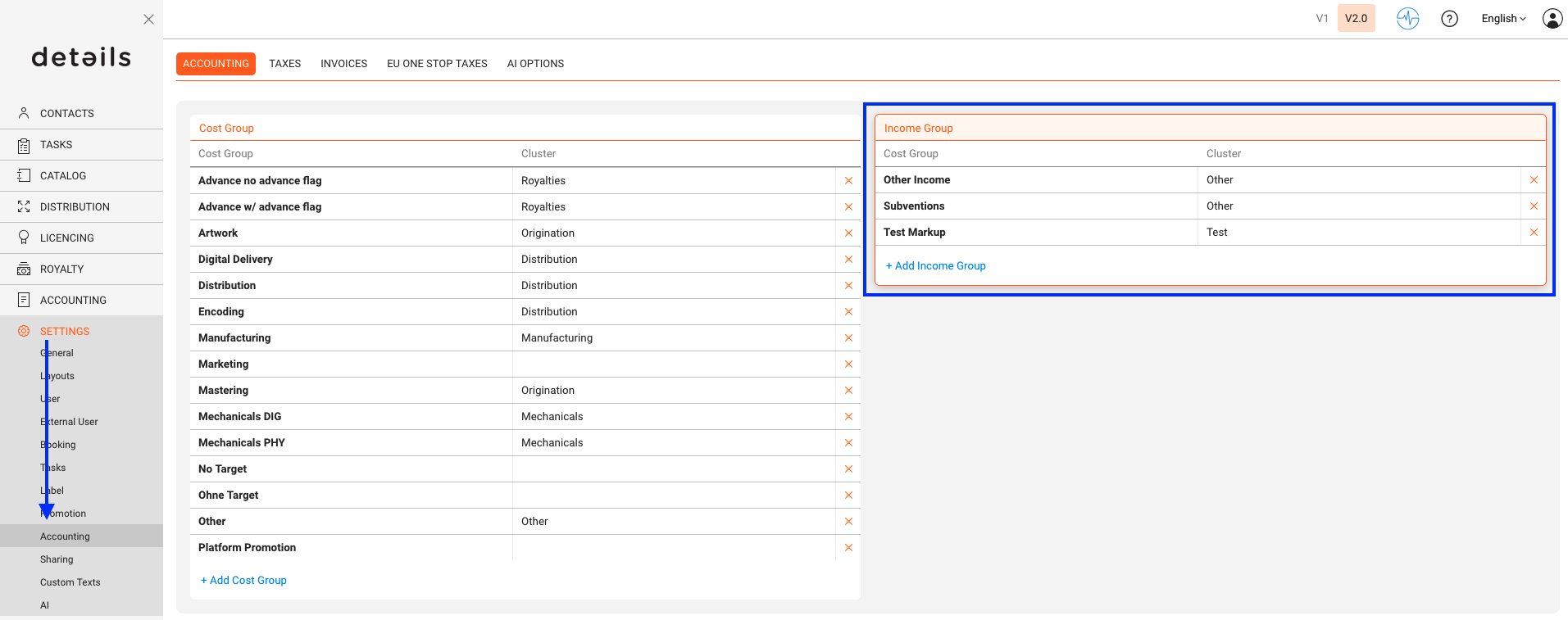
  • Cost Groups: Defined under SETTINGS / ACCOUNTING, they structure your costs into categories (e.g. Marketing, Promotion, Manufacturing).
  • Advances: A special cost group, always 100% recoupable.
  • Recoupment: If costs need to be recouped against royalties, you can define the recoupment rules in the contract setup. More information in the ROYALTY section.

► Income & Other Income

Income normally comes from sales, streams, or licenses. In addition, Other Income can be managed to represent subsidies, sponsorships, or any type of additional funding.

  • Income Groups: Defined under SETTINGS / ACCOUNTING, they structure additional income sources and can be assigned to releases and products.
  • Contract Logic: As with costs, income can be added globally or assigned to specific groups, depending on the contract.

► Interaction in Catalog

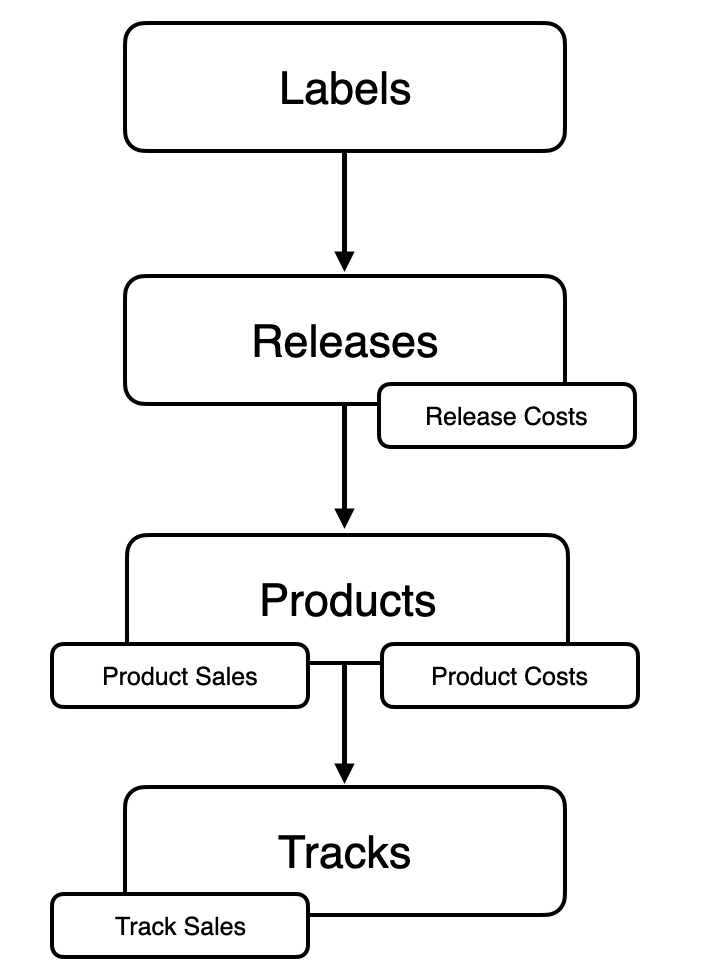
The catalog structure defines where costs and income are placed and how they interact:

  • Releases act as the central hub all financial flows are anchored here.
  • Products (physical and digital) create costs and income that belong to them.

► Proofs

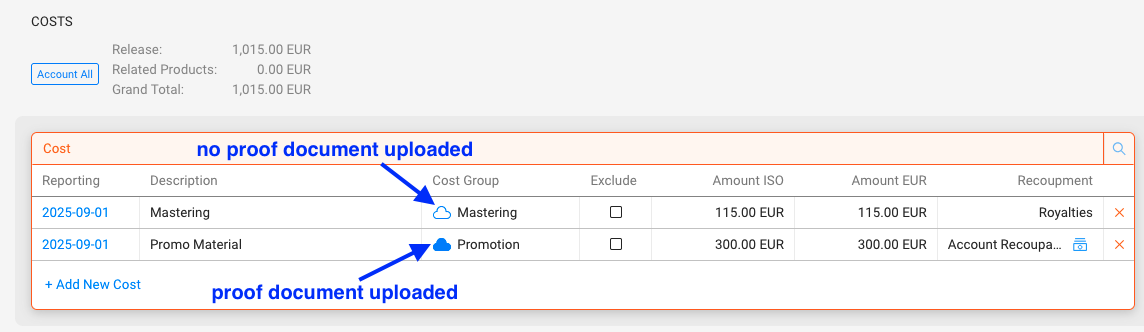
For both Costs and Other Income, you may upload proofs on the Release► and Product level►. These documents ensure transparency and provide traceability for internal use or for sharing with royalty partners or artist managements.

  • Invoices and Documents: Attach supporting files directly to financial entries.
  • Transparency: Enables partners to review the original documents behind costs or income.

Key points:
” In details, you can track all release- or product-related costs and record additional income streams (like marketing budgets, flat fees, or funding) for a complete financial overview.
“Costs and Other Income are structured by Groups in SETTINGS / ACCOUNTING.
” Proofs can be attached to Releases and Products for both Costs and Other Income.

How to ingest Your Catalog with API (Json Import)

This API allows external partners to send catalog metadata to the details platform, including full release, product, and track-level information. This is useful for onboarding your catalog or sending new metadata directly into the system.


What You Can Do with This API

With a single POST request, you can submit structured catalog data including:

“Labels

“Releases (title, artist, release code, release date, genres, etc.)

“Products (barcode, format, territory rights, etc.)

“Tracks (artist, title, ISRC, language, rights, metadata, credits, etc.)

Each request can contain one or more labels and their associated releases, products, and tracks.


Endpoint Details

URL: https://openapi.berlin3.com:10000/label/json-import

Method: POST

Content-Type: application/json


Authentication

You need to include a valid api_key and clientID in the request body.


Example JSON Structure

{
  "clientID": "yourClientID",
  "api_key": "yourAPIkey",
  "email": "you@example.com",
  "labels": [
    {
      "label": "MyLabel",
      "releases": [
        {
          "release_artist": "Various Artists",
          "release_title": "Album Title",
          "release_code": "ABC123",
          "release_date": "2023-05-20",
          "release_type": "Album",
          "release_status": "Current",
          "release_genre_main_1": "Electronic",
          "release_genre_sub_1": "Techno",
          "products": [
            {
              "catalog_no": "ABC123",
              "barcode": "1234567890123",
              "format": "Vinyl",
              "product_version": "Limited Edition",
              "download_yes_no": "Yes",
              "streaming_yes_no": "Yes",
              "excluded_countries": "",
              "identfier": "ABC123-LTD",
              "metadata": [
                {
                  "metadata_set": "set1",
                  "metadata_name": "territory",
                  "data": "Europe"
                }
              ],
              "tracks": [
                {
                  "media": 1,
                  "track_no": 1,
                  "track_artist": "DJ Test",
                  "track_title": "Banger One",
                  "version": "Original Mix",
                  "isrc": "DE-XYZ-25-00001",
                  "track_language": "English",
                  "p_year": "2025",
                  "p_text": "MyLabel",
                  "explicit_rights": "No",
                  "digital_rights": "Full",
                  "track_genre_main_1": "Electronic",
                  "track_genre_sub_1": "Techno",
                  "track_credits": [
                    {
                      "type": "writer",
                      "name": "DJ Test",
                      "publisher": "Test Publishing",
                      "share": "100"
                    }
                  ],
                  "metadata": [
                    {
                      "metadata_set": "set2",
                      "metadata_name": "BPM",
                      "data": "128"
                    }
                  ]
                }
              ]
            }
          ]
        }
      ]
    }
  ]
}


Response Codes

200 OK Catalog data successfully ingested.

400 Bad Request Invalid request format.

401 Unauthorized API key or client ID incorrect.

404 Not Found Endpoint does not exist.

500 Internal Server Error Server-side error.

501 Not Implemented Feature not available.


Notes

“You can submit multiple labels and releases per request.

“Fields like track_credits, metadata, and publisher are optional but recommended for royalty tracking.

“The more complete your metadata, the better the system can match and report on your catalog.


Need Help?

If you re unsure how to prepare your data or need help with testing, please contact our support team:

label_team@details.eu
Explained: Order types and their stock movements

Order types define how details treats stock movements and whether invoices are generated automatically. Each order type represents a different kind of transaction between your Distribution Accounts and Stock Accounts.

You can choose the order type when creating a new order under DISTRIBUTION / ORDERS or when working directly from a Distribution Account.

► Overview of Order Types

The following table shows how each order type affects stock and invoicing. This helps you decide which type to use for a specific scenario.

Order Type Description Stock (Account) Stock (Stock Account) Invoice
Invoice Order Used for regular sales to clients or retailers. Creates an invoice automatically once accounted. Neutral Decreased Yes
Consignment Used when delivering goods on consignment. Stock is moved to the account but no invoice is created until items are sold or returned. Increased Decreased No
Return Credit Note Used for returns from customers. Increases stock in the warehouse and creates a credit note invoice for accounting. Neutral Increased Yes
Promo Order Used for promotional shipments such as giveaways or review copies. No invoice is created. Neutral Decreased No
Defects Used for damaged or defective products being removed from stock. Not invoiced and not credited. Neutral Decreased No
Price Adjustment Used to correct pricing on already delivered goods without physical stock changes. Neutral Neutral Yes

► Choosing the Correct Order Type

Selecting the correct order type ensures accurate stock tracking and accounting results. Use the following guidelines:

  • Invoice Order  For standard customer orders that require invoicing.
  • Consignment  For partner accounts that handle sales reports later (e.g. shops or distributors).
  • Return Credit Note  For returned goods from customers or partners.
  • Promo Order  For marketing or free sample shipments.
  • Defects  For defective products to be removed from stock.
  • Price Adjustment  For correcting previously invoiced prices without new shipments.

If you are unsure which order type to select, review your contract setup or ask your accounting team which type applies to your process.

► Account and Stock Account Behavior

Each order type affects the two sides of an order differently:

  • Account: Represents the client or customer receiving (or returning) goods. Some order types, such as Consignment, increase the account s stock level.
  • Stock Account: Represents your warehouse or physical stock source. It decreases when shipping products and increases when receiving returns.

This logic ensures that your warehouse and account stocks remain consistent and transparent at all times.

► Translations

For teams working in multiple languages, here s an overview of common translations for order types:

English German French
Invoice Order Rechnungsauftrag Commande facture
Consignment Kommissionsauftrag Commande en consignation
Return Credit Note Gutschrift Note de crdit
Promo Order Promoauftrag Commande promotionnelle
Defects Defekte Dfectueux
Price Adjustment Preisnderung Ajustement de prix

Understanding these order types helps you manage stock movements precisely and ensures that your distribution accounting remains consistent across all transactions.

Basic Actions: Contact Groups

This article explains the basic actions you can perform when working with contact groups in details. It covers how to edit, delete, export your group data and create group mailing.

► Create A Group

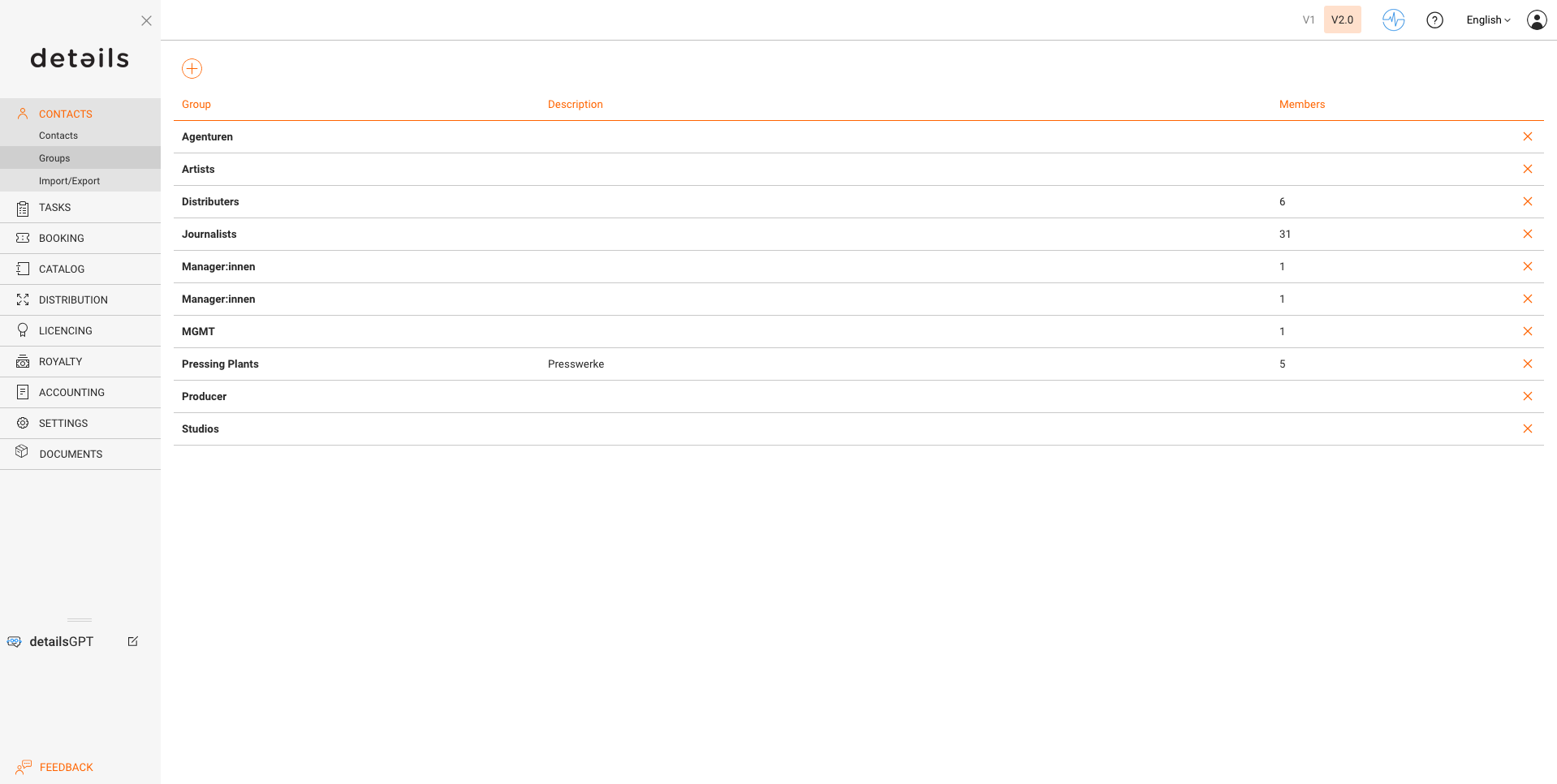
To categorize your contacts, go to CONTACTS / GROUPS.

Examples of useful groups include:

  • Artists
  • DJs
  • Promoters
  • Labels
  • Venues
  • Record or digital shops

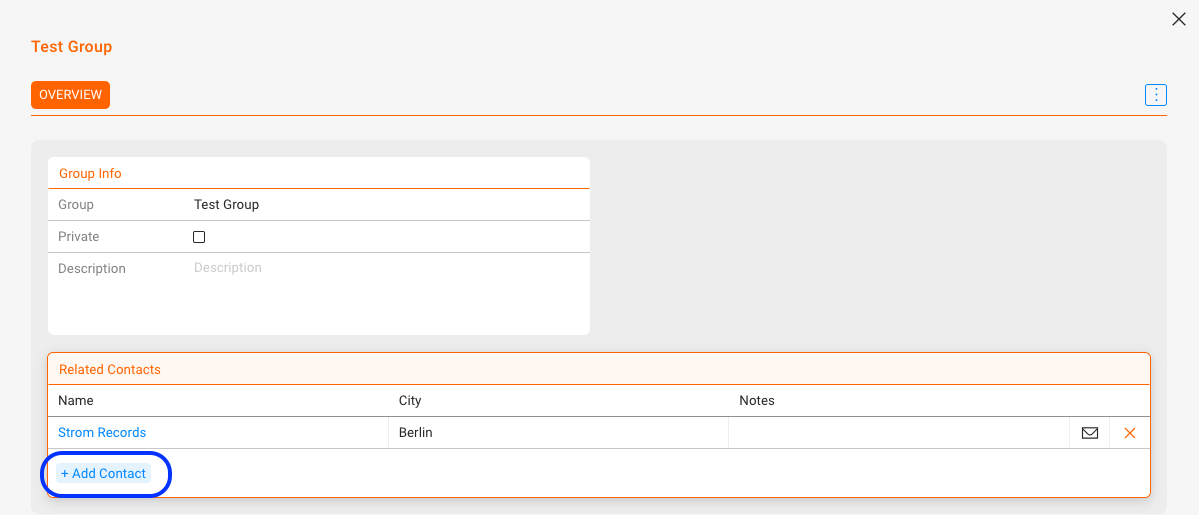
Use the [+] button at the top right to create a new group. You ll be redirected to the group detail page where you can add contacts via [+] and select them from the database.

► Editing a Group

Go to CONTACTS / GROUPS and select the group you want to edit.

On the group detail page, you can:

  • Change the group name
  • Add contacts via [+] and search.
    You can also add them in bulk by using the checkboxes.
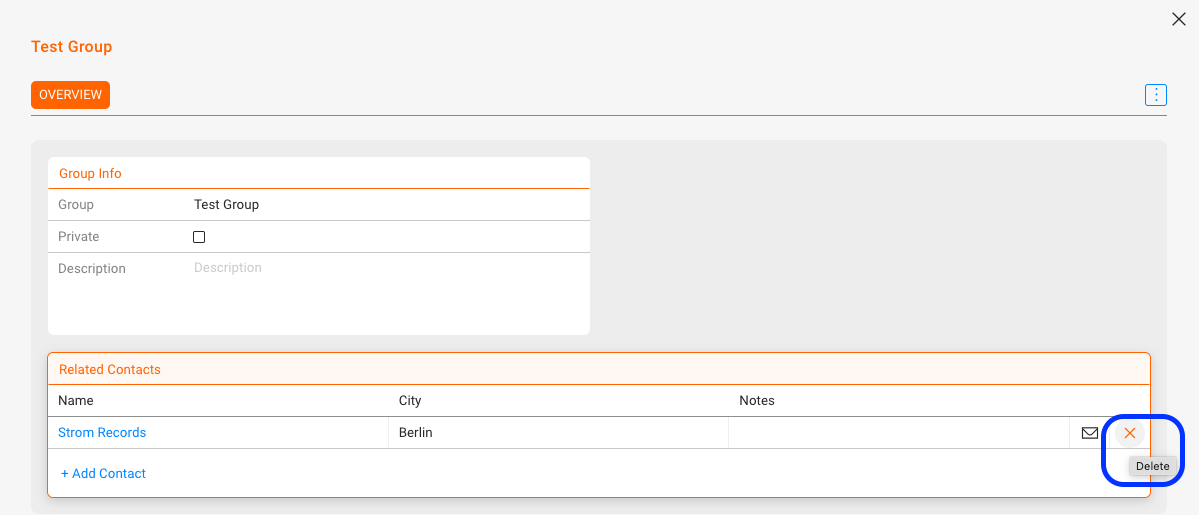
  • Remove contacts using [x]

► Deleting a Group

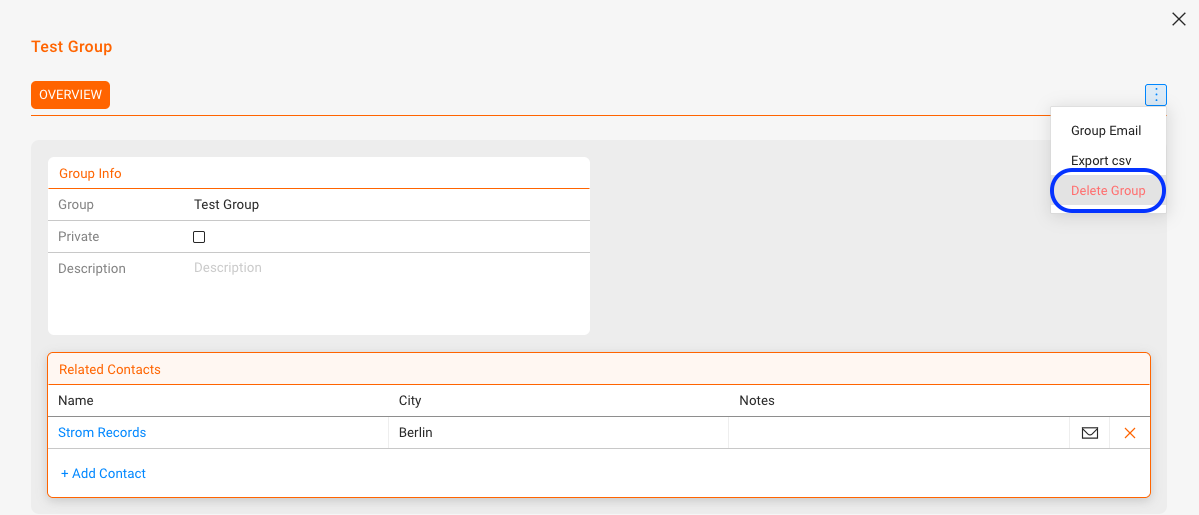
On the group page, click [DELETE GROUP] to remove it. This does not delete any contacts, only the group itself.

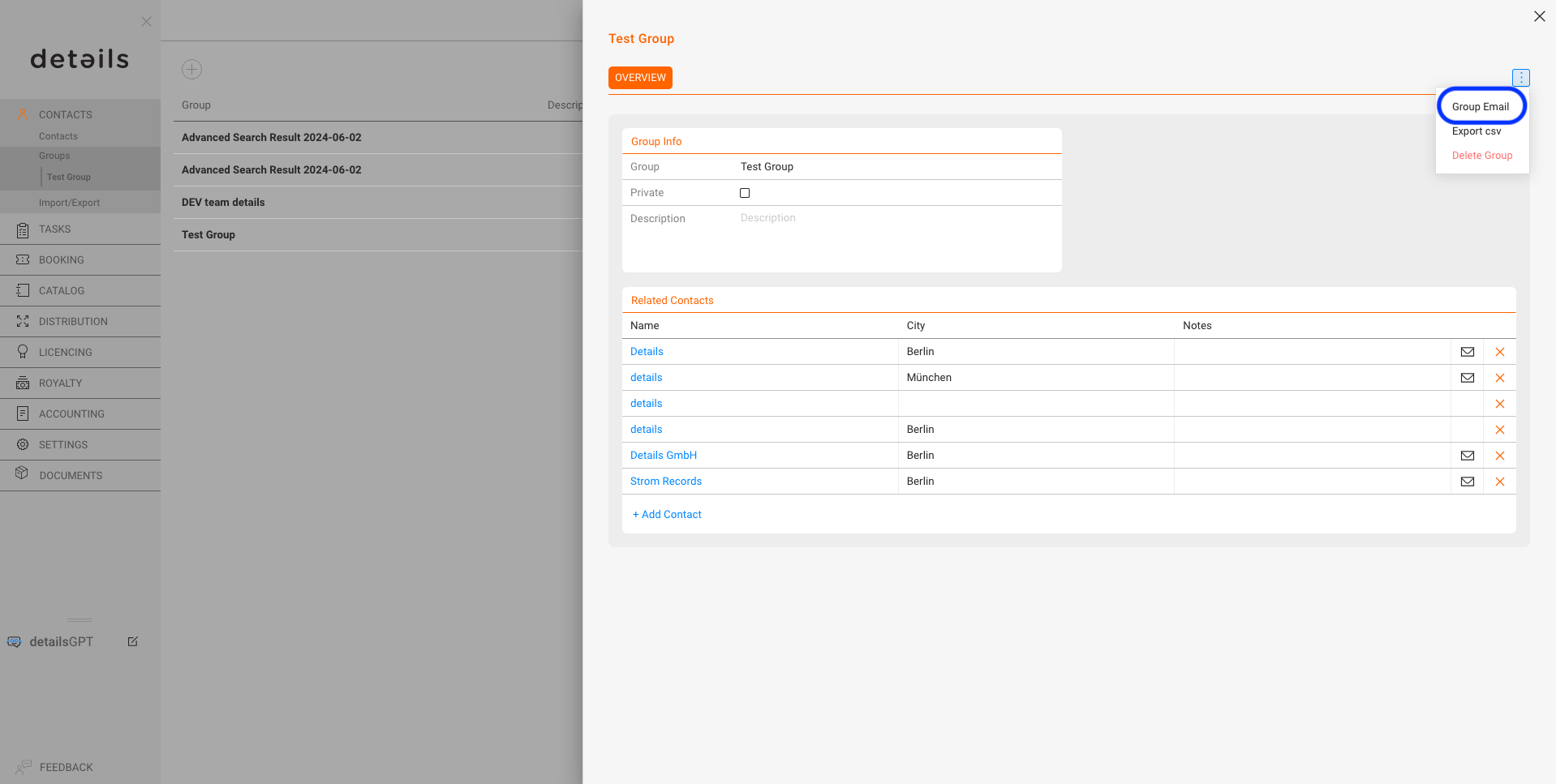
► Export as CSV File

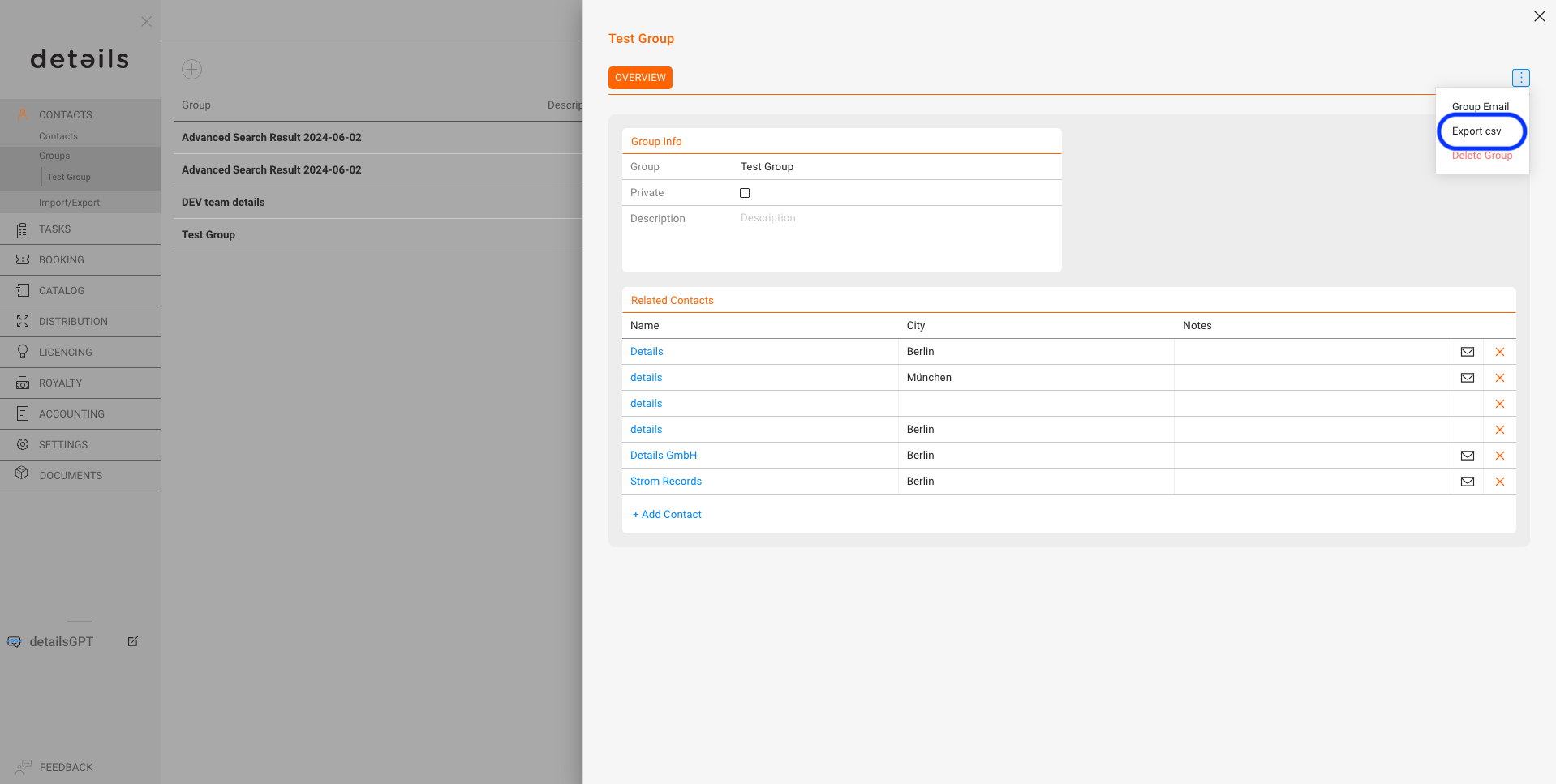
You can select multiple contacts in the list view to export as CSV File.

On the group page, click [EXPORT CSV] to download the file.

► Generate copyable email list

You can display the selected contacts as plain text to copy their email addresses for group messages.

Therefore, click [GROUP MAIL] on the group page.

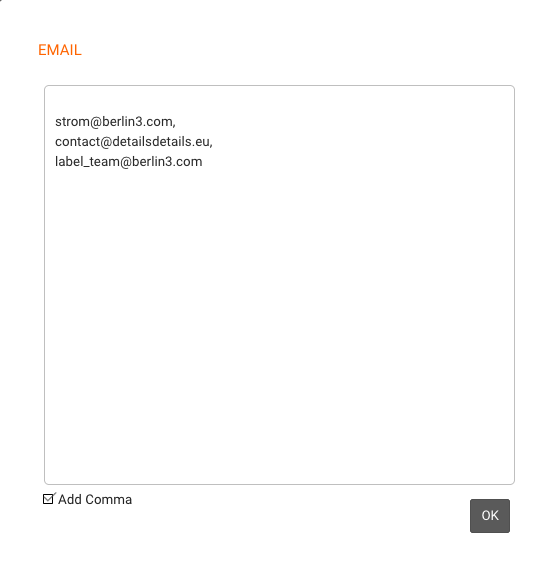
A window will open displaying the available email addresses for the group, which can be easily copied. It is also possible to separate the addresses with commas if necessary.

Explained: Formats & Format Groups

This article explains how Formats and Format Groups work in details, how they impact royalty calculation, and how to configure them safely. It is written for admins who maintain the product catalog and royalty settings.

Note: Choose Digital or Physical for a product and stick to it. Format attributes (VAT, weight, reserves, etc.) drive logistics and royalty logic. Use Format Groups to apply the same royalty rule to several formats (e.g., all vinyl formats).

Where to manage Formats

Go to CATALOG / PRODUCTS to assign a format to a product. To define or edit formats themselves, open LABEL / SETTINGS and manage your label’s format list.

Formats are customizable per label. You can keep them minimal or very granular (e.g., separate entries for different vinyl sizes, CDs, merchandise, tickets).

Digital vs. Physical — a binding decision

When you create a product, you must decide whether it is Digital or Physical. After a product has transactions, do not switch its channel between Digital and Physical.

Why this matters: Digital vs. Physical sales are calculated under different royalty regimes (e.g., splits vs. percentage of PPD). Switching would retroactively change which rules apply and can corrupt statements.

You may still change within Physical formats (e.g., from one vinyl size to another) as long as this does not conflict with existing accounting or logistics constraints.

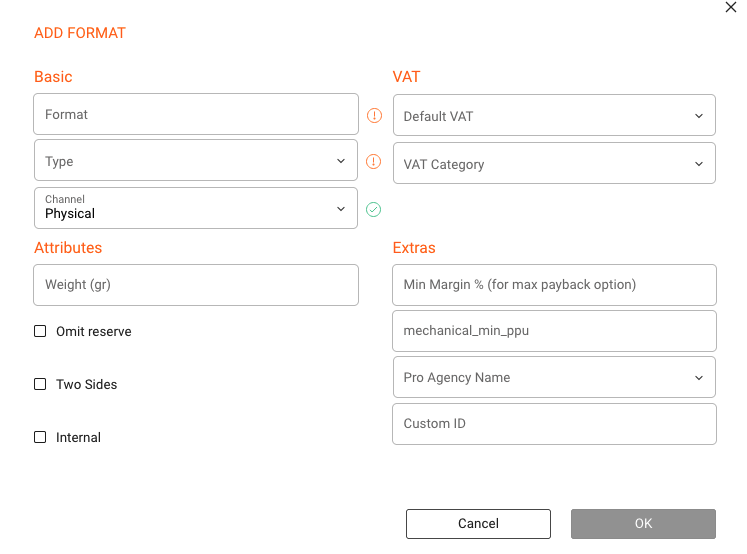
Format fields & what they do

Core

  • Channel: Digital or Physical. This determines which royalty ruleset can apply. Treat this as immutable once in use.
  • Type: Mark whether the release is a Single, EP, Album, etc. Used for classification and reporting.

Tax (VAT)

  • VAT1: full VAT rate.
  • VAT2: reduced VAT rate.
  • NoVAT: no VAT (rare; for VAT-exempt products).

Cross border sales: VAT settings influence how invoices are calculated for shops in different countries.

Weight

Define a default weight per format to support shipping cost estimates. Product-level weight can override the format’s default.

Reserves

  • Omit Reserve: prevents reserve creation for this format.

Background: Used when returns are unlikely (e.g., limited editions).

Other attributes

  • Two Sides: relevant for vinyl/media.
  • Internal: for non-retail/internal formats.

Extras (advanced)

  • Minimum Margin: protects margin under exchange rate fluctuations.
  • Mechanical Min PPU: minimum per-unit mechanical.
  • PRO Agency Mapping: maps formats to external systems.
  • Custom ID: legacy field (avoid using).

Deleting formats

  • Only possible if not used by any product.
  • Reassign products before deleting obsolete formats.

Format Groups

Use groups to bundle formats sharing the same royalty rules (e.g., VINYL group).

Tip: Keep group names short and consistent.

Where groups are used

In LABEL / ROYALTY / CONTRACT / RATES, Format Groups are used for Physical royalty rules.

Best practices

  • Decide Digital vs Physical early.
  • Keep formats simple.
  • Use groups for rules.
  • Define defaults (VAT, weight).
  • Use advanced fields only if needed.

Explained: !!! in Track List

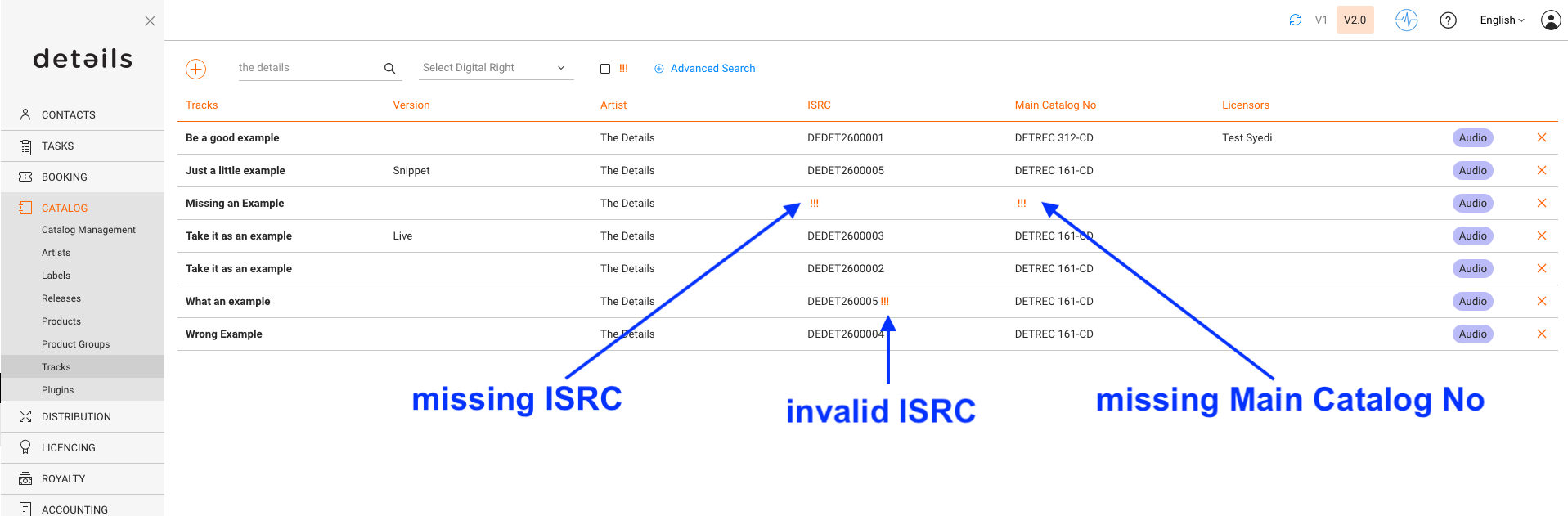
Tracks marked with !!! in CATALOG / TRACKS have errors that prevent correct reporting. This indicator ensures that incomplete or invalid tracks are corrected before billing.

Typical Causes

  • Missing Main Catalog Number: Every track needs a valid catalog number linked to a product. The missing connection to a product typically leads to a missing ISRC as well.
  • Missing or invalid ISRC: Without a valid ISRC, sales cannot be matched and reported correctly.
  • Invalid ISRC: An incomplete or repeatedly used ISRC can cause reporting and royalty issues.

How to Resolve

Missing Main Catalog No

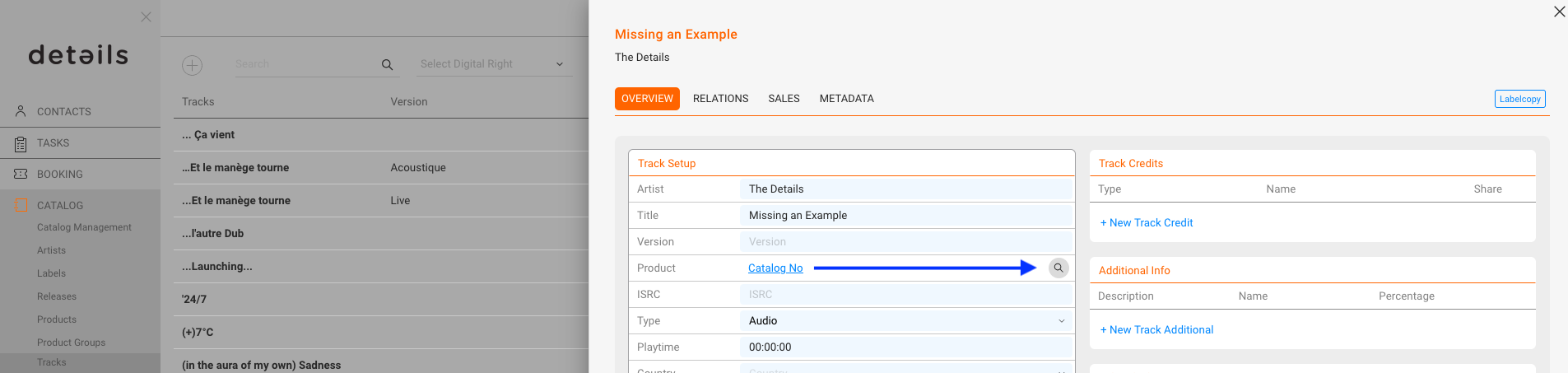
  1. Open the track in TRACKS / OVERVIEW.
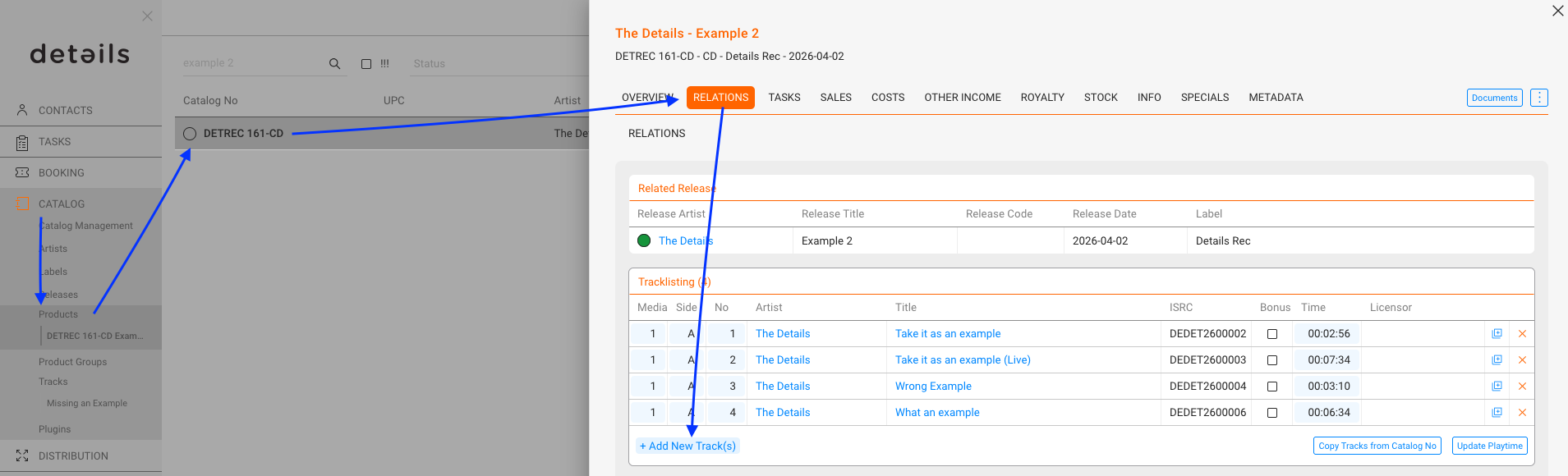
  2. Check if the Main Product is assigned in the RELATIONS tab.
  3. If there is a relation, add in OVERVIEW / Track Setup / Product the Catalog Number by searching for the related product.
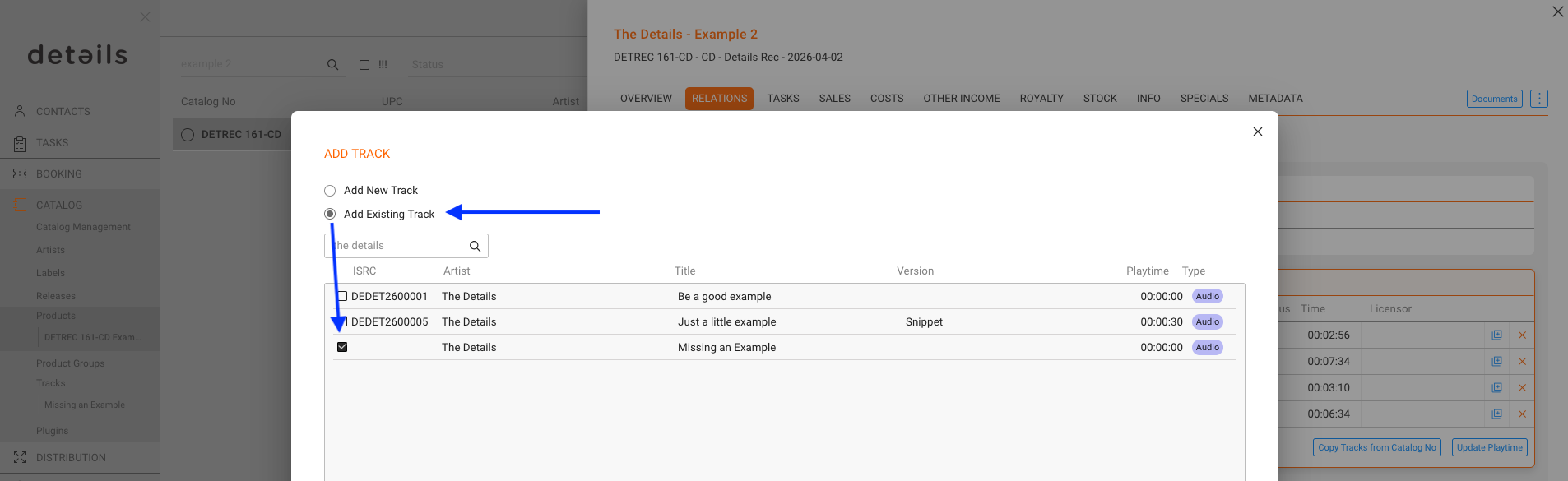
  4. If there is no relation, go to CATALOG / PRODUCTS, search the product where the track should be on, and add the track in RELATIONS / Tracklisting of the product.
    Use the [Add Existing Track] option.

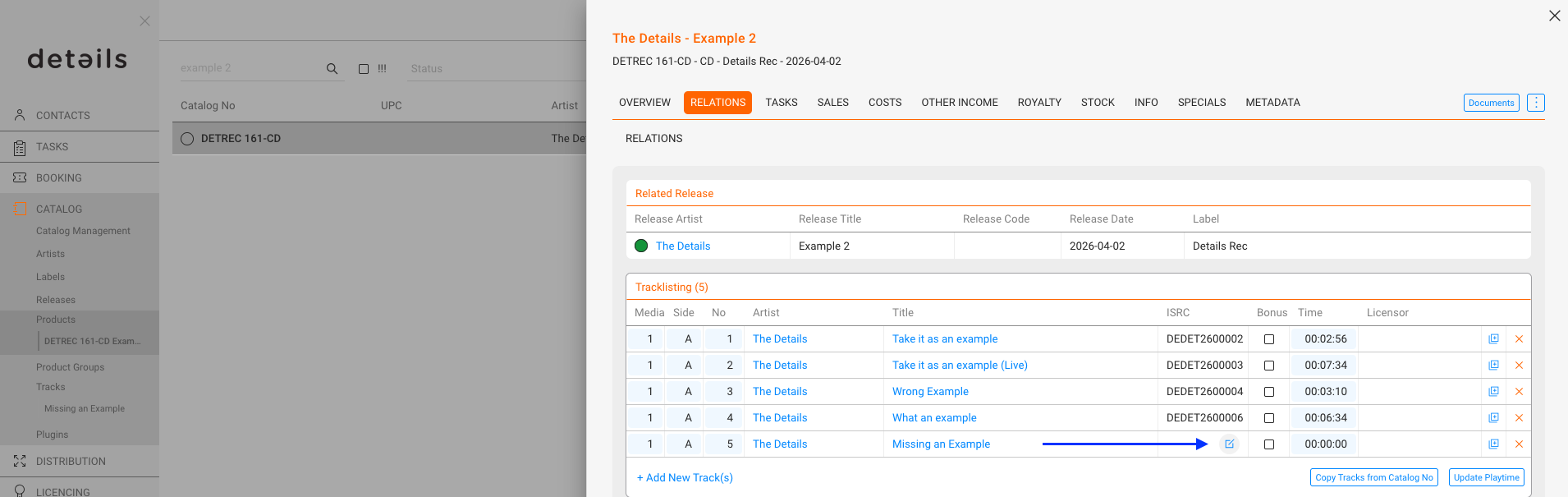
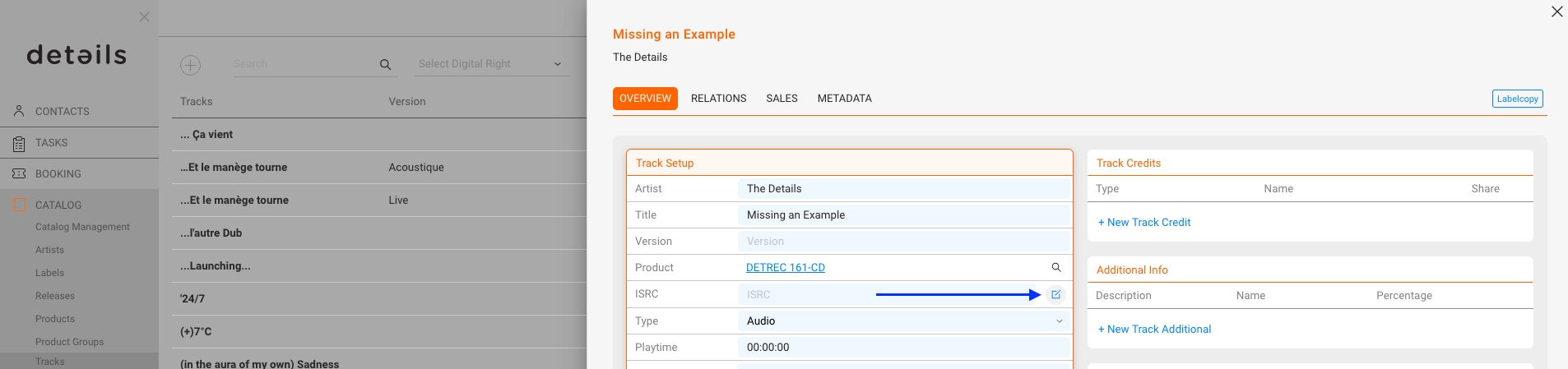
  5. When added in the product tracklist, you can create the ISRC there as well.

Invalid ISRC

  1. Open the track in TRACKS / OVERVIEW.
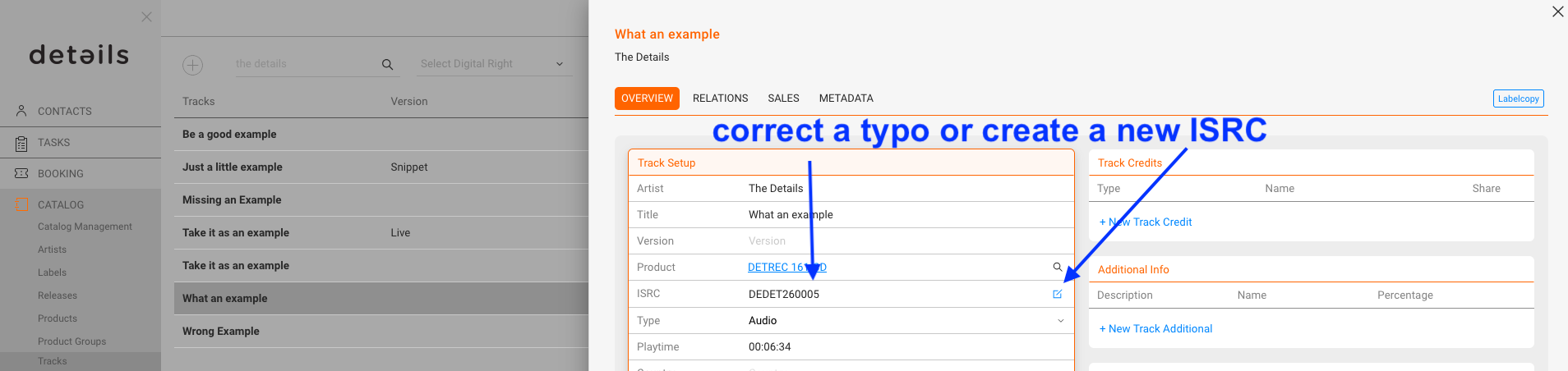
  2. Verify that the track has a correct ISRC according to the standard ISRC format.
  3. Correct the format if you are sure it was a typing error.
    Generate a new one for every other case (see Creating ISRC automatically).

Missing ISRC

  1. Open the track in TRACKS / RELATIONS.
  2. Make sure the track is connected to a Product.
  3. Generate a new ISRC in OVERVIEW / Track Setup (see Creating ISRC automatically).

Once the missing or invalid data is corrected, the !!! indicator disappears automatically from the track list. You might have to refresh the page.

Practice: Always resolve !!! errors immediately. Tracks with unresolved errors cannot be included in royalty statements.