How to set up the automated sales import from IDOL Labelcamp


Importing sales files manually can be a tedious and time-consuming process. We’re happy to partner with IDOLs Labelcamp to offer a fully automated sales ingestion solution.
This integration eliminates the need for manual uploads and automatically loads your monthly sales reports into details once set up. How convenient is that?

Setting up a sales import automation from Labelcamp is a straightforward process.
Follow the steps below to automate your sales statement delivery.

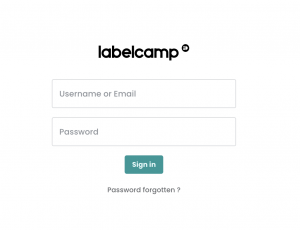
  1. Login to Your Labelcamp Account

    • Open your browser and navigate to the Labelcamp login page.
    • Enter your username or email and password.
    • Click on the “Sign in” button.

  2. Navigate to Royalties

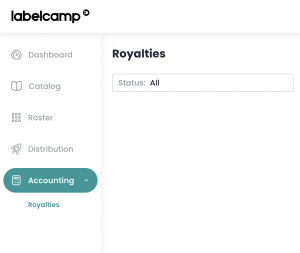
    • On the main menu on the left side of the screen, select “Accounting.”
    • Then, select “Royalties” from the submenu.li
  3. Create a New Automation

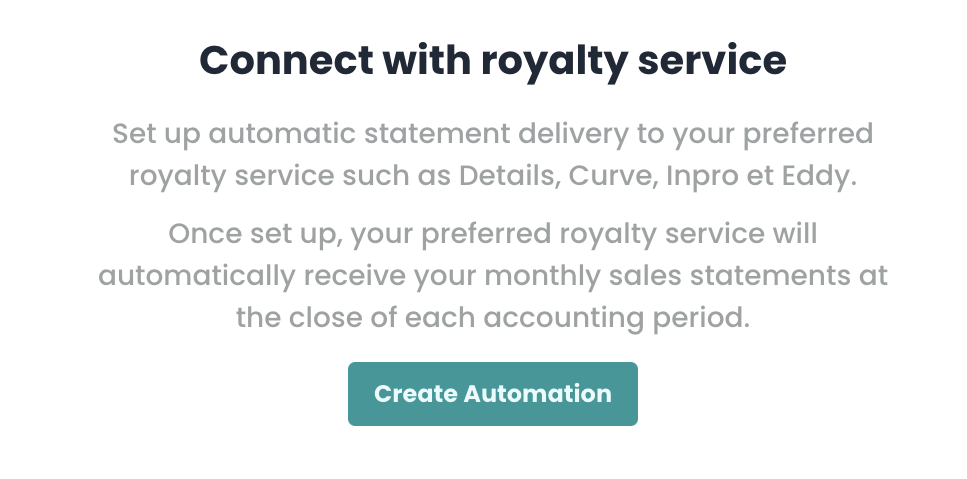
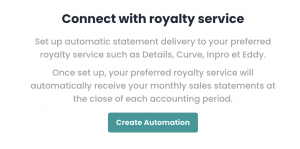
    • In the middle of the screen, click on “Create Automation.”
    • If you already have created other automations, select “New Automation.”
  4. Fill in the Automation Details
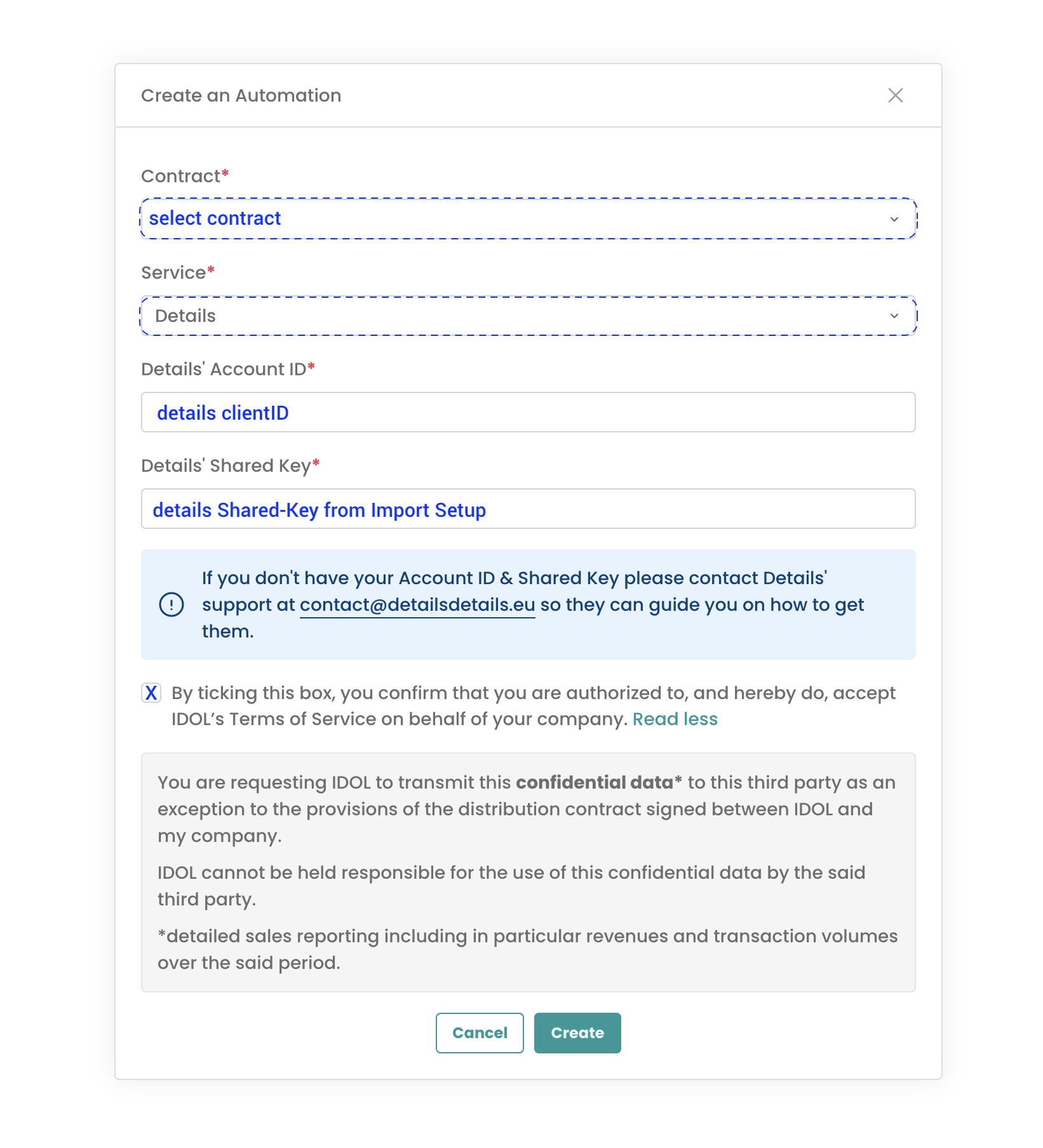
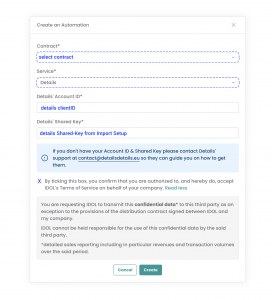
    • A modal window will appear to create your automation.
    • In the Contract dropdown, select your Labelcamp contract.
    • From the Service dropdown, select “Details.”
    • In the “Details’ Account ID” field, enter your Details client ID.
      This is what follows https://app.details.eu/ in your details login URL.
      For example, in https://app.details.eu/MyLabel/, the client ID is MyLabel.
    • In the “Details’ Shared Key” field, enter the shared key you ll find in your IDOL Import Setup in details under Distribution / Accounts / => Idol / Import Setup / open selected Import Setup => Shared-Key.
Note

  • You can create multiple import automations from Labelcamp to Details if you have multiple contracts in Labelcamp.

  • Each contract will have a dedicated import setup in Details and hence its unique shared key.

  • Sometimes, the automatic sales import transfer from LABELCAMP to details can be interrupted due to a disruption in the data flow. When this happens, the automatic sales ingestion may fail, leaving you with incomplete data. In that case read this article.


If you encounter any issues, please contact our label_team for assistance.
How to import your catalog via IDOL Labelcamp

The Labelcamp Import feature is available in the Catalog Management section of details.

It allows you to connect your IDOL Labelcamp account and ingest new catalogue entries into your database all with a single click.

This import tool is designed to simplify catalogue updates and eliminate manual data entry. It supports automatic matching for products and tracks to prevent duplicates.


 How to Import Your Catalogue

Steps

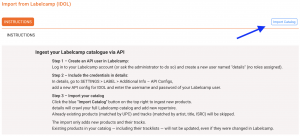
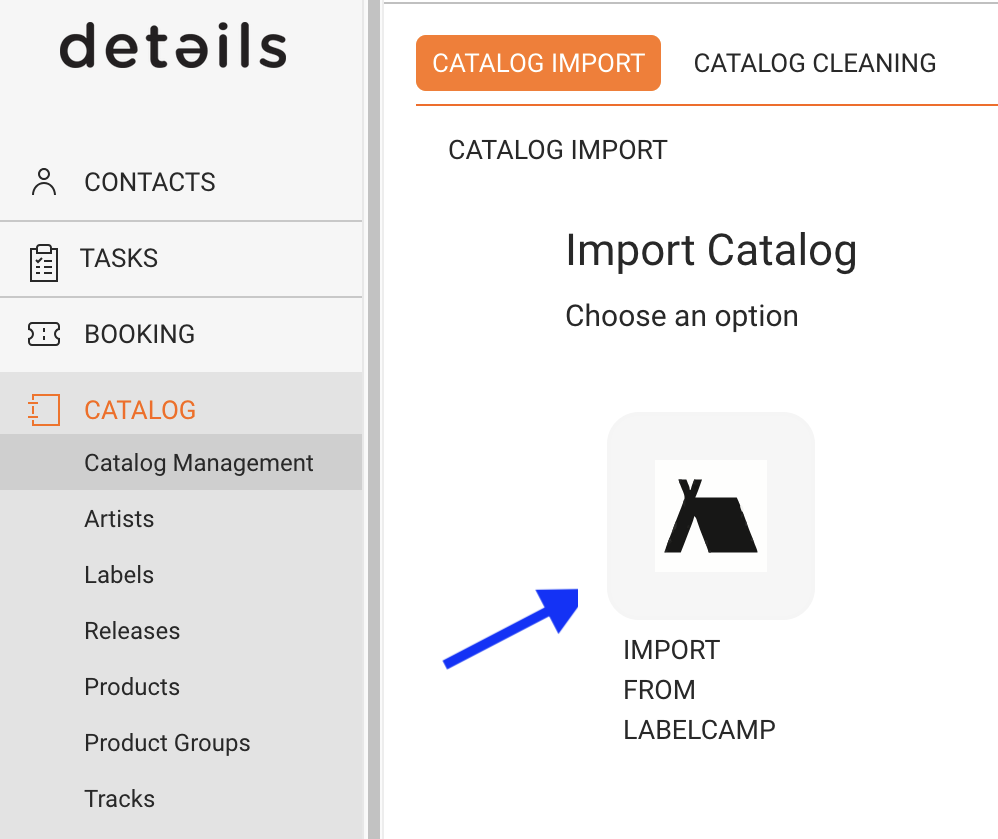
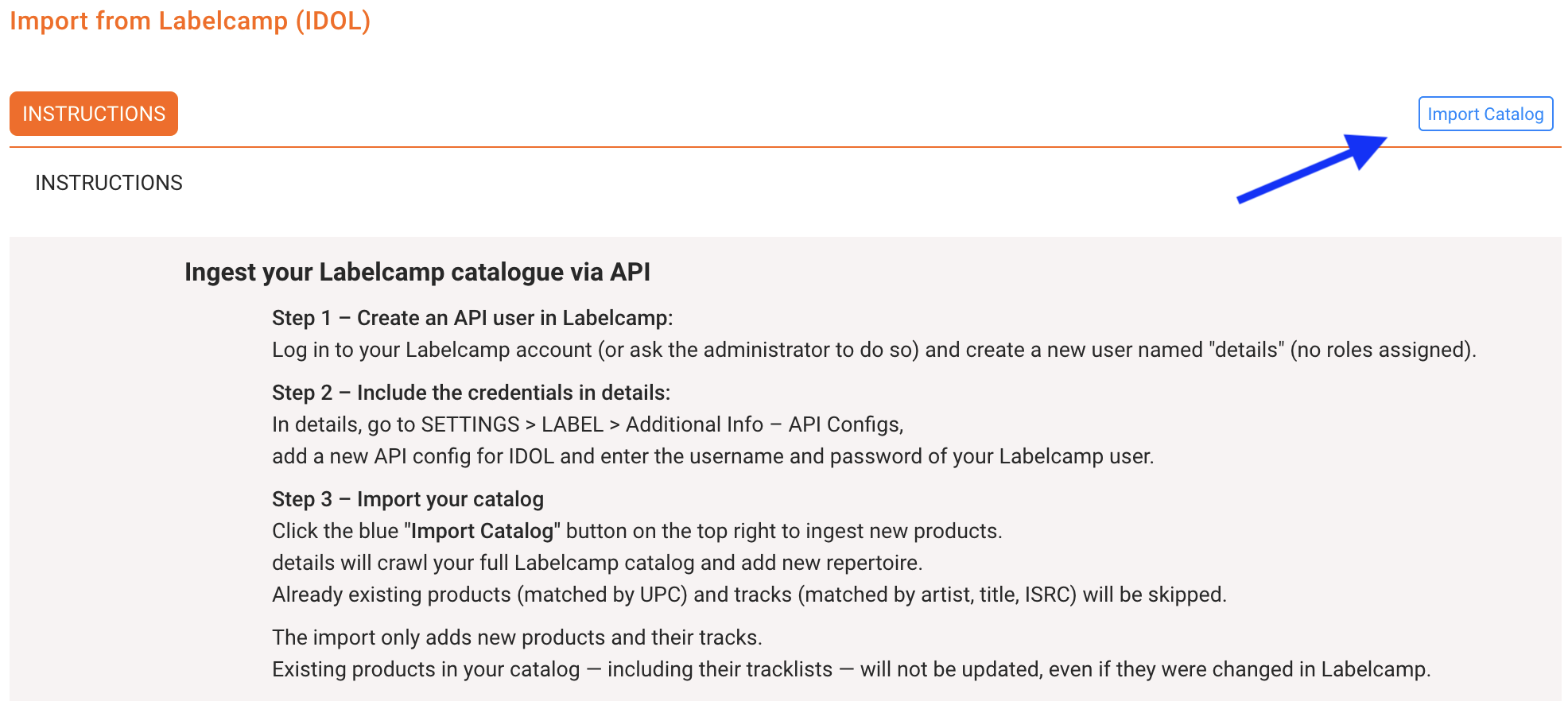
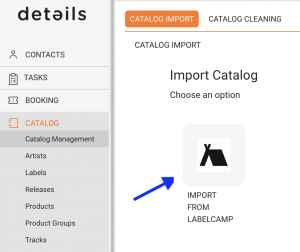
  1. Go to CATALOG > MANAGEMENT.
  2. Select Labelcamp Import.
  3. Click Import Catalog to start the import process.

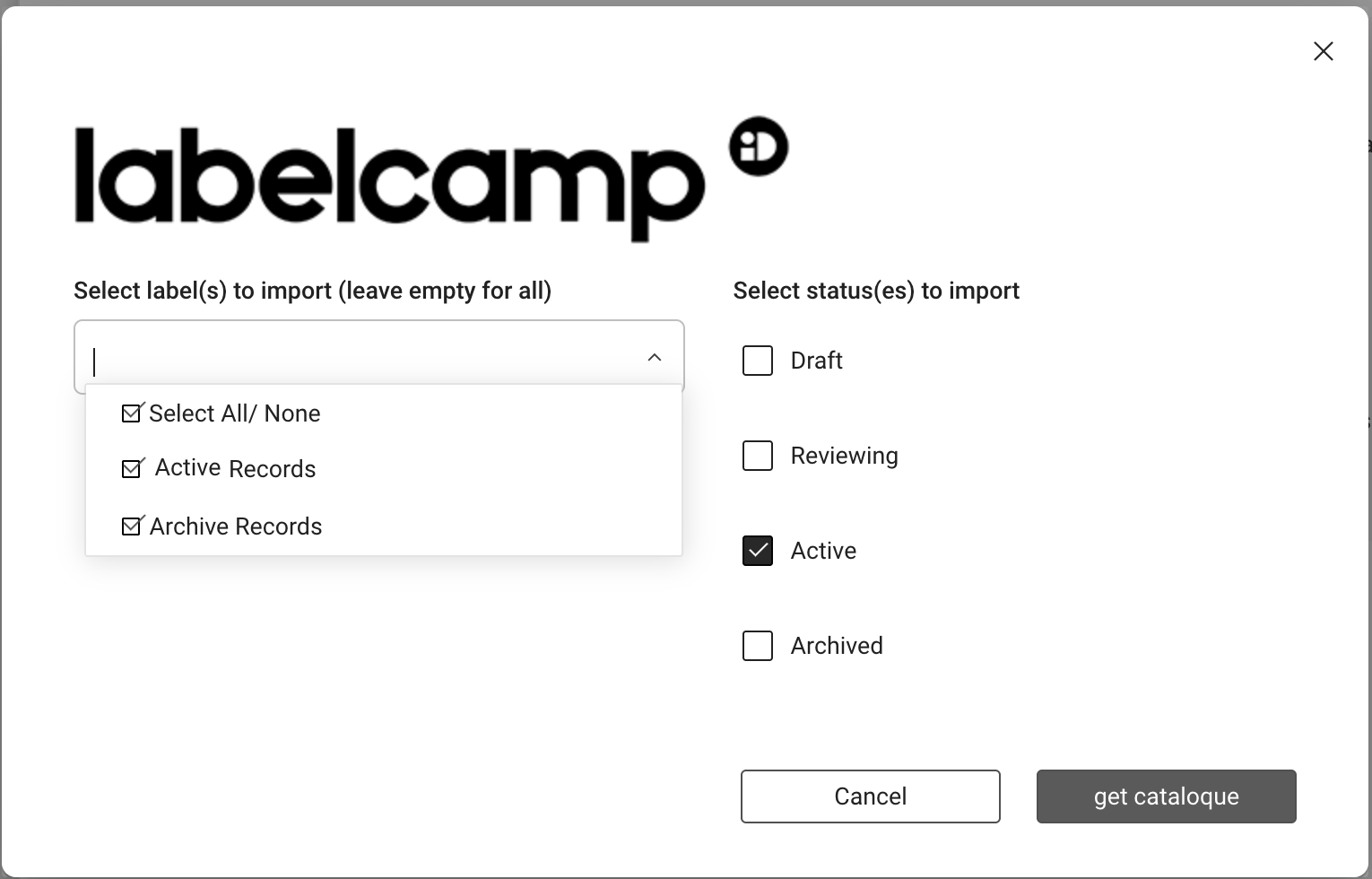
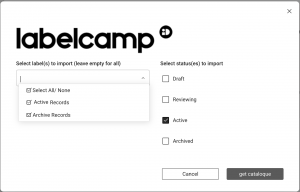
The system will connect to your Labelcamp account and load all labels connected to your account, plus the available product stati (e.g. Draft , Reviewing , Active , Archived ).

As a user, you should now select which label you want to collect products and tracks from you can select one, multiple, or all labels from your account.

You should also decide whether you want details to retrieve only Active products (recommended) or if you also need unfinished Draft, Reviewing, or Archived products.


Once your selection is complete, click Get Catalogue. The system will then retrieve all new products and tracks not already loaded into details.

Depending on your catalogue size, this may take a few minutes or longer.

Tip
Keep your Labelcamp credentials saved in SETTINGS > LABEL > Additional Info API Configs to allow faster imports in the future.

► Import Logic

Matching Rules

  • Products are matched by UPC (barcode).
  • Tracks are matched by Artist, Title, and ISRC.
  • Only new products and tracks will be added; existing items are skipped automatically.
  • Metadata from existing products or tracks is not updated during import.

► Initial Setup Required

One-Time API Connection

Before using the import feature, a one-time API setup is required to connect details with your Labelcamp account.

  1. Create an API user in Labelcamp:
    An administrator from your team must log in to Labelcamp and create a user named details. This user should have no assigned roles or permissions.
  2. Enter credentials in details:
    In SETTINGS > LABEL > Additional Info API Configs, create a new configuration for IDOL and enter the username and password of the Labelcamp user.
  3. Activate the plugin:
    Go to LABEL > PLUGINS > API and activate Auto-Ingest new products from idol.io. This enables the secure API connection.

► Support and Further Tools

If you need assistance during setup or encounter issues with the import process, our support team is available to help.

How to set up the automated sales import from IDOL Labelcamp


Importing sales files manually can be a tedious and time-consuming process. We’re happy to partner with IDOL’s Labelcamp to offer a fully automated sales ingestion solution.
This integration eliminates the need for manual uploads and automatically loads your monthly sales reports into details once set up. How convenient is that?

Setting up a sales import automation from Labelcamp is a straightforward process.
Follow the steps below to automate your sales statement delivery.

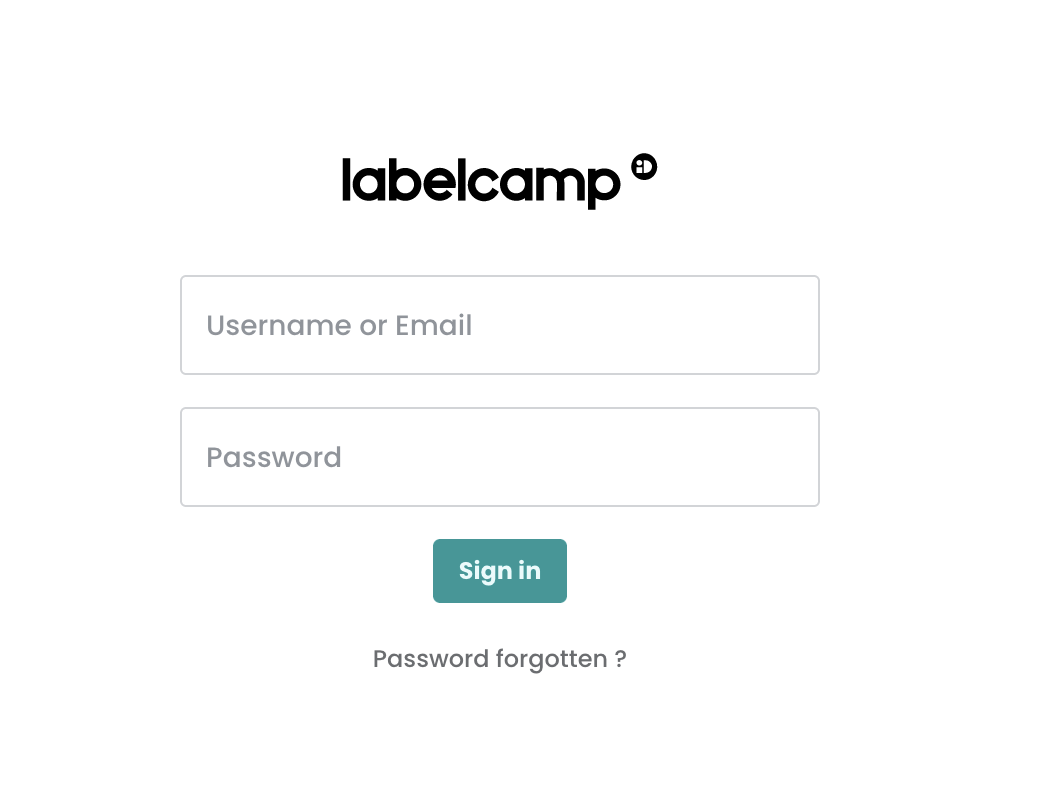
  1. Login to Your Labelcamp Account

    • Open your browser and navigate to the Labelcamp login page.
    • Enter your username or email and password.
    • Click on the “Sign in” button.

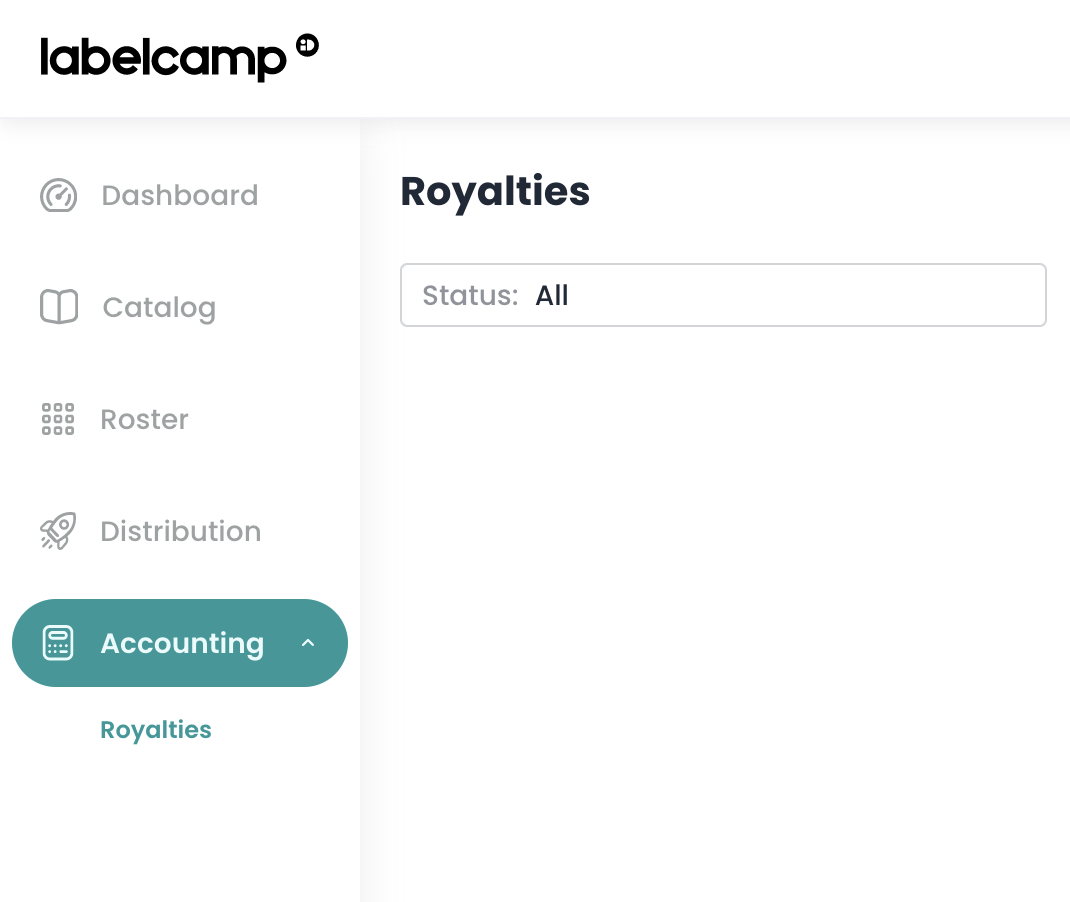
  2. Navigate to Royalties

    • On the main menu on the left side of the screen, select “Accounting.”
    • Then, select “Royalties” from the submenu.li

  3. Create a New Automation

    • In the middle of the screen, click on “Create Automation.”
    • If you already have created other automations, select “New Automation.”

  4. Fill in the Automation Details
    • A modal window will appear to create your automation.
    • In the Contract dropdown, select your Labelcamp contract.
    • From the Service dropdown, select “Details.”
    • In the “Details’ Account ID” field, enter your Details client ID.
      This is what follows https://app.details.eu/ in your details login URL.
      For example, in https://app.details.eu/MyLabel/, the client ID is MyLabel.
    • In the “Details’ Shared Key” field, enter the shared key you ll find in your IDOL Import Setup in details under Distribution / Accounts / => Idol / Import Setup / open selected Import Setup => Shared-Key.

Note

  • You can create multiple import automations from Labelcamp to Details if you have multiple contracts in Labelcamp.
  • Each contract will have a dedicated import setup in Details and hence its unique shared key.
  • Sometimes, the automatic sales import transfer from LABELCAMP to details can be interrupted due to a disruption in the data flow. When this happens, the automatic sales ingestion may fail, leaving you with incomplete data. In that case read this article.


If you encounter any issues, please contact our label_team for assistance.
How to import your catalog via IDOL Labelcamp

The Labelcamp Import feature is available in the Catalog Management section of details.
It allows you to connect your IDOL Labelcamp account and ingest new catalogue entries into your database with a single click.

This import tool is designed to simplify catalogue updates and eliminate manual data entry. It supports automatic matching for products and tracks to prevent duplicates.


► How to Import Your Catalogue

Steps

  1. Go to CATALOG > MANAGEMENT.
  2. Select Labelcamp Import.
  3. Click Import Catalog to start the import process.

The system will connect to your Labelcamp account and load all labels connected to your account, plus the available product statuses (e.g. Draft, Reviewing, Active, Archived).

As a user, you can select one, multiple, or all labels from your account.

You should also decide whether details should retrieve only Active products (recommended), or also Draft, Reviewing, or Archived products.

Once your selection is complete, click Get Catalogue. The system will then retrieve all new products and tracks not already loaded into details.

Depending on your catalogue size, this may take a few minutes or longer.

Tip
Keep your Labelcamp credentials saved in SETTINGS > LABEL > Additional Info API Configs to allow faster imports in the future.

► Import Logic

Matching Rules

  • Products are matched by UPC (barcode).
  • Tracks are matched by Artist, Title, and ISRC.
  • Only new products and tracks will be added; existing items are skipped automatically.
  • Metadata from existing products or tracks is not updated during import.

► Initial Setup Required

One-Time API Connection

Before using the import feature, a one-time API setup is required to connect details with your Labelcamp account.

  1. Create an API user in Labelcamp:
    An administrator from your team must log in to Labelcamp and create a user named details. This user should have no assigned roles or permissions.
  2. Enter credentials in details:
    In SETTINGS > LABEL > Additional Info API Configs, create a new configuration for IDOL and enter the username and password of the Labelcamp user.
  3. Activate the plugin:
    Go to LABEL > PLUGINS > API and activate Auto-Ingest new products from idol.io. This enables the secure API connection.

► Support and Further Tools

If you need assistance during setup or encounter issues with the import process, our support team is available to help.