Update Contact Relations from linked Bookings

In details, you have the option to manage the relationships between contacts.

You can either manually add contacts related to another contact or automate the process by using the Update Related Contacts Using Bookings feature.

1. Go to the Contact / Overview page.
2. In the Related Contacts section, click the + Add Contact Relation button.
3. Search for and select the contact you want to associate with the contact.

This option is useful when you want to link specific contacts to another contact without reviewing all existing bookings.

Automating Contact Updates with Bookings

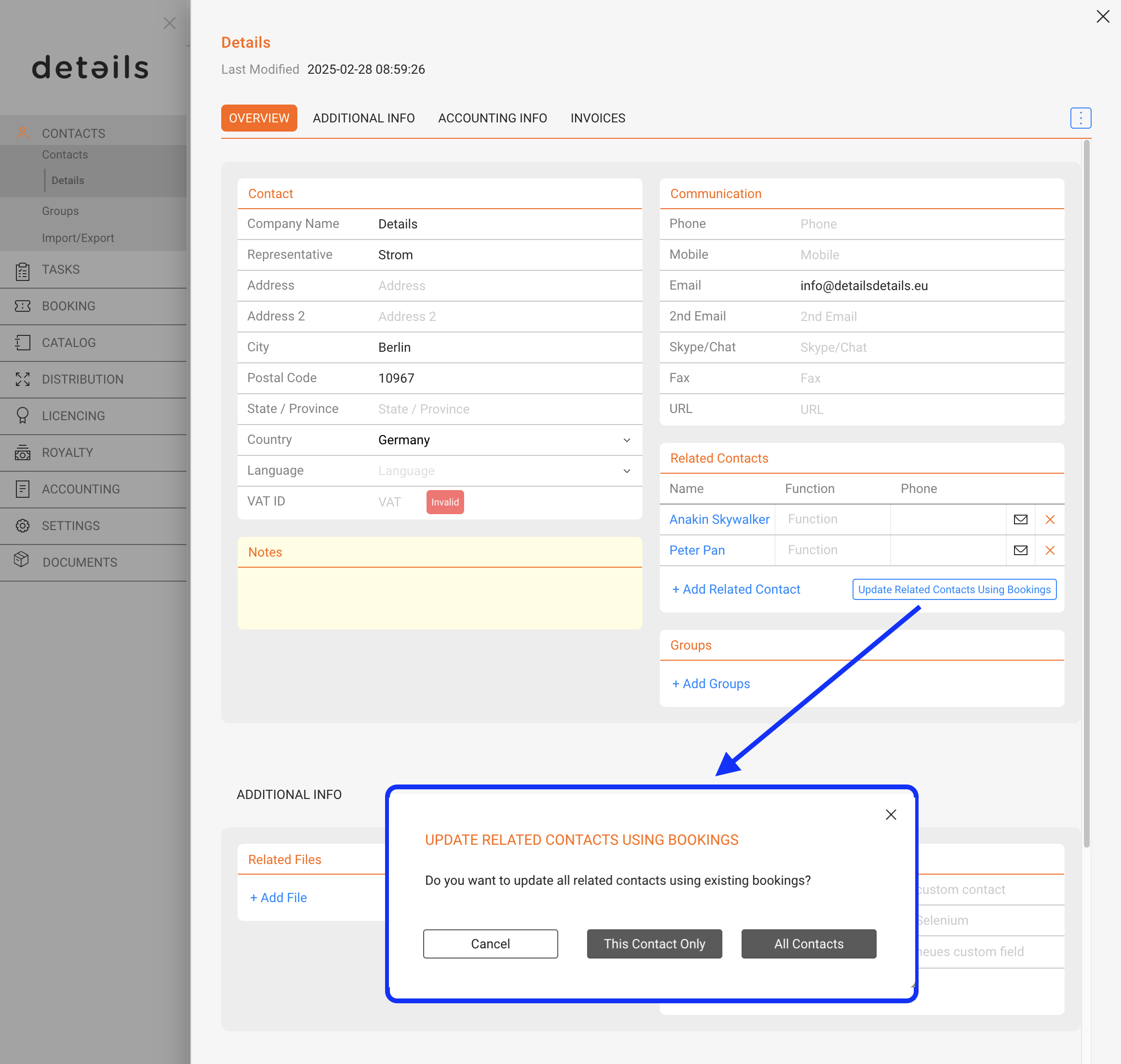
If you prefer to automatically update contacts based on past bookings, you can use the Update Related Contacts Using Bookings button. This feature allows details to analyze all your previous bookings and pull relevant contact information, saving you time and ensuring that contact associations are up-to-date.

1. Go to the Contact / Overview page.

2. In the Related Contacts section, click the Update Related Contacts Using Bookings button.

3. A modal window will appear, allowing you to choose between two options:
This Contact: Updates contacts based on bookings associated with the selected contact only.
All Contacts: Updates contacts across all contacts, based on bookings with any of those contacts.

4. After making your selection, details will process the bookings and add all associated contacts to the Related Contacts section for the selected contact(s).

The contacts that can be pulled from bookings include:
• Promoters
• Contacts linked to the booking (such as agents or partners involved in the event).

This feature is particularly helpful for large databases with numerous contacts and bookings, ensuring that all relationships are accurately represented without manual entry.

How to Export Invoices as PDFs

You can easily download multiple invoices as a batch PDF export from the Accounting > Invoice List section. Just follow the steps below:

1. Navigate to the Invoice List

Log in to details and go to Accounting > Invoices.

2. Use the Advanced Search to Filter Invoices

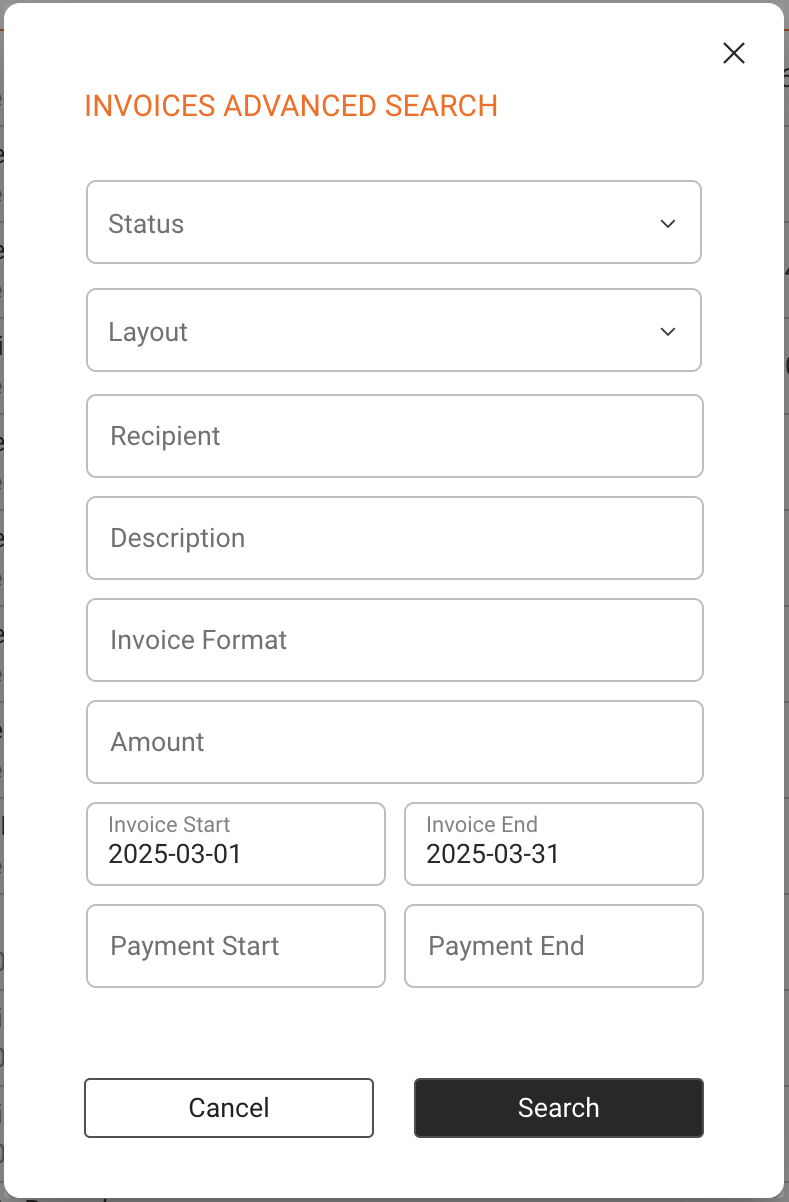
Click the Advanced Search option on top of the list.

Use the filters to narrow your results by:

  • Invoice Status
  • Layout
  • Recipient
  • Description
  • Format
  • Amount
  • Invoice Date Range
  • Payment Date Range

Once your filters are set, click Search to load the results.

3. Select Invoices

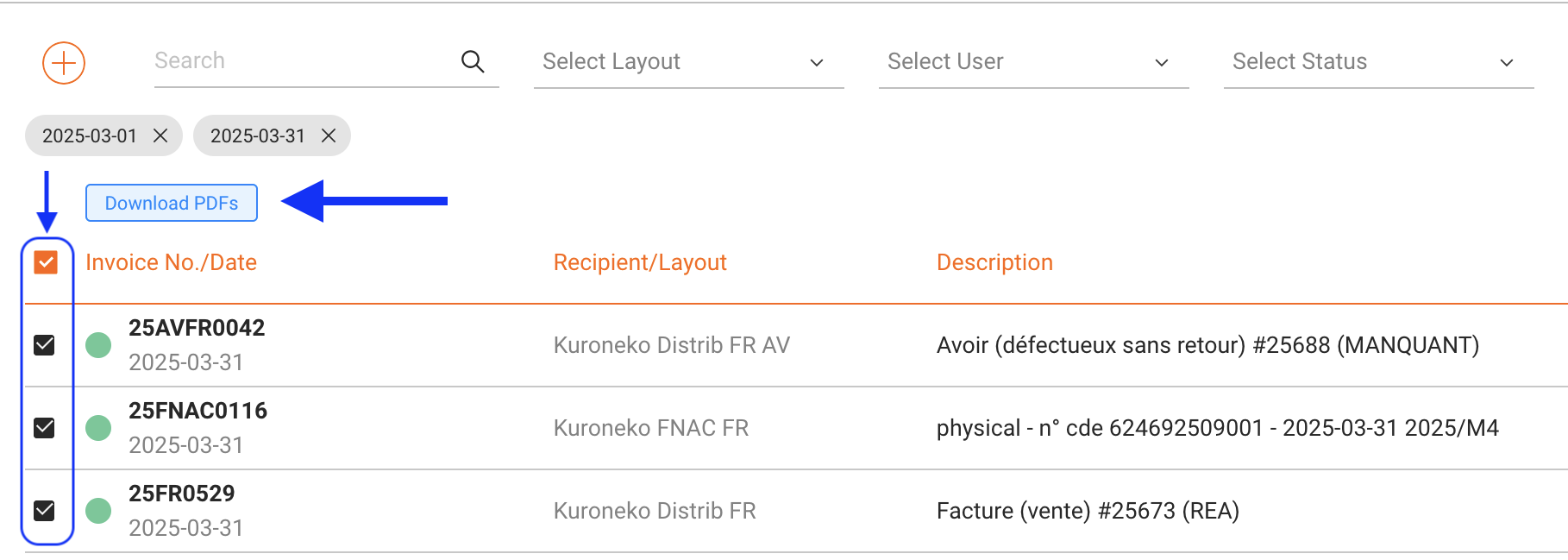
Click the orange checkbox icon in the top-left corner above the invoice list to select all results, or manually tick the boxes next to specific invoices.

Once more than one invoice is selected, a blue Download PDFs button will appear above the list.

4. Download the PDFs

Click the Download PDFs button. A notification will confirm that your request is being processed.

Note: The platform will render the selected PDFs in the background and send a download link to your user email address once ready.

What Happens Next?

You will receive an email with a download link as soon as the batch is complete. Click the link to download your ZIP file containing all selected invoice PDFs.

Need Help?

If your PDF batch doesn’t arrive or seems incomplete, please contact label_team@details.eu or booking_team@details.eu respectively, with the list of invoice numbers or a screenshot of your filter settings.

Catalog Management Interface

Introducing the Catalog Management Section

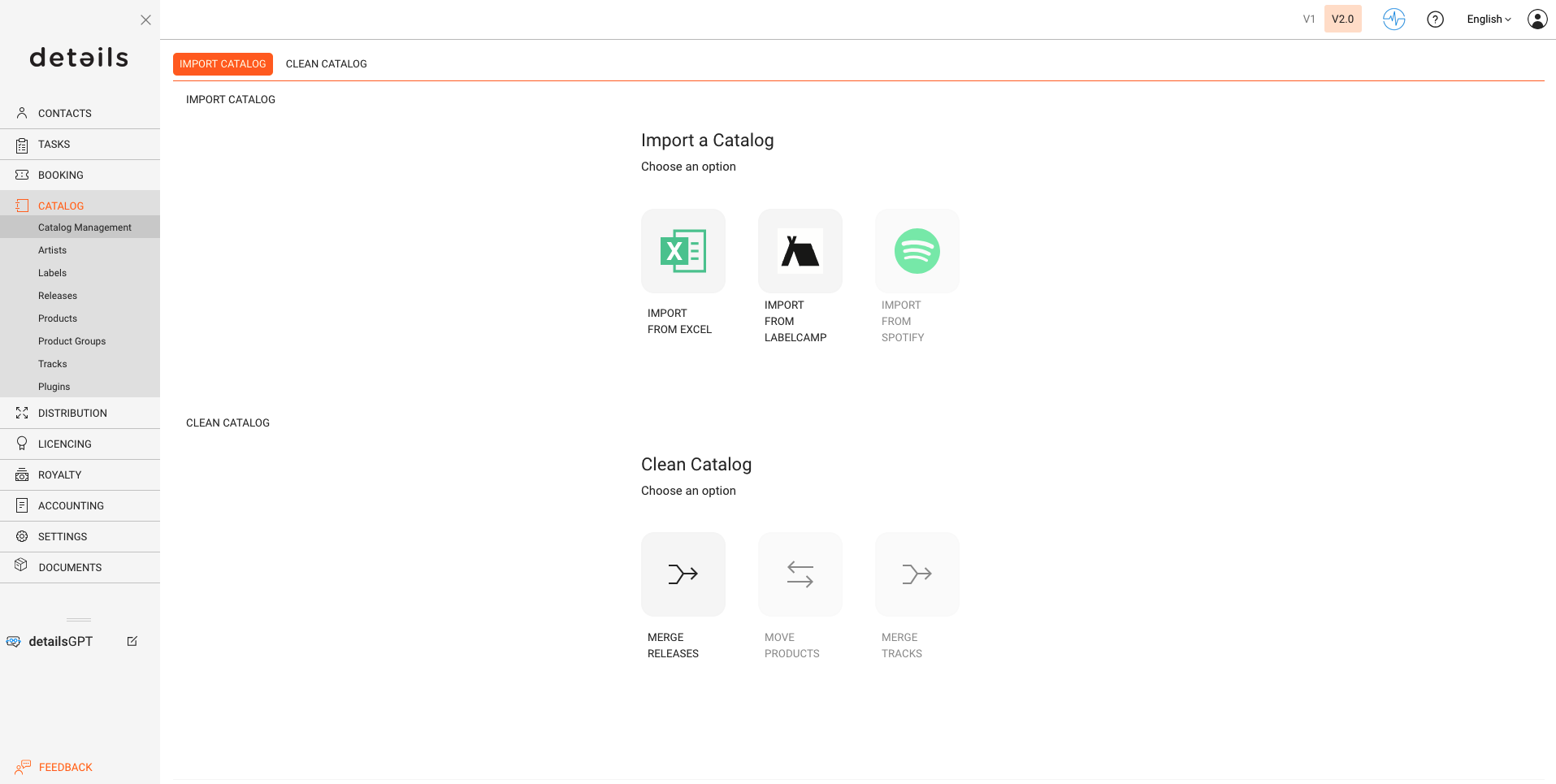
The Catalog Management section will become a central workspace to import, manage, clean, and export your catalog data efficiently.

Catalog Import Tools

We are starting by relocating our import tools that were previously available through plugins.
They’re now easier to access and highlighted as core features:

Both import options include instructions accessible via the interface.

Next: Spotify import to pull catalog entries directly from artist profiles.

Also coming: AudioSalad import via API integration.

Catalog Cleaning Tools

This section provides tools to keep your catalog structured and clean:

Coming soon:

  • Move Products – Reassign products between releases
  • Merge Tracks – Combine duplicate tracks

Stay tuned for further updates and new features in the Catalog Management section.

Distribution Reports

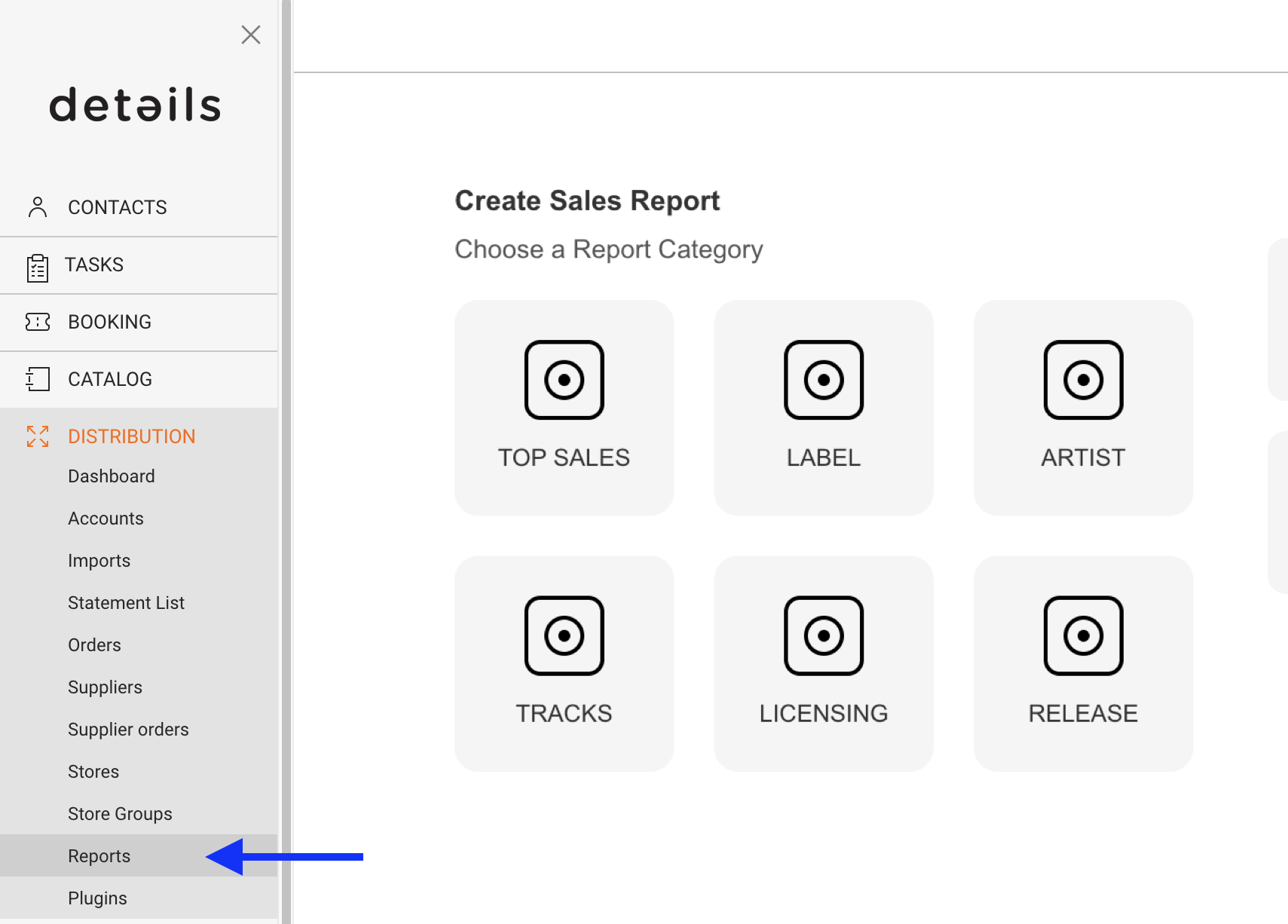
The DISTRIBUTION / REPORTS section in V2 is a dedicated space to generate customized reports on your digital and physical distribution activity.

To keep things fast and stable, each report has a clear structure and limited flexibility. Instead of making one report cover every possible case, details provides focused reports tailored for real-world use in distribution, licensing, and reporting to artists or partners.

You can find this feature under DISTRIBUTION / REPORTS.

How It Works

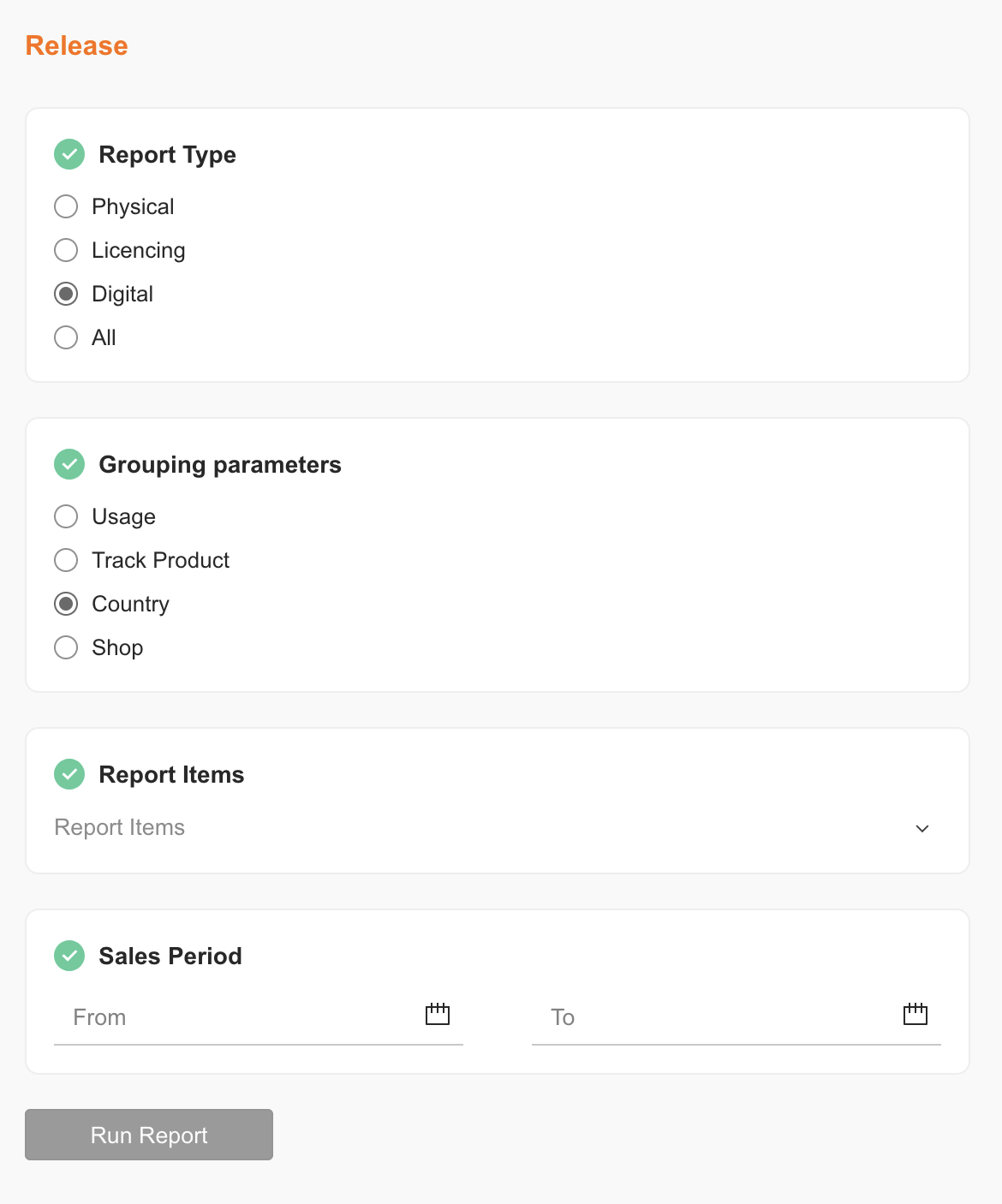
In details, reports are created using a simple step-by-step assistant. You’ll be guided through five stages to configure your report:

  1. Select a Report Class (e.g. Artist, Label, Licensing, Release)
  2. Choose a Report Type based on what kind of data you need
  3. Choose a Grouping (e.g. by release, track, shop, or usage)
  4. Enter Filters and Period such as artist name or a sales date range
  5. Select Output Format (CSV formatted according to your country settings)

Each step unlocks the next, depending on your previous selection. You’ll only see valid options for your chosen report path.

What’s a Report Item?

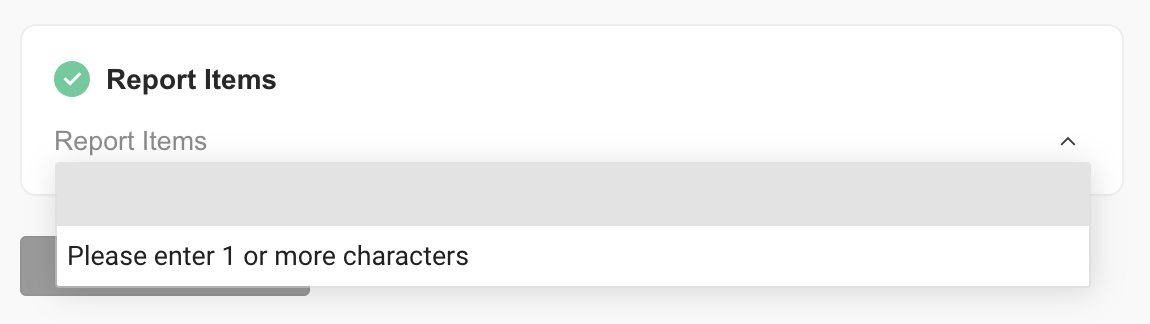
In Step 4, you’ll be asked to enter a Report Item. This is the key filter your report will be based on. What counts as a report item depends on the report type:

  • Artist Reports: enter an artist name
  • Release Reports: enter a release title or code
  • Label Reports: enter the name of the label
  • Licensing Reports: may not require a filter or may ask for a deal or usage type

If you’re unsure what to enter, start typing — the field will suggest matching entries from your catalog.

Where Do the Reports Come From?

Each report is generated from a pre-configured SQL query in the system, automatically selected based on your choices. You don’t need to handle any report logic yourself — simply choose what you want to see, and details generates the correct results in the background.

Most reports are delivered via email as downloadable files. If the result set is small, it may be displayed directly on screen in future updates (feature coming soon).

Tips Before You Start

  • You can always go back and adjust your selections before generating a report.
  • Make sure to enter a valid reporting period (start and end date).
  • Some reports require specific filters (e.g. artist name or release ID).
  • If a report takes longer to process, check your inbox — it will be delivered via email.
details continuously improves this section to make reporting more powerful, flexible, and easy to use. If you have suggestions or feedback, feel free to contact our label team.

Booking Update 08 2025

detailsdetails.eu → details.eu

We’ve discontinued the old domain detailsdetails.eu

This change was communicated two years ago and may affect existing artist apps or iCals.
If you (or your artists) are still using links with detailsdetails.eu, you will encounter an error.

You have two options:

  1. Quick fix: Replace detailsdetails.eu in your existing links with details.eu.
  2. Recommended: Switch to our new system, which makes it easy to manage permissions: Read more here.

New Features

  • Setting Default Exclusivities per Artist: Link

Improvements

  • “Lazy Loading” in Booking list (faster loading times)
  • “Lazy Loading” in Venue list (faster loading times)
  • Airport Code added next to airport
  • Size of notes box in local details enhanced
  • Artist App: Documents open directly (no save prompt)
  • Artist App: Travel Notes display like in details
  • Display and Save Custom Fields in Booking Wizard from Incoming Request

Bug Fixes

  • Fixed display issue with double entries from external calendars
  • Fixed random freezing in booking creation for artists with special characters
  • Fixed date offset bug in booking wizard modal (American timezone)

Setting Default Exclusivities per Artist

Booking ► Artists ► Other Defaults

Overview:

You can define default exclusivity settings for each artist. These settings will be automatically applied whenever a new show is created, helping to prevent scheduling conflicts and streamline the booking process.


What can be configured?

For each artist, you can set the following default exclusivity rules:

  • Radius: The geographical range within which no other shows can be booked.

  • Period Before Gig: Number of days prior to a show during which no other gigs can be scheduled.

  • Period After Gig: Number of days after a show during which no other gigs can be scheduled.


How does it work?

  1. Go to Booking ► Artists ► Other Defaults.

  2. Select the artist you want to configure.

  3. Enter values for Radius, Period Before, and Period After the gig.

These values will be automatically applied when a new show is created for the artist.►
You can still manually adjust them on a per-show basis if needed.

What is the TRAVEL AI (OTIS)?

The Travel AI is a smart booking assistant integrated directly into details, working in cooperation with OTIS, a travel platform built specifically for the music industry.

With the Travel AI, users no longer need to manually transfer flight information between platforms — the process becomes faster, easier, and more reliable.

How does it work?

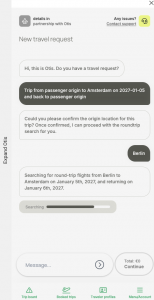
When planning travel for gigs, you can initiate the process directly from within details. The system launches the OTIS interface — no need to switch tabs.

Inside OTIS, you’ll see a chat-based flight search where you enter relevant details. The AI finds suitable connections based on selected gigs. You can browse, save, and send options for approval or payment.

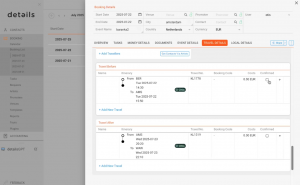
Once a flight or train is booked, confirmation data is automatically synced back to details and shown in the relevant booking sections.

This ensures all travel data stays in one place and is visible to artists, bookers, managers, and payers.

What are the benefits?

  • No more switching between tabs or copying data
  • Automatic booking data transfer
  • Faster flight selection
  • Full transparency for all parties
  • Flexible payment workflows

What should I keep in mind?

Not all bookings are instantly confirmed. Some may require approval or payment. Confirmed bookings are marked clearly, while others may still be in progress.

If something seems missing, check OTIS directly for updates.

The Travel AI is continuously evolving. If something doesn’t work as expected, feel free to reach out and share feedback.

Release Interface

What is a Release in details?
In the music business, a Release is what people talk about when an artist “drops a new album” or “puts out a new single.” It marks the start of a commercial campaign combining music, visuals, marketing, and distribution across platforms and formats.

In details, a Release represents that full project: it s the central container for everything tied to the launch from the recordings to the metadata to the marketing context. Whether you’re managing a debut EP, a deluxe reissue, or a compilation series, this is where the project comes together.

Think of a Release as the umbrella under which you organize:
Products (CD, vinyl, digital editions)
Original tracks plus Remixes (with licensing, ISRCs, metadata etc.)
Artwork, an overall Release Date vs specific product street dates
” Optional assets like merchandise (e.g. T-shirts) or concert tickets linked to the campaign

A Release groups all project components and defines the top-level structure in details.
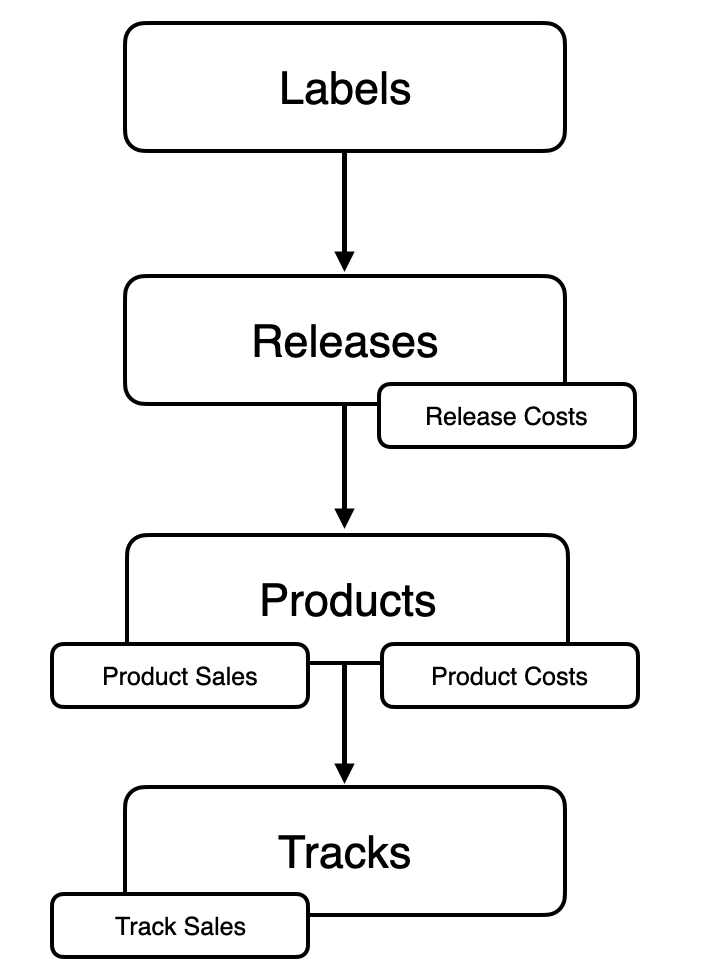
Hierarchy in details: Release > Product > Track

Important: A Product can only belong to one Release.


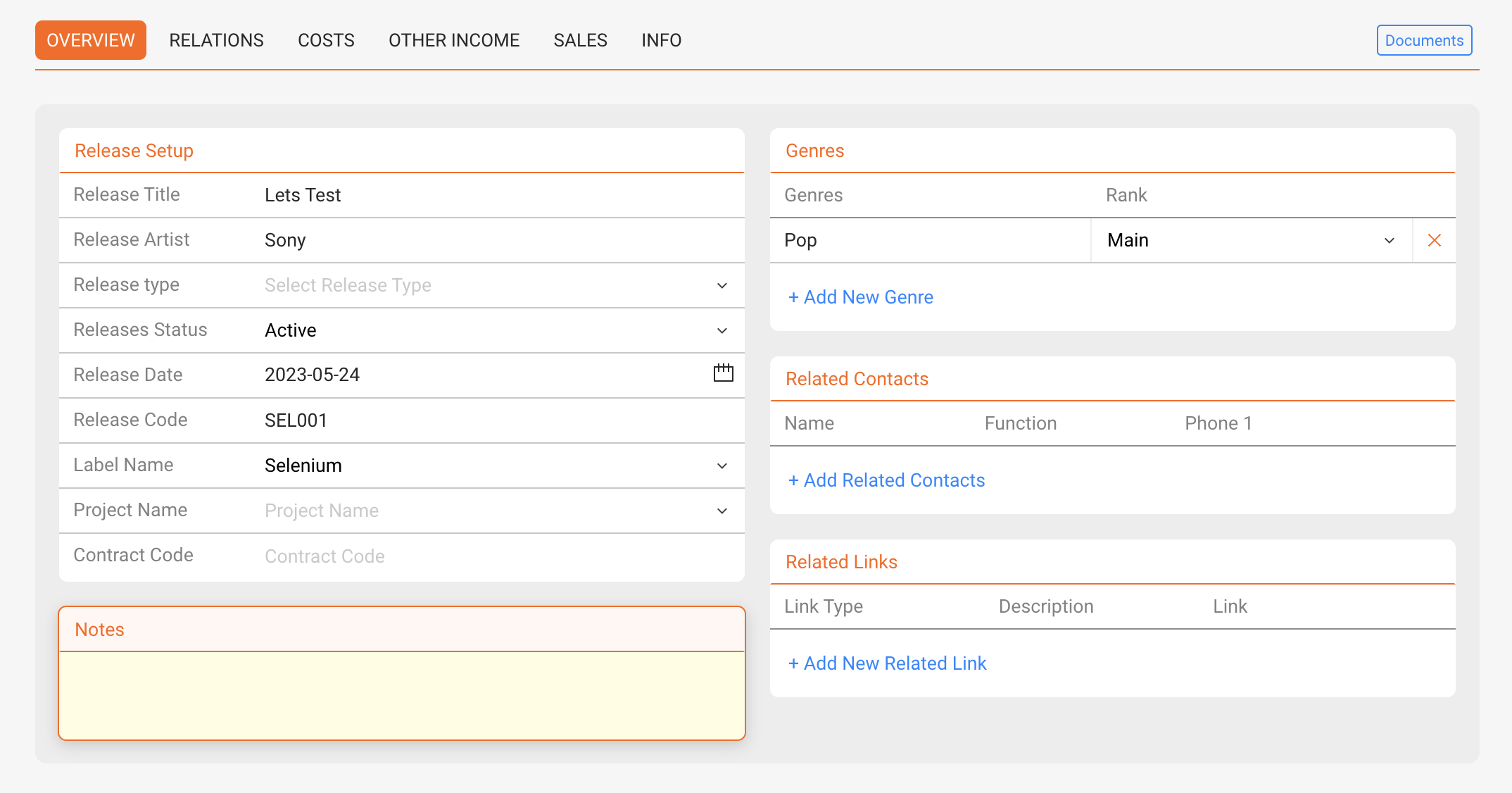
► OVERVIEW

Use this tab to edit the core setup of a Release.

  • Release Title
  • Release Artist(s)
  • Release Type (e.g. Album, EP, Single, Compilation, Promo, Merchandise, Audiobook, Book, Movie)
  • Status (custom: e.g. Active, Back Catalogue, Promo)
  • Release Date (plus optional street dates per product)
  • Release Code (e.g. DET010, often root of product codes)
  • Label (A Release always belongs to exactly one label)

Additional options:

  • Add genres using [+ Add New Genre]
  • Add related contacts (e.g. artist, manager, designer) using [+ Add Related Contacts]
  • Add external links (e.g. Spotify, Dropbox, Apple) via [+ Add New Related Link] with title and description
  • Write notes in the [Notes] field

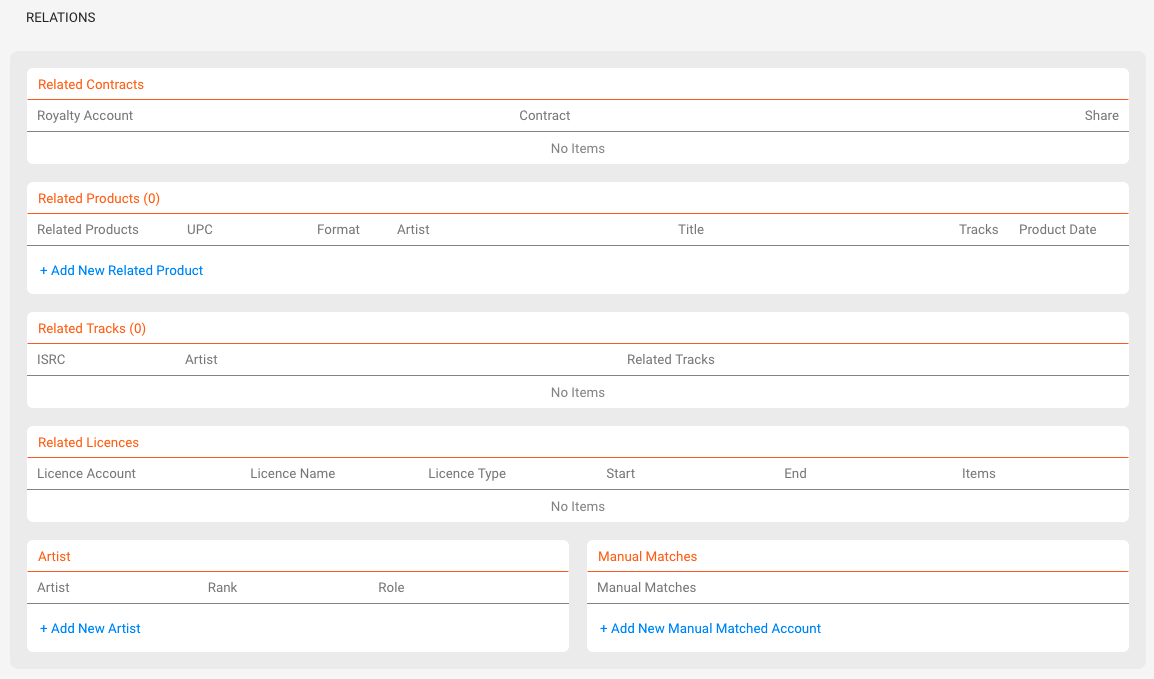
► RELATIONS

This tab shows all linked elements of a Release:

  • Contracts & Royalty Accounts including shares & contracts
  • Products each product belongs to only one Release
  • Tracks can appear in multiple Releases (e.g. compilations)
  • Licenses sync & third-party licenses are also included in reporting
  • Artists connections help track collaborations
  • Manual Matches store external naming (e.g. Bandcamp variant codes)

Clicking a blue-colored content opens the related entry.

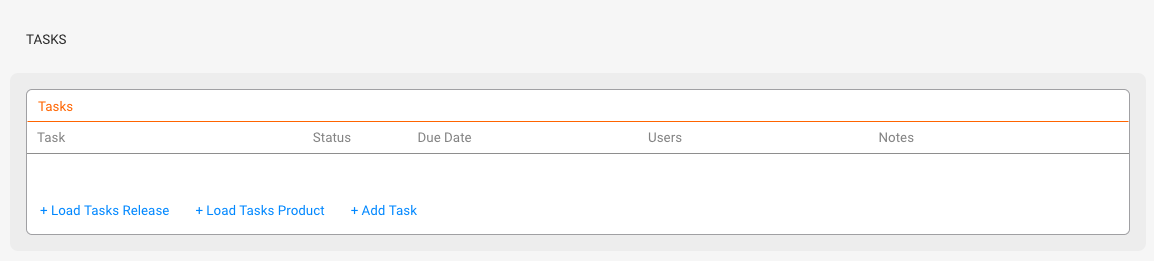
► TASKS

Each Release has its own TASKS tab. You can create tasks manually or load a predefined task template group.

To learn more, check out:

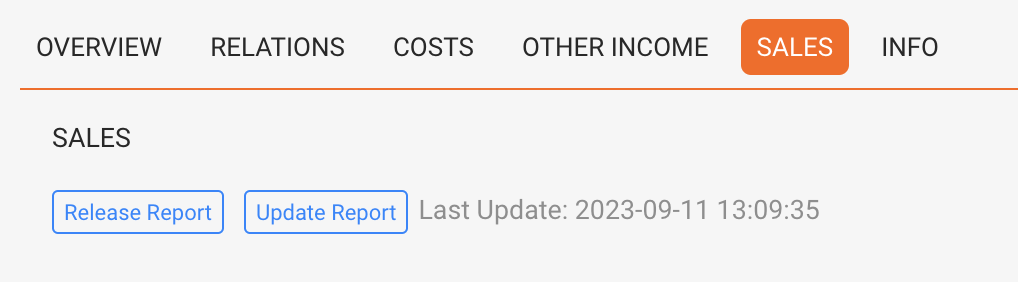
► SALES

Use this tab to analyze income and costs related to your Release.

  • Release Report: Overview of all revenue streams (physical, digital, licenses, subsidies), costs, and break-even point
  • Update Report: Generates charts and sales insights (e.g. per shop or channel)

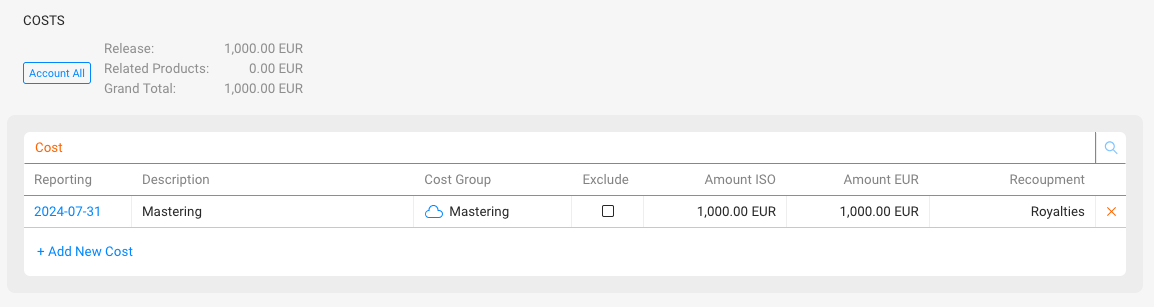
► COSTS

Use this tab to log and manage project costs not covered elsewhere. This may include:

  • Studio rentals
  • Mixing & mastering costs
  • Marketing & promo campaigns
  • Artwork or video production costs

These costs feed into the break-even analysis shown in the SALES tab.

You can upload proof documents using the small cloud icon next to each entry this helps keep all relevant files connected to your reporting. A blue cloud means a file is stored.

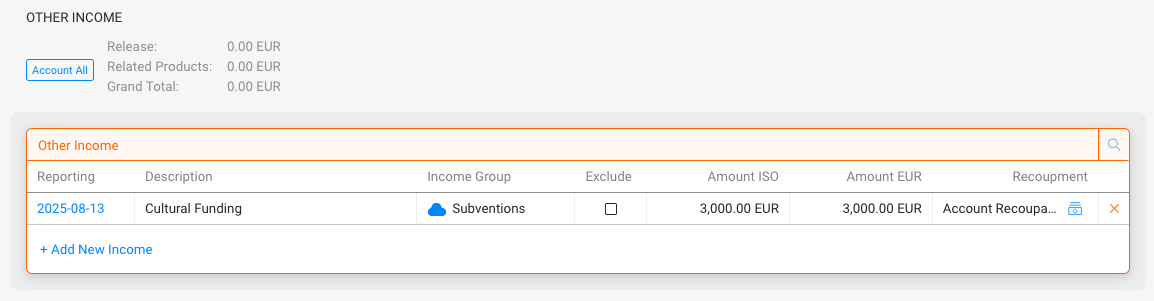
► OTHER INCOME

Use this tab to add alternative income streams not directly linked to sales, for example:

  • Grants or public funding (e.g. Initiative Musik)
  • Sponsorship income (e.g. brand collaborations)
  • Merchandise or ticket bundles

Entries here can be factored into your financial reports.

You can upload proof documents using the small cloud icon next to each entry this helps keep all relevant files connected to your reporting. A blue cloud means a file is stored.

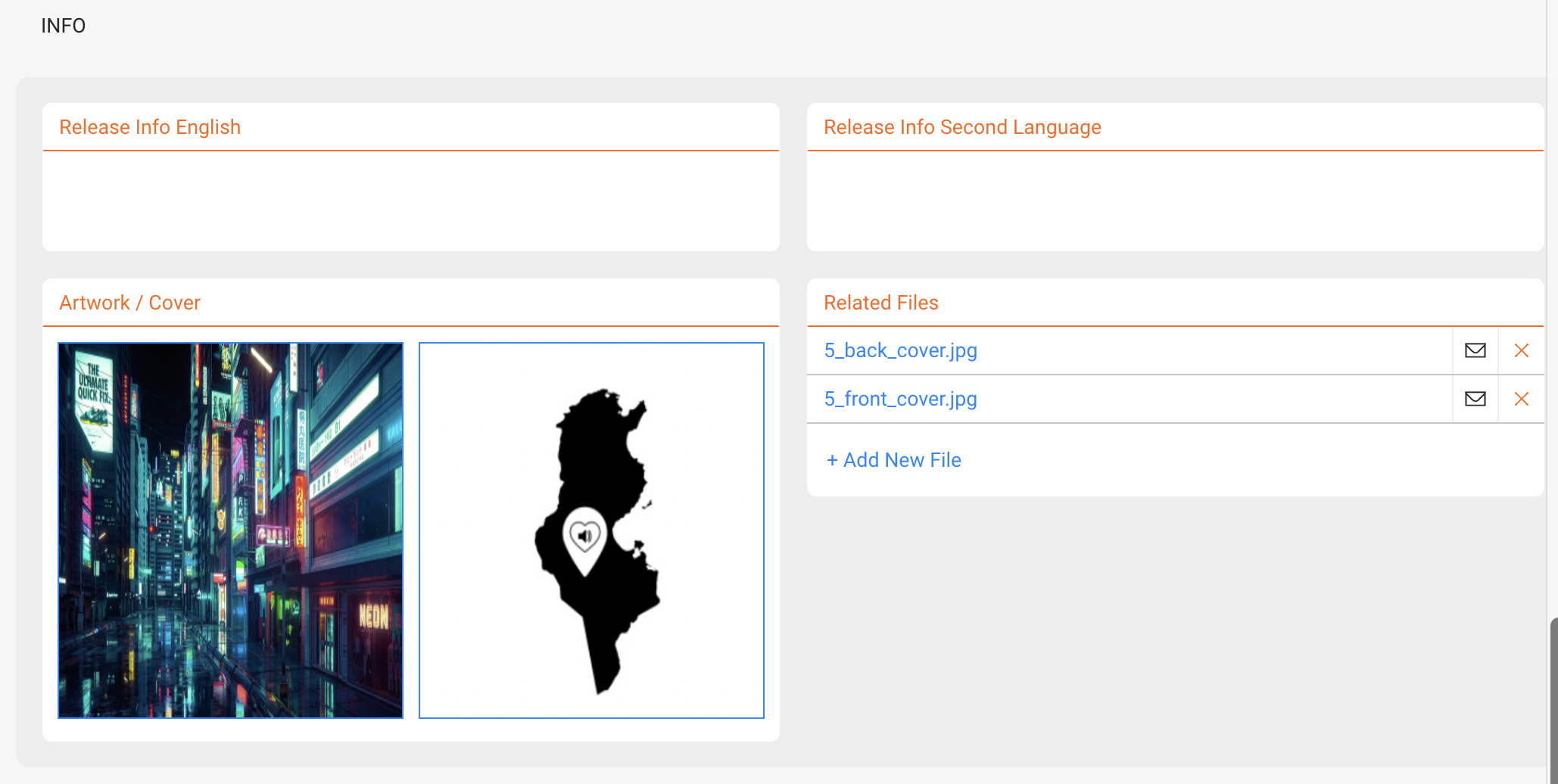
► INFO

Use this tab to manage descriptive and visual material related to the Release:

  • Add info texts (in English and one other language)
  • Upload artwork and cover images
  • Attach files like MP3s, WAVs, contracts or infosheets via [+ Add New File]

Files can be reused for automated sheet generation.

Track Interface

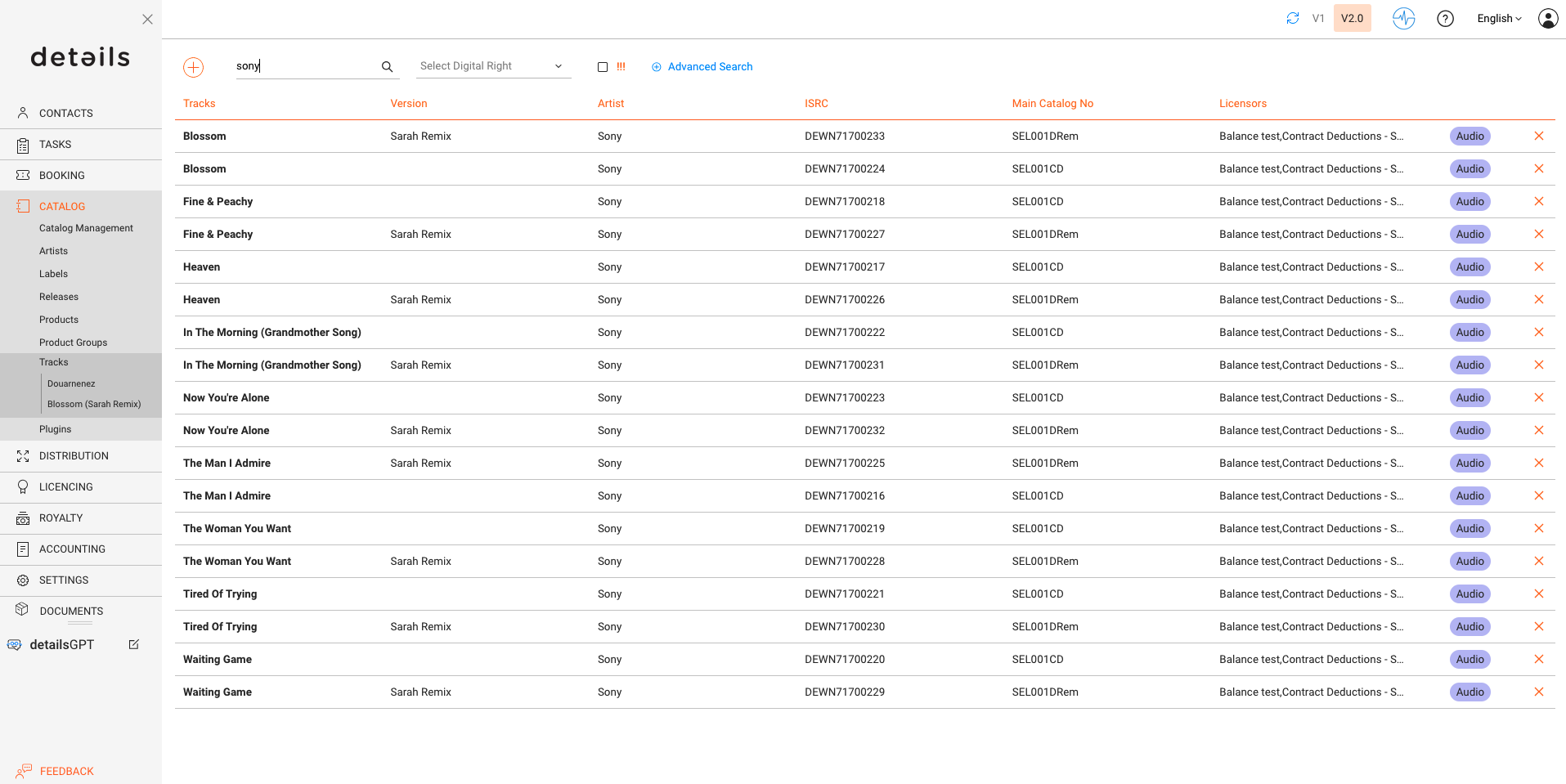
In CATALOG / TRACKS, you can manage all tracks in your catalog. Tracks are the final layer in the hierarchy of details:

  • Release – the commercial campaign combining multiple products
  • Product – the specific format (digital, CD, vinyl, etc.)
  • Track – the actual recording, where sales and royalties are calculated

For a track to be royalty-billable, it must always be connected to at least one Product. Tracks without this relation cannot generate statements.


TRACK LIST & NAVIGATION

The list in CATALOG / TRACKS is the entry point for managing your catalog. It gives you a full overview of all stored tracks.

  • Track Title, Version, Artist – the visible identification of each track.
  • ISRC – the international recording code; every track should have a valid code to be recognized in sales reporting.
  • Main Catalog No – the identifier of the Main Product a track belongs to; required for royalty accounting, as income is only reported when both track and its main product are linked.
  • Licensors – the name of the Royalty Account(s) a track is related to. The licensors contain the Royalty Contracts that are mandatory for the royalty billing of a track.
  • Track Type – defines if the item is an Audio, Video, or Mix.
  • You can search by Title, Version, Artist, or ISRC.
  • The Advanced Search lets you also look for Writers, Publishers, Accounts or Metadata values. Results can be exported into Excel for further use.

Error Indicator (!!!)

Tracks marked with !!! contain errors that must be fixed. Typical causes:

  • Missing or invalid Catalog Number
  • Missing or invalid ISRC

Read more about fixing these errors.


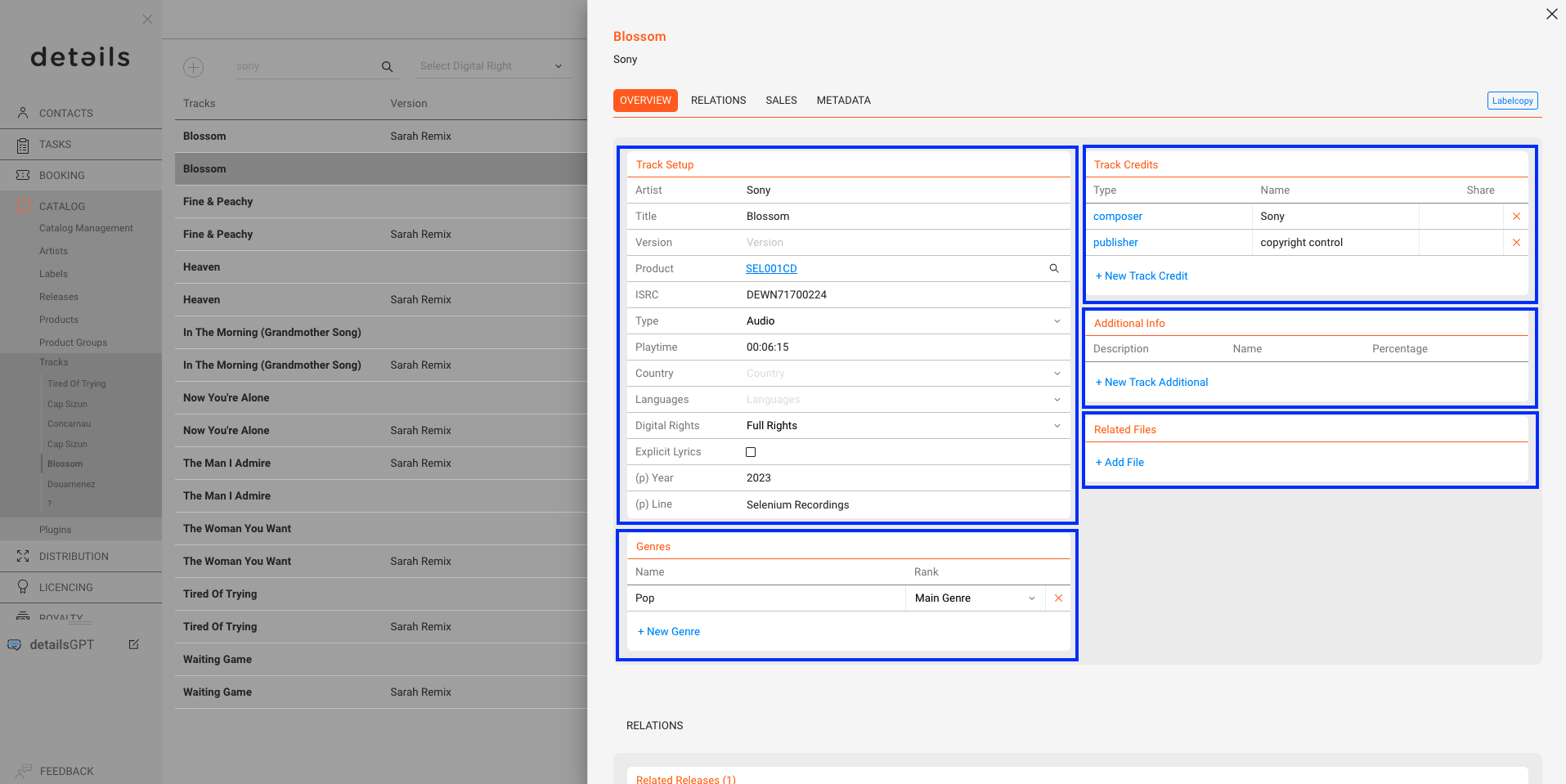
Overview

The OVERVIEW tab displays all essential metadata of a track.

  • Artist, Title, Version – the core identification of the recording. The Version field distinguishes between e.g. Live, Remix or Instrumental versions.
  • ISRC – the mandatory international identifier of every recording. Tracks without a valid ISRC cannot be matched correctly in statements.
  • Product / Main Product – shows to which product(s) the track is connected. One of these must be defined as the Main Product, otherwise the track is not royalty-billable.
    If sales data does not include a clear product reference (e.g. barcode), the system uses the Main Product as a fallback to ensure the track can still be reported and billed correctly.
  • Type – defines the format of the track. Options are:
    • Audio – standard sound recording.
    • Video – music video or audiovisual version.
    • Mix – long continuous recordings, common in electronic music (e.g., DJ mixes of 40+ minutes). This type exists to differentiate such content from standard audio tracks.
  • Playtime – displayed in hours, minutes and seconds; this is important for distribution and rights collection.
  • Country – indicates Country of Recording at track-level. This is distinct from Country of Origin at release-level, which may be required for registrations (e.g. GVL, GEMA).
  • Language – selectable from a predefined list, including dialects and regional variants.
  • Digital Rights – defines how a track can be used in digital distribution.
    • Full Rights: The track can be streamed, downloaded, and sold as a single.
    • Download-only: The track may only be downloaded but not streamed.
    • Bundle-only: The track cannot be sold individually. It can only be purchased as part of an album or compilation.
  • Explicit Lyrics – a simple flag that is mandatory for distribution.
  • (P) Year and (P) Line – publication year and phonogram line.

Additional Sections

  • Track Credits – official credits such as Composer, Writer or Publisher. Credits can be filled in automatically via Default Credits in an ARTIST account.
  • Additional Info – non-official credits like remixer or instrumentalist, useful for internal documentation but not part of Label Copy.
  • Related Files – upload audio or video files. Storage limits may apply for very large archives.
  • Genres – up to four genre slots (two main, two sub genres) can be assigned.

The [Label Copy] button allows you to quickly send an email containing the Overview and Credits of a track.

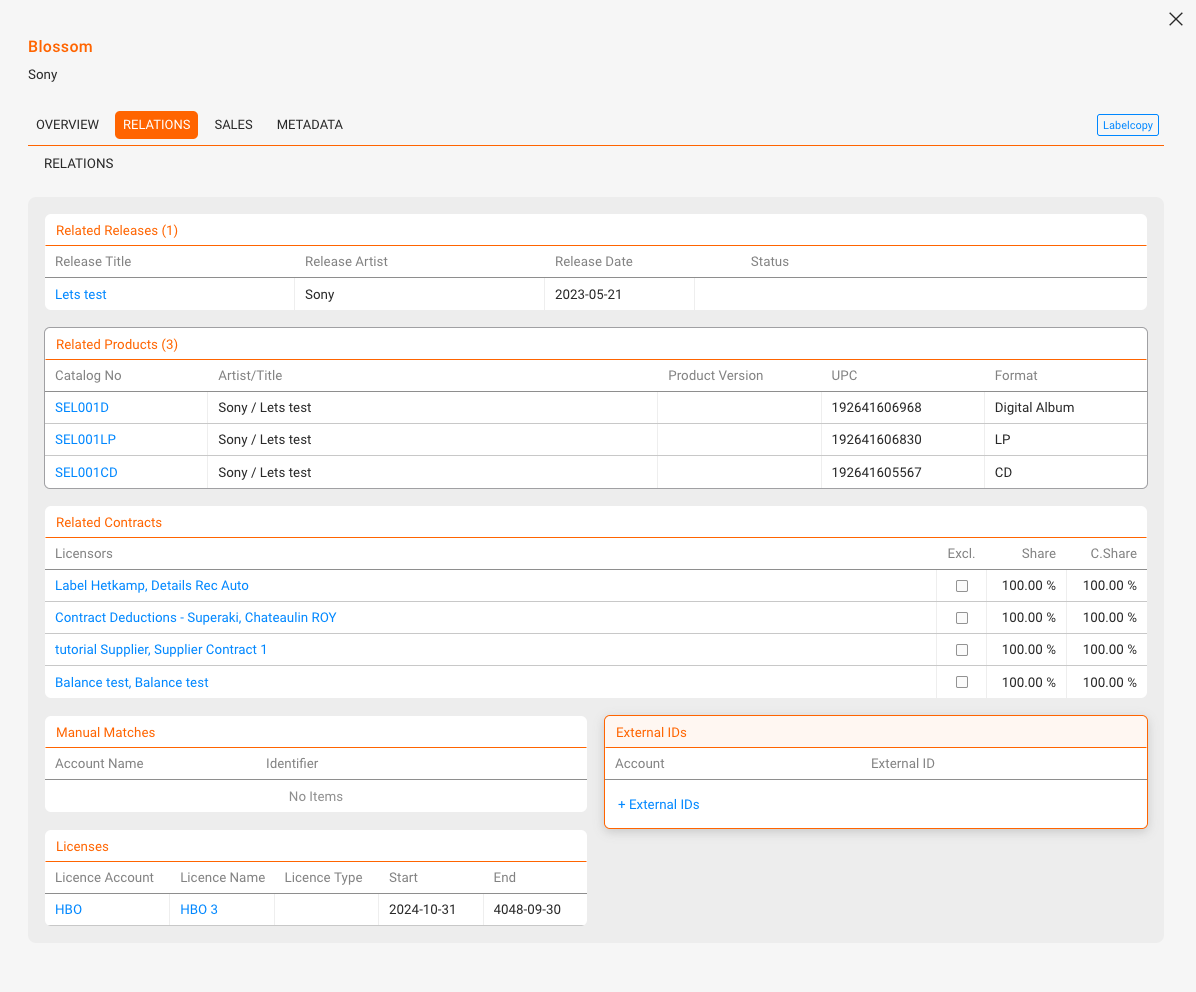
Relations

The RELATIONS tab lists all items connected to the track.

  • Releases & Products – a track can be linked to multiple releases and products. Every track must be connected to a Main Product to be billable.
  • Contracts – multiple licensors can be connected. Each relation is tied to a contract and defines the percentage shares. Contract Share shows the distribution of shares across licensors. Always verify that shares add up correctly (should not exceed 100%).
  • Manual Matches – manually assigned matches from imports, used when automatic ISRC matching fails. They are read-only in the track view and cannot be created directly here.
  • External IDs – IDs from external services (Apple ID, YouTube ID, etc.) used to improve mapping.
  • Licences – shows third-party usage, e.g. when the track is part of a sync licence.

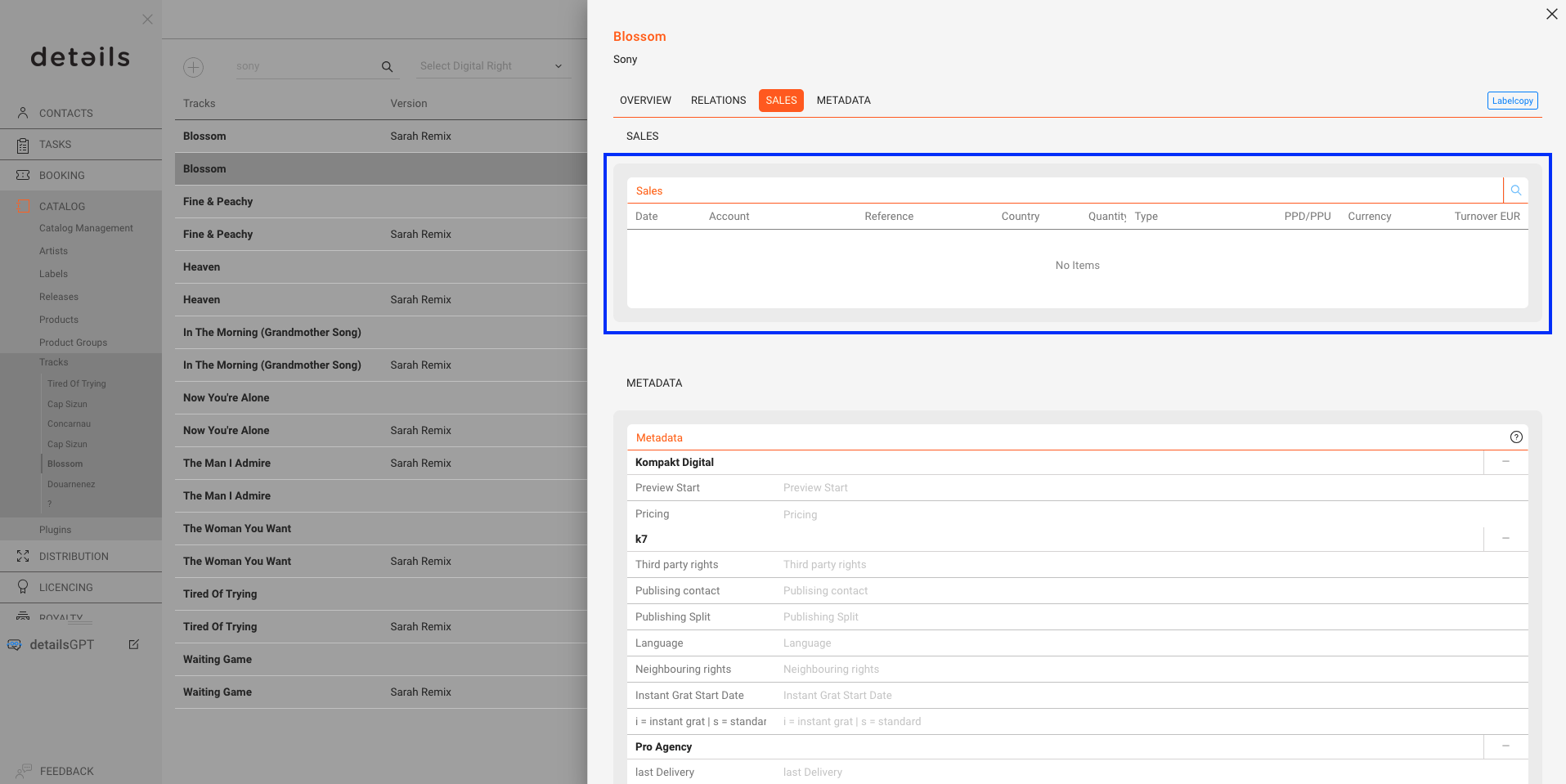
Sales

The SALES tab displays all sales linked to the selected track.

  • Sales Account – the source of the sales data.
  • Statement Reference – links the entry to a specific royalty statement.
  • Country – sales territory.
  • Quantity & Type – number of units sold and the transaction type.
  • PPD, PPU, Cost PU – reported prices per unit.
  • Currency – currency used in the statement.
  • Total Turnover – total value converted to standard currency.

You can filter results by period, sales account, country or transaction type.

Metadata

The METADATA tab lets you manage additional fields that go beyond the standard track setup. These fields are often client-specific and can be used for exports, internal IDs, or publisher shares.

If you require additional custom export fields, please contact the details support team.


Product Interface

In the PRODUCTS section, you can manage all items and services that you want to sell or account for physical or digital, musical or not. This includes CDs, LPs, digital albums, merchandise like T-shirts or posters, and even services like mastering or shipping.

To understand how products fit into the overall structure of details, it is important to look at their relationships:

  • Releases are the central unit. Each release belongs to exactly one label.
  • Products are always linked to a release and represent the concrete commercial item (physical or digital). A release can contain multiple products.
  • Tracks are the musical works. Tracks can appear on multiple products (e.g. a track on both a CD and a digital album).
Note: Products can be physical (e.g. vinyl, CDs, box sets) or digital (e.g. download albums, streaming bundles). While they share core properties, some tabs and fields differ depending on the product type.

Each product consists of various details and is structured across multiple tabs. Below, you’ll find an overview of the general layout and the specific functionalities of each tab.

General Layout

PRODUCT LIST

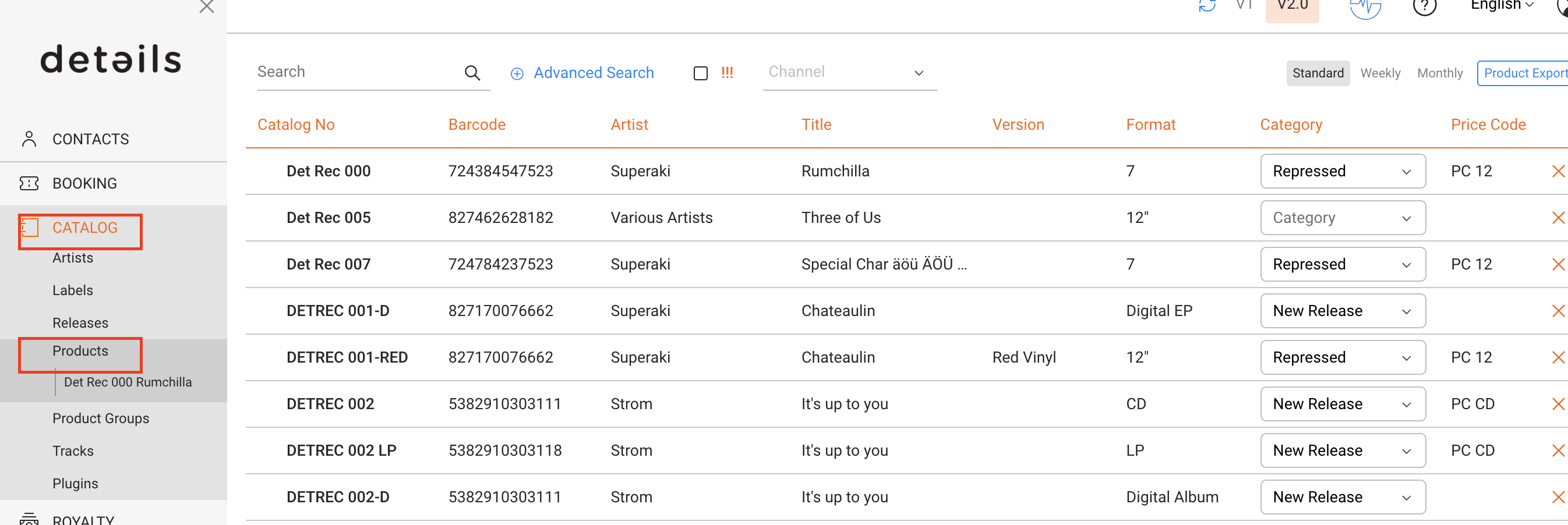
This is the default view under CATALOG / PRODUCTS and shows all available products in your database.

  • Search by catalog number, artist, title, version, or barcode
  • Advanced Search allows combining fields (e.g. format, label, channel, release date range, categories, price codes, accounts, stock locations) and exporting the results as an Excel file.
  • Barcode checks help to identify duplicate UPCs and Catalog Numbers. These are shown by [!!!] and can be filtered separately.

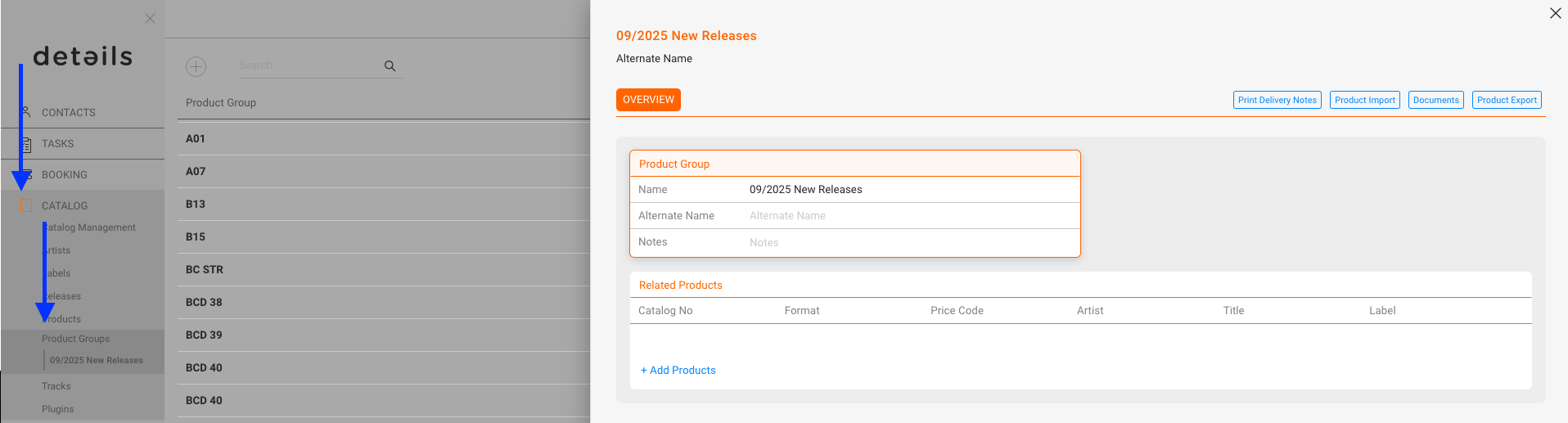
PRODUCT GROUPS

Product Groups let you organize products into collections (e.g. New Releases, Compilations, Limited Editions). Groups can be exported as lists, including price lists or metadata sheets, and used for sales materials or newsletters. A product can belong to multiple groups at once.

Product Layout

OVERVIEW

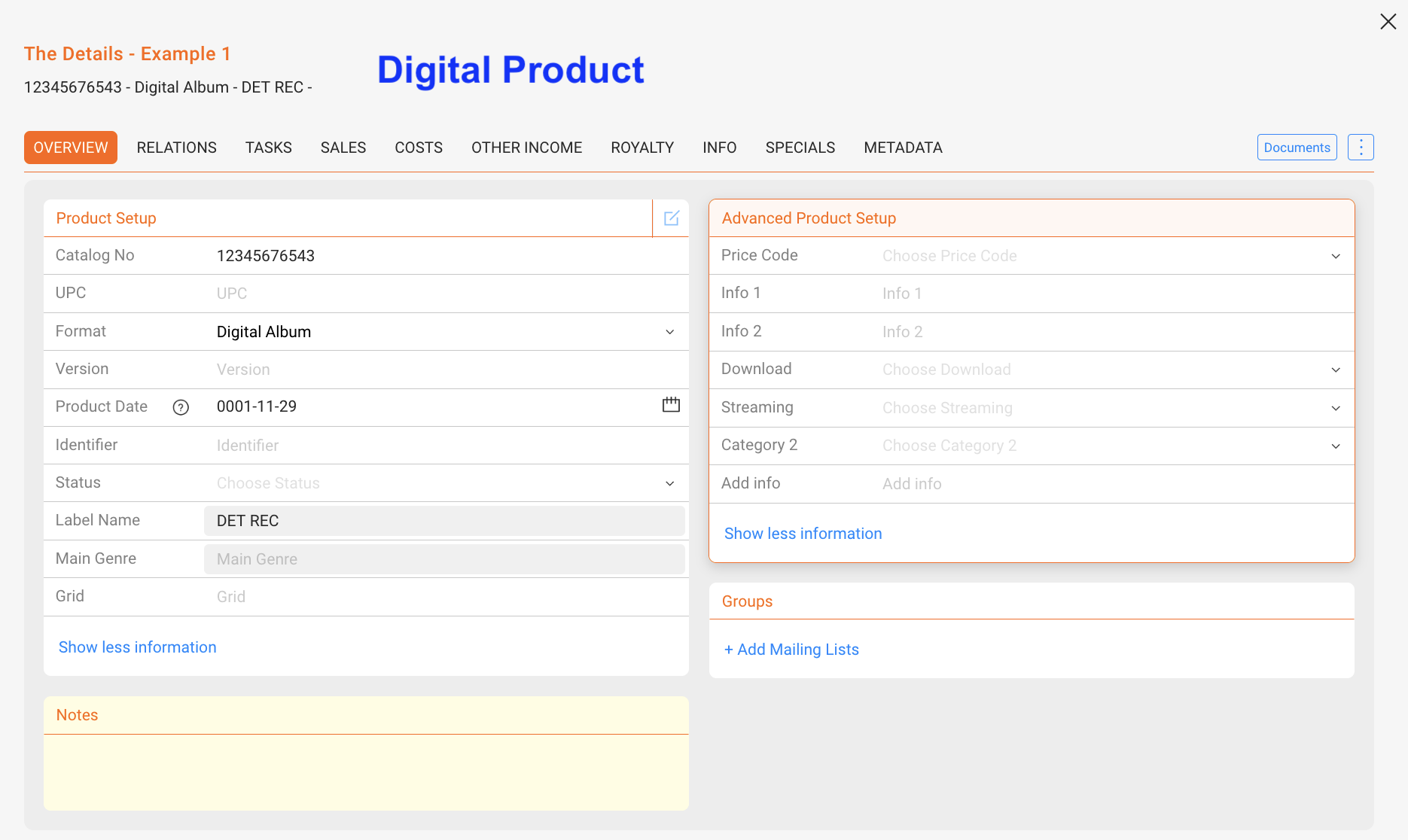
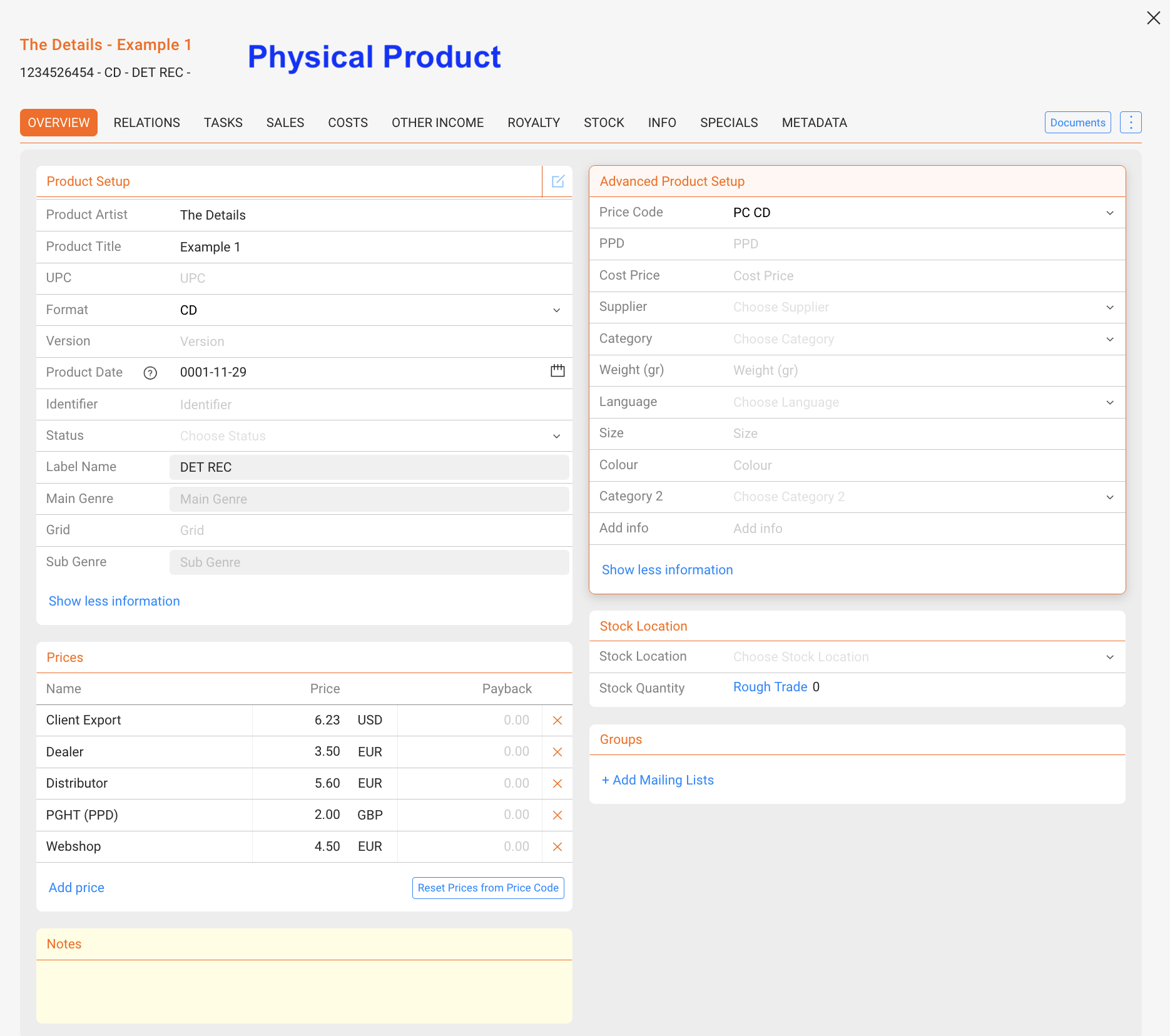
The OVERVIEW tab contains the core setup of a product. While digital and physical products share some common elements, there are also product-type-specific fields and sections.

Product Setup (all products)

  • Catalog No: Internal identifier, often printed on artwork or packaging
  • UPC: Barcode number for distribution and sales matching
  • Format: Defines type of product (e.g. CD, Vinyl, Digital Album); formats are created in SETTINGS / LABEL
  • Version: Differentiates editions (e.g. limited edition, colored vinyl)
  • Product Date: Specific availability date of the product (can differ from Release Date)
  • Identifier: Additional code for internal or accounting purposes
  • Status: Color-coded product status for filtering
  • Label Name: Connected label (redundant, as the release already belongs to one label)
  • Genre: Shown from the related release; can be displayed for quick reference
  • Grid: Optional industry identifier, rarely used outside large distributors
Note: Product Dates are independent of Release Dates. A product can be made available earlier or later than the release (e.g. vinyl shipped earlier to indie stores).

Advanced Product Setup

The advanced setup contains additional parameters for pricing, distribution, and classification. The fields differ slightly between digital and physical products.

Product Setup (digital products)

  • Price Code: Links the product to a predefined price list. Used mainly for auto-filling prices, though often less relevant for digital products.
  • Info 1 / Info 2: Free text fields. Can be used flexibly for internal remarks, marketing notes, or additional classification.
  • Download: Defines if the product is available for download.
  • Streaming: Defines if the product is available on streaming platforms. Often used for compilations where streaming rights are not licensed.
  • Category 2: Secondary categorization for internal structuring, in addition to the main category. Managed in label settings.
  • Add Info: Another free field for internal use (similar to Info 1/2).

Product Setup (physical products)

  • Price Code: Same logic as for digital, but more frequently used for auto-filling physical prices.
  • PPD (Published Price to Dealer): The base price charged to dealers before distribution margins (basis for dealer pricing; differs from PPU shown in the SALES tab).
  • Cost Price: Internal cost or manufacturing price of the product. Useful for profit calculations.
  • Supplier: Defines the supplier or manufacturer (e.g. pressing plant).
  • Category 2: Secondary categorization for internal structuring, in addition to the main category. Managed in label settings.
  • Weight: Physical weight of the product (in grams). Important for shipping and logistics.
  • Language: Relevant for media products such as books, films, or multilingual editions.
  • Size: Physical size (e.g. T-shirt sizes, or package dimensions).
  • Colour: Used for colored vinyl, merchandise variants, or packaging details.
  • Add Info: Additional free text field for custom information.
Note: Not all advanced fields are relevant for both product types. For example, Download and Streaming apply only to digital products, while Weight, Supplier, and PPD are only used for physical products.

Prices (physical only)

Defines sales prices per channel or partner (e.g. Dealer, Distributor, Webshop). Prices can be auto-filled from Price Codes or overridden at product level for exceptions.

Stock Location (physical only)

Shows stock quantities per location. Stock is calculated automatically from manufacturing and sales transactions, not edited manually. Supports multi-warehouse setups and helps optimize logistics.

Note: Inventory shows all units physically available, while Available shows only the unreserved quantity that can still be sold.

Groups & Notes (all products)

  • Groups: Products can be assigned to groups (e.g. for exports, mailing lists, sales campaigns)
  • Notes: Free text field for internal notes and comments

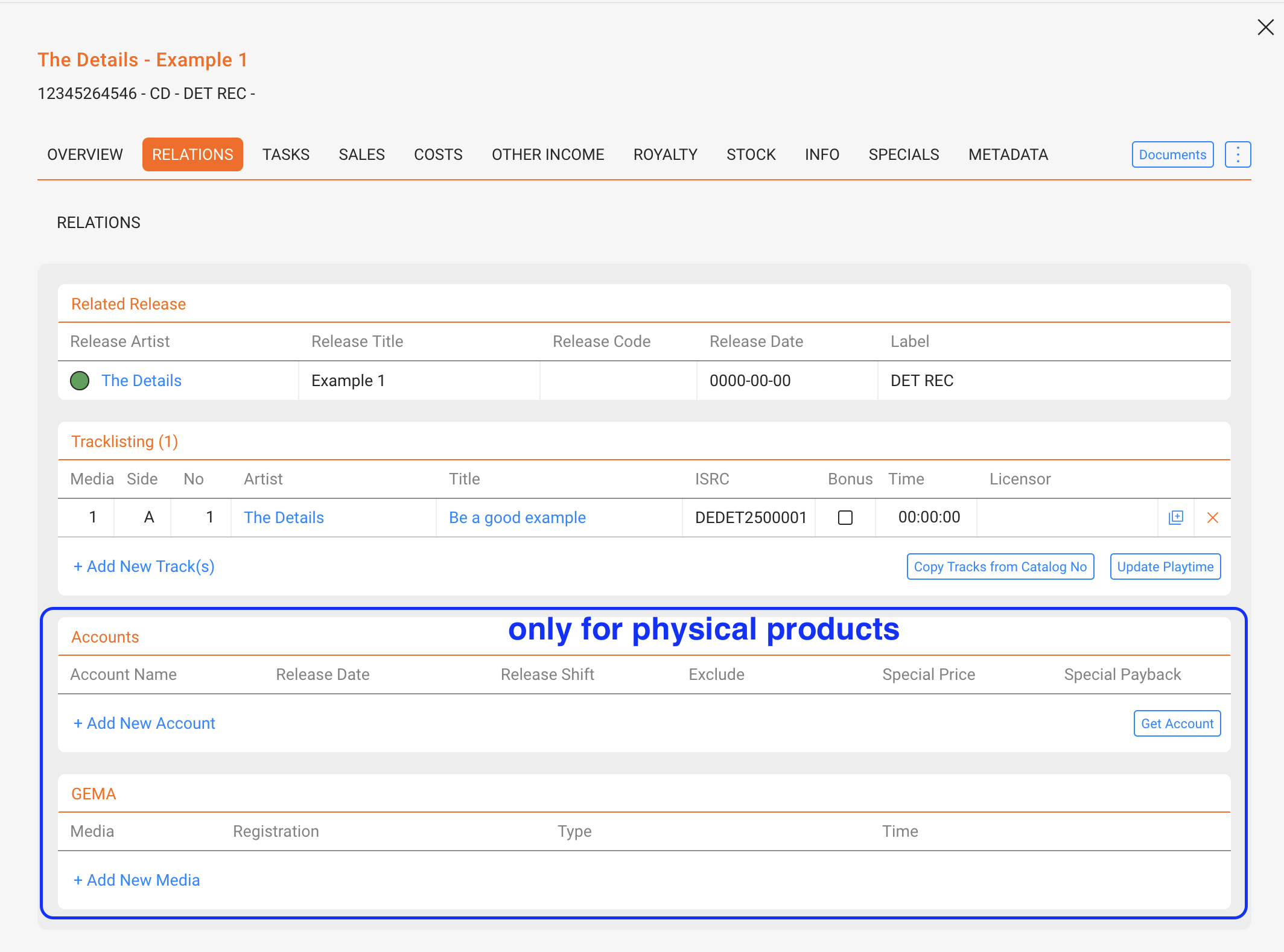
RELATIONS

Shows the product’s connections:

  • Release: Each product is linked to exactly one release
  • Tracklist: Products can contain multiple tracks; bonus tracks can be flagged and are excluded from prorata calculations
  • Playtime: Can differ per product/track relation; the [UPDATE PLAYTIME] button syncs values
  • Manual Matches: Store distributor-specific identifiers for the same product
  • Physical Products only: Accounts (special pricing, release shifts, exclusions) and GEMA registrations
Note: Use the bonus flag specifically for tracks that shouldn’t participate in revenue shares (e.g. bonus download, hidden tracks). The prorata pool will ignore these tracks; unflag to include them again.

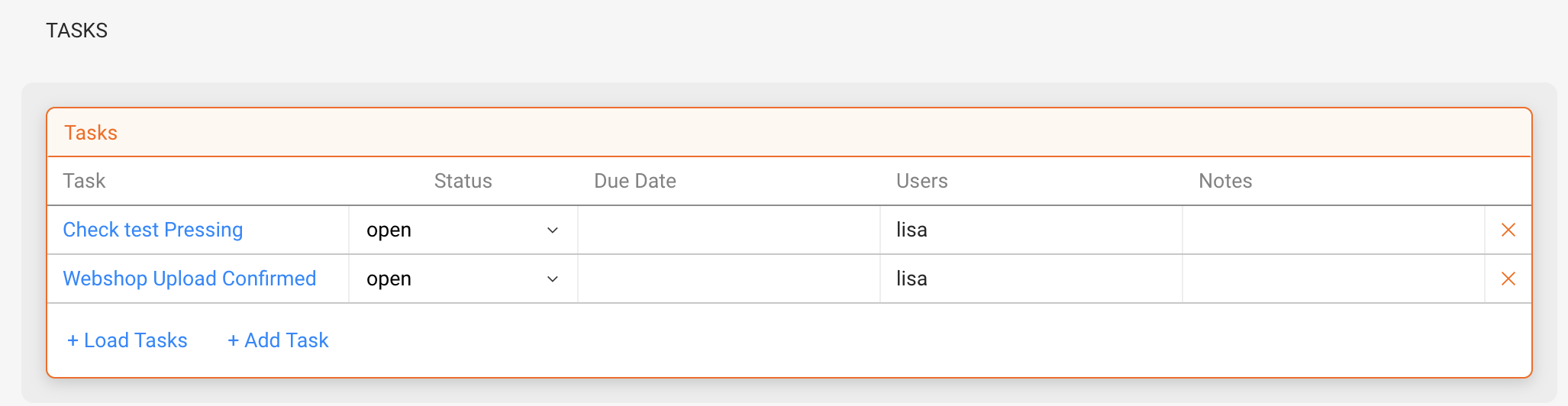
TASKS

Link tasks to products (e.g. check test pressing, confirm webshop upload). Tasks can be assigned to team members and managed within the product context.
Read more about how Tasks works and how to set it up.

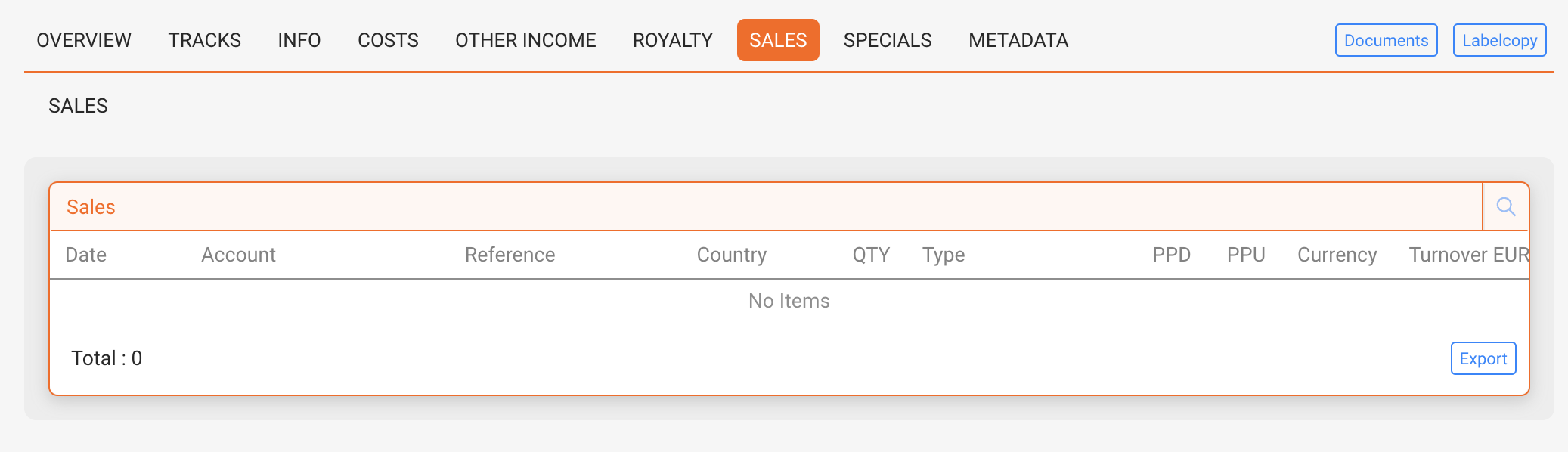
SALES

Displays sales data per product, including sales account, quantity, PPD (price to dealer), PPU (net price after distribution fee), turnover, and more. Includes filtering, export options, and links to invoices.

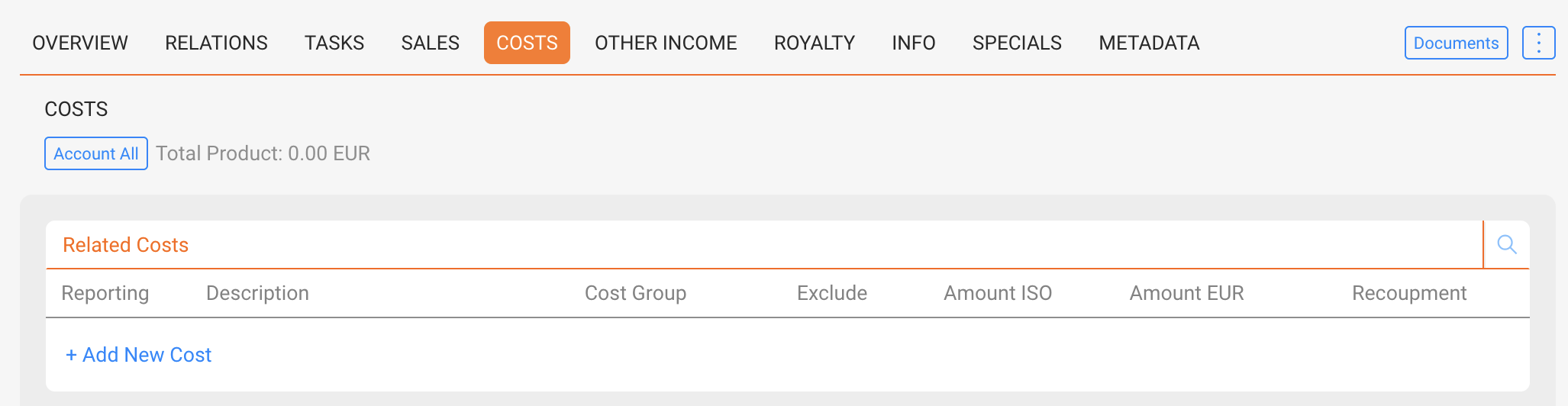
COSTS

Enter costs manually or import via Excel. Costs can be categorized (e.g. manufacturing, artwork), linked with invoices, and marked as recoupable or excluded for royalty calculations.

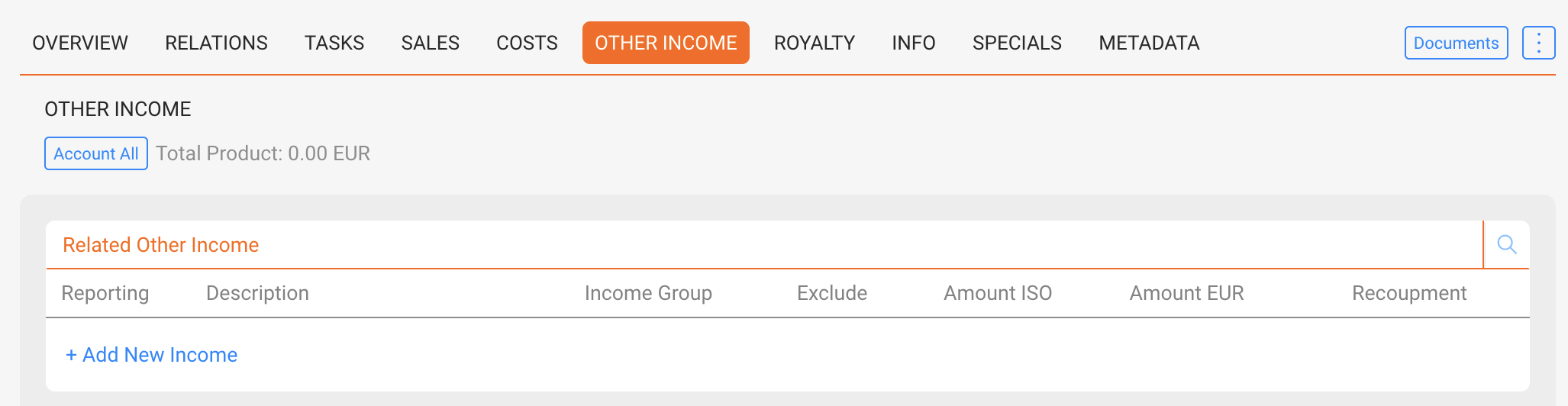
OTHER INCOME

Enter additional revenues such as grants or subsidies. Other income is added to the project balance and shared with artists if defined in contracts.

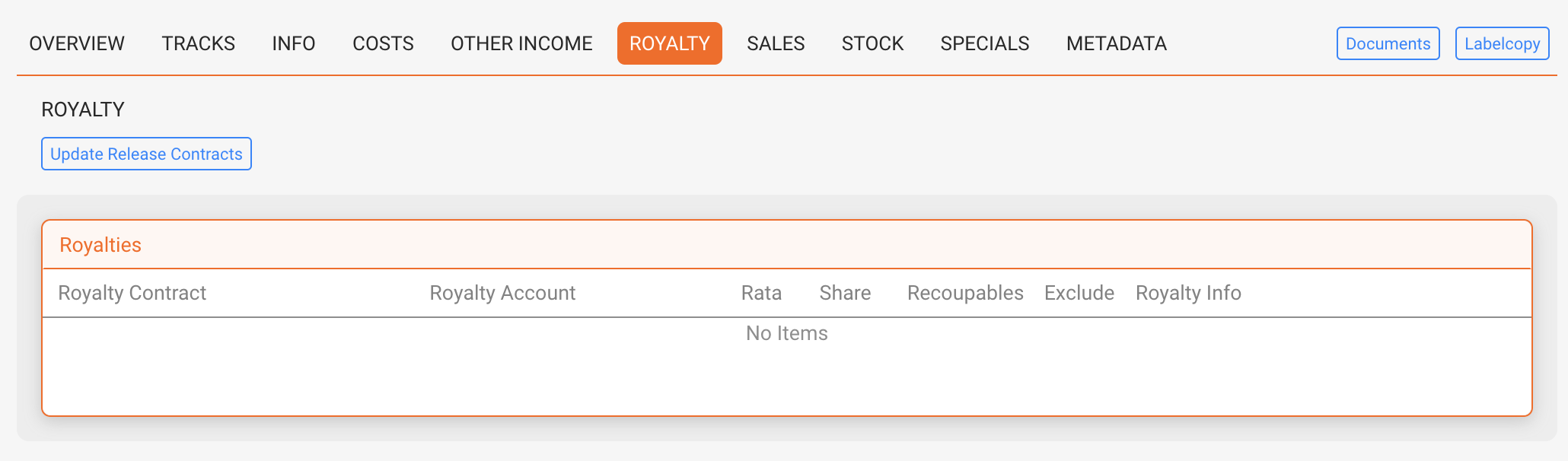
ROYALTY

Shows all royalty accounts linked to the product. Displays shares, pro rata allocations, and recoupables. Compilations may include many contracts, while most products have only a few.

STOCK (only for physical products)

The STOCK tab is available only for physical products. It shows current stock levels, manufacturing orders, supplier deliveries, backorders, and open orders. It helps manage logistics, track inventory, and optimize warehouse flows.

Stock Levels

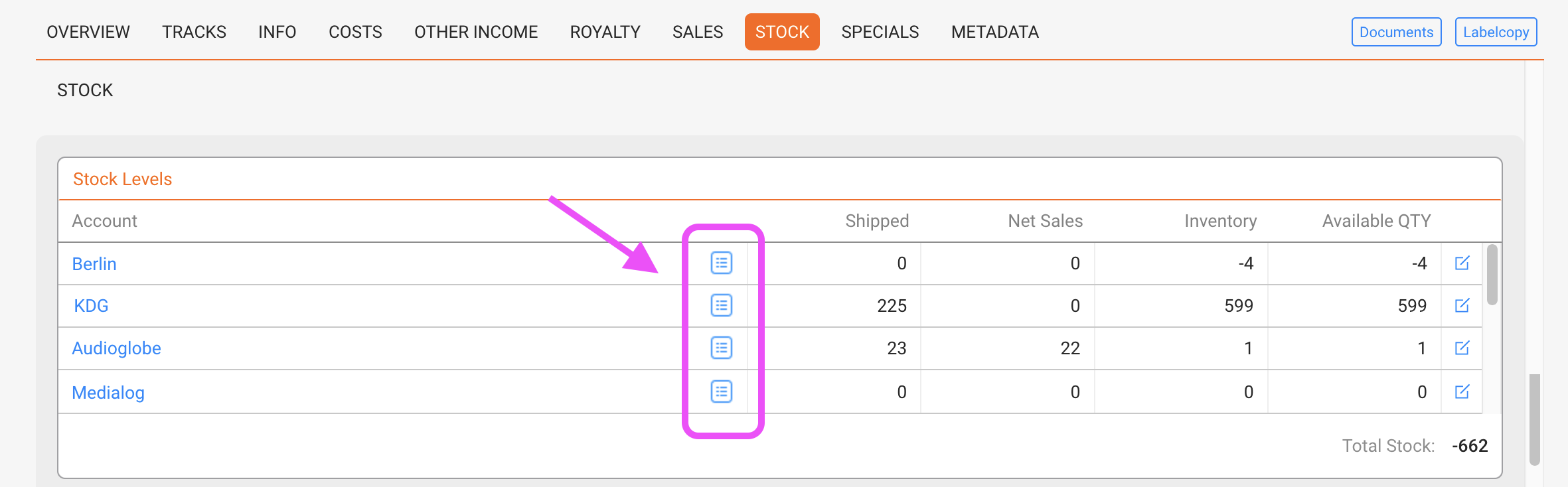
Displays stock quantities per account or warehouse location. The table shows:

  • Shipped: Total units shipped to the account
  • Net Sales: Units sold after returns
  • Inventory: Physically available units in stock
  • Available Quantity: Units available for sale (inventory minus reserved quantities)
Note: Inventory shows the total units physically present, while Available shows only the unreserved quantity that can still be sold.

Manufacturing

Lists all manufacturing orders linked to this product. Each order includes Order Date, Supplier, Status, and Quantity. Use [ADD NEW MANUFACTURING] to record a new production batch.

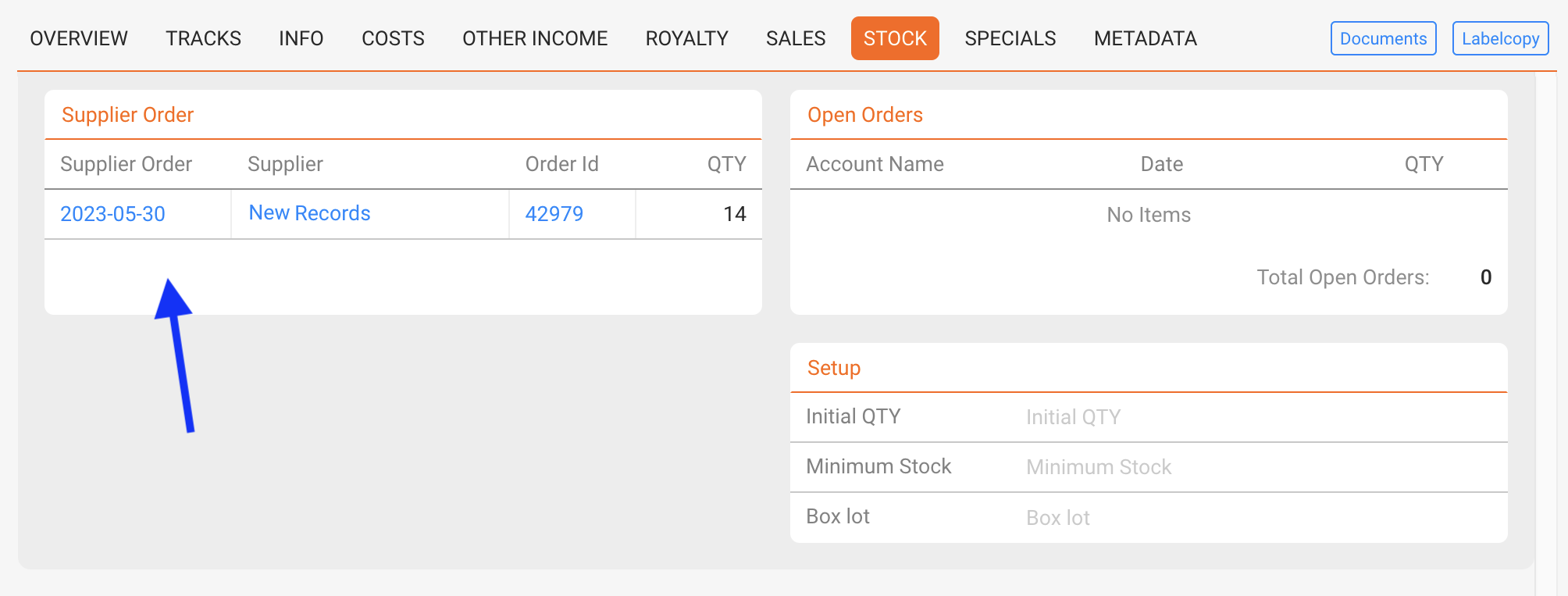
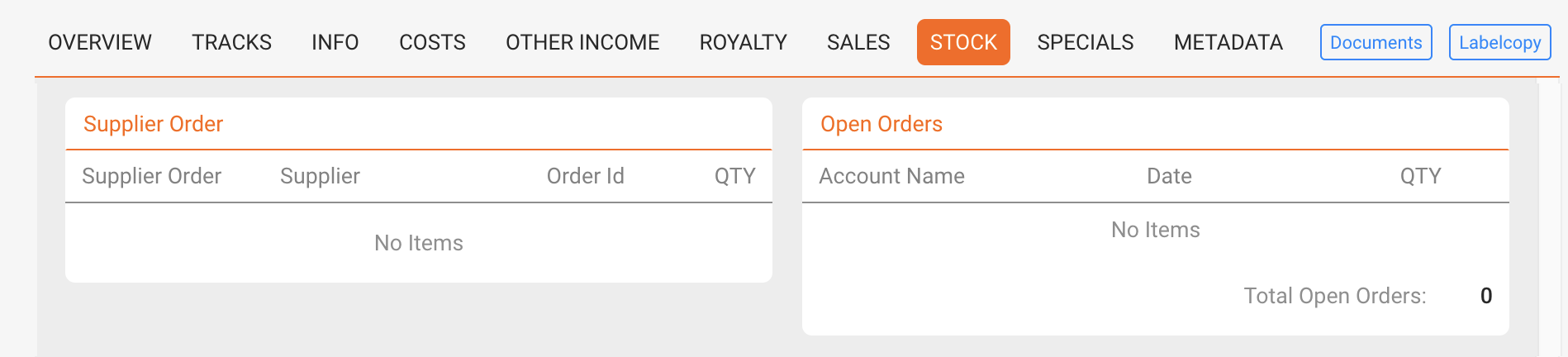
Supplier Orders

Shows orders placed with suppliers (e.g. pressing plants). Supplier orders are displayed while they are open, meaning the goods have not yet arrived and are still in transit.

Once a supplier order is accounted, it is no longer displayed here. At that point, the goods are considered delivered and become part of available inventory.

Backorders

Displays unfulfilled customer orders. Each entry contains Account Name, Date, and Quantity. Use [ADD NEW BACKORDER] to record pending requests.

Open Orders

Lists ongoing product orders that are not yet completed. Each order includes Account Name, Date, and Quantity. Orders can be exported via [Export Excel].

Setup

Defines product-specific stock settings:

  • Total Order Quantity: Aggregated quantity from all open orders
  • Minimum Stock: Threshold to trigger reordering
  • Box Lot: Packaging unit size (e.g. 25 CDs per box, 15 vinyl per box)

These parameters help to plan production, prevent stock-outs, and manage packaging logistics.

Note: Stock data such as levels, orders, backorders, and manufacturing are synchronized with the DISTRIBUTION module. The STOCK tab shows the product-specific perspective of these processes.
Tip: Use detailed stock reports in the STOCK tab to track movements and availability per product and per location.

INFO

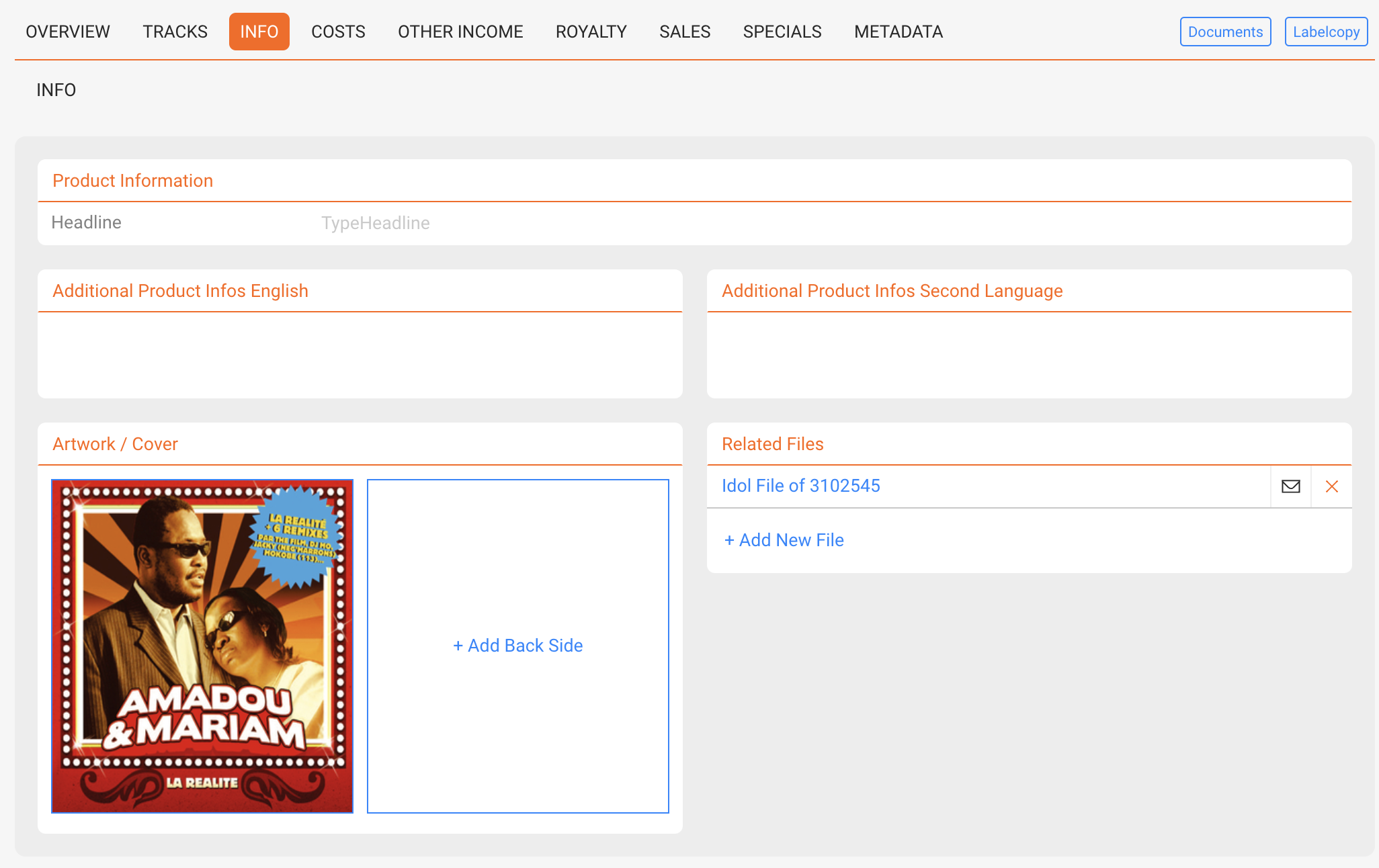
Store product descriptions in multiple languages, upload artworks and files. Product-level information overrides release-level information.

SPECIALS

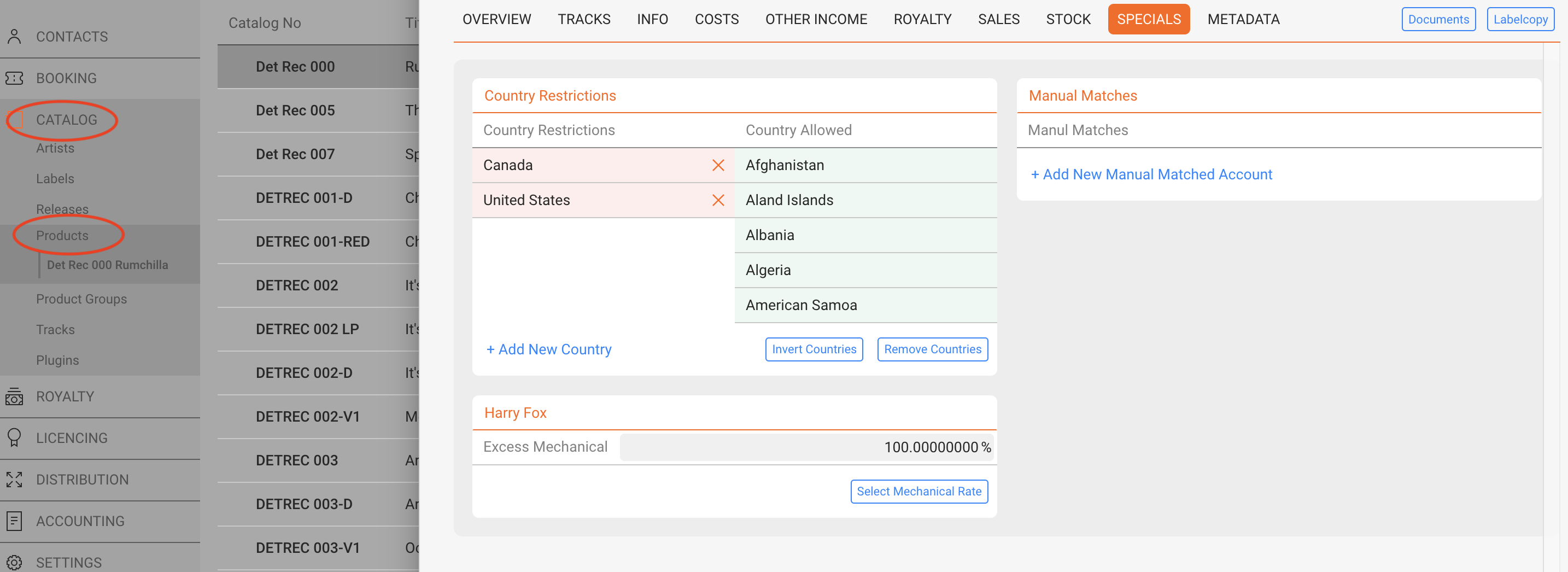
Manage country restrictions and special cases (e.g. Harry Fox mechanical rights for the US). These functions are mostly relevant for physical products.

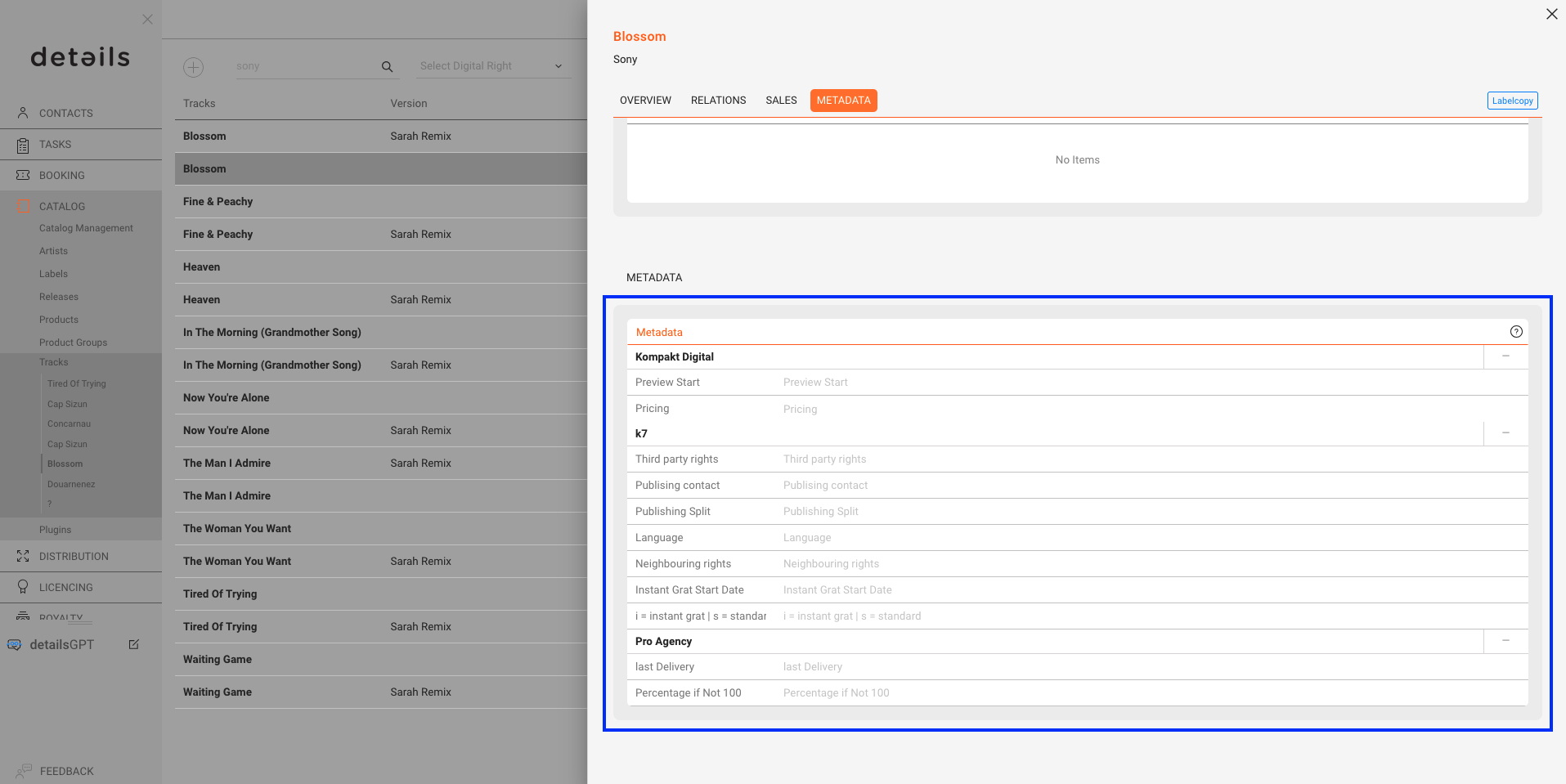
METADATA

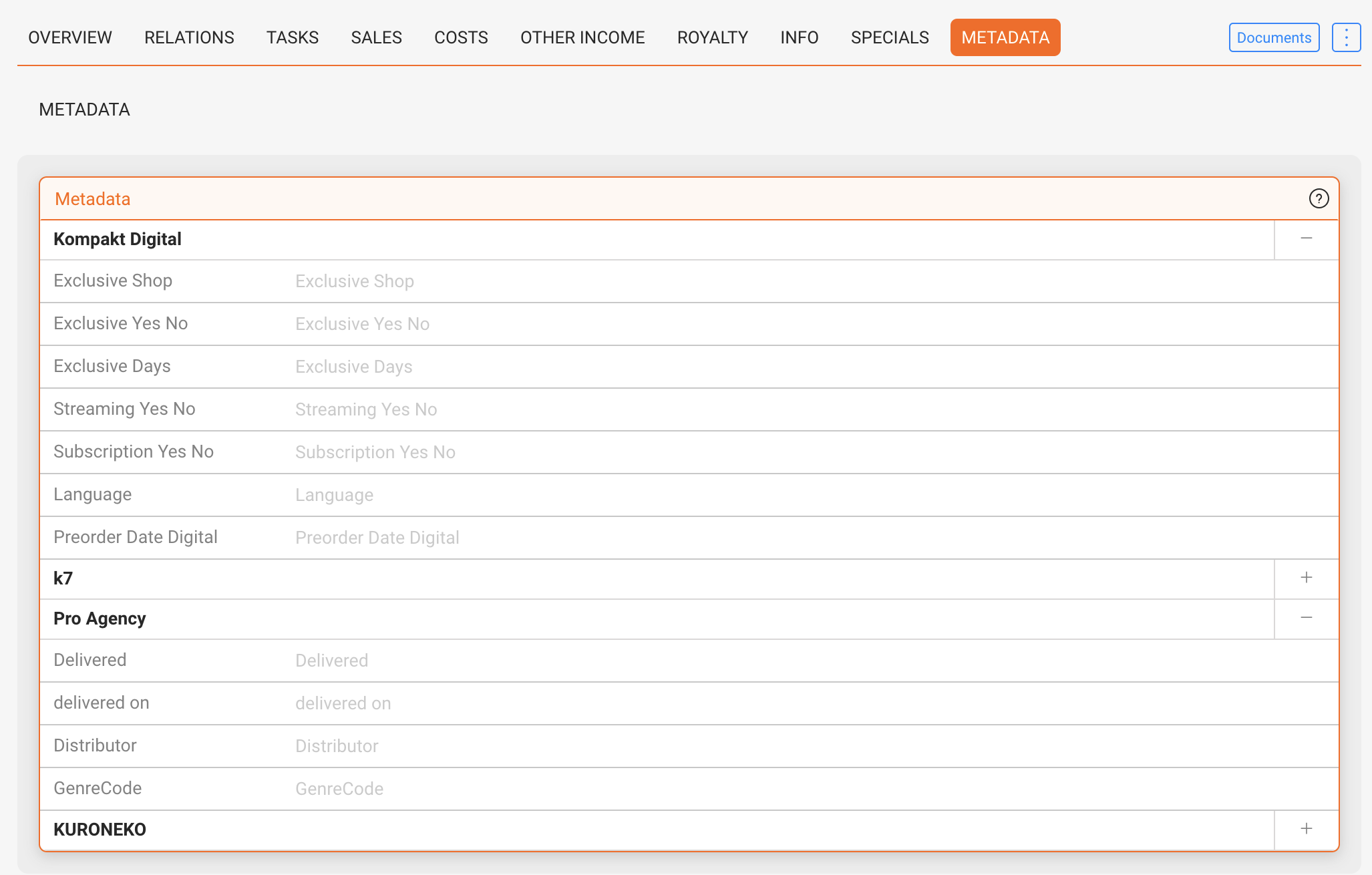
Custom metadata sets can be enabled per customer (e.g. GVL, Publishing, K7). These provide additional text fields for storing client-specific information. Metadata is optional and mainly relevant for specialized workflows.

Note: Availability and naming of metadata fields are configured by our team. Fields are free-text unless otherwise specified.

TOP-BAR ACTIONS

  • [DOCUMENTS] Opens a list of HTML-based templates configured by details (e.g., one-sheets, product info sheets, manufacturing orders). Preview and export (PDF/CSV/Excel) or copy the rendered document.
  • Label Copy Creates a ready-to-send email via your local mail client with a static label copy: product metadata plus the complete track list.
  • Stock Move Quickly move on-hand units between stock accounts/warehouses for the selected physical product (decreases the source, increases the destination; no order, no shipping documents, no invoice).