Basic Actions: Products


In this article, you ll find the everyday actions you need to manage products quickly and safely. Each action is grouped by function and expands for simple, step-by-step guidance. If you re just getting started, make sure you know the basics from the PRODUCTS Interface article first.

► Add a Product

In details, every product must belong to a Release. Products cannot exist independently. A release may represent a musical project, a merch drop, or even a container for services.

Tip: Choose the correct Channel (Digital or Physical) via the Format. Once a product has transactions, avoid switching channels.

Option A: From a Release (recommended)

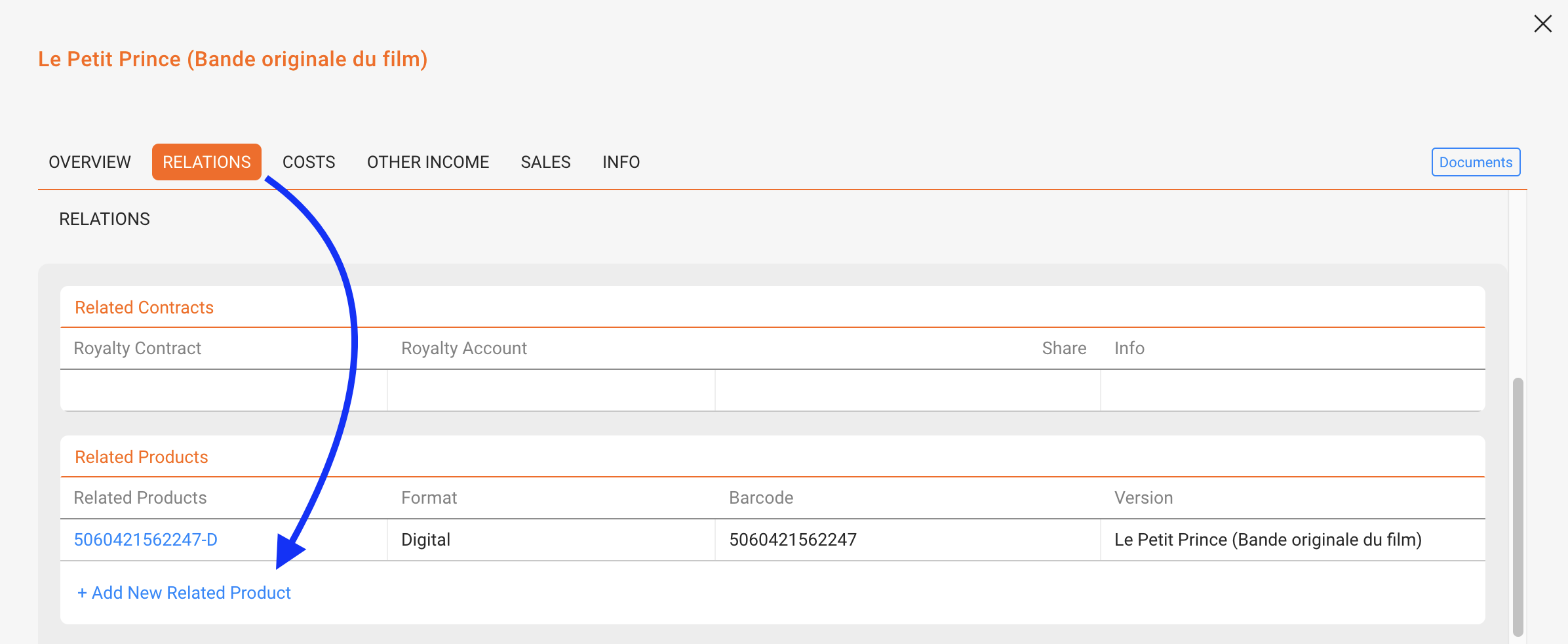
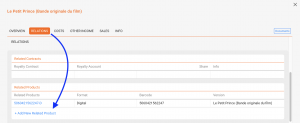
  1. Open the release the product should belong to.
  2. Go to RELATIONSPRODUCTS.
  3. Click [ADD NEW RELATED PRODUCT].
  4. Enter Catalog No (required), Format (required), and Barcode (optional).
  5. If the format is missing, create it in LABEL / SETTINGS.
  6. You can also copy the tracklist from another product in the release using the radio button in the modal.
  7. Confirm with [ADD RELATED PRODUCT].

For guidance on how to handle services and non-musical products, see How to Manage Non-Musical Products and Services.
 

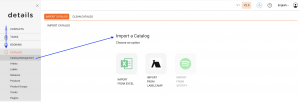
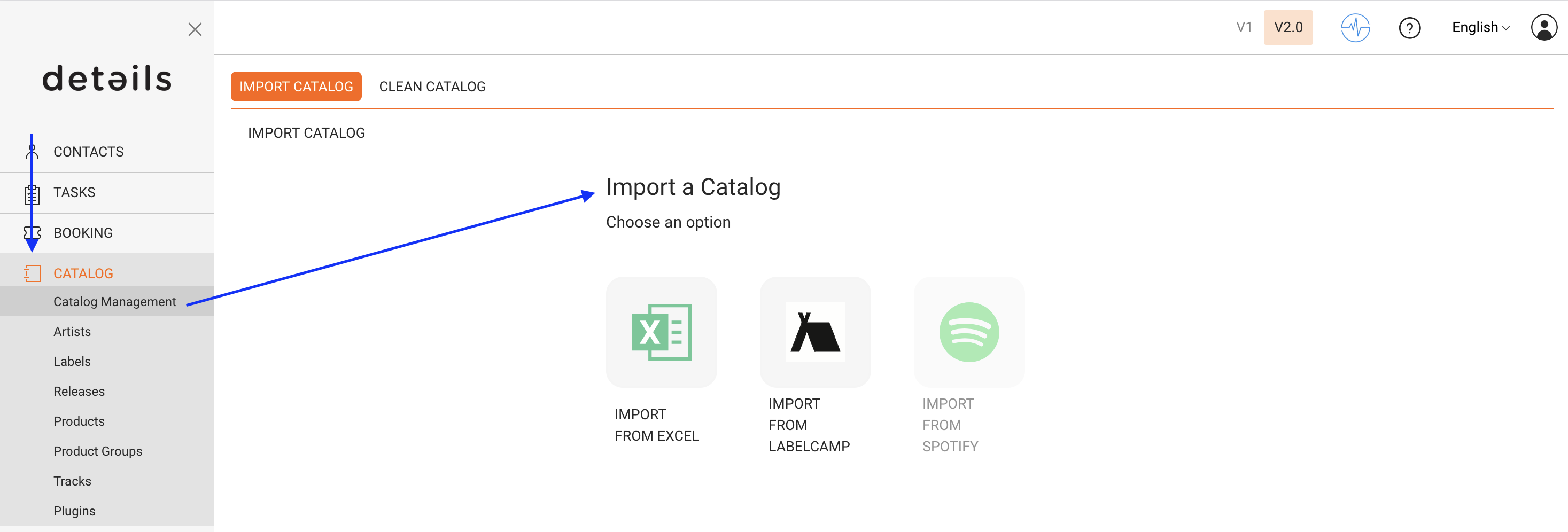
Option B: Import via CATALOG MANAGEMENT

Best for adding several products at once.

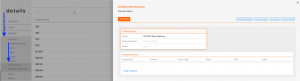
To add Products in bulk you can use serveral Import tools you can find in CATALOG/CATALOG MANAGEMENT:

► Edit a Product

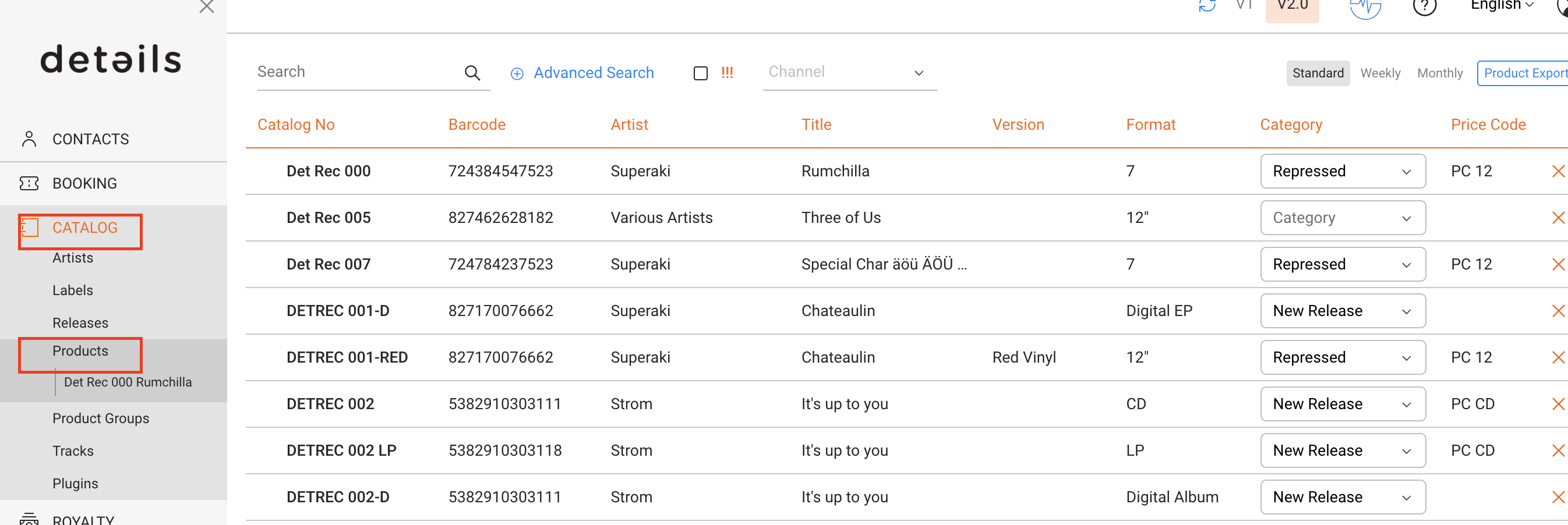
  1. Go to CATALOG / PRODUCTS.
  2. Click the bold Catalog No or Title to open the product.
  3. Edit fields on the relevant tabs (Overview, Relations, Info, etc.).
  4. Save your changes.
Check Barcodes: Duplicate UPCs and Catalog Nos are flagged with [!!!]. Use filters to find and fix conflicts before export or distribution.

► Delete a Product

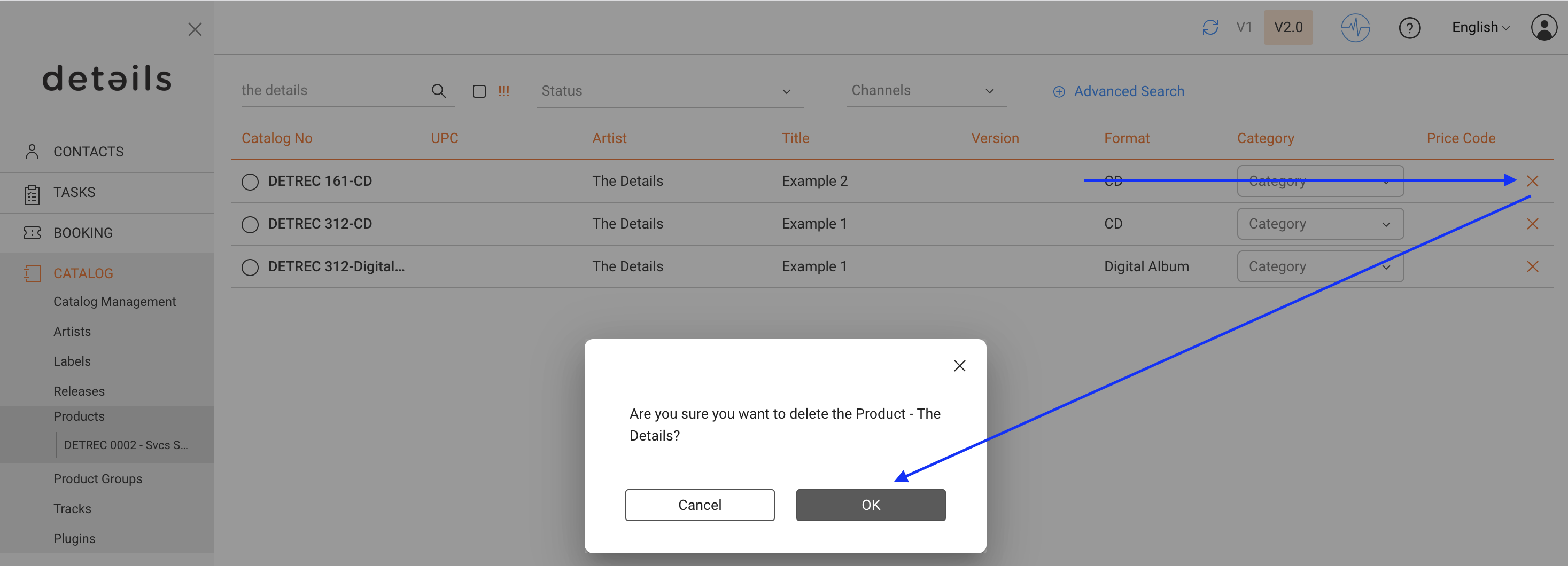
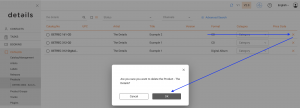
Deletion works only if there are no blocking links. You can delete from the list with the [x] icon.

Deletion is blocked if linked to:

  • Sales statements
  • Cost imports
  • Royalty contracts

If blocked, do this:

  • Remove or reassign the linked sales/costs, or unlink relevant contracts.
  • If you cannot, contact support to reassign sales/cost data to another product.

If no links exist, deletion is instant and irreversible.
► Fix a Product in the Wrong Release

You can t move a product to a different release directly. Use this workaround:

  1. Open the correct release and [ADD NEW RELATED PRODUCT].
  2. Copy the tracklist from the old product if needed.
  3. Verify data and links on all tabs.
  4. Delete the wrongly assigned product (see Deleting rules above).
Note: Copy tracklists via [COPY TRACKS FROM CATALOG NO] in PRODUCTS / TRACKS. Removing a track from a product only unlinks it the track remains in your catalog.

► Manage Tracks (Add, Select, Copy)

Go to PRODUCTS / TRACKS to manage the tracklist.

  • [+ ADD NEW TRACK(S)] ► create new tracks ► fill Artist, Title, Version ► [NEW TRACK].
  • To add existing tracks, search or scroll, tick the box, then [OK].
  • [COPY TRACKS FROM CATALOG NO] to duplicate a tracklist from another product.
  • [UPDATE PLAYTIME] after bulk changes to sync durations.
Tip: Always check if a track already exists before creating a new one. Duplicate tracks with the same ISRC can lead to reporting errors.
  • Bonus tracks & prorata: If a track is marked as bonus, it is excluded from prorata pools. Unflag it to include it again.

Note on Track Lists

Tracklists are product-specific. Changing a tracklist in one product does not affect others. Removing a track only unlinks it from the product the track remains in your catalog. A Step-by-Step Guide on Moving A Track to a different Product you can find here.

► Upload Files & Artwork

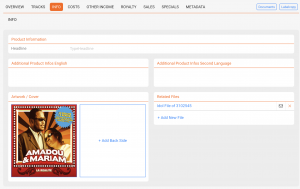
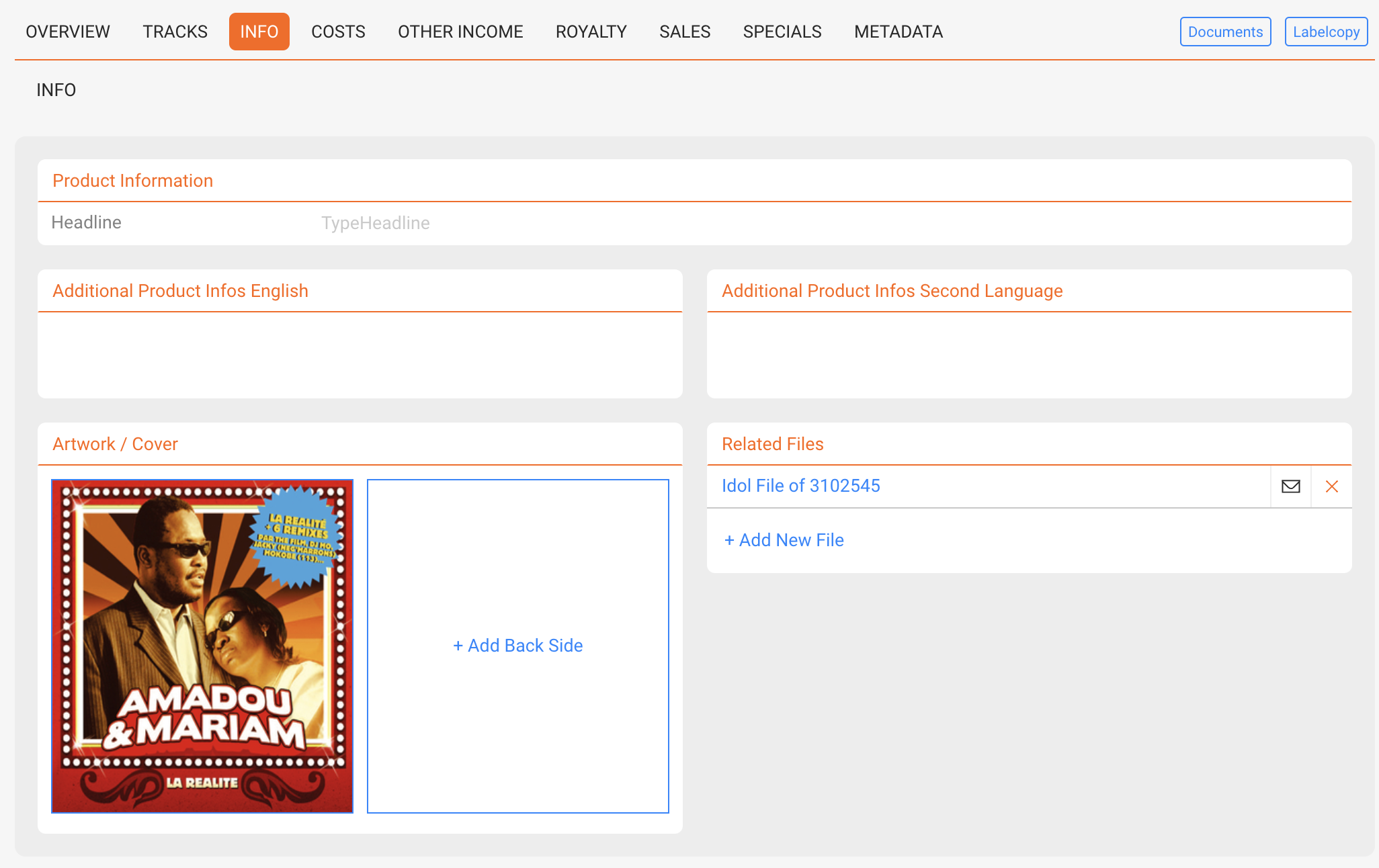
Go to PRODUCTS / INFO to manage files and descriptions.

  • Upload files (as required by your workflow). If you choose Internal Use Only the file will be inaccessible for people without access to details.
  • Add images or artwork (cover, packshot, banners).
  • Enter product descriptions in multiple languages.
Tip: Product-level texts override release-level texts in exports and downstream deliveries.

► Enter Prices

Open the product s OVERVIEW tab.

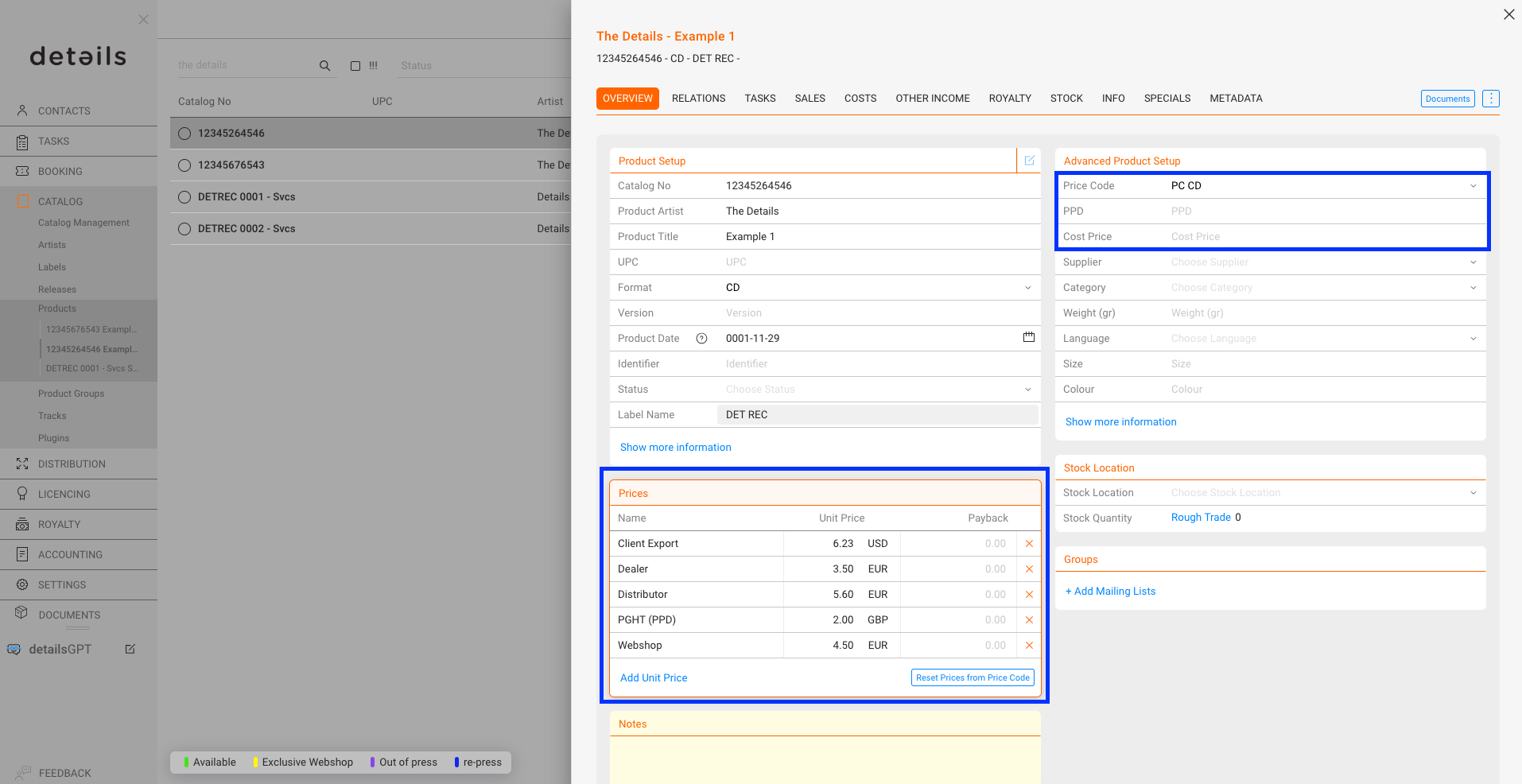
Actions in ADVANCED PRODUCT SETUP section:

  • PPD (physical only): Your dealer price (basis for many royalty rules).
  • Cost Price (physical only): Your buying/manufacturing price.
  • Price Code: Apply predefined price logic for auto-filled prices.

Actions in PRICE section:

  • [ADD UNIT PRICE] ► insert prices from the selected Price Code.
  • [RESET PRICES FROM PRICE CODE] ► overwrite manual changes with code defaults.
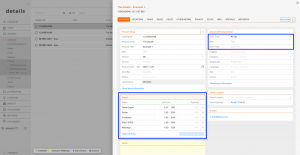
Heads-up: PPD (Overview) differs from PPU shown in SALES (net after distribution fee).


► Assign Categories

Use categories for filtering, reporting, and (for physical products) royalty conditions.

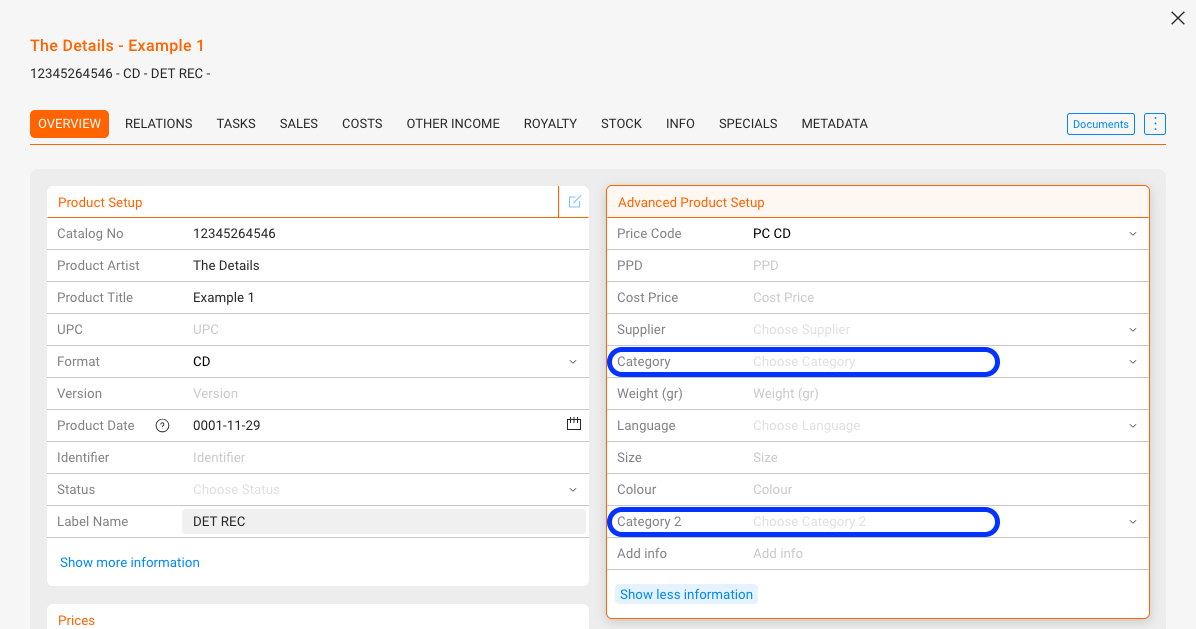
  • Edit CATEGORY and CATEGORY 2 in the product s OVERVIEW.
  • Manage the global lists under SETTINGS / LABELLabel Setting : Categories (tick the 2nd checkbox to enable Category 2).
  • In the product list, CATEGORY is editable in place; CATEGORY 2 is hidden (use it for static/internal grouping).
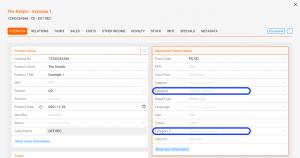
Royalty use: CATEGORY can be used as a condition in royalty contracts for physical products. Keep values consistent to avoid calculation errors. Read more about using categories.

► GEMA Registrations (physical only)

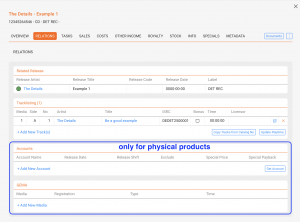
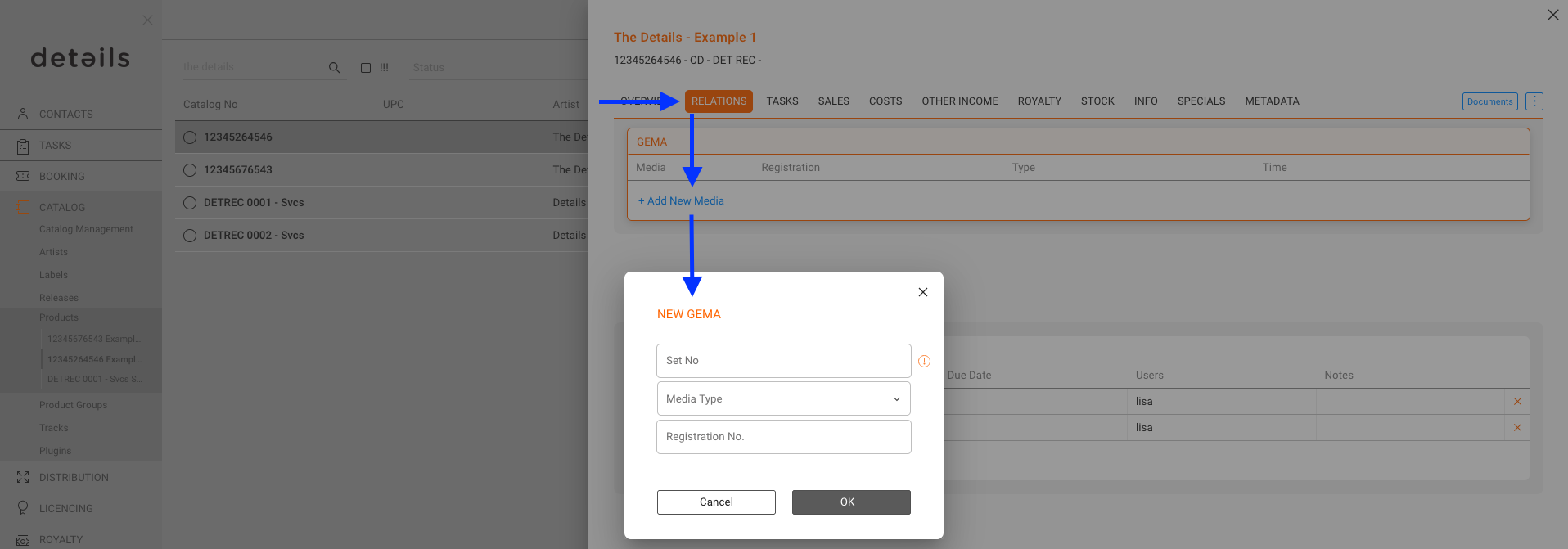
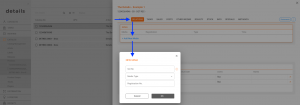
For physical products, you can manage GEMA registrations directly in the product s RELATIONS tab.

  • Register products with GEMA where required by law.
  • Provide accurate format, tracklist, and playtime data to ensure proper reporting.
  • Keep GEMA registrations updated when product versions change.
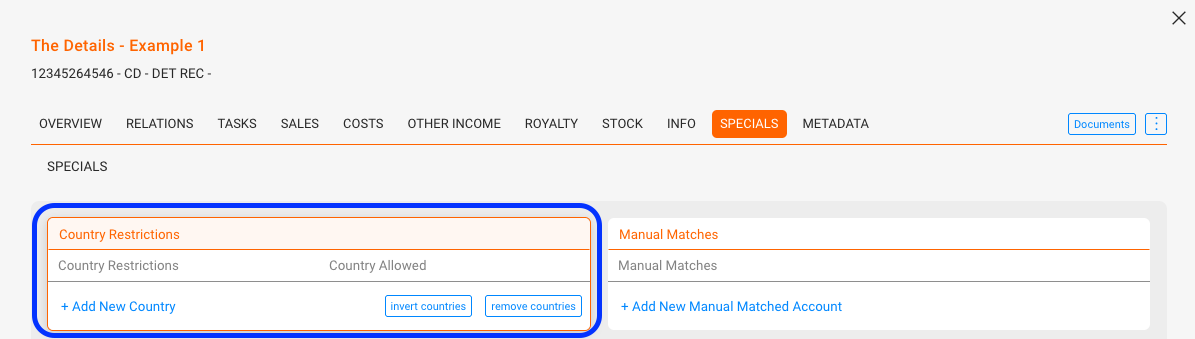
► Set Country Restrictions

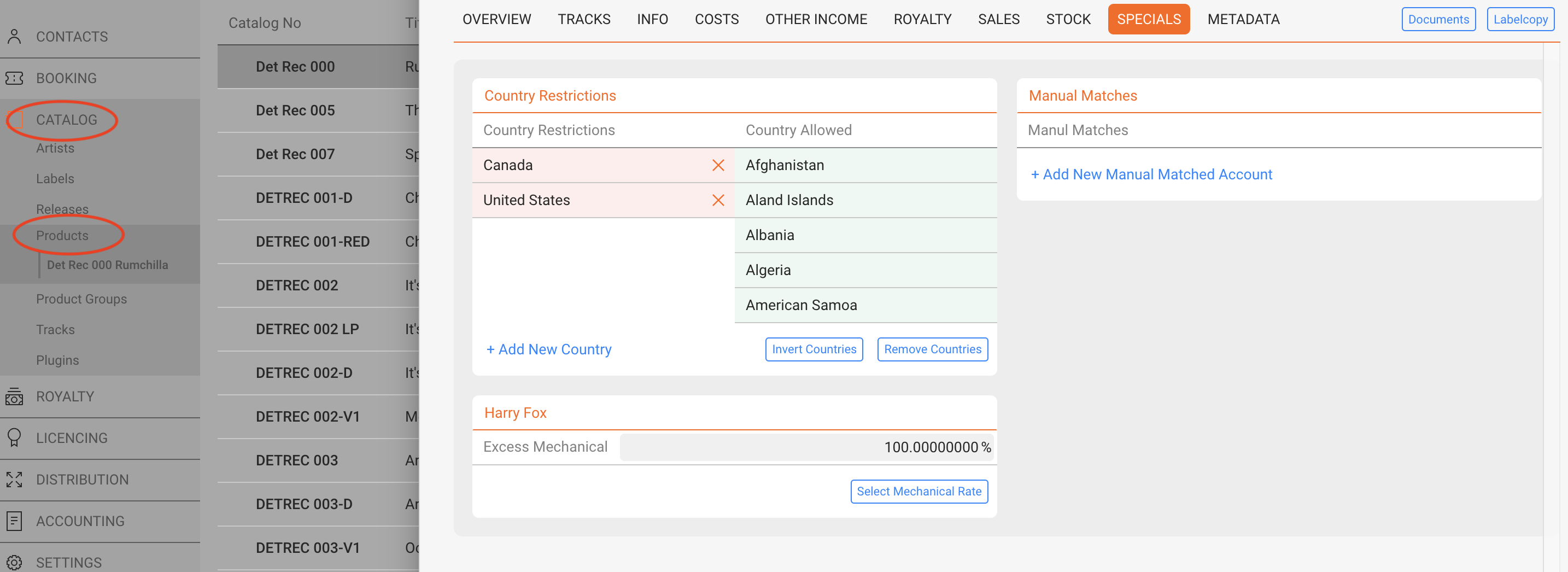
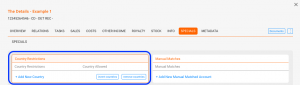
Open the product s SPECIALS tab.

  • Click [+ ADD NEW COUNTRY] and select entries.
  • Use [INVERT COUNTRIES] to switch restricted ► allowed.
  • [REMOVE COUNTRIES] clears the list.

Manage country groups under SETTINGS / GENERAL SETTINGS.
Tip: Keep territory logic simple (few groups) for easier maintenance and clearer exports.


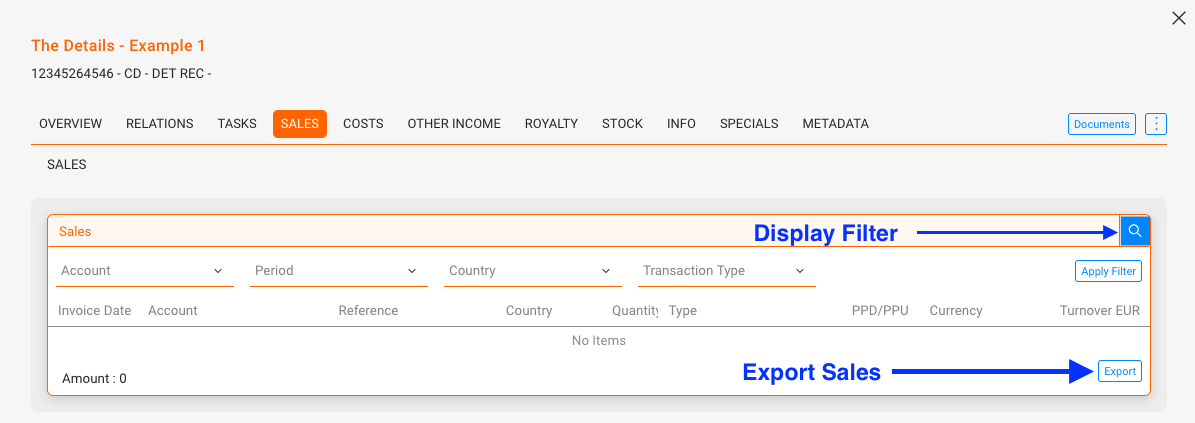
► Export Product Sales

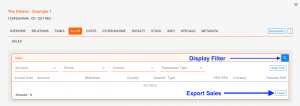
Go to PRODUCTS / SALES, set filters, then click [EXPORT] at the bottom of the page.

  • Filter by period, account, format, country, or channel to target the data you need.
  • Use exports for statements, stock planning, and price reviews.
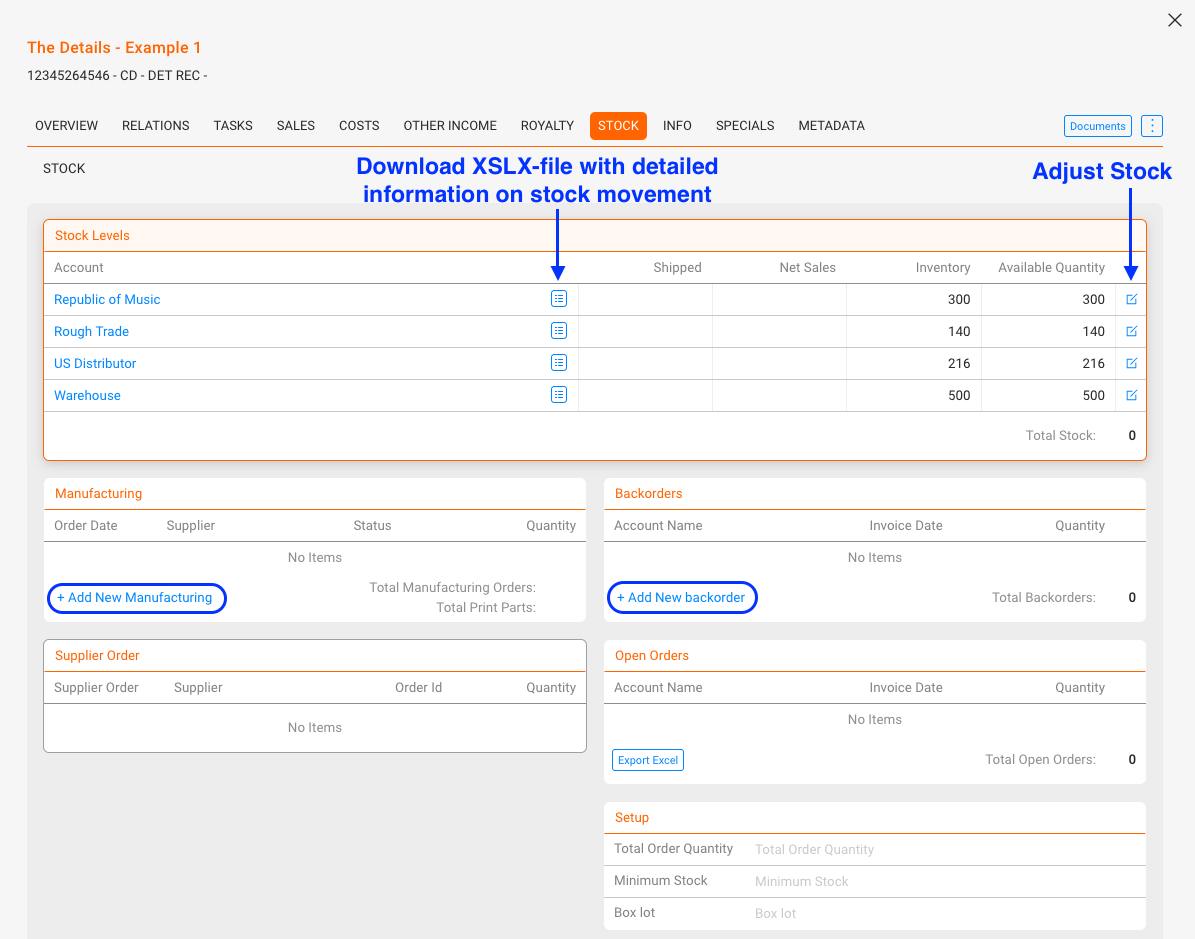
► Basic Stock Tasks (physical)

Open the STOCK tab to review availability and orders.

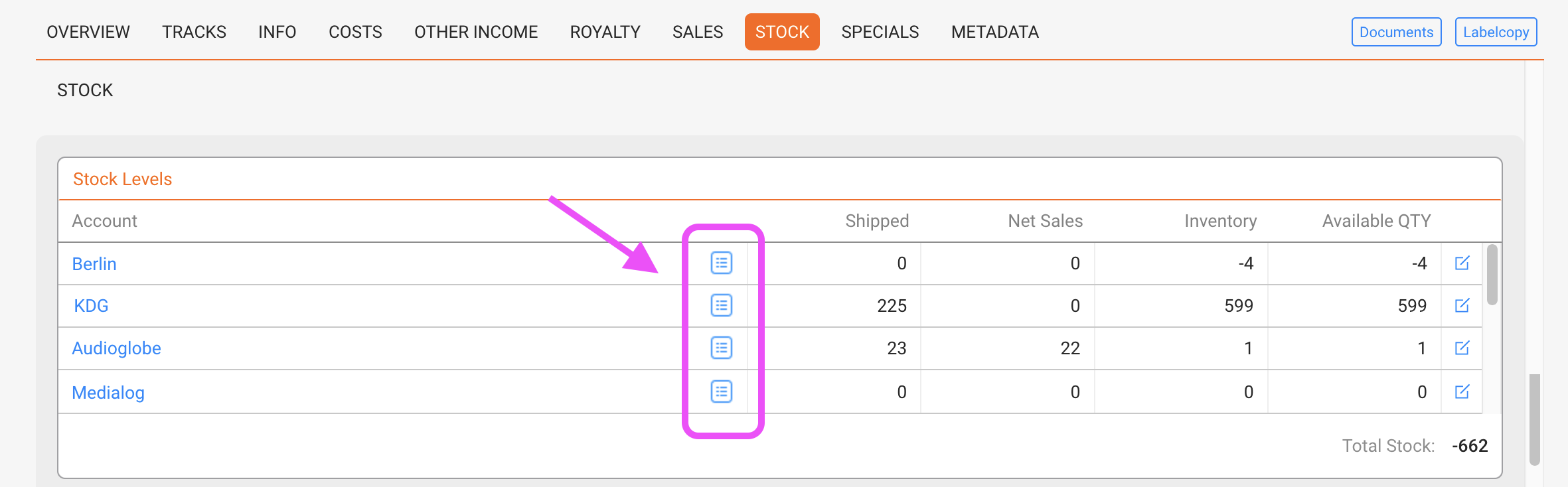
  • Stock Levels: See Inventory (physical units) and Available (unreserved).
  • Manufacturing: Add new batches with [ADD NEW MANUFACTURING].
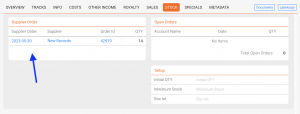
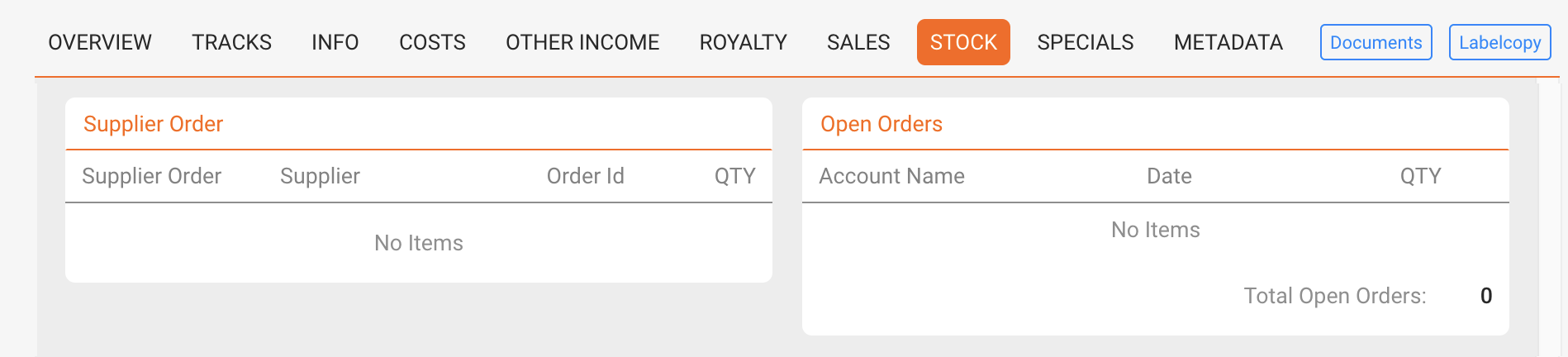
  • Supplier Orders: Open orders are shown until accounted (then they become inventory).
  • Backorders & Open Orders: Track pending customer demand; export as needed.
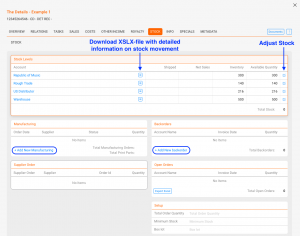
Note: Stock and orders are synchronized with DISTRIBUTION. Use Minimum Stock and Box Lot in Setup to plan replenishment.


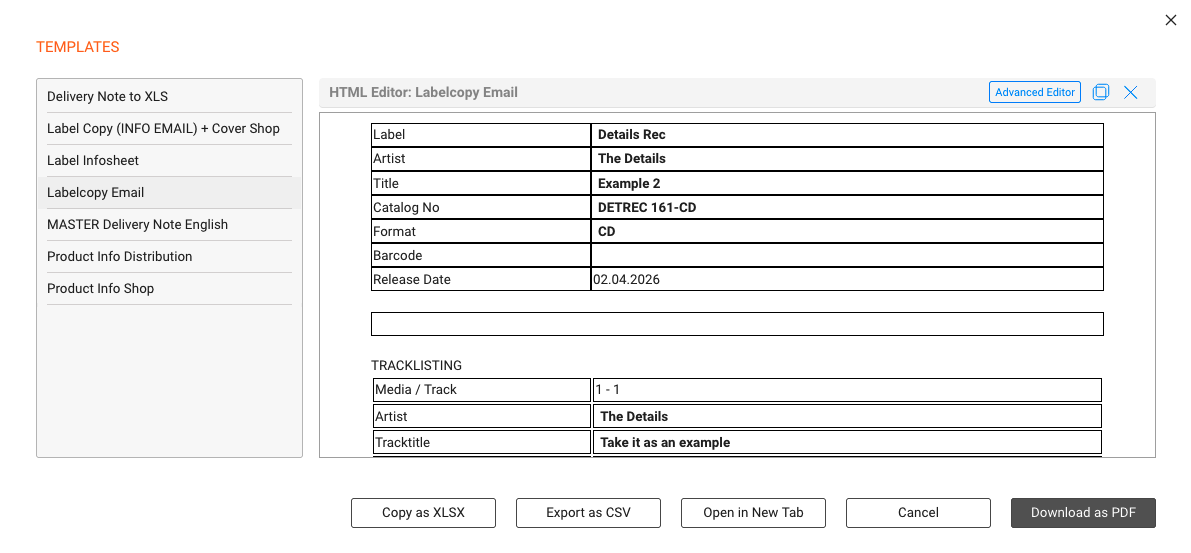
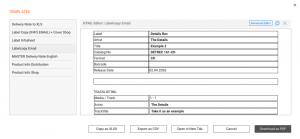
► Create a Document

Click [DOCUMENTS] in the top bar to generate an HTML document from condivd templates (e.g., one-sheets, product info sheets, manufacturing orders).

  • Select the appropriate template condivd by details.
  • Preview the result, then Export (PDF/CSV/Excel) or Copy it.
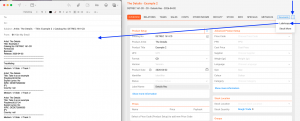
► Generate Label Copy

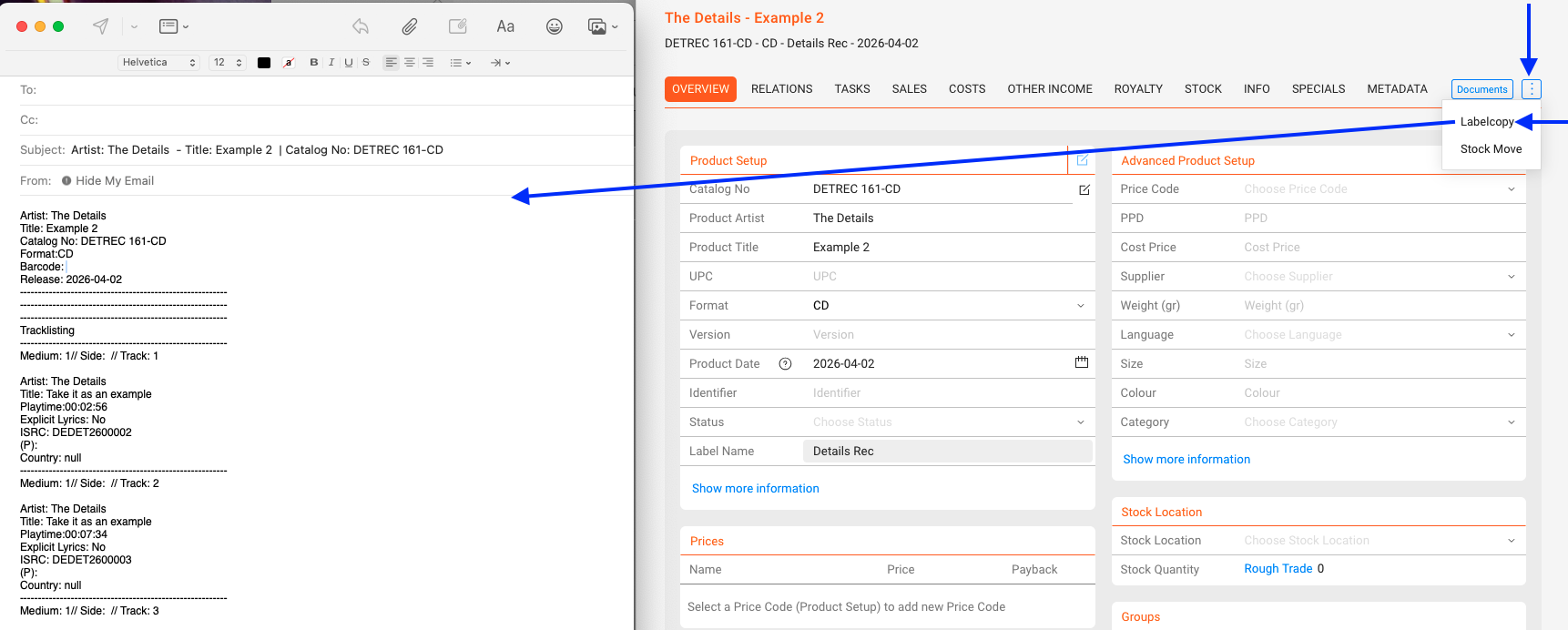
Use the top bar  and select Label Copy. This opens a new email in your local mail client with a static label copy: product metadata plus the complete track list.

  • Prerequisite: A condivd desktop email program.
  • Scope: Fast, standardized email output (not customizable; no Excel export).
  • Tip: For brandable or changeable documents, use [DOCUMENTS] instead.
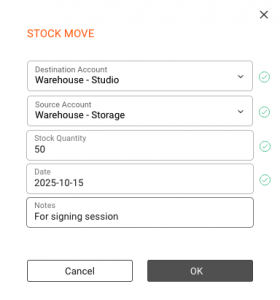
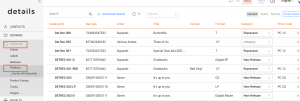
► Make a Stock Move

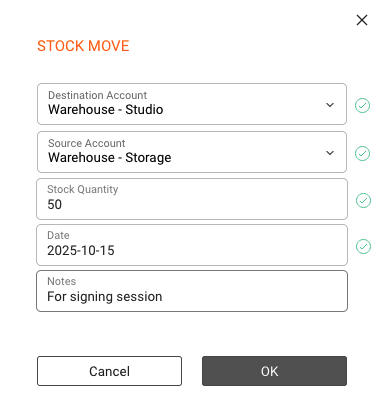
Use  Stock Move to reallocate on-hand units between stock accounts/warehouses for a physical product.

Steps

    1. Open the product page and choose  Stock Move.

    1. Select From [Source Account] and To [Destination Account] stock accounts.
    2. Enter the Quantity and confirm.

    The quantity decreases in the source and increases in the destination no order, shipping documents, prices, or invoice. Use a Distribution Order instead if you need shipping paperwork or an auditable transfer.
    Related

    Product Interface

    In the PRODUCTS section, you can manage all items and services that you want to sell or account for physical or digital, musical or not. This includes CDs, LPs, digital albums, merchandise like T-shirts or posters, and even services like mastering or shipping.

    To understand how products fit into the overall structure of details, it is important to look at their relationships:

    • Releases are the central unit. Each release belongs to exactly one label.
    • Products are always linked to a release and represent the concrete commercial item (physical or digital). A release can contain multiple products.
    • Tracks are the musical works. Tracks can appear on multiple products (e.g. a track on both a CD and a digital album).
    Note: Products can be physical (e.g. vinyl, CDs, box sets) or digital (e.g. download albums, streaming bundles). While they share core properties, some tabs and fields differ depending on the product type.

    Each product consists of various details and is structured across multiple tabs. Below, you’ll find an overview of the general layout and the specific functionalities of each tab.

    General Layout

    ► PRODUCT LIST

    This is the default view under CATALOG / PRODUCTS and shows all available products in your database.

    • Search by catalog number, artist, title, version, or barcode
    • Advanced Search allows combining fields (e.g. format, label, channel, release date range, categories, price codes, accounts, stock locations) and to export the results as an Excel file.
    • Barcode checks help to identify duplicate UPCs and Catalog Numbers. These are shown by [!!!] and can be filtered separately.

    ► PRODUCT GROUPS

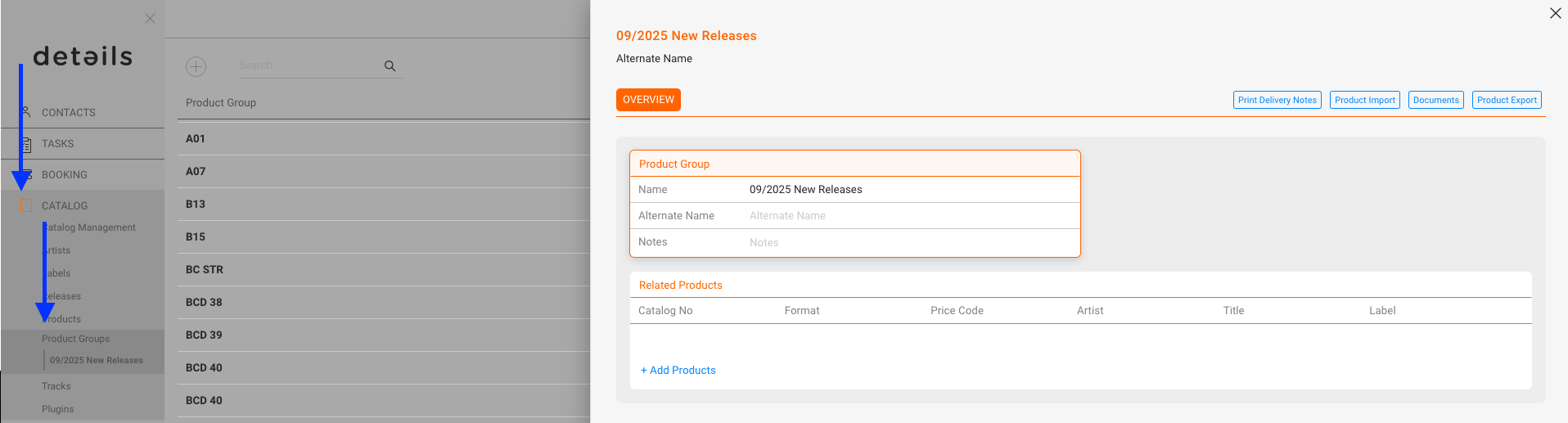
    Product Groups let you organize products into collections (e.g. New Releases , Compilations , Limited Editions ). Groups can be exported as lists, including price lists or metadata sheets, and used for sales materials or newsletters. A product can belong to multiple groups at once.

    Product Layout

    ► OVERVIEW

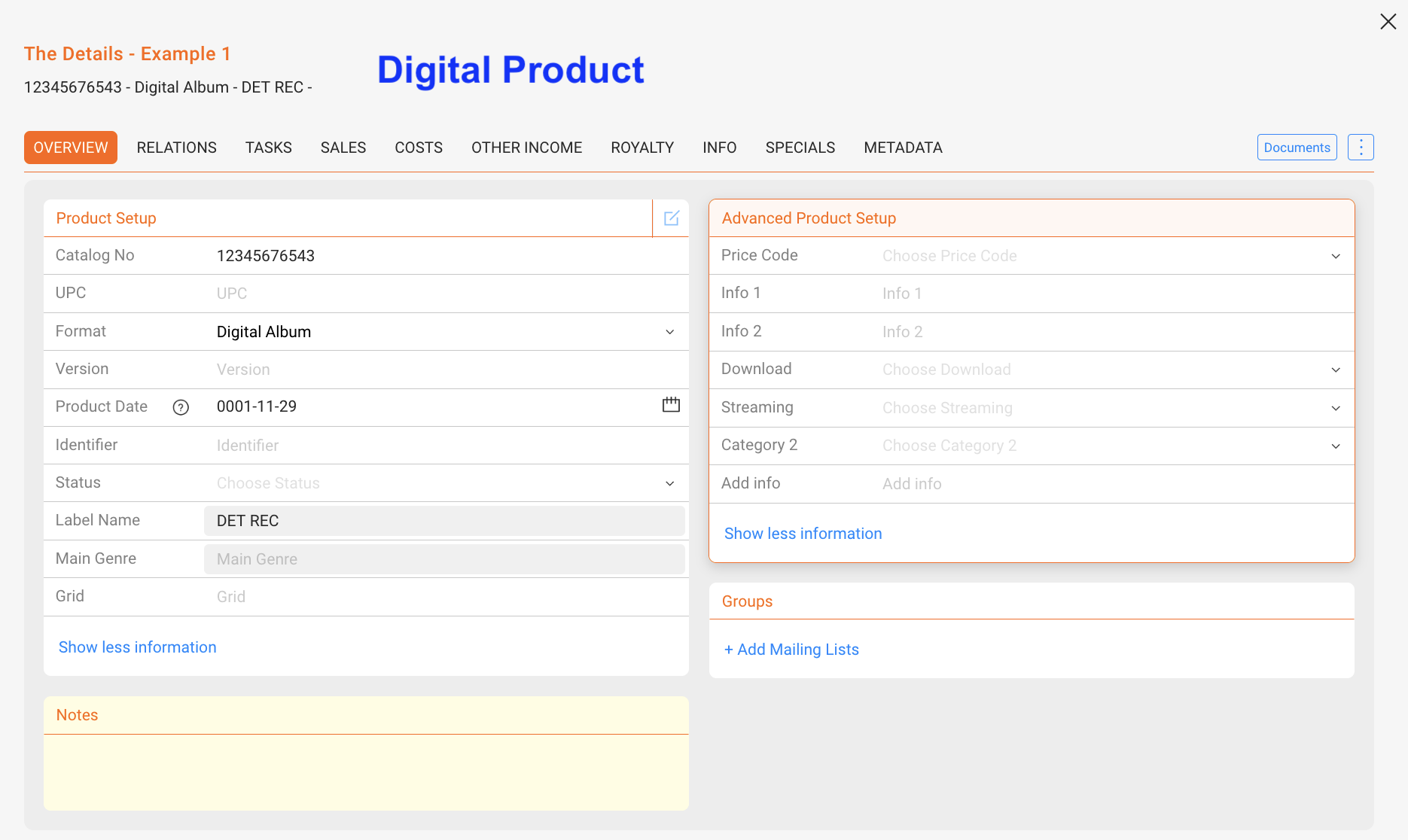
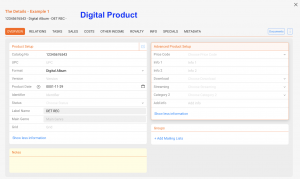
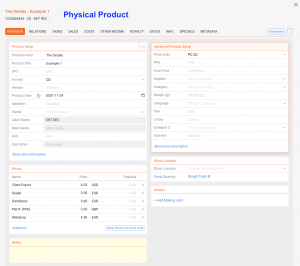
    The OVERVIEW tab contains the core setup of a product. While digital and physical products share some common elements, there are also product-type-specific fields and sections.

    Product Setup (all products)

    • Catalog No: Internal identifier, often printed on artwork or packaging
    • UPC: Barcode number for distribution and sales matching
    • Format: Defines type of product (e.g. CD, Vinyl, Digital Album), formats are created in SETTINGS / LABEL
    • Version: Differentiates editions (e.g. limited edition, colored vinyl)
    • Product Date: Specific availability date of the product (can differ from Release Date)
    • Identifier: Additional code for internal or accounting purposes
    • Status: Color-coded product status for filtering
    • Label Name: Connected label (redundant, as the release already belongs to one label)
    • Genre: Shown from the related release; can be displayed for quick reference
    • Grid: Optional industry identifier, rarely used outside large distributors
    Note: Product Dates are independent of Release Dates. A product can be made available earlier or later than the release (e.g. vinyl shipped earlier to indie stores).

    Advanced Product Setup

    The advanced setup contains additional parameters for pricing, distribution, and classification. The fields differ slightly between digital and physical products.

    Product Setup (digital products)

    • Price Code: Links the product to a predefined price list. Used mainly for auto-filling prices, though often less relevant for digital products.
    • Info 1 / Info 2: Free text fields. Can be used flexibly for internal remarks, marketing notes, or additional classification.
    • Download: Defines if the product is available for download.
    • Streaming: Defines if the product is available on streaming platforms. Often used for compilations where streaming rights are not licensed.
    • Category 2: Secondary categorization for internal structuring, in addition to the main category. Managed in label settings.
    • Add Info: Another free field for internal use (similar to Info 1/2).

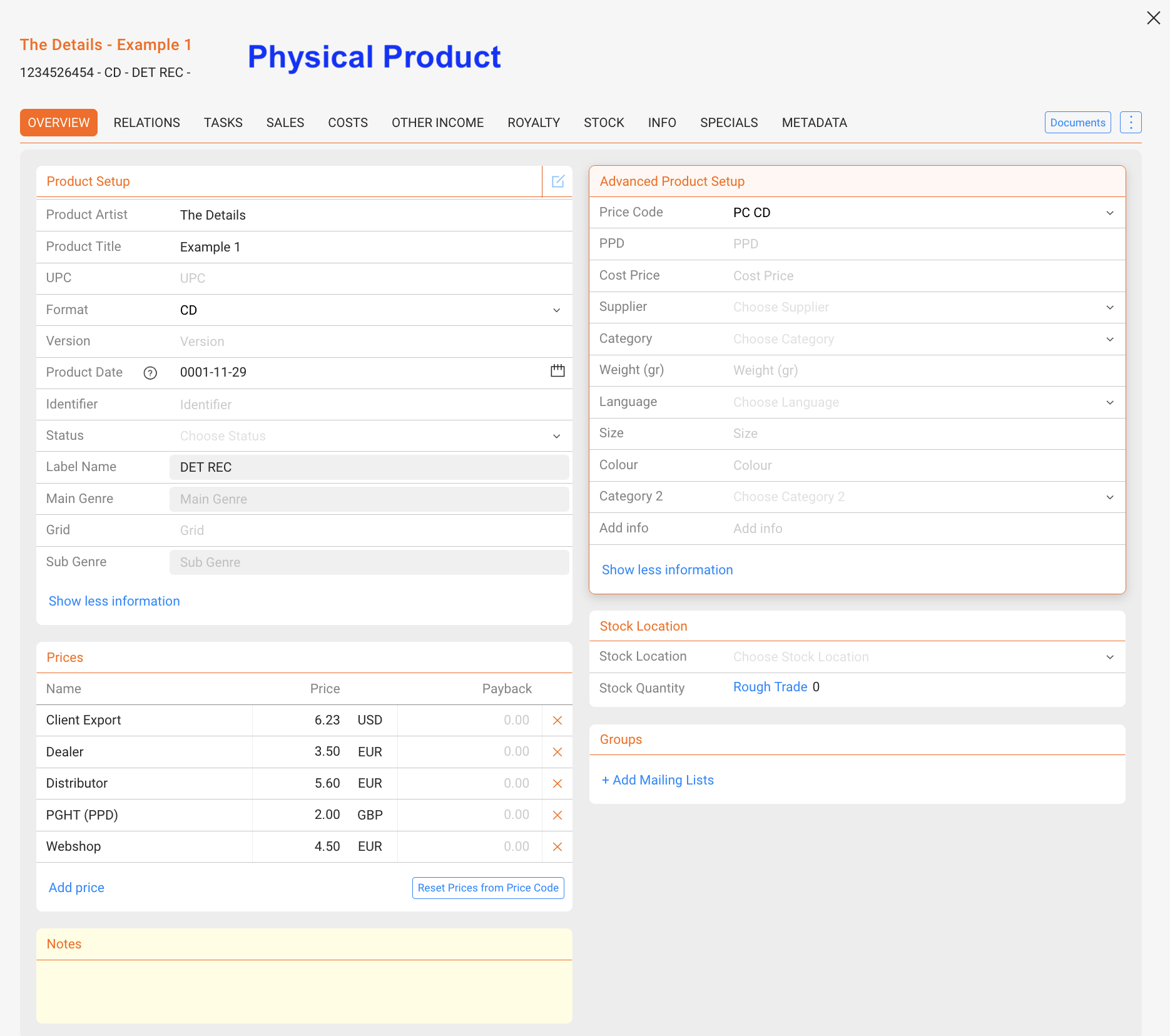
    Product Setup (physical products)

    • Price Code: Same logic as for digital, but more frequently used for auto-filling physical prices.
    • PPD (Published Price to Dealer): The base price charged to dealers before distribution margins (basis for dealer pricing; differs from PPU shown in the SALES tab).
    • Cost Price: Internal cost or manufacturing price of the product. Useful for profit calculations.
    • Supplier: Defines the supplier or manufacturer (e.g. pressing plant).
    • Category 2: Secondary categorization for internal structuring, in addition to the main category. Managed in label settings.
    • Weight: Physical weight of the product (in grams). Important for shipping and logistics.
    • Language: Relevant for media products such as books, films, or multilingual editions.
    • Size: Physical size (e.g. T-shirt sizes, or package dimensions).
    • Colour: Used for colored vinyl, merchandise variants, or packaging details.
    • Add Info: Additional free text field for custom information.
    Note: Not all advanced fields are relevant for both product types. For example, Download and Streaming apply only to digital products, while Weight, Supplier, and PPD are only used for physical products.


    Prices (physical only)

    Defines sales prices per channel or partner (e.g. Dealer, Distributor, Webshop). Prices can be auto-filled from Price Codes or overridden at product level for exceptions.

    Stock Location (physical only)

    Shows stock quantities per location. Stock is calculated automatically from manufacturing and sales transactions, not edited manually. Supports multi-warehouse setups and helps optimize logistics.

    Note: Inventory shows all units physically available, while Available shows only the unreserved quantity that can still be sold.

    Groups & Notes (all products)

    • Groups: Products can be assigned to groups (e.g. for exports, mailing lists, sales campaigns)
    • Notes: Free text field for internal notes and comments

    ► RELATIONS

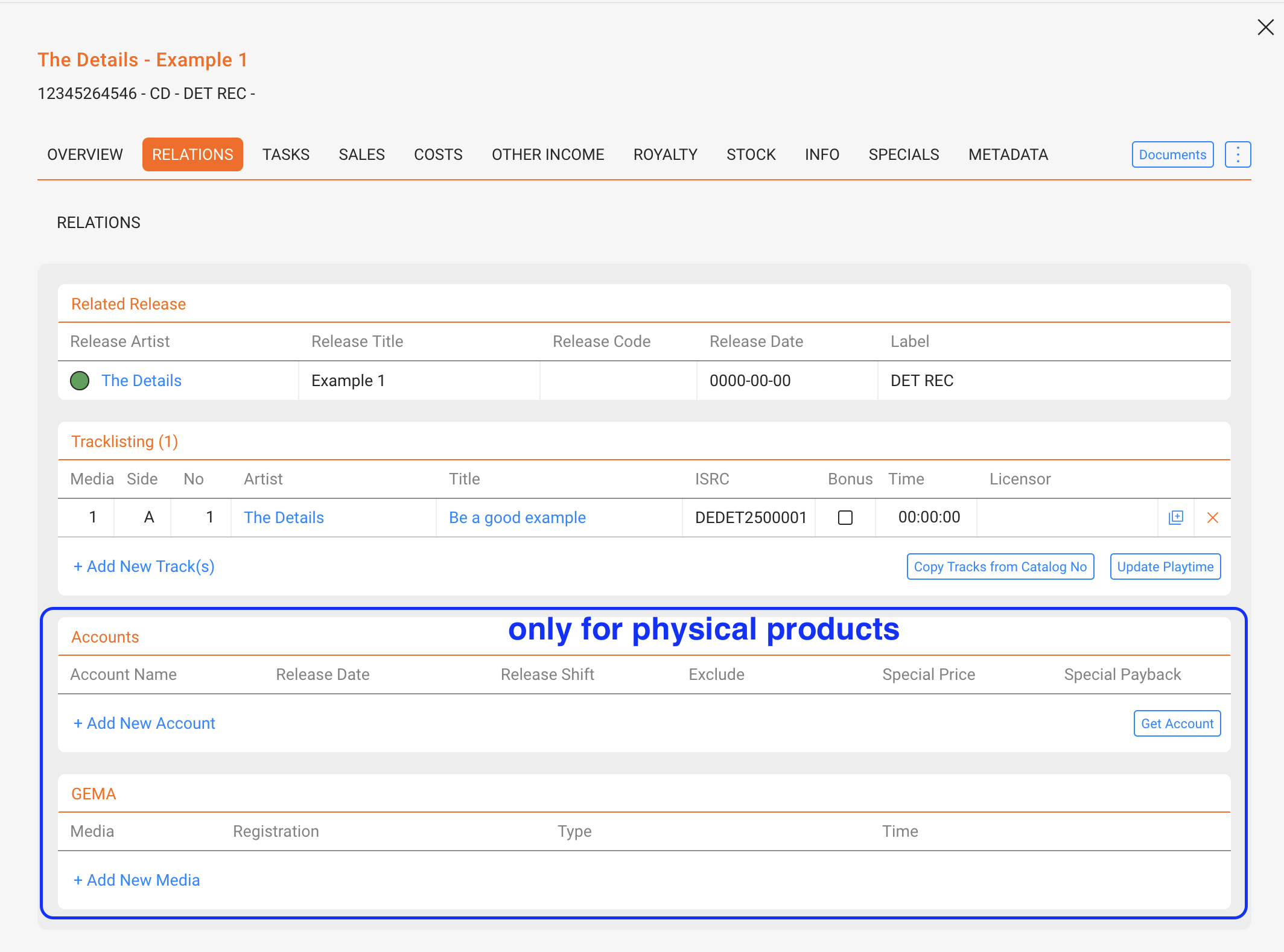
    Shows the product s connections:

    • Release: Each product is linked to exactly one release
    • Tracklist: Products can contain multiple tracks; bonus tracks can be flagged and are excluded from prorata calculations
    • Playtime: Can differ per product/track relation; the [UPDATE PLAYTIME] button syncs values
    • Manual Matches: Store distributor-specific identifiers for the same product
    • Physical Products only: Accounts (special pricing, release shifts, exclusions) and GEMA registrations
    Note: Use the bonus flag specifically for tracks that shouldn t participate in revenue shares (e.g. bonus download , hidden tracks). The prorata pool will ignore these tracks; unflag to include them again.


    ► TASKS

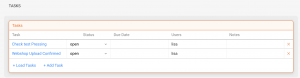
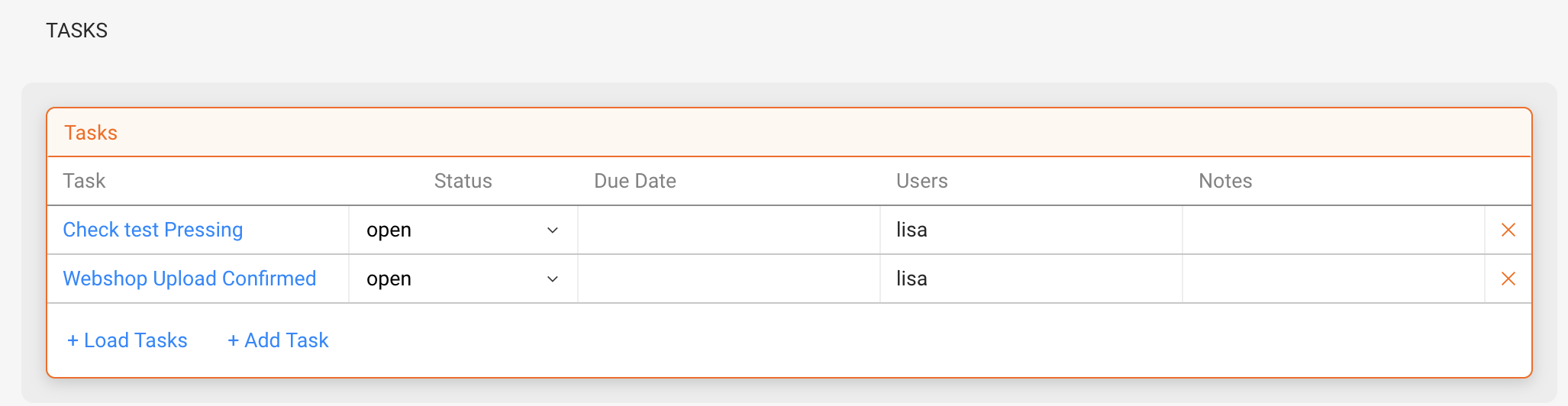
    Link tasks to products (e.g. check test pressing, confirm webshop upload). Tasks can be assigned to team members and managed within the product context.
    Read more about how Tasks works and how to set it up.

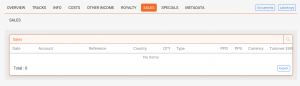
    ► SALES

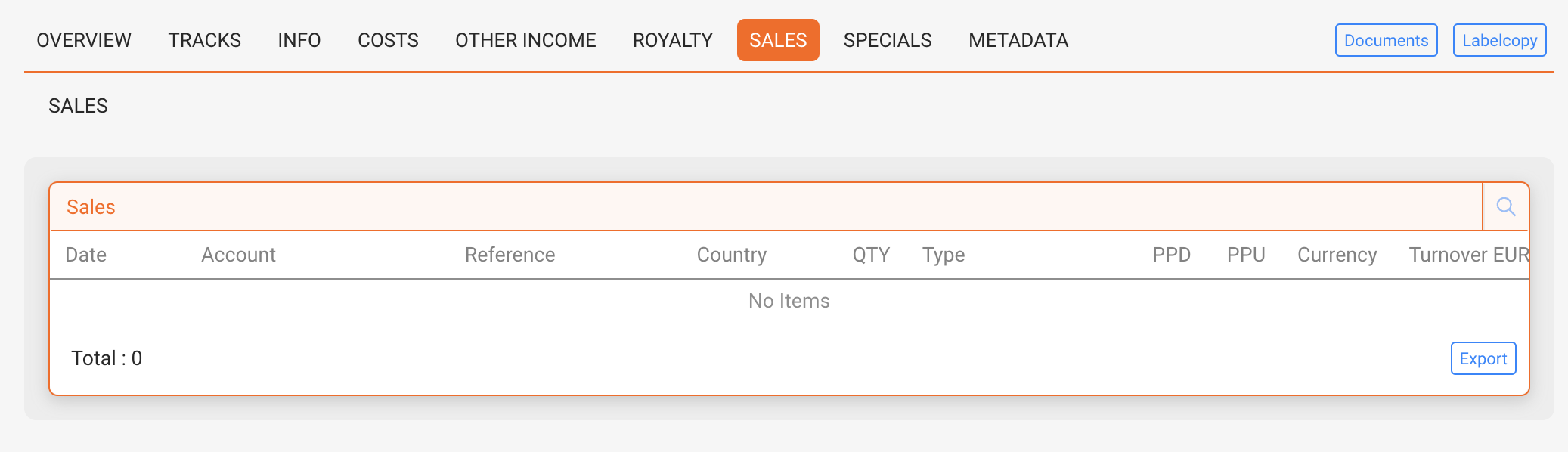
    Displays sales data per product, including sales account, quantity, PPD (price to dealer), PPU (net price after distribution fee), turnover, and more. Includes filtering, export options, and links to invoices.

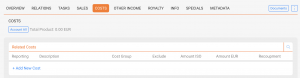
    ► COSTS

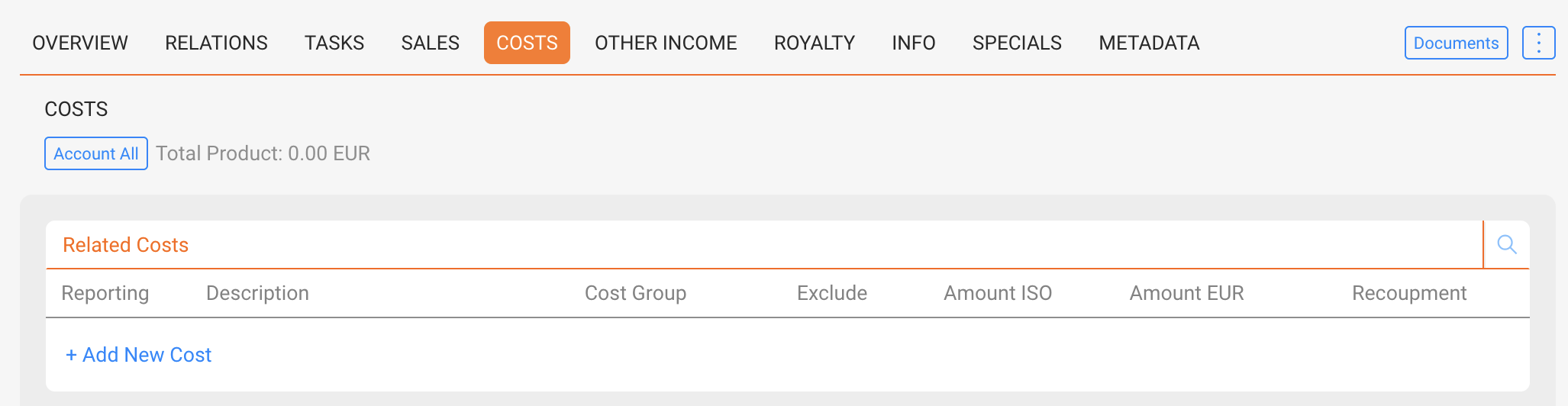
    Enter costs manually or import via Excel. Costs can be categorized (e.g. manufacturing, artwork), linked with invoices, and marked as recoupable or excluded for royalty calculations.

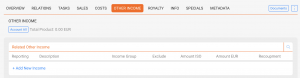
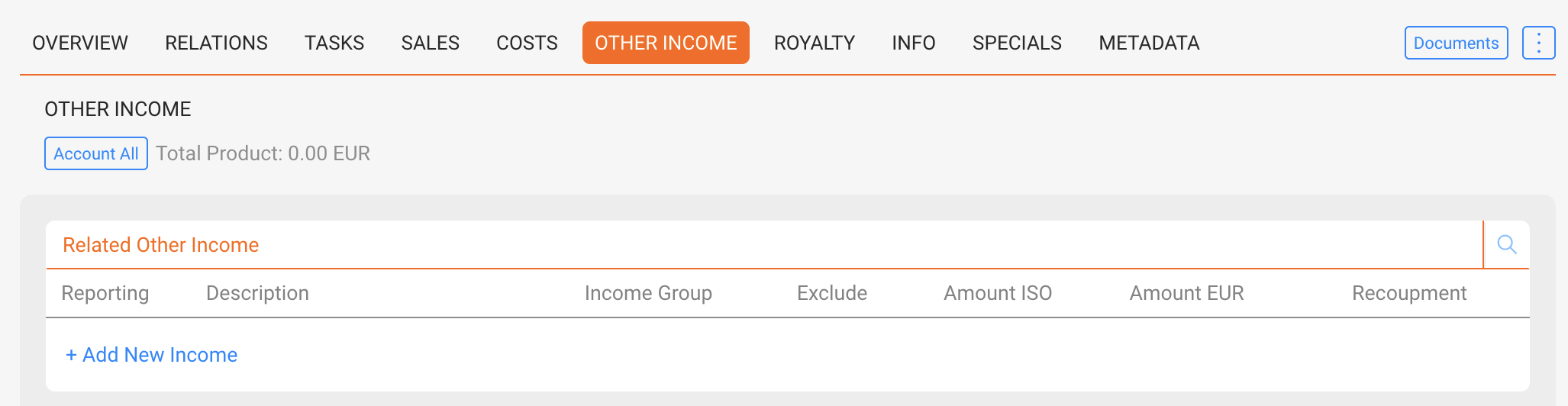
    ► OTHER INCOME

    Enter additional revenues such as grants or subsidies. Other income is added to the project balance and shared with artists if defined in contracts.

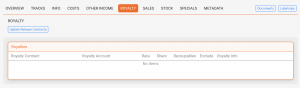
    ► ROYALTY

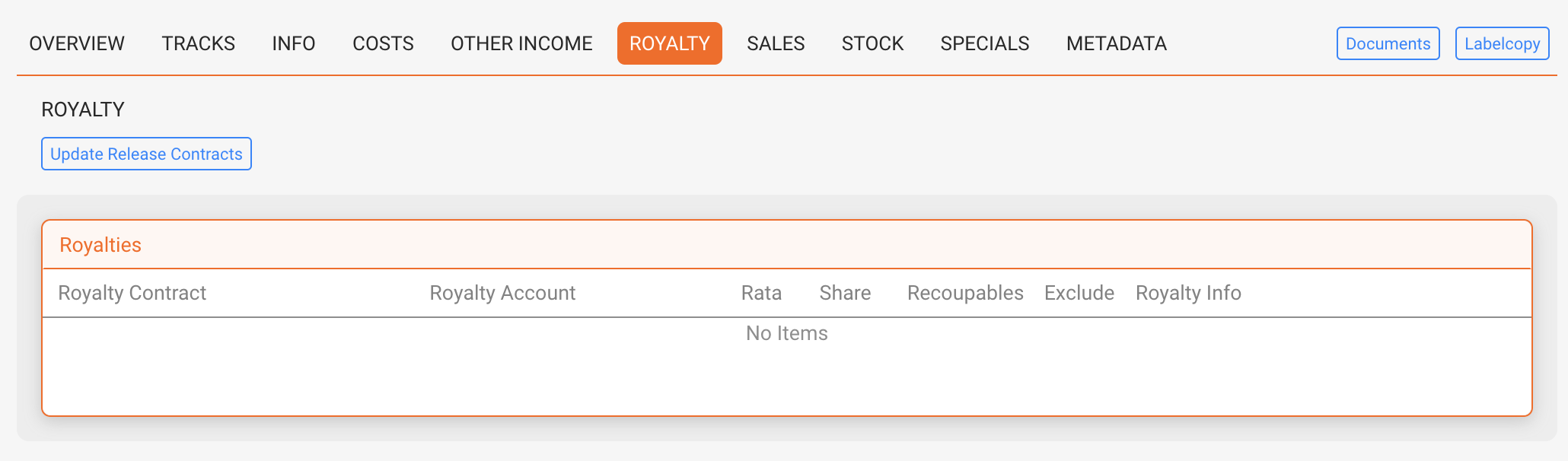
    Shows all royalty accounts linked to the product. Displays shares, pro rata allocations, and recoupables. Compilations may include many contracts, while most products have only a few.

    ► STOCK (only for physical products)

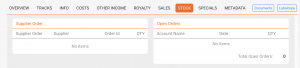
    The STOCK tab is available only for physical products. It shows current stock levels, manufacturing orders, supplier deliveries, backorders, and open orders. It helps manage logistics, track inventory, and optimize warehouse flows.

    Stock Levels

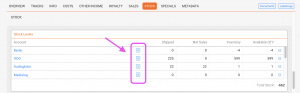
    Displays stock quantities per account or warehouse location. The table shows:

    • Shipped: Total units shipped to the account
    • Net Sales: Units sold after returns
    • Inventory: Physically available units in stock
    • Available Quantity: Units available for sale (inventory minus reserved quantities)
    Note: Inventory shows the total units physically present, while Available shows only the unreserved quantity that can still be sold.

    Manufacturing

    Lists all manufacturing orders linked to this product. Each order includes Order Date, Supplier, Status, and Quantity. Use [ADD NEW MANUFACTURING] to record a new production batch.

    Supplier Orders

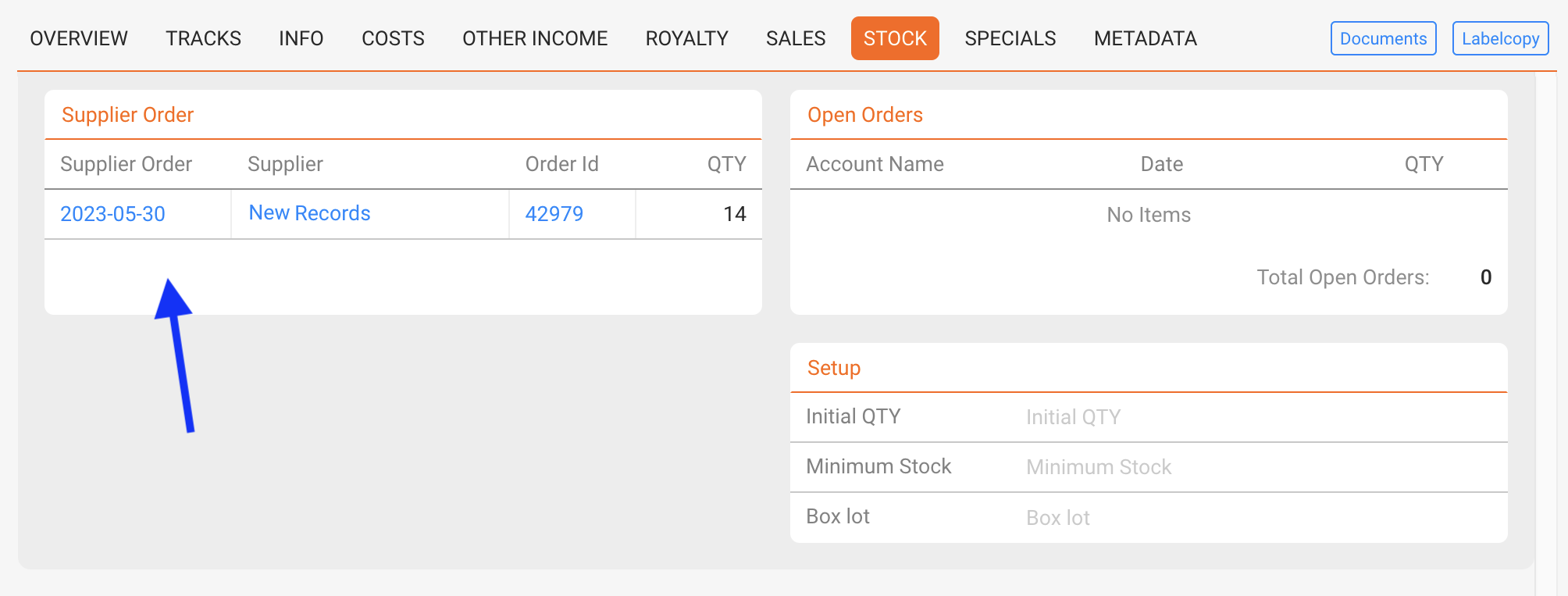
    Shows orders placed with suppliers (e.g. pressing plants). Supplier orders are displayed while they are open, meaning the goods have not yet arrived and are still in transit.

    Once a supplier order is accounted, it is no longer displayed here. At that point, the goods are considered delivered and become part of available inventory.

    Backorders

    Displays unfulfilled customer orders. Each entry contains Account Name, Date, and Quantity. Use [ADD NEW BACKORDER] to record pending requests.

    Open Orders

    Lists ongoing product orders that are not yet completed. Each order includes Account Name, Date, and Quantity. Orders can be exported via [Export Excel].

    Setup

    Defines product-specific stock settings:

    • Total Order Quantity: Aggregated quantity from all open orders
    • Minimum Stock: Threshold to trigger reordering
    • Box Lot: Packaging unit size (e.g. 25 CDs per box, 15 vinyl per box)

    These parameters help to plan production, prevent stock-outs, and manage packaging logistics.

    Note: Stock data such as levels, orders, backorders, and manufacturing are synchronized with the DISTRIBUTION module. The STOCK tab shows the product-specific perspective of these processes.
    Tip: Use detailed stock reports in the STOCK tab to track movements and availability per product and per location.

    ► INFO

    Store product descriptions in multiple languages, upload artworks and files. Product-level information overrides release-level information.

    ► SPECIALS

    Manage country restrictions and special cases (e.g. Harry Fox mechanical rights for the US). These functions are mostly relevant for physical products.

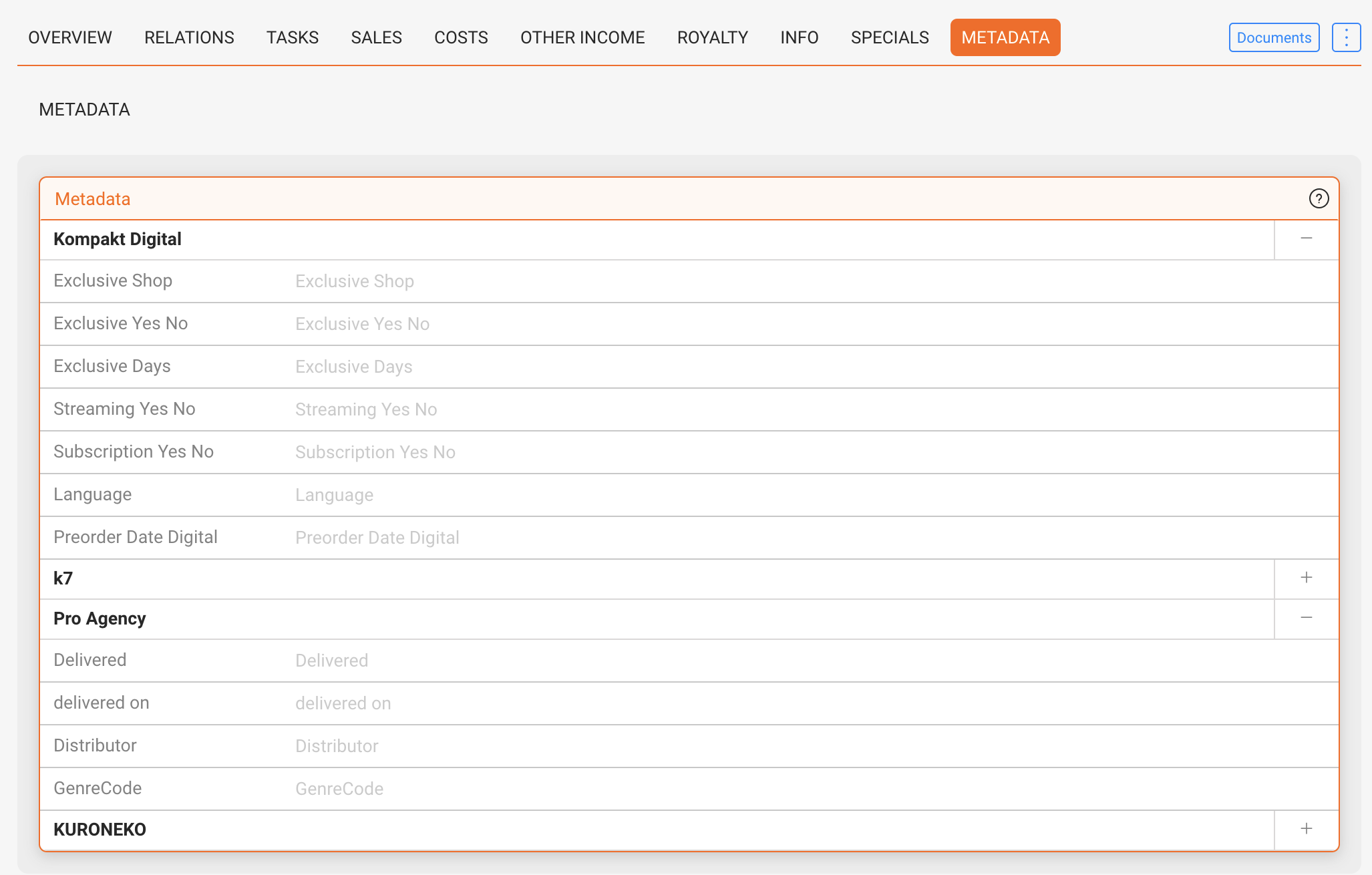
    ► METADATA

    Custom metadata sets can be enabled per customer (e.g. GVL, Publishing, K7). These provide additional text fields for storing client-specific information. Metadata is optional and mainly relevant for specialized workflows.

    Note: Availability and naming of metadata fields are configured by our team. Fields are free-text unless otherwise specified.

    ► TOP-BAR ACTIONS

    • [DOCUMENTS] Opens a list of HTML-based templates configured by details (e.g., one-sheets, product info sheets, manufacturing orders). Preview and export (PDF/CSV/Excel) or copy the rendered document.
    • [►] ► Label Copy Creates a ready-to-send email via your local mail client with a static label copy: product metadata plus the complete track list.
    • [►] ► Stock Move Quickly move on-hand units between stock accounts/warehouses for the selected physical product (decreases the source, increases the destination; no order, no shipping documents, no invoice).

    Related

    Basic Actions: Products

    In this article, you’ll find the everyday actions you need to manage products quickly and safely. Each action is grouped by function and expands for simple, step-by-step guidance. If you’re just getting started, make sure you know the basics from the PRODUCTS Interface article first.

    In details, every product must belong to a Release. Products cannot exist independently. A release may represent a musical project, a merch drop, or even a container for services.

    Tip: Choose the correct Channel (Digital or Physical) via the Format. Once a product has transactions, avoid switching channels.
    1. Open the release the product should belong to.
    2. Go to RELATIONSPRODUCTS.
    3. Click [ADD NEW RELATED PRODUCT].
    4. Enter Catalog No (required), Format (required), and Barcode (optional).
    5. If the format is missing, create it in LABEL / SETTINGS.
    6. You can also copy the tracklist from another product in the release using the radio button in the modal.
    7. Confirm with [ADD RELATED PRODUCT].

    For guidance on how to handle services and non-musical products, see How to Manage Non-Musical Products and Services.

    Option B: Import via CATALOG MANAGEMENT

    Best for adding several products at once.

    To add products in bulk, you can use several import tools in CATALOG / CATALOG MANAGEMENT:

    Edit a Product

    1. Go to CATALOG / PRODUCTS.
    2. Click the bold Catalog No or Title to open the product.
    3. Edit fields on the relevant tabs (Overview, Relations, Info, etc.).
    4. Save your changes.
    Check Barcodes: Duplicate UPCs and Catalog Nos are flagged with [!!!]. Use filters to find and fix conflicts before export or distribution.

    Delete a Product

    Deletion works only if there are no blocking links. You can delete from the list with the [x] icon.

    Deletion is blocked if linked to:

    • Sales statements
    • Cost imports
    • Royalty contracts

    If blocked, do this:

    • Remove or reassign the linked sales/costs, or unlink relevant contracts.
    • If you cannot, contact support to reassign sales/cost data to another product.

    If no links exist, deletion is instant and irreversible.

    Fix a Product in the Wrong Release

    You can’t move a product to a different release directly. Use this workaround:

    1. Open the correct release and click [ADD NEW RELATED PRODUCT].
    2. Copy the tracklist from the old product if needed.
    3. Verify data and links on all tabs.
    4. Delete the wrongly assigned product (see deletion rules above).
    Note: Copy tracklists via [COPY TRACKS FROM CATALOG NO] in PRODUCTS / TRACKS. Removing a track from a product only unlinks it; the track remains in your catalog.

    Manage Tracks (Add, Select, Copy)

    Go to PRODUCTS / TRACKS to manage the tracklist.

    • [+ ADD NEW TRACK(S)] – create new tracks; fill Artist, Title, Version; then click [NEW TRACK].
    • To add existing tracks, search or scroll, tick the box, then click [OK].
    • [COPY TRACKS FROM CATALOG NO] to duplicate a tracklist from another product.
    • [UPDATE PLAYTIME] after bulk changes to sync durations.
    Tip: Always check if a track already exists before creating a new one. Duplicate tracks with the same ISRC can lead to reporting errors.
    • Bonus tracks & prorata: If a track is marked as bonus, it is excluded from prorata pools. Unflag it to include it again.

    Note on Track Lists

    Tracklists are product-specific. Changing a tracklist in one product does not affect others. Removing a track only unlinks it from the product; the track remains in your catalog. A step-by-step guide on Moving a Track to a Different Product can be found here.

    Upload Files & Artwork

    Go to PRODUCTS / INFO to manage files and descriptions.

    • Upload files (as required by your workflow). If you choose Internal Use Only, the file will be inaccessible for people without access to details.
    • Add images or artwork (cover, packshot, banners).
    • Enter product descriptions in multiple languages.
    Tip: Product-level texts override release-level texts in exports and downstream deliveries.

    Enter Prices

    Open the product’s OVERVIEW tab.

    Actions in ADVANCED PRODUCT SETUP section:

    • PPD (physical only): Your dealer price (basis for many royalty rules).
    • Cost Price (physical only): Your buying/manufacturing price.
    • Price Code: Apply predefined price logic for auto-filled prices.

    Actions in PRICE section:

    • [ADD UNIT PRICE] – insert prices from the selected Price Code.
    • [RESET PRICES FROM PRICE CODE] – overwrite manual changes with code defaults.
    Heads-up: PPD (Overview) differs from PPU shown in SALES (net after distribution fee).

    Assign Categories

    Use categories for filtering, reporting, and (for physical products) royalty conditions.

    • Edit CATEGORY and CATEGORY 2 in the product’s OVERVIEW.
    • Manage the global lists under SETTINGS / LABEL / Label Settings: Categories (tick the 2nd checkbox to enable Category 2).
    • In the product list, CATEGORY is editable in place; CATEGORY 2 is hidden (use it for static/internal grouping).
    Royalty use: CATEGORY can be used as a condition in royalty contracts for physical products. Keep values consistent to avoid calculation errors. Read more about using categories.

    GEMA Registrations (physical only)

    For physical products, you can manage GEMA registrations directly in the product’s RELATIONS tab.

    • Register products with GEMA where required by law.
    • Provide accurate format, tracklist, and playtime data to ensure proper reporting.
    • Keep GEMA registrations updated when product versions change.

    Set Country Restrictions

    Open the product’s SPECIALS tab.

    • Click [+ ADD NEW COUNTRY] and select entries.
    • Use [INVERT COUNTRIES] to switch restricted ↔ allowed.
    • [REMOVE COUNTRIES] clears the list.

    Manage country groups under SETTINGS / GENERAL SETTINGS.

    Tip: Keep territory logic simple (few groups) for easier maintenance and clearer exports.

    Export Product Sales

    Go to PRODUCTS / SALES, set filters, then click [EXPORT] at the bottom of the page.

    • Filter by period, account, format, country, or channel to target the data you need.
    • Use exports for statements, stock planning, and price reviews.

    Basic Stock Tasks (physical)

    Open the STOCK tab to review availability and orders.

    • Stock Levels: See Inventory (physical units) and Available (unreserved).
    • Manufacturing: Add new batches with [ADD NEW MANUFACTURING].
    • Supplier Orders: Open orders are shown until accounted; then they become inventory.
    • Backorders & Open Orders: Track pending customer demand; export as needed.
    Note: Stock and orders are synchronized with DISTRIBUTION. Use Minimum Stock and Box Lot in Setup to plan replenishment.

    Create a Document

    Click [DOCUMENTS] in the top bar to generate an HTML document from provided templates (for example one-sheets, product info sheets, or manufacturing orders).

    • Select the appropriate template provided by details.
    • Preview the result, then Export (PDF/CSV/Excel) or Copy it.

    Generate Label Copy

    Use the top bar option and select Label Copy. This opens a new email in your local mail client with a static label copy: product metadata plus the complete track list.

    • Prerequisite: A configured desktop email program.
    • Scope: Fast, standardized email output (not customizable; no Excel export).
    • Tip: For brandable or changeable documents, use [DOCUMENTS] instead.

    Make a Stock Move

    Use Stock Move to reallocate on-hand units between stock accounts or warehouses for a physical product.

    Steps

    1. Open the product page and choose Stock Move.
    2. Select From [Source Account] and To [Destination Account] stock accounts.
    3. Enter the Quantity and confirm.

    The quantity decreases in the source and increases in the destination. No order, shipping document, price, or invoice is created. Use a Distribution Order instead if you need shipping paperwork or an auditable transfer.

    Product Interface

    In the PRODUCTS section, you can manage all items and services that you want to sell or account for physical or digital, musical or not. This includes CDs, LPs, digital albums, merchandise like T-shirts or posters, and even services like mastering or shipping.
    To understand how products fit into the overall structure of details, it is important to look at their relationships:

    • Releases are the central unit. Each release belongs to exactly one label.
    • Products are always linked to a release and represent the concrete commercial item (physical or digital). A release can contain multiple products.
    • Tracks are the musical works. Tracks can appear on multiple products (e.g. a track on both a CD and a digital album).
    Note: Products can be physical (e.g. vinyl, CDs, box sets) or digital (e.g. download albums, streaming bundles). While they share core properties, some tabs and fields differ depending on the product type.

    Each product consists of various details and is structured across multiple tabs. Below, you’ll find an overview of the general layout and the specific functionalities of each tab.

    General Layout

    PRODUCT LIST

    This is the default view under CATALOG / PRODUCTS and shows all available products in your database.

    • Search by catalog number, artist, title, version, or barcode
    • Advanced Search allows combining fields (e.g. format, label, channel, release date range, categories, price codes, accounts, stock locations) and exporting the results as an Excel file.
    • Barcode checks help to identify duplicate UPCs and Catalog Numbers. These are shown by [!!!] and can be filtered separately.

    PRODUCT GROUPS

    Product Groups let you organize products into collections (e.g. New Releases, Compilations, Limited Editions). Groups can be exported as lists, including price lists or metadata sheets, and used for sales materials or newsletters. A product can belong to multiple groups at once.

    Product Layout

    OVERVIEW

    The OVERVIEW tab contains the core setup of a product. While digital and physical products share some common elements, there are also product-type-specific fields and sections.

    Product Setup (all products)

    • Catalog No: Internal identifier, often printed on artwork or packaging
    • UPC: Barcode number for distribution and sales matching
    • Format: Defines type of product (e.g. CD, Vinyl, Digital Album); formats are created in SETTINGS / LABEL
    • Version: Differentiates editions (e.g. limited edition, colored vinyl)
    • Product Date: Specific availability date of the product (can differ from Release Date)
    • Identifier: Additional code for internal or accounting purposes
    • Status: Color-coded product status for filtering
    • Label Name: Connected label (redundant, as the release already belongs to one label)
    • Genre: Shown from the related release; can be displayed for quick reference
    • Grid: Optional industry identifier, rarely used outside large distributors
    Note: Product Dates are independent of Release Dates. A product can be made available earlier or later than the release (e.g. vinyl shipped earlier to indie stores).

    Advanced Product Setup

    The advanced setup contains additional parameters for pricing, distribution, and classification. The fields differ slightly between digital and physical products.

    Product Setup (digital products)

    • Price Code: Links the product to a predefined price list. Used mainly for auto-filling prices, though often less relevant for digital products.
    • Info 1 / Info 2: Free text fields. Can be used flexibly for internal remarks, marketing notes, or additional classification.
    • Download: Defines if the product is available for download.
    • Streaming: Defines if the product is available on streaming platforms. Often used for compilations where streaming rights are not licensed.
    • Category 2: Secondary categorization for internal structuring, in addition to the main category. Managed in label settings.
    • Add Info: Another free field for internal use (similar to Info 1/2).

    Product Setup (physical products)

    • Price Code: Same logic as for digital, but more frequently used for auto-filling physical prices.
    • PPD (Published Price to Dealer): The base price charged to dealers before distribution margins (basis for dealer pricing; differs from PPU shown in the SALES tab).
    • Cost Price: Internal cost or manufacturing price of the product. Useful for profit calculations.
    • Supplier: Defines the supplier or manufacturer (e.g. pressing plant).
    • Category 2: Secondary categorization for internal structuring, in addition to the main category. Managed in label settings.
    • Weight: Physical weight of the product (in grams). Important for shipping and logistics.
    • Language: Relevant for media products such as books, films, or multilingual editions.
    • Size: Physical size (e.g. T-shirt sizes, or package dimensions).
    • Colour: Used for colored vinyl, merchandise variants, or packaging details.
    • Add Info: Additional free text field for custom information.
    Note: Not all advanced fields are relevant for both product types. For example, Download and Streaming apply only to digital products, while Weight, Supplier, and PPD are only used for physical products.

    Prices (physical only)

    Defines sales prices per channel or partner (e.g. Dealer, Distributor, Webshop). Prices can be auto-filled from Price Codes or overridden at product level for exceptions.

    Stock Location (physical only)

    Shows stock quantities per location. Stock is calculated automatically from manufacturing and sales transactions, not edited manually. Supports multi-warehouse setups and helps optimize logistics.

    Note: Inventory shows all units physically available, while Available shows only the unreserved quantity that can still be sold.

    Groups & Notes (all products)

    • Groups: Products can be assigned to groups (e.g. for exports, mailing lists, sales campaigns)
    • Notes: Free text field for internal notes and comments

    RELATIONS

    Shows the product’s connections:

    • Release: Each product is linked to exactly one release
    • Tracklist: Products can contain multiple tracks; bonus tracks can be flagged and are excluded from prorata calculations
    • Playtime: Can differ per product/track relation; the [UPDATE PLAYTIME] button syncs values
    • Manual Matches: Store distributor-specific identifiers for the same product
    • Physical Products only: Accounts (special pricing, release shifts, exclusions) and GEMA registrations
    Note: Use the bonus flag specifically for tracks that shouldn’t participate in revenue shares (e.g. bonus download, hidden tracks). The prorata pool will ignore these tracks; unflag to include them again.

    TASKS

    Link tasks to products (e.g. check test pressing, confirm webshop upload). Tasks can be assigned to team members and managed within the product context.
    Read more about how Tasks works and how to set it up.

    SALES

    Displays sales data per product, including sales account, quantity, PPD (price to dealer), PPU (net price after distribution fee), turnover, and more. Includes filtering, export options, and links to invoices.

    COSTS

    Enter costs manually or import via Excel. Costs can be categorized (e.g. manufacturing, artwork), linked with invoices, and marked as recoupable or excluded for royalty calculations.

    OTHER INCOME

    Enter additional revenues such as grants or subsidies. Other income is added to the project balance and shared with artists if defined in contracts.

    ROYALTY

    Shows all royalty accounts linked to the product. Displays shares, pro rata allocations, and recoupables. Compilations may include many contracts, while most products have only a few.

    STOCK (only for physical products)

    The STOCK tab is available only for physical products. It shows current stock levels, manufacturing orders, supplier deliveries, backorders, and open orders. It helps manage logistics, track inventory, and optimize warehouse flows.

    Stock Levels

    Displays stock quantities per account or warehouse location. The table shows:

    • Shipped: Total units shipped to the account
    • Net Sales: Units sold after returns
    • Inventory: Physically available units in stock
    • Available Quantity: Units available for sale (inventory minus reserved quantities)
    Note: Inventory shows the total units physically present, while Available shows only the unreserved quantity that can still be sold.

    Manufacturing

    Lists all manufacturing orders linked to this product. Each order includes Order Date, Supplier, Status, and Quantity. Use [ADD NEW MANUFACTURING] to record a new production batch.

    Supplier Orders

    Shows orders placed with suppliers (e.g. pressing plants). Supplier orders are displayed while they are open, meaning the goods have not yet arrived and are still in transit.

    Once a supplier order is accounted, it is no longer displayed here. At that point, the goods are considered delivered and become part of available inventory.

    Backorders

    Displays unfulfilled customer orders. Each entry contains Account Name, Date, and Quantity. Use [ADD NEW BACKORDER] to record pending requests.

    Open Orders

    Lists ongoing product orders that are not yet completed. Each order includes Account Name, Date, and Quantity. Orders can be exported via [Export Excel].

    Setup

    Defines product-specific stock settings:

    • Total Order Quantity: Aggregated quantity from all open orders
    • Minimum Stock: Threshold to trigger reordering
    • Box Lot: Packaging unit size (e.g. 25 CDs per box, 15 vinyl per box)

    These parameters help to plan production, prevent stock-outs, and manage packaging logistics.

    Note: Stock data such as levels, orders, backorders, and manufacturing are synchronized with the DISTRIBUTION module. The STOCK tab shows the product-specific perspective of these processes.
    Tip: Use detailed stock reports in the STOCK tab to track movements and availability per product and per location.

    INFO

    Store product descriptions in multiple languages, upload artworks and files. Product-level information overrides release-level information.

    SPECIALS

    Manage country restrictions and special cases (e.g. Harry Fox mechanical rights for the US). These functions are mostly relevant for physical products.

    METADATA

    Custom metadata sets can be enabled per customer (e.g. GVL, Publishing, K7). These provide additional text fields for storing client-specific information. Metadata is optional and mainly relevant for specialized workflows.

    Note: Availability and naming of metadata fields are configured by our team. Fields are free-text unless otherwise specified.

    TOP-BAR ACTIONS

    • [DOCUMENTS] Opens a list of HTML-based templates configured by details (e.g., one-sheets, product info sheets, manufacturing orders). Preview and export (PDF/CSV/Excel) or copy the rendered document.
    • Label Copy Creates a ready-to-send email via your local mail client with a static label copy: product metadata plus the complete track list.
    • Stock Move Quickly move on-hand units between stock accounts/warehouses for the selected physical product (decreases the source, increases the destination; no order, no shipping documents, no invoice).