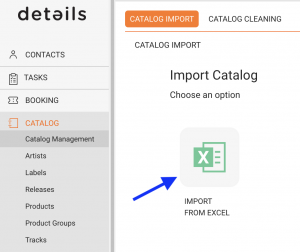
You can import digital and physical releases using standardized Excel templates directly from the Catalog Management section under CATALOG IMPORT.
This is the classic way to bring your repertoire into details, whether you are working with full albums, singles, vinyl products, or merchandise.
Step 1 Prepare Your Excel File
Start by downloading one of our pre-formatted templates from the CATALOG IMPORT section:
- Label Standard Upload Digital and physical with tracklists
- Minimal Upload Only mandatory fields
- Physical Products Upload No tracklists
If you use your own Excel file, the column headers must match our templates exactly.
Each template has three color-coded sections:
- Pink Release-level info (e.g. Release Title, Artist, Country)
- Orange Product-level info (e.g. Format, Label, Catalog No.)
- Blue Track-level info (e.g. Track Title, ISRC, Duration)
Fields with bold header text are mandatory.
For physical products without tracklists (e.g. merchandise, vinyl without metadata), you can skip the Blue section and just complete the Pink and Orange sections.
We strongly recommend assigning a unique Release Code (also called Project Identifier) for every release. This keeps your catalog structured and ensures that multiple products (e.g. CD, vinyl, digital) are correctly grouped under one release.
Step 2 Fill in the Template Sections
Pink Section (Release Info):
| Column | Required? | Description |
|---|---|---|
| Label | Mandatory | The label name. Must be pre-configured in details. |
| Release Artist | Mandatory | The main artist of the release. |
| Release Title | Mandatory | The title of the release. |
| Release Code | Optional | A common code for all products in the release. |
| Release Date | Optional | Date format: YYYY-MM-DD. |
| Release Type | Optional | Examples: Album, EP, Single, Compilation. |
| Release Genre Main 1 | Optional | Primary genre (e.g., Electronic, Rock). |
| Release Genre Sub 1 | Optional | Sub-genre (e.g., House, Techno). |
| Catalog No | Mandatory | Unique per format; if blank, the row is ignored. |
| Barcode | Mandatory | Unique per format; if blank, the row is ignored. |
Orange Section (Product Info):
| Column | Required? | Description |
|---|---|---|
| Catalog No | Mandatory | Unique per format; if blank, the row is ignored. |
| Barcode | Mandatory | Unique per format; if blank, the row is ignored. |
| Format | Mandatory | Example: Digital, Vinyl, CD, Cassette. |
| Product Version | Optional | Version name (if applicable). |
| Product PPD | Optional | Wholesale price (Pre-Paid Price). |
Blue Section (Track Info):
| Column | Required? | Description |
|---|---|---|
| Media | Mandatory | Set number; increment per disc on product. |
| Track No | Mandatory | Track number in the release. |
| Track Artist | Mandatory | Artist name for the track. |
| Track Title | Mandatory | Title of the track. |
| Version | Optional | Version name (if applicable). |
| Remixer | Optional | Name of the remixer (if applicable). |
| ISRC | Mandatory | Unique track identifier. |
| Playtime | Optional | Duration in hh:mm:ss format. |
| Track Type | Optional | Example: Main Mix, Instrumental, Acapella. |
Step 3 Double-Check Before Upload
Before importing, make sure:
- All mandatory fields are filled
- Formats exactly match your settings
- Release Codes are unique and consistent
Step 4 Upload Your Excel File
When you are ready, click the blue [Upload] button in the top right corner of the CATALOG IMPORT section and select your file.
During validation, details will:
- Verify that Labels in your file match existing labels.
- Verify that Formats match your configured formats.
- Show a preview of products to be imported (you can exclude items if needed).
- Show a preview of tracks to be imported (you can exclude items if needed).
If everything looks good, confirm with [Process] to finalize the import.
Step 5 Review and Finalize
After processing, review the results in your catalog. If anything needs correction, edit directly in the system or re-import with an updated Excel file.
Common Mistakes to Avoid
- Mandatory fields left blank: Rows with missing required fields (Label, Release Artist, Release Title, Catalog No, Barcode, Track No, Track Artist, Track Title, ISRC) will be ignored.
- Multiple formats not differentiated: Ensure that different configurations within the same release use distinct Format values, and that Barcode and Catalog No are unique for each configuration.
- Incorrect date format: Release dates must be formatted as YYYY-MM-DD.
- Improper separation of multiple values: Use semicolons (;) instead of commas.
- Custom files with wrong headers: If you use your own sheet, column headers must match the template exactly (order does not matter).