Author: detailsadmin
How to update logos etc in templates
details allows you to update pictures such as logos, stageplans, document scans etc. in templates yourself.
To do this, please
1) go to CONTACTS / FILES and upload your new picture, logo file etc. to FILES.
NOTE: Don’t forget to name the file in a way that you will allow you to find it again.
2) Right Click on the uploaded file and select “Copy link location”.
This will copy the link of the file into the clipboard. 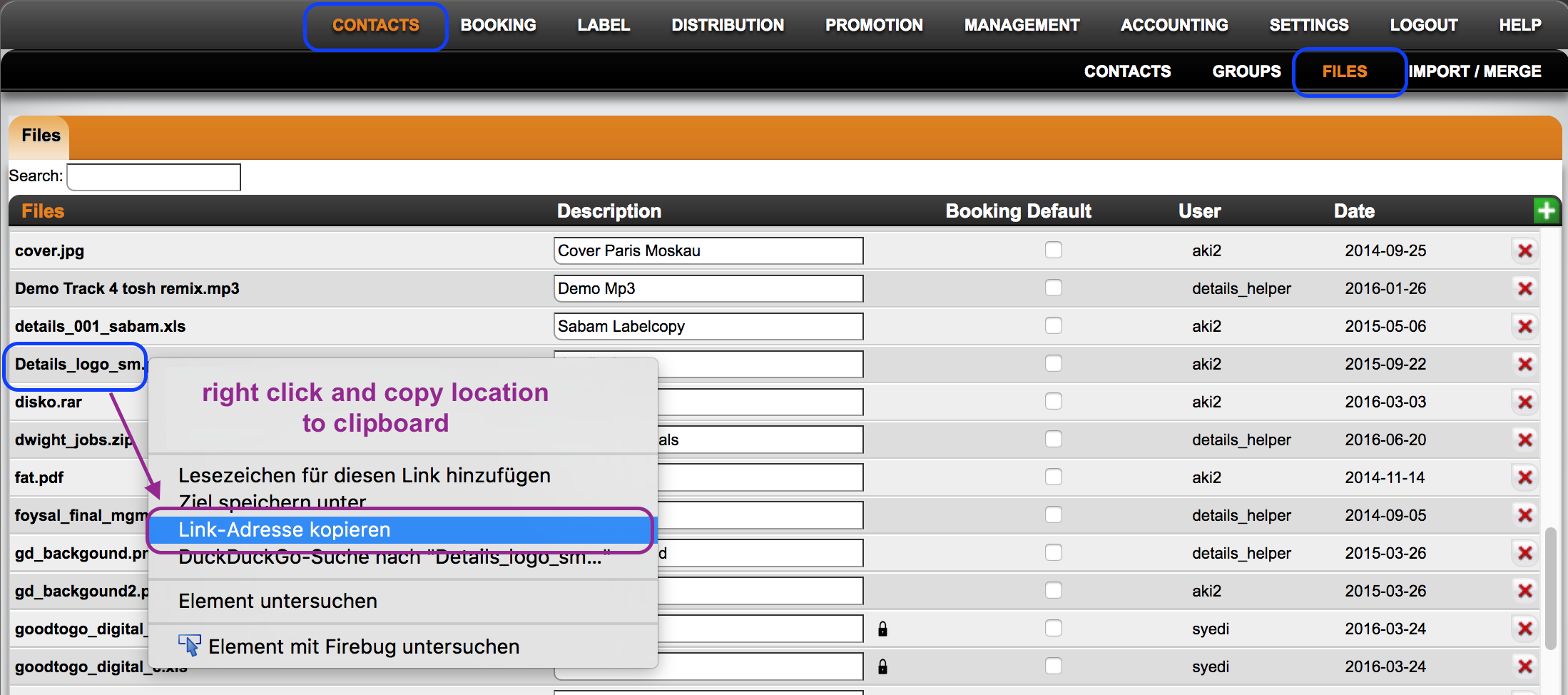
3) Go to the template you wish to change the picture / logo in …
this could be in BOOKING / TEMPLATES or SETTINGS / IDENTITIES or other places in details where templates may be modified.
4) search for the img you want to replace and replace the image link
NOTE: Images such as logos will be included into HTML starting with ”img src=”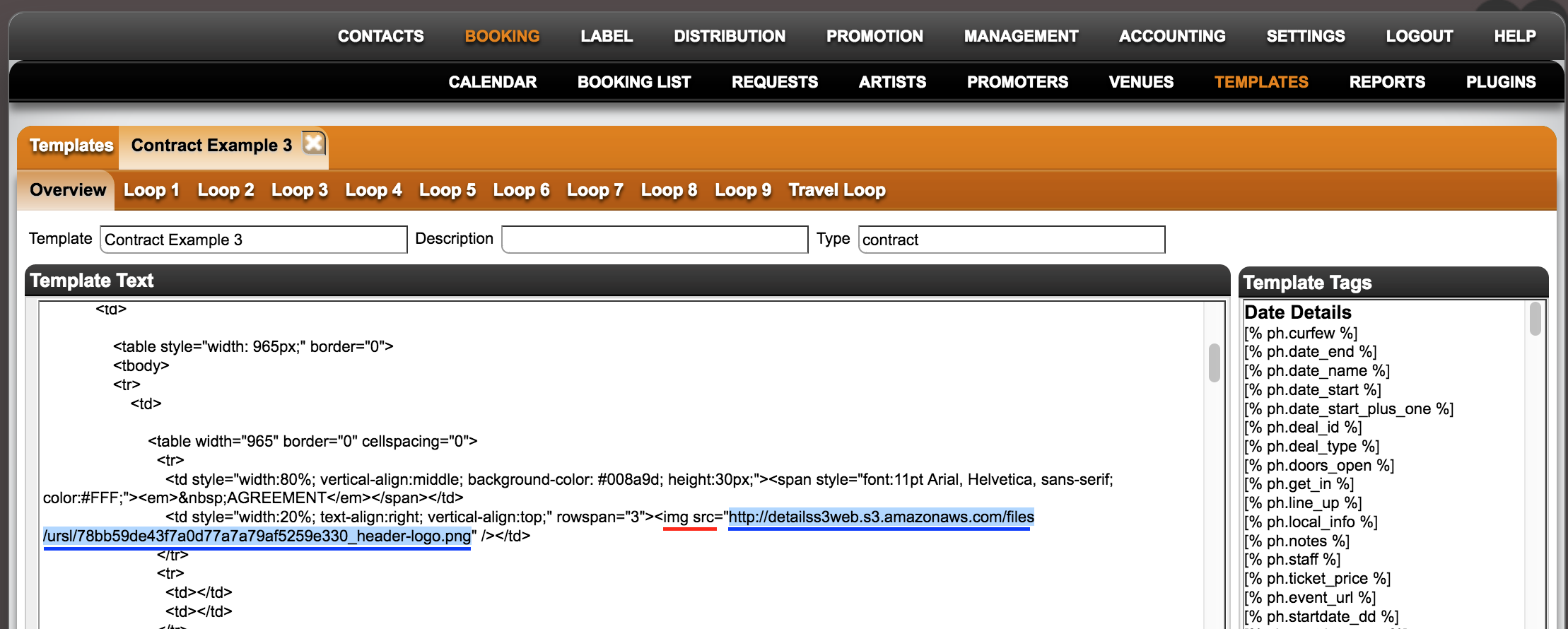
5) safe the amended template.
How to set automatic due dates for Money Details
details allows you to set automatic due dates for any INVOICE ITEM in your MONEY DETAILS.
As for the custom deals and custom items, the automatic due dates can be set in
SETTINGS / BOOKING / Money Details.
To set a due date select an INVOICE ITEM and click on the blue icon to edit.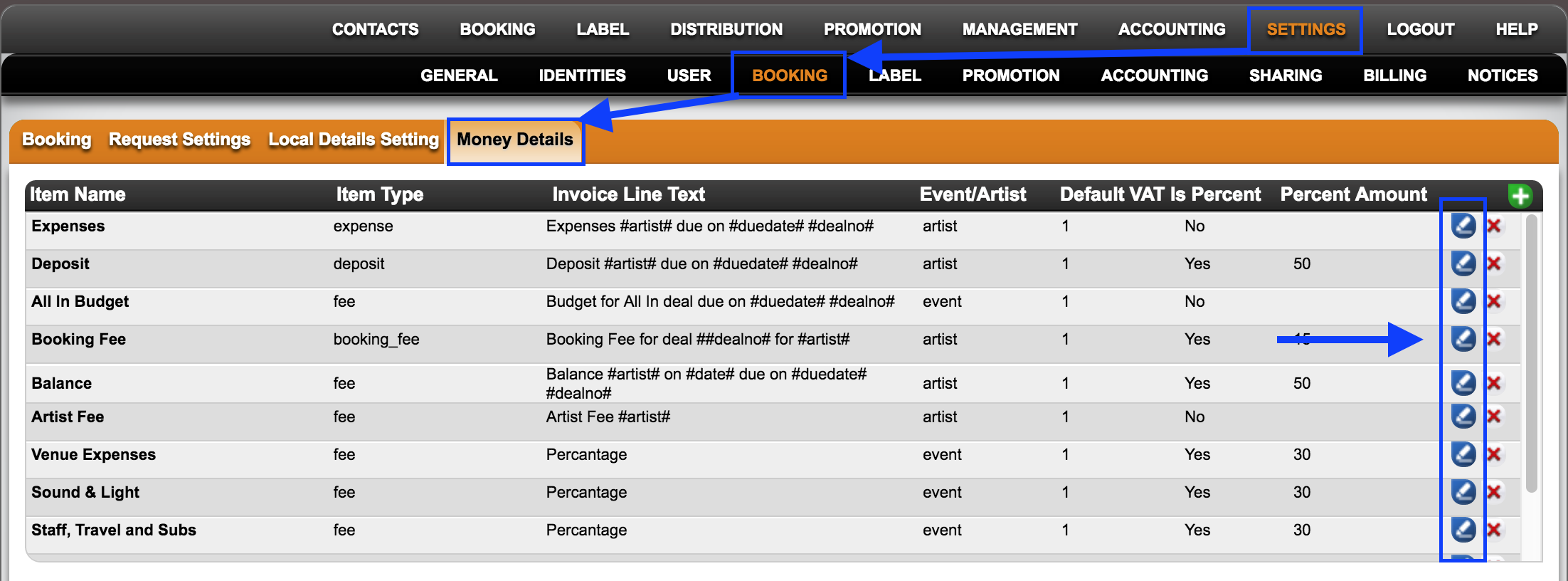
at the bottom of the modal window you will find the option to set the due dates with two customizable fields:
* the number of days ”before” or ”after” the reference date:
Note: use a leading minus for “before”!
* the reference date : select either the “”Event Date”” OR the “”Deal Creation Date”” as reference for the automatic due date of this item.
The “”Deal Creation Date”” would be the day you worked on this deal, i.e. probably the day that you send out the contract.
Examples:
1 Set auto-due date for a booking fee “14 days after the deal was made”: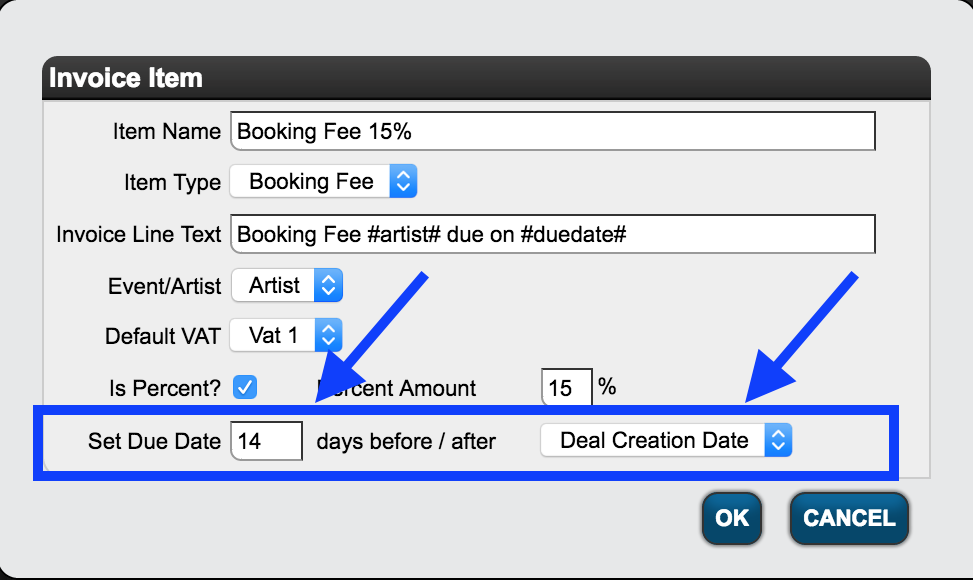
2 Set auto-due date for a balance payment “10 days before the event”: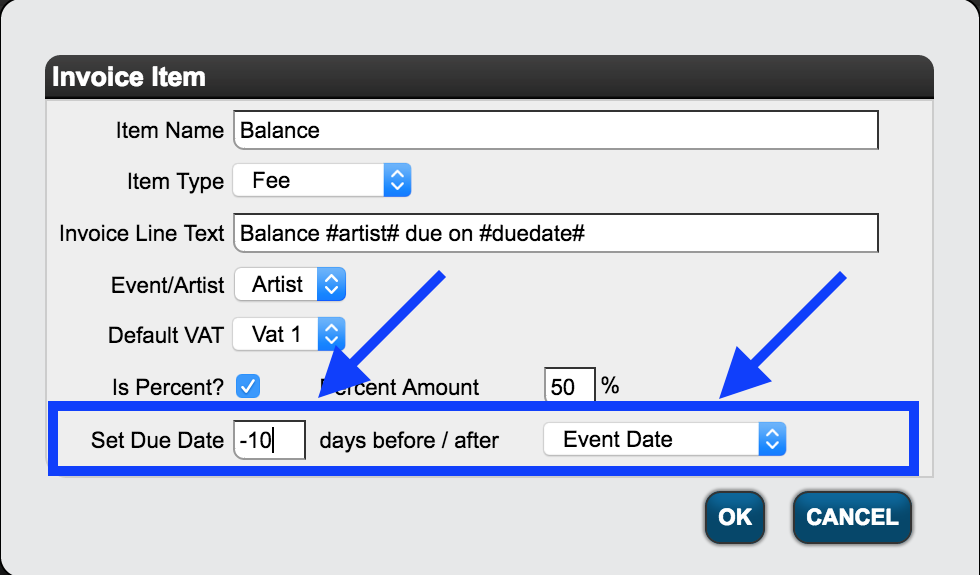
Once you you set a rule for the automatic due date, it will be set every time you select a deal including that INVOICE ITEM: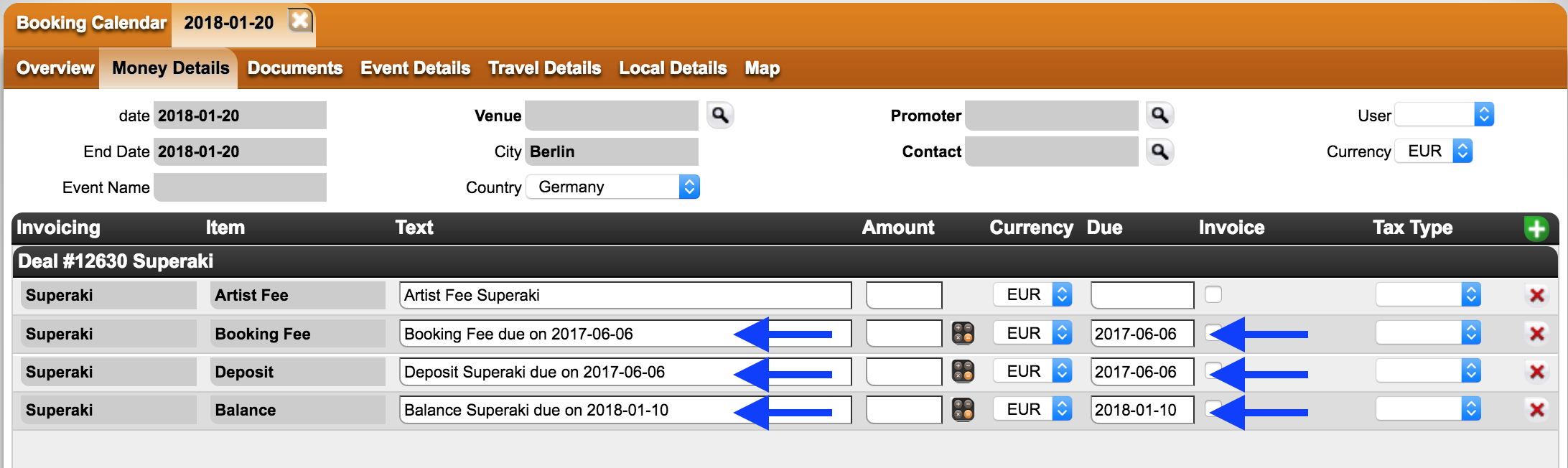
How to link/ integrate the dates into client’s webpage
1) Details offers a website plugin, which is a plugin that creates a WordPress website for you that is integrated with Details: so RSS dates, artist request forms, biographies, links to YouTube and SoundCloud etc, as well as file downloads. This plugin looks after everything (hosting, integration…) except the design, for which you will need to have a web designer who can customize it for you.
2) Search on Google for tools you can use to put the RSS dates onto your own site, a good search would be: display ((rss feed))on website
Since each website is unique we can’t tell our clients what the best options for them would be, but we hope this overview helps you move forward.
How to link / integrate booking dates to webpages
details offers two options to link / integrate booking dates directly to your webpage:
1) details offers a website plugin that creates a WordPress website for you that’s integrated with Details, so RSS dates, artist request forms, biographies, links to YouTube and SoundCloud etc, as well as file downloads. This plugin looks after everything, hosting, integration, everything, except design, you will need to have a web designer who can customize it for you.
or
2) Search on Google for tools that you can use to put the RSS dates onto your own site, a good search would be: “display rss feed on website”.
Also you can get more help on how to import the artist dates to your website in THIS WIKI article.
Since each website is unique we can’t tell our clients what the best options are for them, but we hope this overview helps you to move forward.
“Local Details” are shared with the artist in the app. “Local Infos” are not.
ALL “Local Details” are shared with the artist in the app.
And “Local Infos” are not whereas it is used as private data of client that cannot be shared with artist in the artist app.
This way clients can choose between data points to share and data points NOT to share with the artist,
for example internal data.
So if client wants to protect data to see Artist in the app then they have to add those data in Local Info or event custom info.
screenshot attached in Local Info: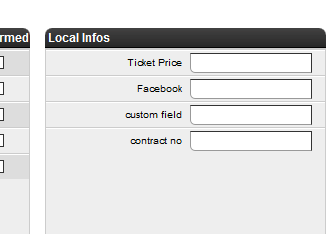
And if Client wants to share data with Artist in the artist app then they have to add those data in Local Details.
Here is details about how to share local details with the artist in artist app:
1. At first you have to add local details fields in SETTINGS/BOOKINGS/Local Details Settings if you need.
Screenshot attached :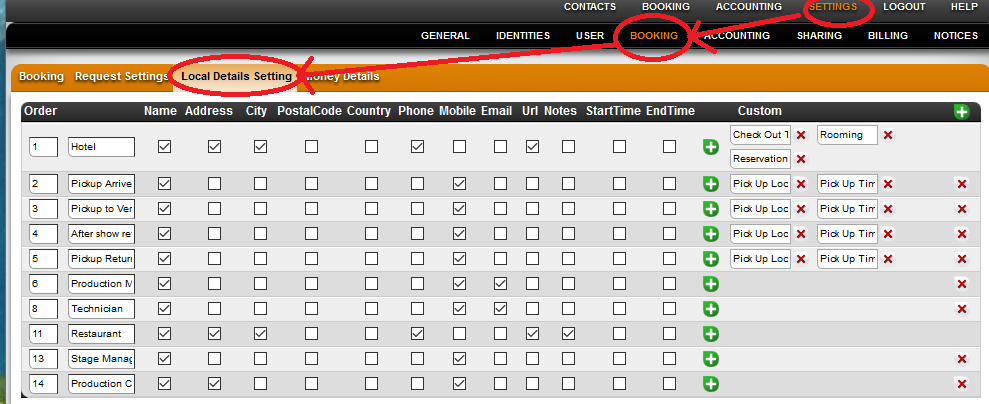
2. Then Select your required local details in event date by BOOKING/CALENDAR/Local Details:
Please check screenshot1 and screenshot2 for the detail process
Screenshot1 attached :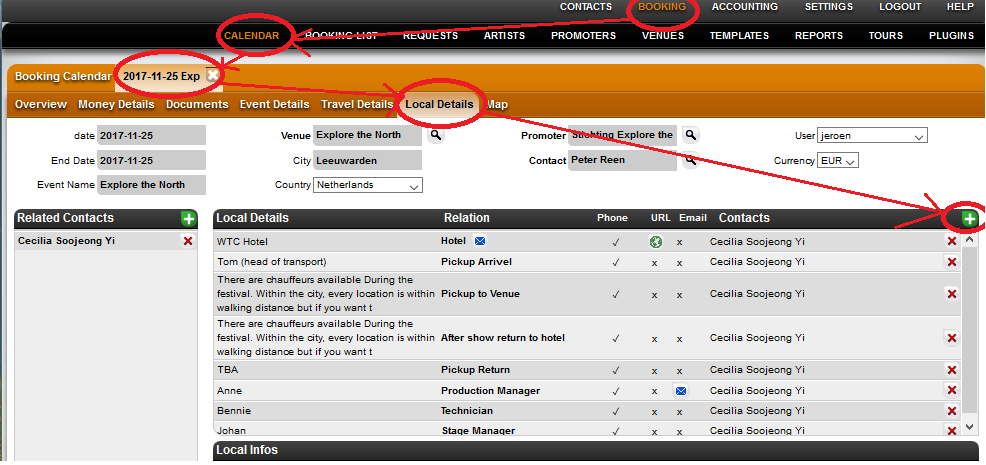
Screenshot2 attached: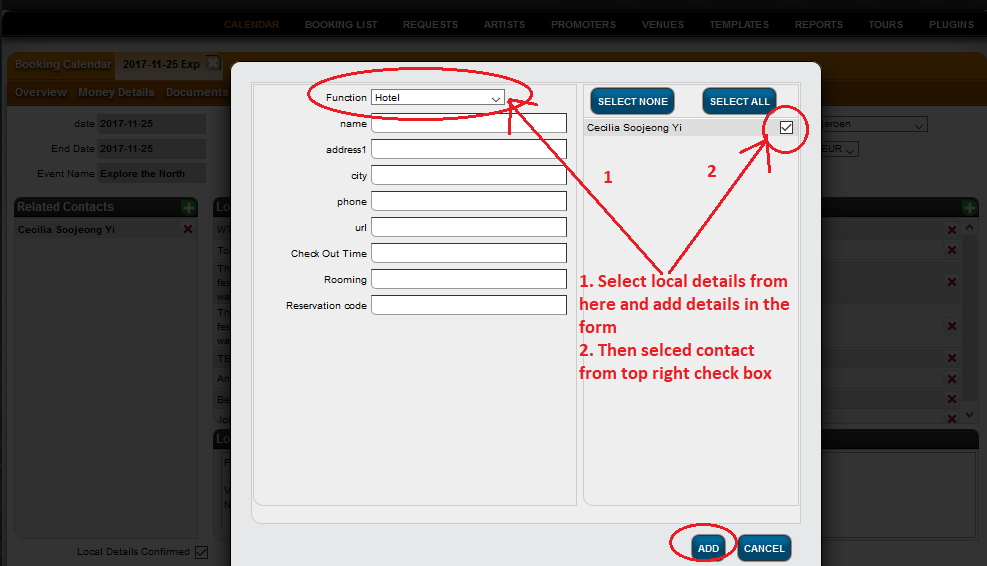
After this whole process the artist app will automatically pull all selected local details data.
Please check the whole process.
Also Sometimes Local Details don’t appear in the itinerary.
Here is the help link for more details about it:
https://details.zendesk.com/hc/en-us/articles/360003571837
Free Artist Dates
details now provides an easy overview of free dates for each artist.
For any selected artist just select which months and weekdays you want to share and easily copy free dates with a click on the button “Copy Results to Clipboard”.
You can then paste the free dates to any email or chat and send them out. Nice!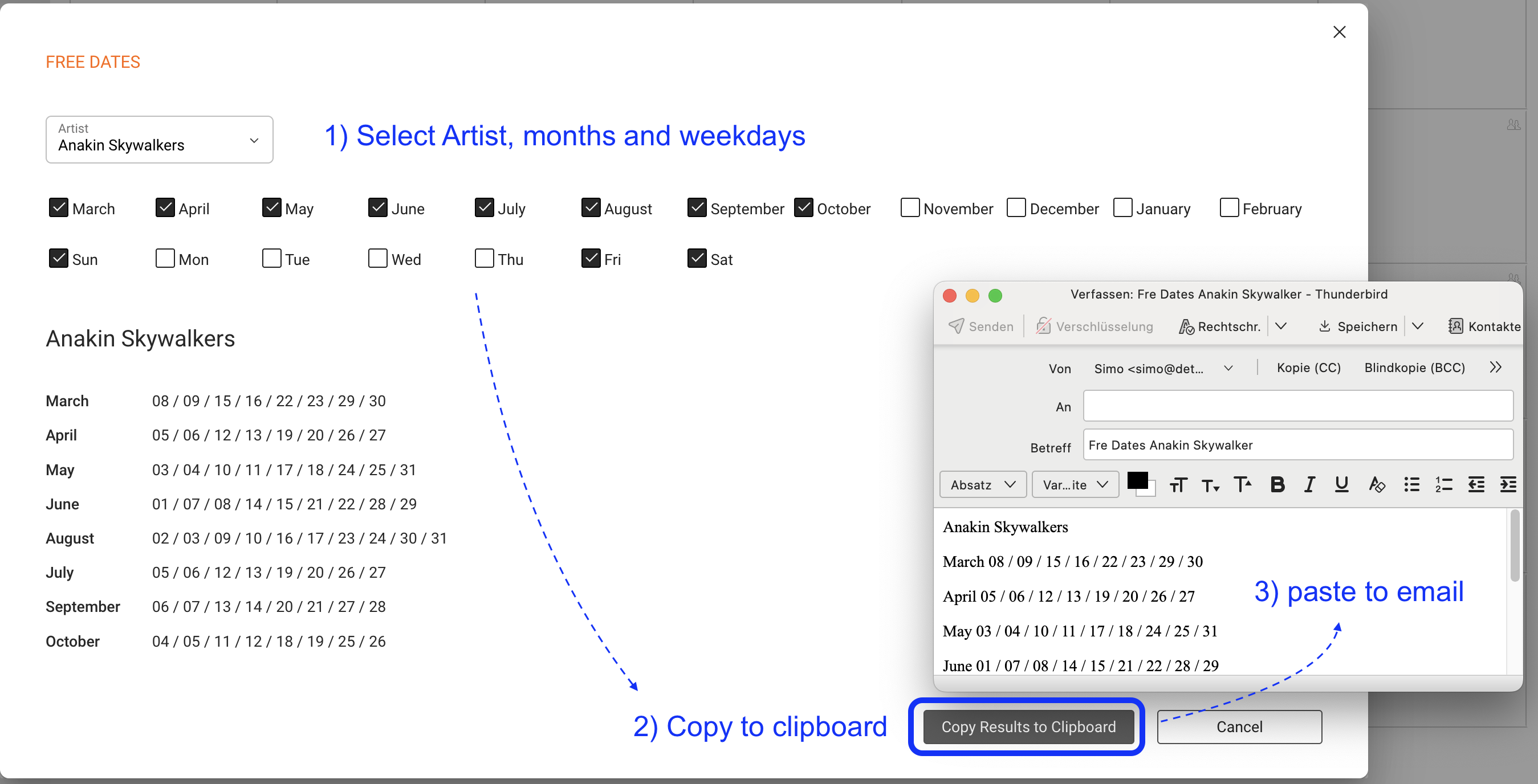
You will find this in two places:
1) in the Calendar under the “…” menu
2) in the Artist / Overview
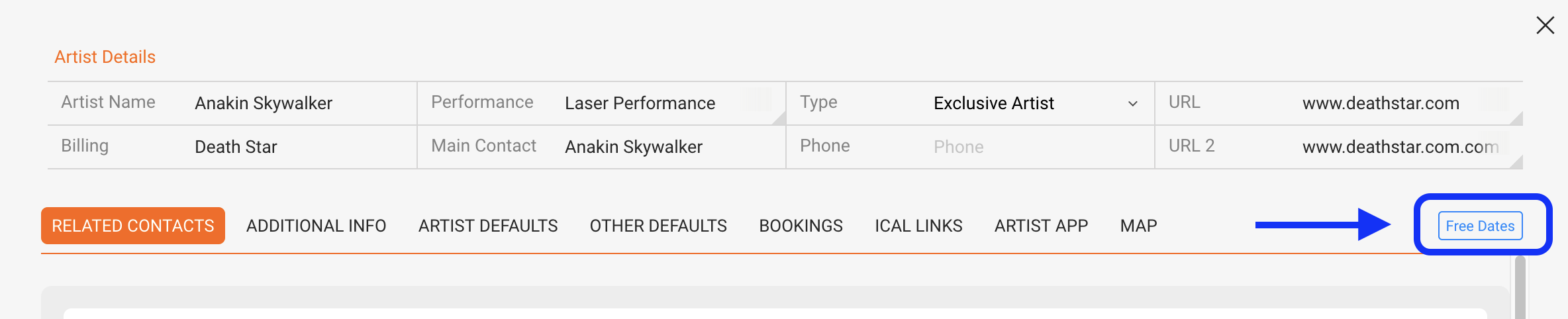
HOW TO SETUP WHICH FREE DATES ARE SHOWN
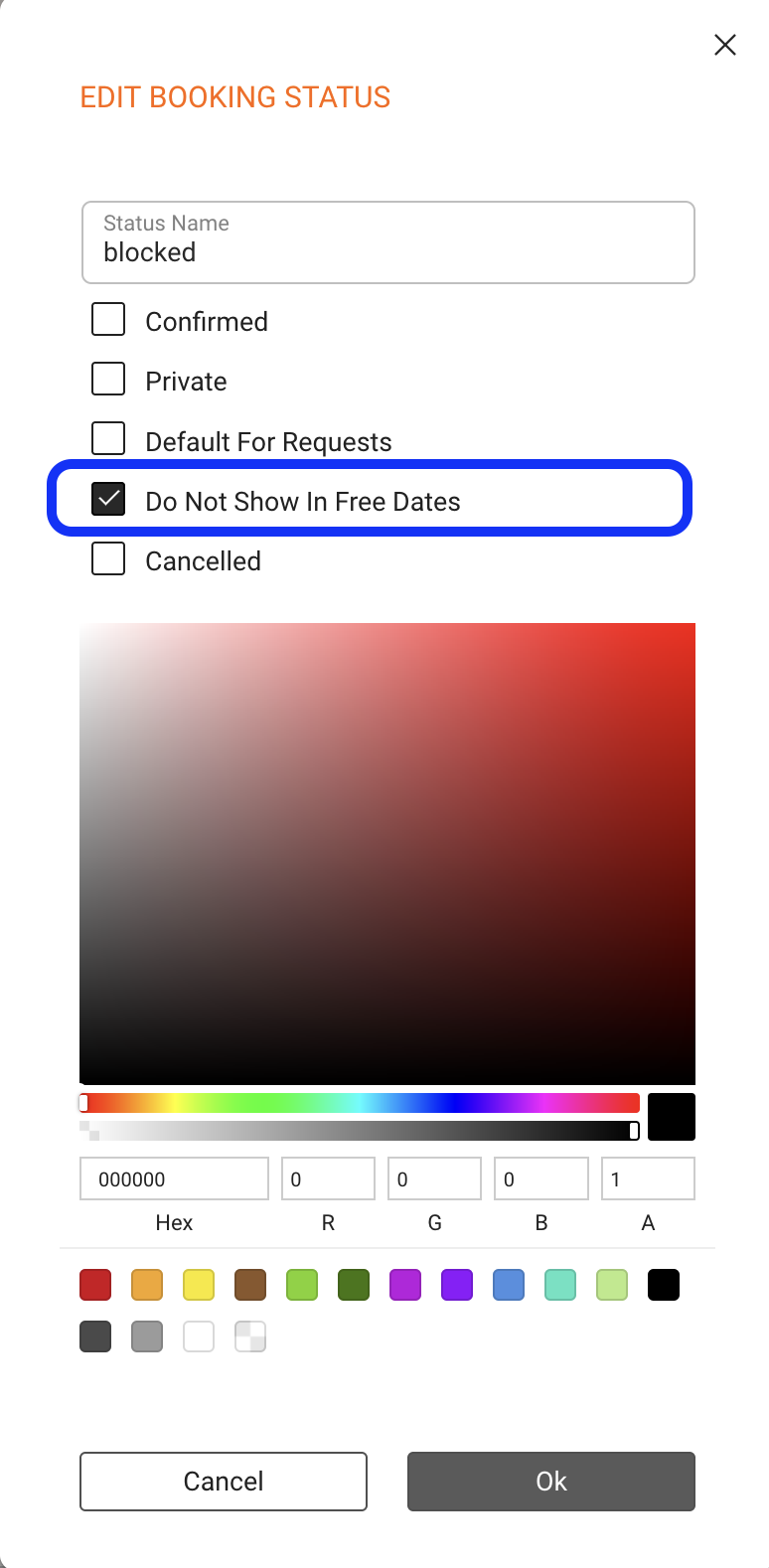
Any user may customize the client’s booking settings in
SETTINGS / BOOKING / BOOKING STATUS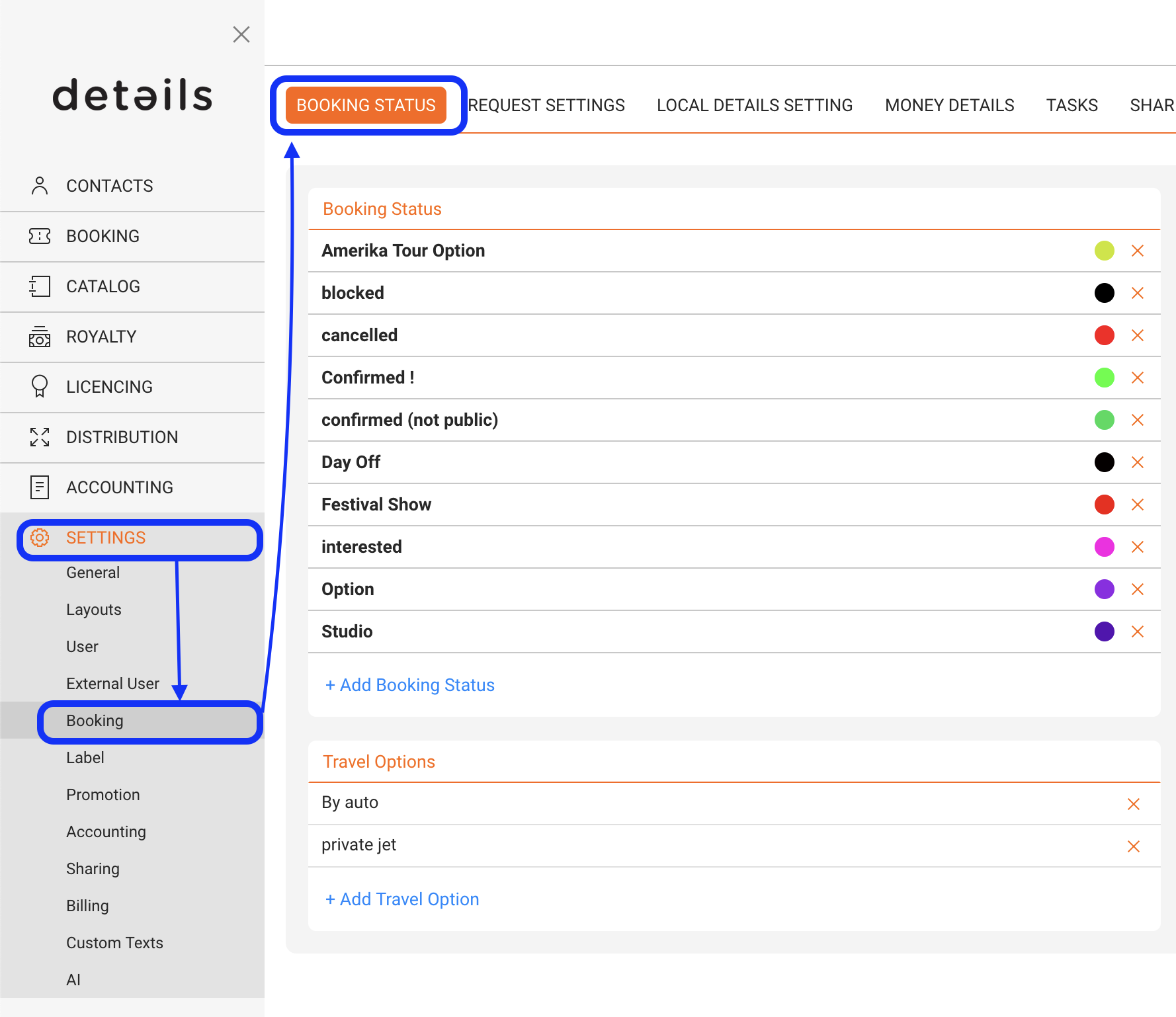
We added checkbox to not display a booking in the FREE DATES feature. Just click on a Booking Status and to avoid display, click “Do Not Show In Free Dates” in the status you do NOT want to show.
Synchronizing your iCal Feed with your Google cal
In General,Google cal has no auto synchronization feature.
But you can do it by a little change in iCal link:
To auto synchronize your iCal Feed with your Google calendar change the “webcal” part to “https”.
Example:
Link of iCal Feed:
“webcal://ical.detailsdetails.eu/artist/…”
Link to be Pasted in Google Calendar:
“https://ical.detailsdetails.eu/artist/…”
This will enable your iCal Feed to auto sync with Google calendar.
GDPR compliance and data protection at details

details‘ Commitment to GDPR
The European General Data Protection Regulation (GDPR) goes into effect on May 25, 2018.
Not only is GDPR an important step in protecting the fundamental right to privacy for European citizens, it also raises the bar for data protection, security, and compliance in the industry.
We have been working to make sure that details is in full compliance with the GDPR and will continue to update and improve all relevant aspects of privacy and data protection moving forward.
To enable you to comply with your GDPR obligations we have published a Data Processing Agreement (DPA) as Annex A to the Terms of Service Agreement.
In addition, we have updated our Privacy Policy and the Terms of Use / Subscription Agreement to comply with the new requirements of GDPR.
In accordance with Article 5 of the GDPR at details we make sure that personal data shall be:
a) processed lawfully, fairly and in a transparent manner in relation to individuals;
b) collected for specified, explicit and legitimate purposes and not further processed in a manner that is incompatible with those purposes; further processing for archiving purposes in the public interest, scientific or historical research purposes or statistical purposes shall not be considered to be incompatible with the initial purposes;
c) adequate, relevant and limited to what is necessary in relation to the purposes for which they are processed;
d) accurate and, where necessary, kept up to date; every reasonable step must be taken to ensure that personal data that are inaccurate, having regard to the purposes for which they are processed, are erased or rectified without delay;
e) kept in a form which permits identification of data subjects for no longer than is necessary for the purposes for which the personal data are processed; personal data may be stored for longer periods insofar as the personal data will be processed solely for archiving purposes in the public interest, scientific or historical research purposes or statistical purposes subject to implementation of the appropriate technical and organisational measures required by the GDPR in order to safeguard the rights and freedoms of individuals; and
f) processed in a manner that ensures appropriate security of the personal data, including protection against unauthorised or unlawful processing and against accidental loss, destruction or damage, using appropriate technical or organisational measures.
To ensure this, we have a compiled a list of Technical and Organisational Measures.
How to customize the offer-email to artists
In the OVERVIEW tab of each booking, users may click on the email icon next to the selected artists to open an email with essential booking information.
The way it works is that we use the “mailto”-function of your browser to trigger a new email in your local email programm.
We call this email “offer email to artist”, although the offer info is only one possible usecase for this email with basic booking information.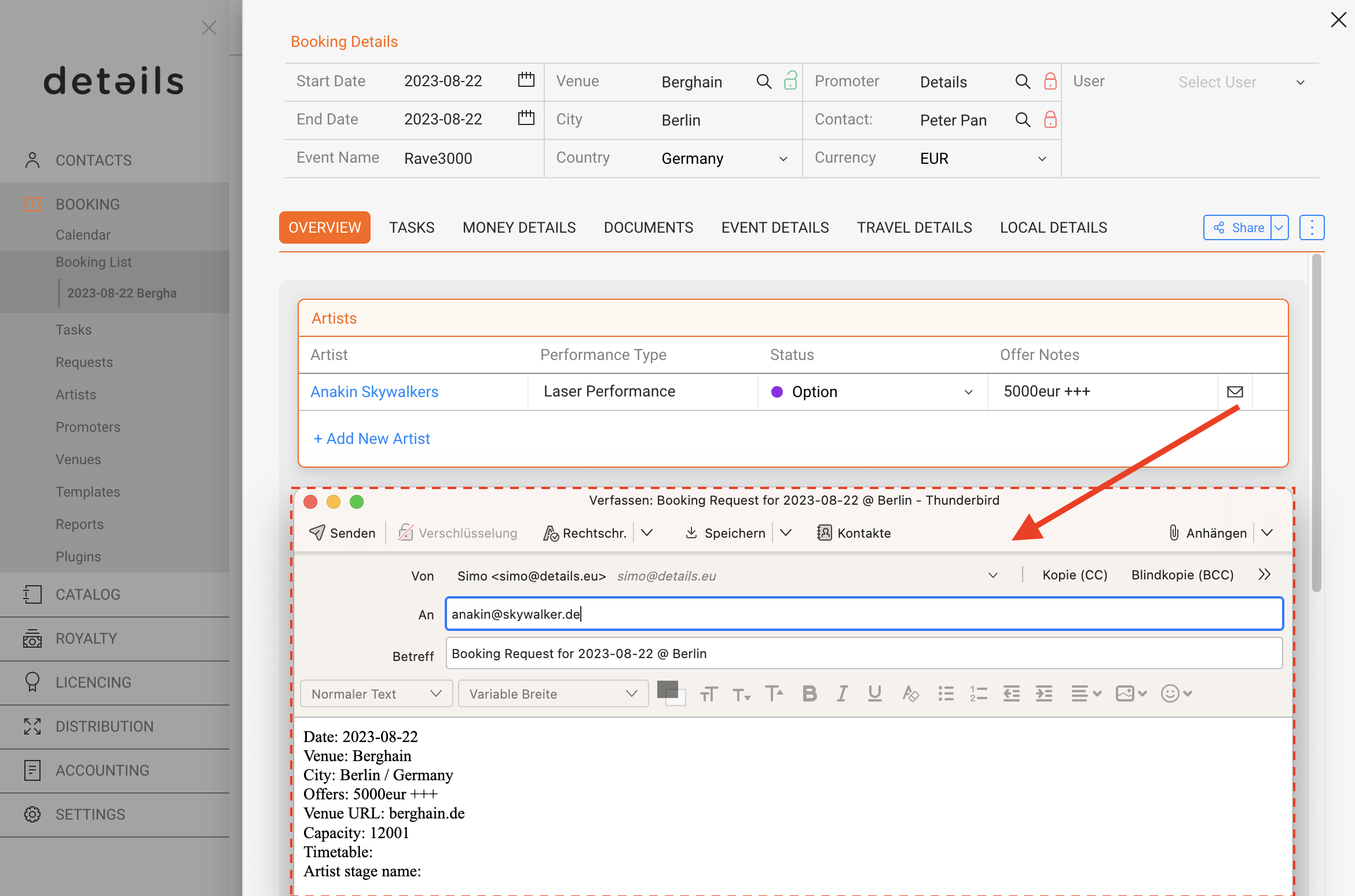
To customize the email Subjec‘ and Bod’ text, go to SETTINGS / CUSTOM TEXTS and select the subtab for “Artist Offer”.
In this subtab you may add, edit or delete as many custom templates for the artist offer notification as needed.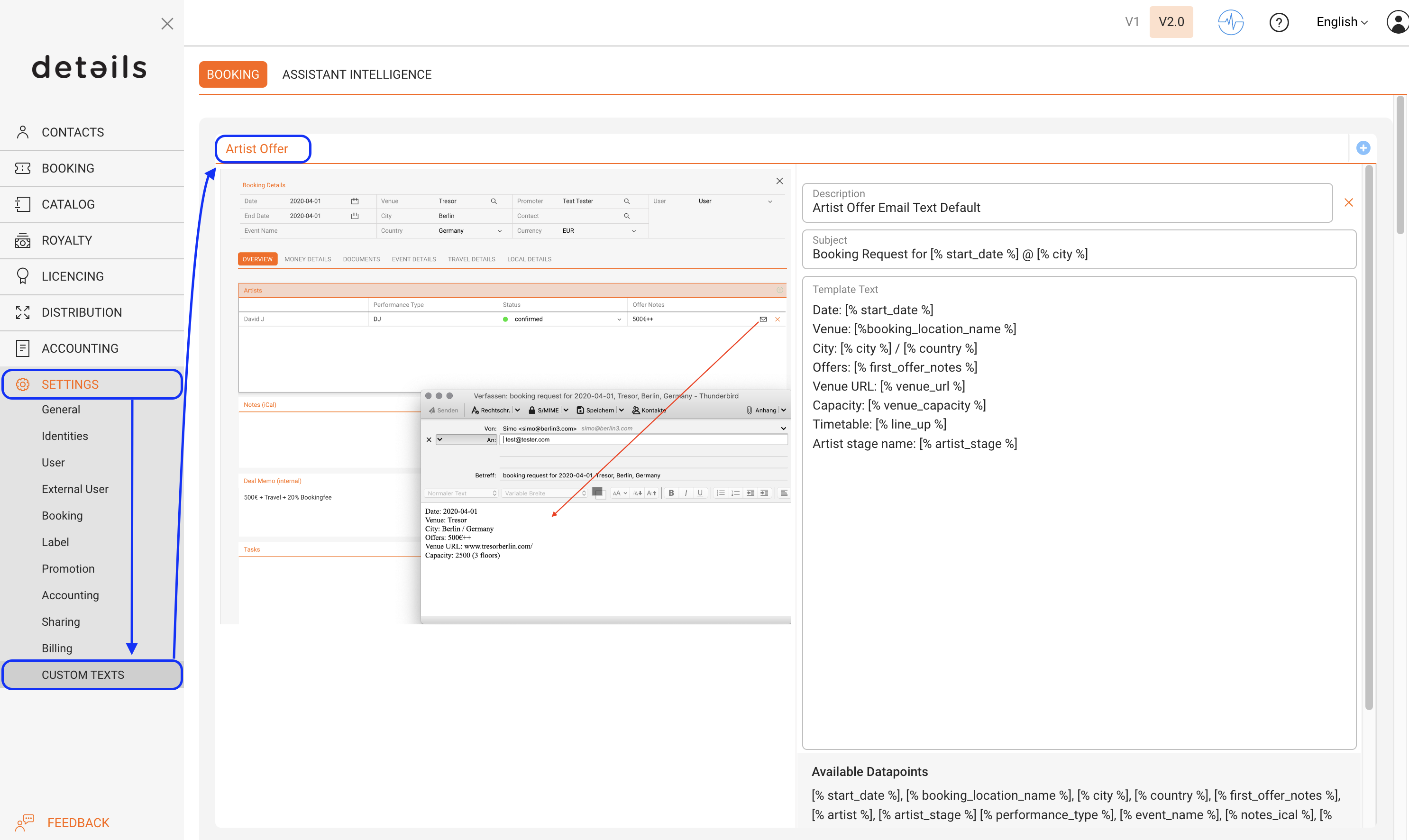
To add a new template, click the ”+” icon on the top right and edit ”Subject” and ”Body” texts.
You may use the following datapoints in your template:
[% start_date %], [% booking_location_name %], [% city %], [% country %], [% first_offer_notes %], [% artist %], [% artist_stage %] [% performance_type %], [% event_name %], [% notes_ical %], [% line_up %], [% venue_name %], [% venue_address %], [% venue_city %], [% venue_postalcode %], [% venue_country %], [% venue_phone %], [% venue_email %], [% venue_url %], [% venue_capacity %], [% promoter_company_name %], [% promoter_representative %], [% promoter_address %], [% promoter_city %], [% promoter_postalcode %], [% promoter_state %], [% promoter_country %], [% promoter_phone %], [% promoter_mobile %], [% promoter_email %], [% promoter_vat_id %], [% promoter_url %], [% promoter_language %]
please NOTE: If you need other datapoints in your email, please contact us!
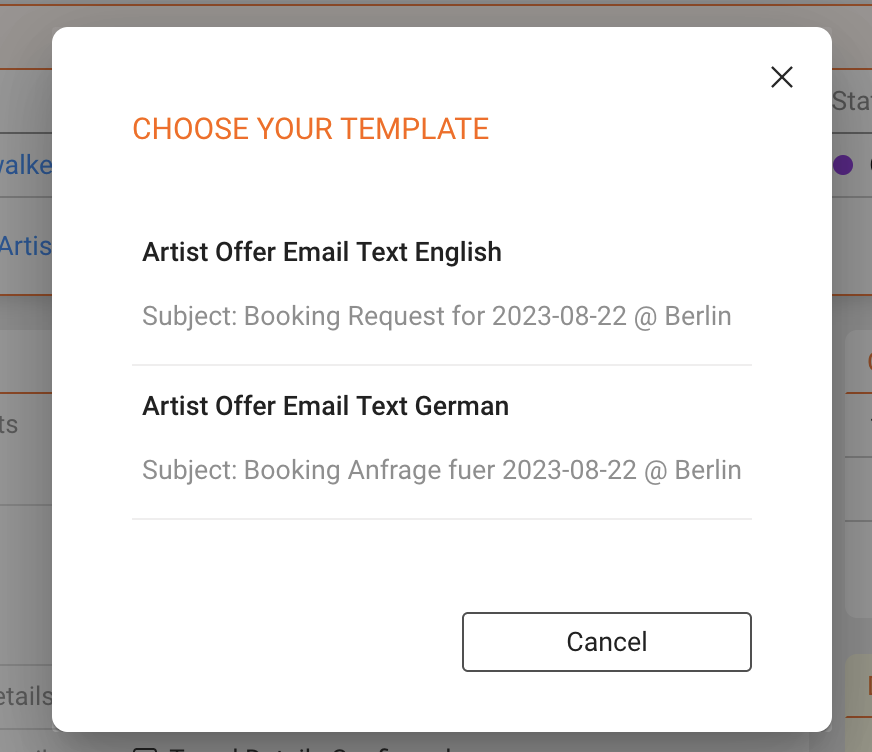
Once you have more than one active template, you will be able to select from active templates whenever you click the email icon in the booking►s OVERVIEW.