details Pricing Update 2025

The COVID crisis not only posed a severe threat to millions of lives worldwide but also profoundly impacted the creative industries, both in Europe and globally.

The economic repercussions were significant for all companies in the music business, yet we tried to support one another, sought alternatives, and persevered through challenging times.

Throughout the Corona crisis, the vital role of music in our lives and the crucial importance of the music industry to social life became evident. This underscored our great responsibility to the music and to each other within the industry.


As an act of partnership and solidarity, details immediately provided a 50% Corona discount to all our clients until December 2020.

Recognizing that booking agencies were particularly hard-hit, we extended further support by reducing the user fee for booking-only users to 25 per month (net of VAT) in 2021, plus we waived charges for regular support for these clients throughout the year.


However, to ensure our sustainability and continued service, we had to revert to our standard full user fees for all non-booking customers at the end of 2021 and will again adjust full users per

  • January 2022: 59/month (590 for annual subscriptions)
  • January 2025: 69/month (690 for annual subscriptions)
    (all net of VAT)

Trust us, this decision was not made lightly! We re adjusting our pricing after very careful observation of the market requirements, technological benchmarks, and the competitive landscape.

We do this to reflect the enhanced features we ve added and will need to add in the future, rising operational costs, and our commitment to make details a benchmark for Independents, while continuing to offer savings through annual subscriptions and referral rewards to support your long-term success.


For Booking-Only Users, we also need to gradually return the fees to our previous rates, so in accordance with our Terms of Use / Subscription Agreement our published PRICING will be adjusted as follows:


Pricing Updates for Booking-Only Users

  • January 2022: 29/month (290 for annual subscriptions)
  • January 2023: 39/month (390 for annual subscriptions)
  • July 2024: 49/month (490 for annual subscriptions) => pre-COVID pricing
    (all net of VAT)

  • plus – as announced on our website – in January 2025 we re adjusting Booking-Only pricing to reflect ongoing improvements, cover rising operational costs, and ensure fair alignment across all users: 59/month (590 for annual subscriptions)
    (all net of VAT)

We know price adjustments are never easy. That s why we continue to offer savings through annual subscriptions.

Should you have any questions or need further assistance, please do not hesitate to reach out to us.


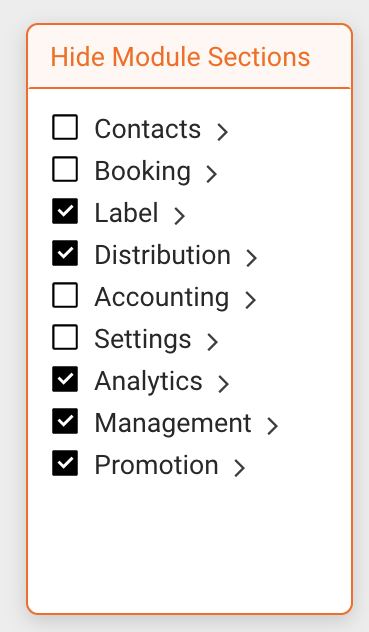
* A “booking-only user” would have access to the menu sections CONTACTS, BOOKING, ACCOUNTING and SETTINGS, but not to LABEL, DISTRIBUTION, PROMOTION or MANAGEMENT.
Module access of users should be configured independently by the customers in SETTINGS / USER.


Booking-Only User Settings in V1 and V2.0 frontend
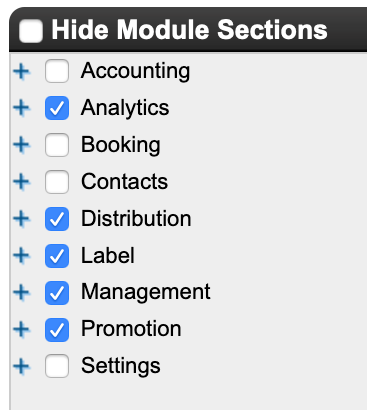
V1 V2


How to set up Importers (to import sales, costs, performance etc.)

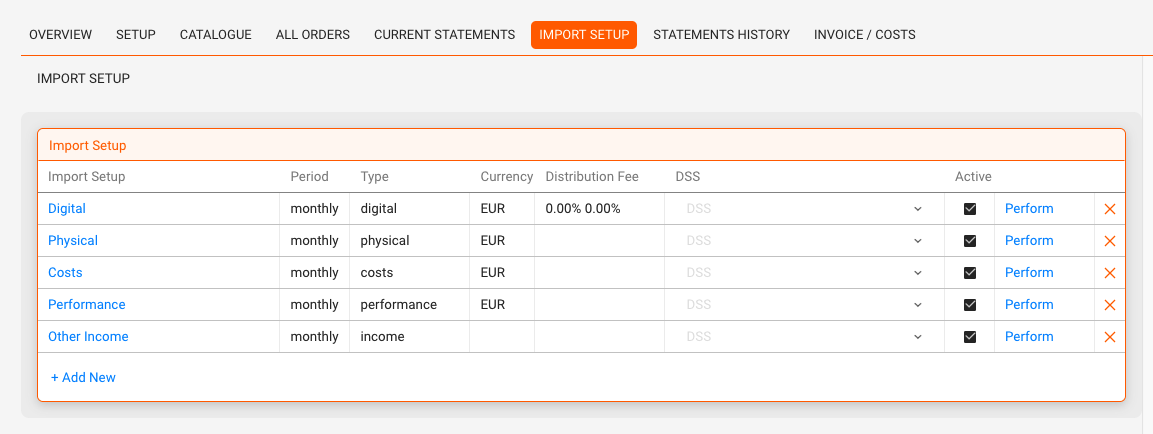
Each Distribution Account can be linked to one or more Import Setups or Importers. An importer defines how a specific type of statement, such as digital sales, physical returns, costs, or performance income, is processed and categorized.

Setting up importers is what enables the system to correctly interpret and handle incoming data from your distribution partners or any outside source. This allows you to handle a wide range of data ingestions with precision and flexibility.

Common importer types include:

  • Digital Sales
  • Physical Sales
  • Costs
  • Performance Income
  • Other Income (e.g. third-party income)
  • Publishing Income (coming soon)

To import different types of income or costs for an account, you need to create multiple importers.

You can also create multiple importers for the same type, for example if you receive digital sales in different currencies, from different territories, or with different formats and conditions.


Where to Set Up an Importer

  1. Go to Distribution / Accounts
  2. Select the relevant distribution account
  3. Click on the Import Setup subtab
  4. Click + Add New to open the Import Setup modal

Import Setup Fields

The setup modal contains a number of fields. Depending on the selected Type, some fields may vary.

Mandatory Fields

Field Description
Description Name the setup clearly
(e.g. Spotify EUR, Word Of Sound – Vinyl PRO, Monthly Costs, etc.)
Layout Select the layout format for the importer
Type Choose from Digital, Physical, Costs, Performance, Income
Currency Set the statement currency (e.g. EUR, USD).
Only Cost Importers allow multi-currency imports.
Period Select how often the statement is received (monthly, quarterly, etc.)

Optional Fields

Field Description
Fix Country Limit import scope to a specific country
From / To Define a valid date range for imports
Sender Indicate the original sender of the statement
Shared-Key Used to identify matching statements across sources
Preset Apply a pre-configured format if available
DSS Select a DSS layout (if available for this partner)

Advanced Fields (depending on Import Type)

  • Fix Type Lock specific classifications (e.g. usage type, store)
  • Fix Store Used for filtering by store, DSP, or platform (digital only)
  • Distribution Fee Sales Fee % deducted from sales
  • Distribution Fee Returns Fee % on returned items
  • Return Handling Fee Optional fixed or % handling fee

Note: Distribution fees are only applied to PPD amounts, not to PPU-based statements.


After Saving the Importer

Once saved, your importer appears in the list under Import Setup in the distribution account view, where you can:

  • Use the Perform link to import statements
  • Edit or deactivate existing setups. To remove an importer from the list in the DISTRIBUTION / IMPORTS screen without deleting it, you can deactivate the importer. This will hide it from the import list, but preserve its configuration and data in the background. Do not delete an importer if it has already been used to import data. Use deactivation instead.
  • Add multiple setups for different statement types or variations

The new importer now also appears in Distribution / Imports and you can start importing right away.

Need help configuring layouts or presets? Contact label_team@details.eu.

Explained: Release Dates & Product Dates

In May 2024, details introduces Product Dates, which are essentially release dates for products, not overall projects. This approach allows for more granular control over individual product timelines while maintaining a clear overarching release schedule.
This will enable our distribution clients to effectively manage project planning on one hand and product delivery on the other.


Project Release Dates and Product Dates

Project release dates and product dates are now two separate entities within Details, each serving a unique purpose in project management.

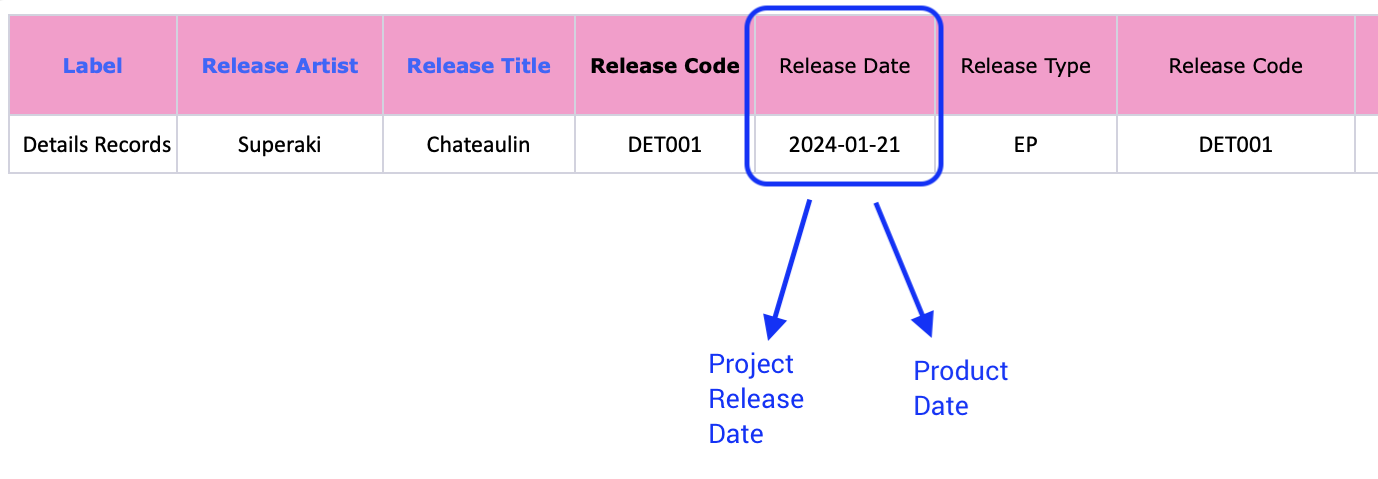
Project Release Dates refer to the dates assigned to overall projects, traditionally known as “releases” in the music business. These include the official street date of an album and possibly multiple singles or single-track products. These dates mark milestones for the entire project.

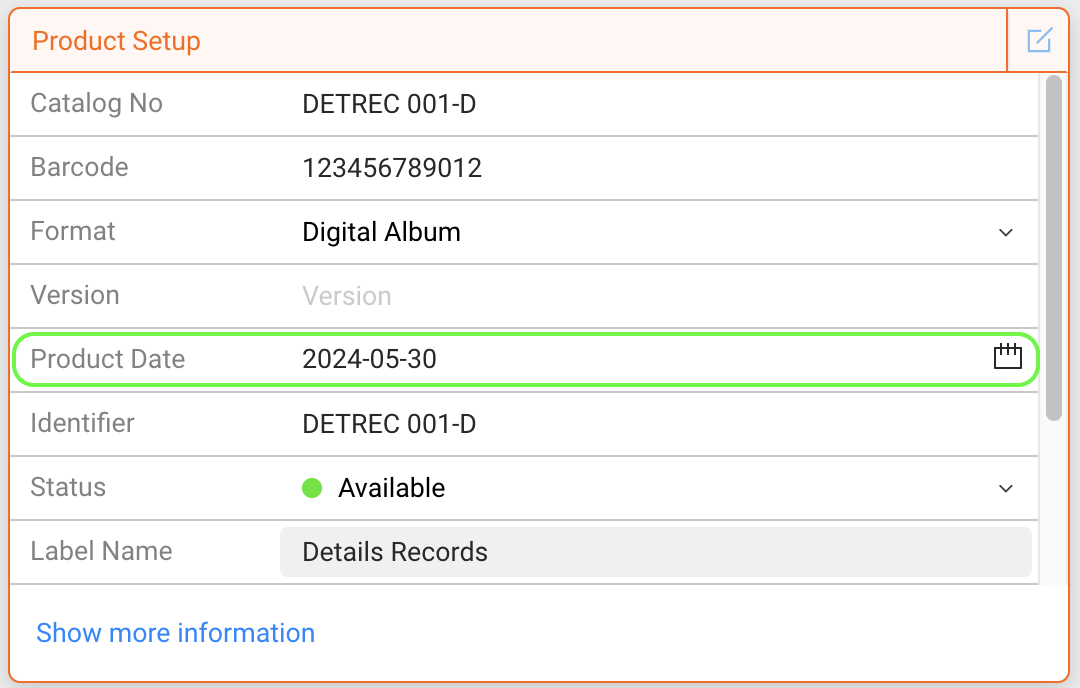
Product Dates are the dates set for each specific physical or digital product within the project. Each single track or physical product can have its own timeline and deadlines, which are independent of the overall release date. This allows for detailed planning and management of individual lifecycles within the project.


Product Dates can be set in the “Product Setup” box of any product in CATALOG / PRODUCTS.


Why Did We Do This?

The separation between release dates and product dates allows for greater flexibility and more precise management of distinct product timelines, specifically for products, re-issues, etc. You can still refer to the overall project date to coordinate promotional activities, but at the same time, ensure that each product meets its specific deadlines without being constrained by the overall release timeline.

NOTE:
From now on, adjusting only the release date of a project will not affect the dates of individual products and vice versa!

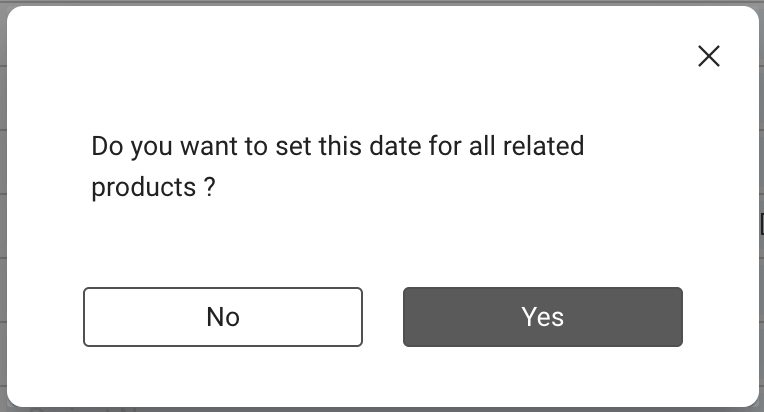
You will, however, be asked if you would like to update the related product dates when you update a project release date. If you choose ‘yes,’ all related products will be updated with the new date.


Imports

Future imports will import the column Release Date into both the project release dates and the product dates. Should there be multiple dates in that column, the FIRST will be set as the project release date, and all others will be specific product dates within the said project.

Migration

Before deployment, we have updated all product release dates according to the set release dates and release shifts set in Details at the end of May 2024.


How to Prepare Tracks for a Merge Process

Duplicate tracks (same ISRC, Artist, Title, Version, and Label) can appear in catalogs. To clean these up, details provides a Track Merge Process managed by our support team. You can prepare your tracks to ensure a smooth and quick merge.

Steps to Prepare for a Merge

  1. Log in to details and open CATALOG / TRACKS.
  2. Identify errors: Click the !!! icon to show tracks with potential issues.
  3. Align duplicate data: For tracks that should be merged, make sure Artist, Title, and Version fields are identical.
  4. Check completeness: Keep the track with the most information (playtime, (P) year, publisher, writers). The less complete duplicate will be merged into it.
  5. Handle versions correctly:
    • Different versions (e.g. live, remix, instrumental) must each have their own ISRC.
    • Versions like original or remastered usually keep the same ISRC.
  6. Mark less qualified tracks for removal: If you want a specific duplicate removed, delete or empty fields like (P) year or publisher to ensure the better version is kept.

Once prepared, contact our support team to initiate the merge process. The actual merge will be performed by our staff within minutes.

Practice: Always resolve duplicate ISRCs quickly. Leaving duplicates in the catalog can lead to mismatched reporting and incorrect royalty payments.

Spotify Import Interface Overview

This article provides an overview of the Spotify Import interface in CATALOG MANAGEMENT / CATALOG IMPORT.

Use this interface to search Spotify, review results, and import digital releases into details.

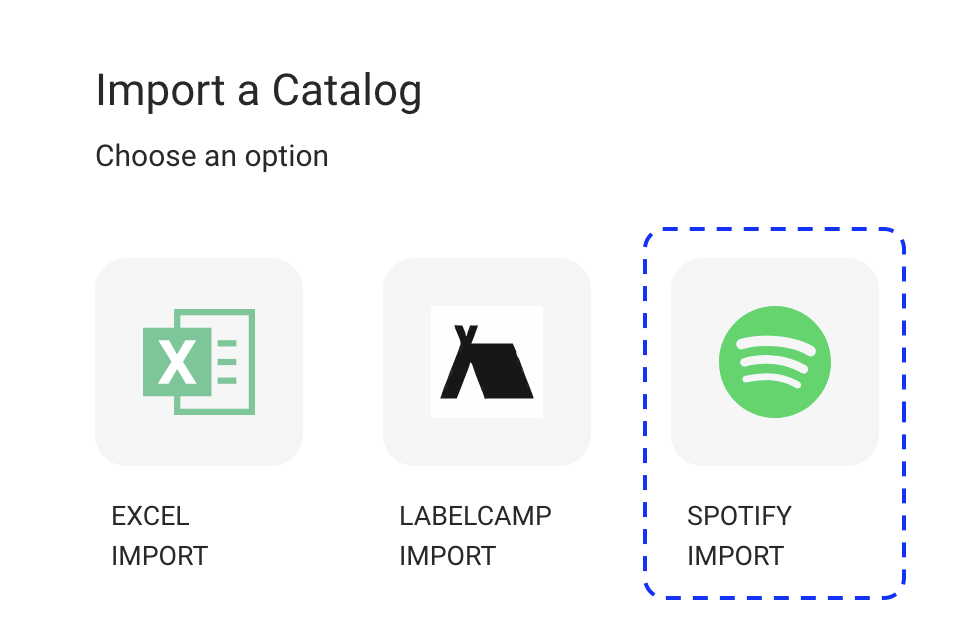
► Import a Catalog

This is the starting point of the Spotify Import.

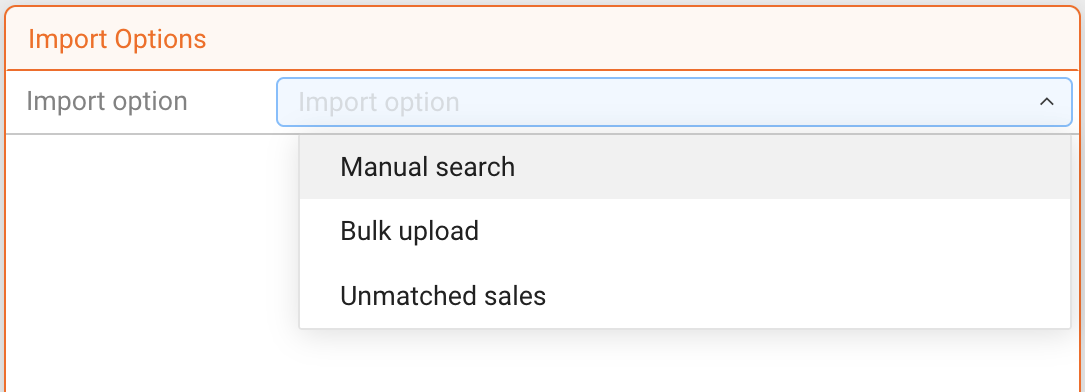
Select an Import option to define how Spotify should be searched.

  • Manual search
  • Bulk upload
  • Unmatched sales

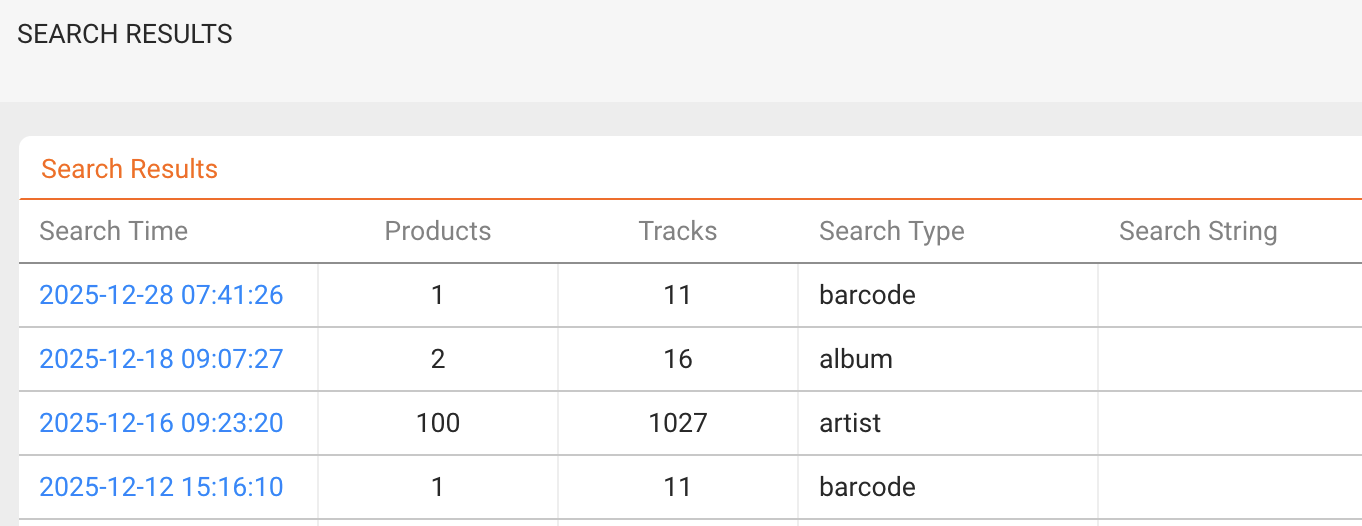
► Search Results

The SEARCH RESULTS tab lists all Spotify searches performed.

Each entry shows:

  • Search time
  • Search type
  • Number of products found
  • Number of tracks found

Open a result to inspect the products and tracklists before importing.

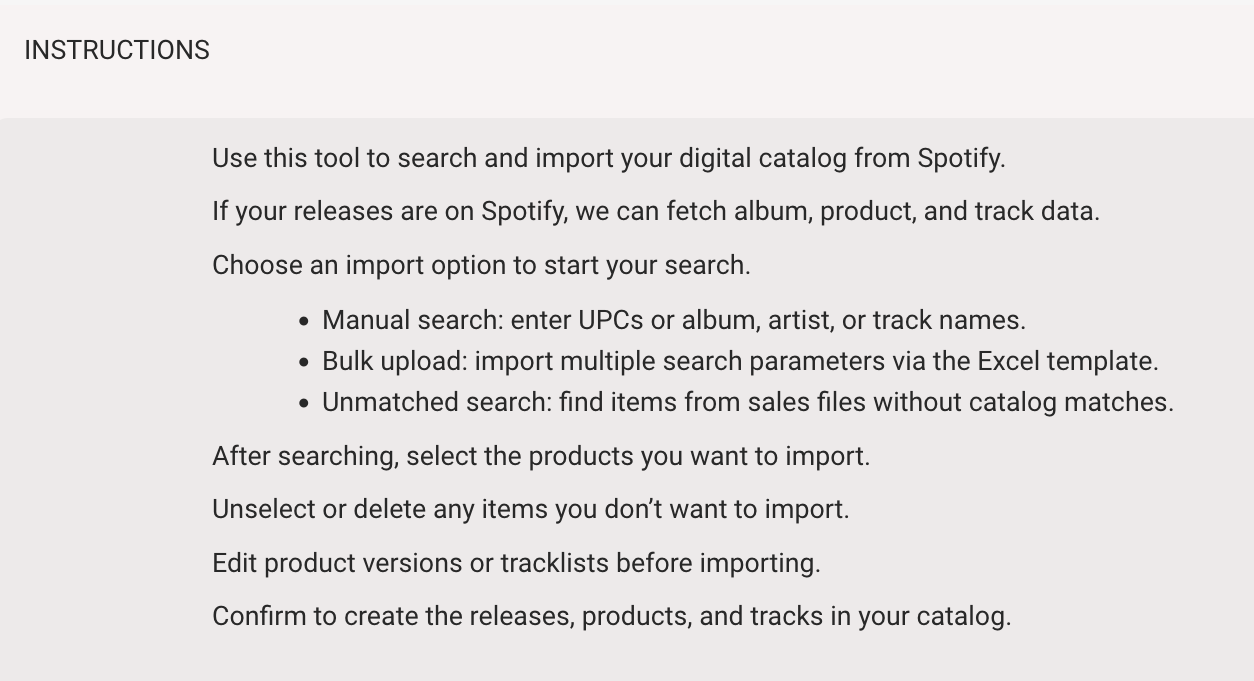
► Instructions

The INSTRUCTIONS tab summarizes the Spotify Import workflow.

It explains which search options are available and how to proceed after results are returned.

► Templates

The TEMPLATES tab provides the Excel file required for Bulk upload searches.

Use this template to submit multiple search parameters in one upload.

Automatic Sales Ingestion From MERLIN

This article explains how details automatically ingests sales reports from DSPs delivered via the MERLIN Network, removing the need for manual downloads and recurring imports.

► What Automatic Merlin Ingestion Means

Merlin acts as a central licensing and reporting hub for independent music companies. Many DSPs deliver their monthly sales statements to rightsholders via Merlin.

details provides dedicated importers for these Merlin-delivered reports. Once configured, the platform automatically retrieves new files as they become available and processes them inside details.

This means you no longer need to:

  • log in to external portals to download reports,
  • manually upload monthly sales files, or
  • maintain custom mappings for each DSP format.

► How the Process Works

The ingestion process follows a predictable, hands-off workflow:

  1. Sales statements are delivered to Merlin by the respective DSPs.
  2. details automatically retrieves the relevant reports from the Merlin delivery infrastructure.
  3. Each report is parsed using a DSP-specific importer maintained by details.
  4. Sales lines are normalized, validated, and made available for matching, reconciliation, and royalty calculations.

Importer logic is continuously maintained to reflect format changes, new DSP requirements, and Merlin updates.

► Supported Merlin DSP Sources

details currently provides automatic ingestion for the following Merlin-delivered DSP reports:

  • Spotify Streaming
  • Spotify Breakage
  • Spotify Discovery Mode
  • YouTube Shorts
  • TikTok
  • Vevo
  • SoundCloud
  • Deezer
  • Pandora
  • Facebook
  • Snap
  • Mixcloud
  • Audiomack
  • Anghami
  • Boomplay
  • NetEase Cloud Music
  • Tencent
  • Saavn
  • Resso
  • Soundtrack Your Brand
  • Peloton
  • iHeart
  • KKBOX
  • Trebel
  • Flo
  • Electric Jukebox
  • Lickd
  • Jaxsta
  • Canva
  • Rhythm
  • Slacker
  • Audible Magic
  • AWA

This list is continuously extended as new Merlin-delivered DSPs are added or reporting formats evolve.

► Benefits for You

  • Fully automated monthly sales ingestion
  • No manual file handling or recurring uploads
  • Consistent, normalized data across all Merlin DSPs
  • Reduced operational overhead and fewer import errors
  • Immediate availability for reconciliation and royalty runs

This setup is especially valuable for labels, distributors, and label services companies handling large catalogs and frequent reporting cycles.

► Ongoing Maintenance & Extensions

Automated ingestion from MERLIN is designed to save your team a significant amount of time by removing recurring manual work. Instead of downloading, checking, and importing statements every month, everything is handled automatically inside details.

To make this possible, details continuously maintains and updates all MERLIN-related importers. Reporting formats and delivery structures evolve over time, and importer logic needs to be adjusted accordingly to keep imports reliable and accurate.

From time to time, new importers are also added when additional MERLIN-delivered DSPs become relevant or when extended handling is required.

This ongoing maintenance and development effort is the reason why automated MERLIN ingestion is offered as a paid service. The fee is intentionally kept low and capped, while the time savings and reduction of manual work are substantial.

Sales ingestion fees (MERLIN):
Automated ingestion from MERLIN is a paid service. Because DSPs and distributors frequently change reporting formats, details continuously maintains and updates all ingestion logic.

  • Base fee: 1.50 (0.15%) of statement turnover
  • Minimum: 1 per statement
  • Maximum: 50 per statement

Examples:

  • 600 turnover 1 fee (minimum)
  • 10,000 turnover 15 fee
  • 33,333 turnover 50 fee (maximum)
  • 100,000 turnover 50 fee (maximum)
  • 1,000,000 turnover 50 fee (maximum)

Only the first import of a statement is charged. Re-imports are free. Multi-currency splits count as one statement.

Explained: ISRCs and Automatic ISRC Creation

In PRODUCTS / TRACKS you can manage the ISRC (International Standard Recording Code) of each track. The ISRC is the globally recognized identifier for sound recordings and music video recordings. Every track in details must have a valid ISRC in order to be reported correctly in statements and royalty accounting.

What is an ISRC?

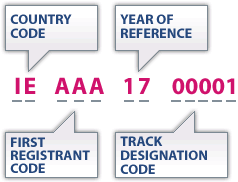
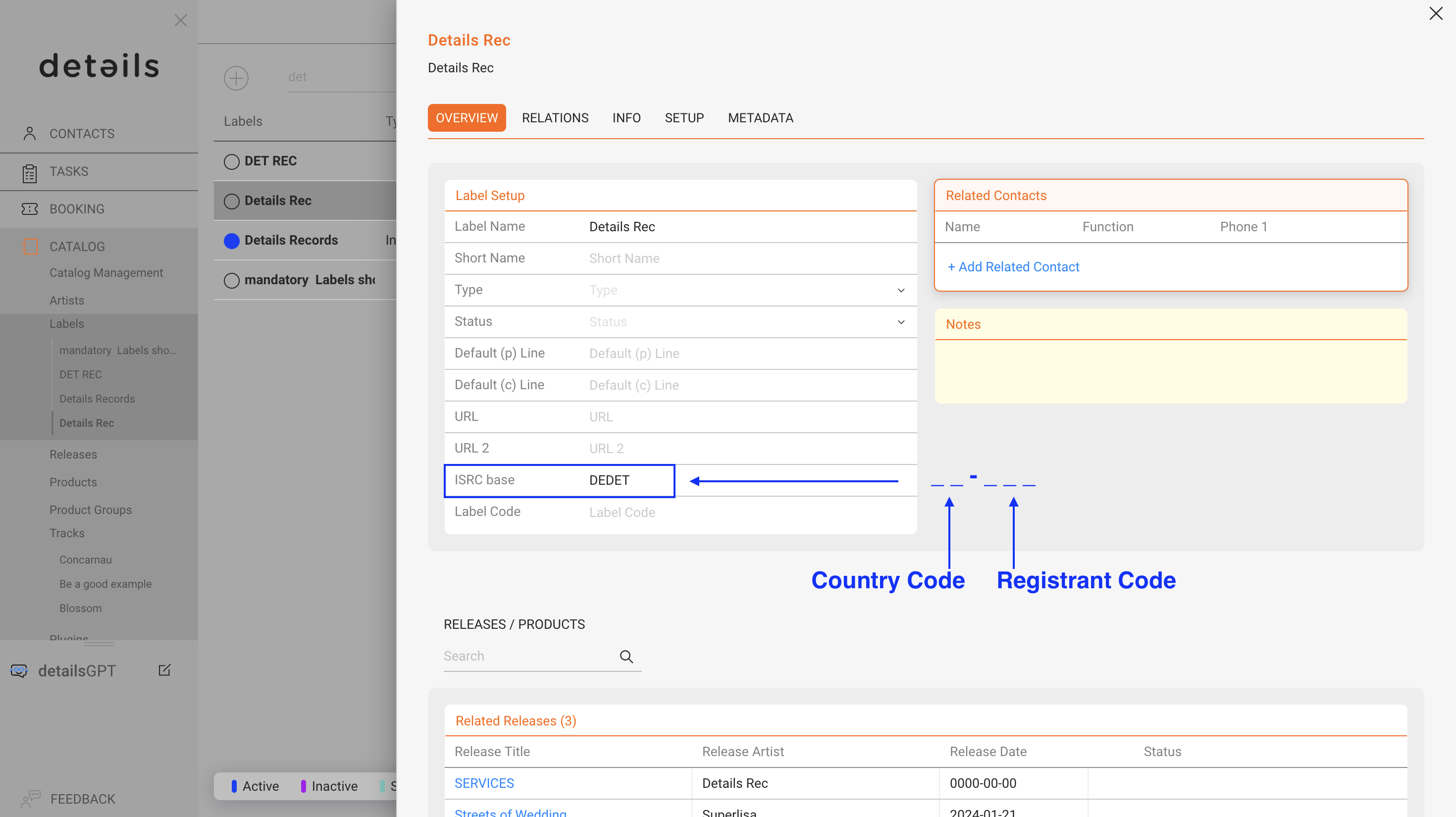
An ISRC is always 12 characters long and follows a fixed structure:

  • CC two-character country code of the registrant
  • XXX three-character alphanumeric registrant code
  • YY the last two digits of the reference year when the ISRC is assigned
  • NNNNN a five-digit unique number identifying the specific recording

Example format: CCXXXYYNNNNN (Hyphens are often shown for readability, but in details the ISRC is stored without them.)

Note: ISRCs are unique identifiers for each recording. Different versions of a track (e.g. live, remix, instrumental) each require their own ISRC.

Automatic ISRC Generation

In details, you can generate ISRCs automatically. This saves time and ensures codes are consistent and correct.

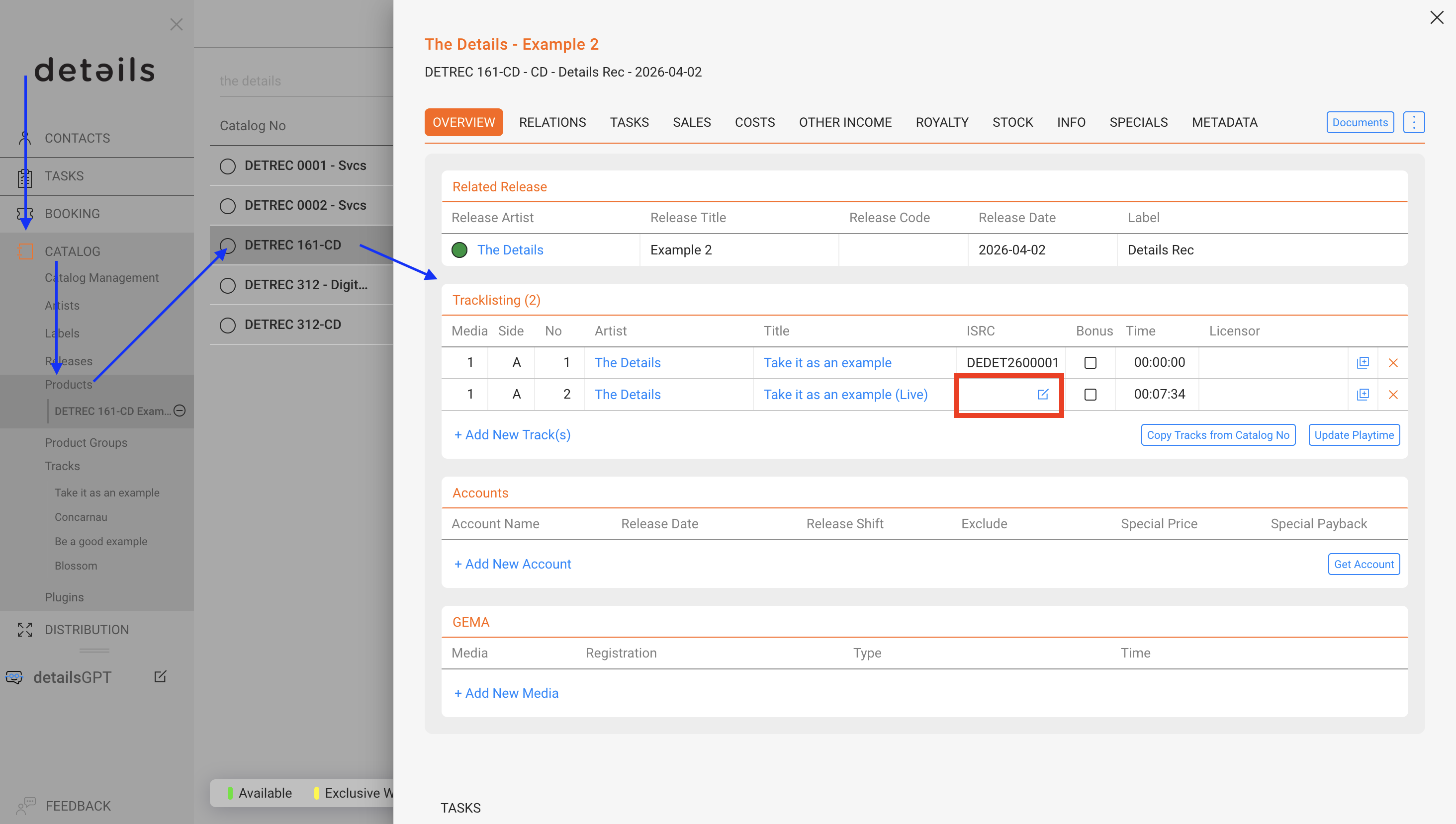
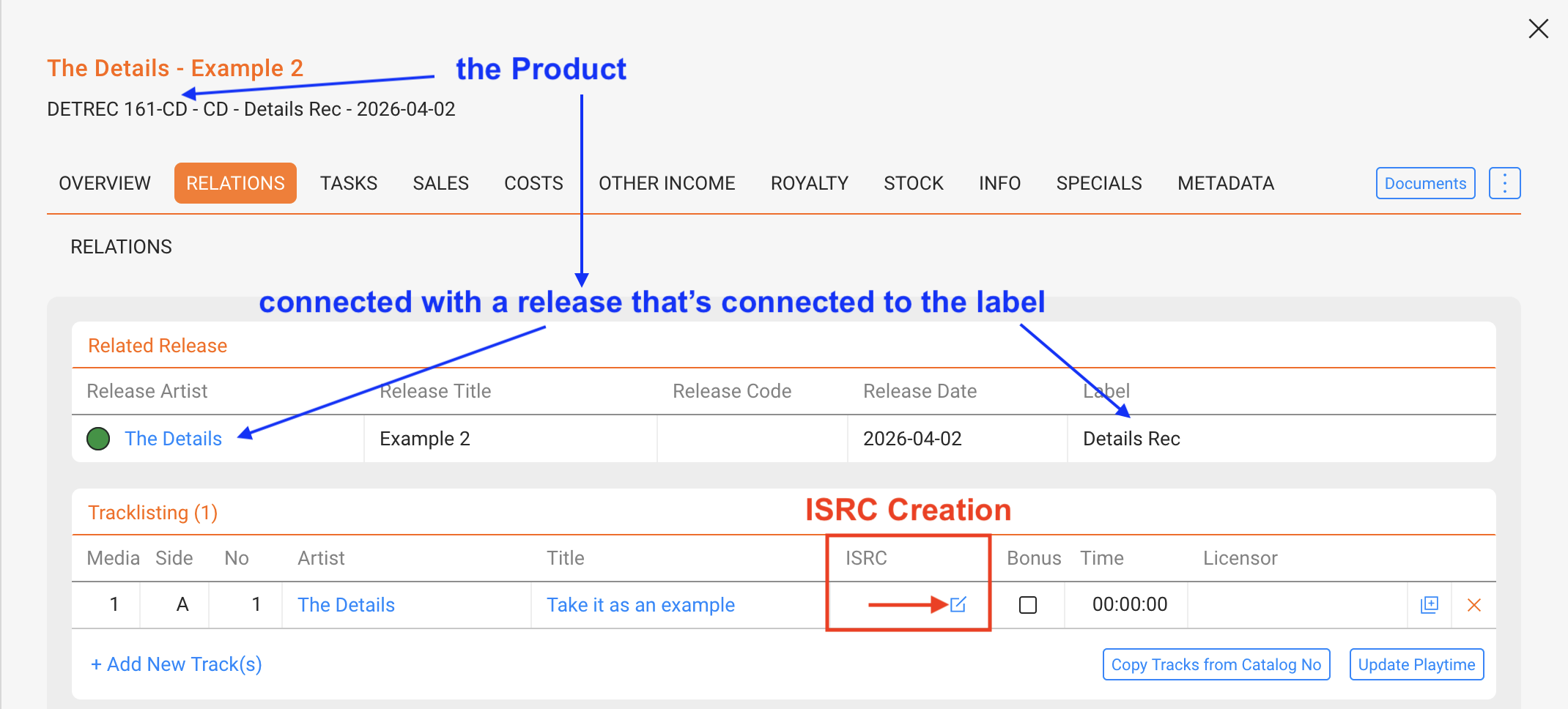
To generate a new ISRC, click the grey icon in the ISRC column of the Tracklisting within a product (CATALOG / PRODUCTS / selected product / RELATIONS).

Prerequisites for Automatic Generation

Automatic ISRC generation only works if the following three conditions are met:

  1. The track is connected to a Product, which must itself be linked to a Release.
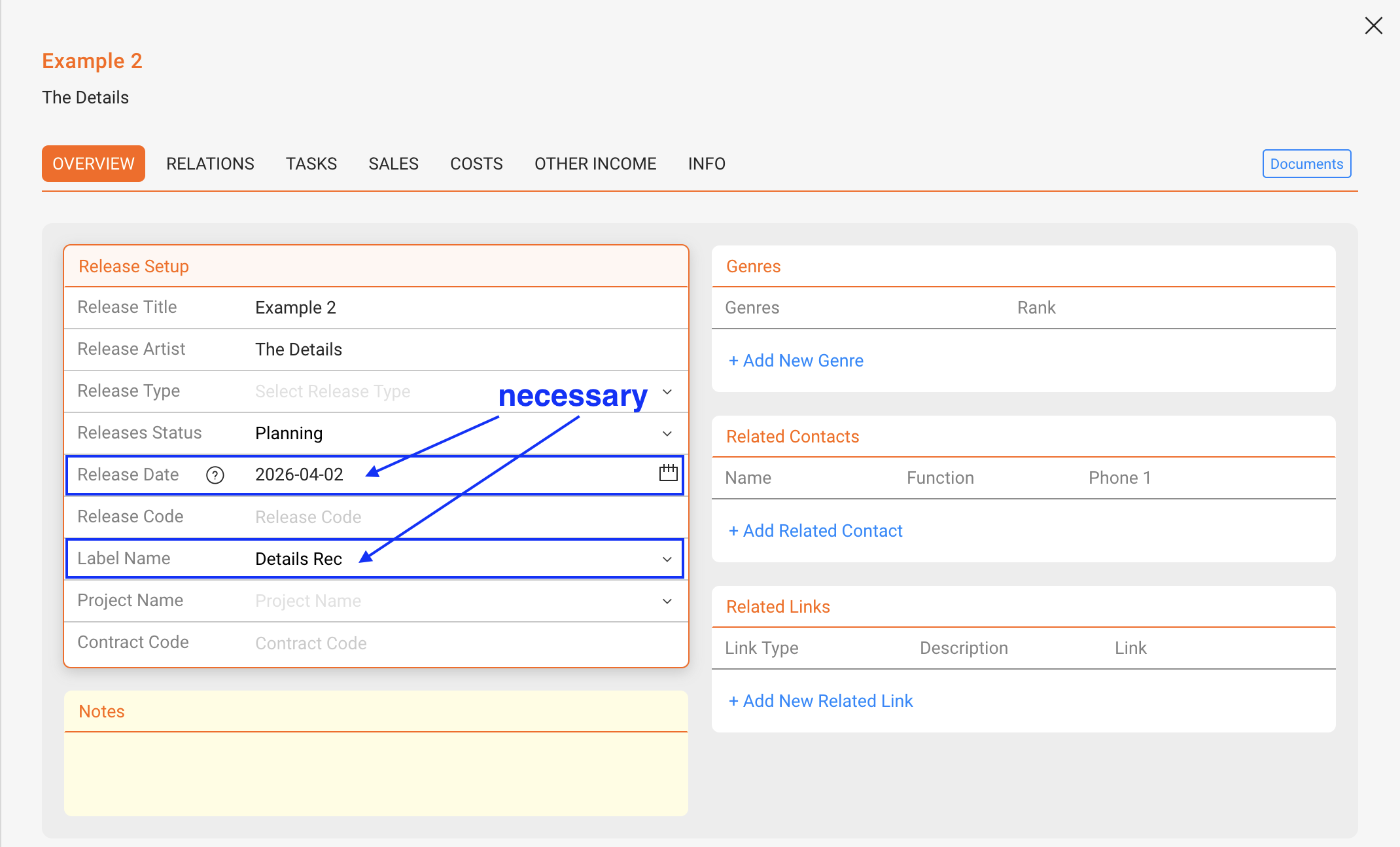
  2. The Release has a release date and is connected to a Label.
  3. The Label has an ISRC base set (country code + registrant code). This ISRC base is entered under CATALOG / LABEL / selected label / OVERVIEW.
Tip: Always check if an ISRC already exists before generating a new one. Duplicate ISRCs can lead to mismatches and reporting errors.

Once these conditions are fulfilled, the system will generate the next sequential ISRC based on your Label’s ISRC base.


How to add Cost Proofs to Costs

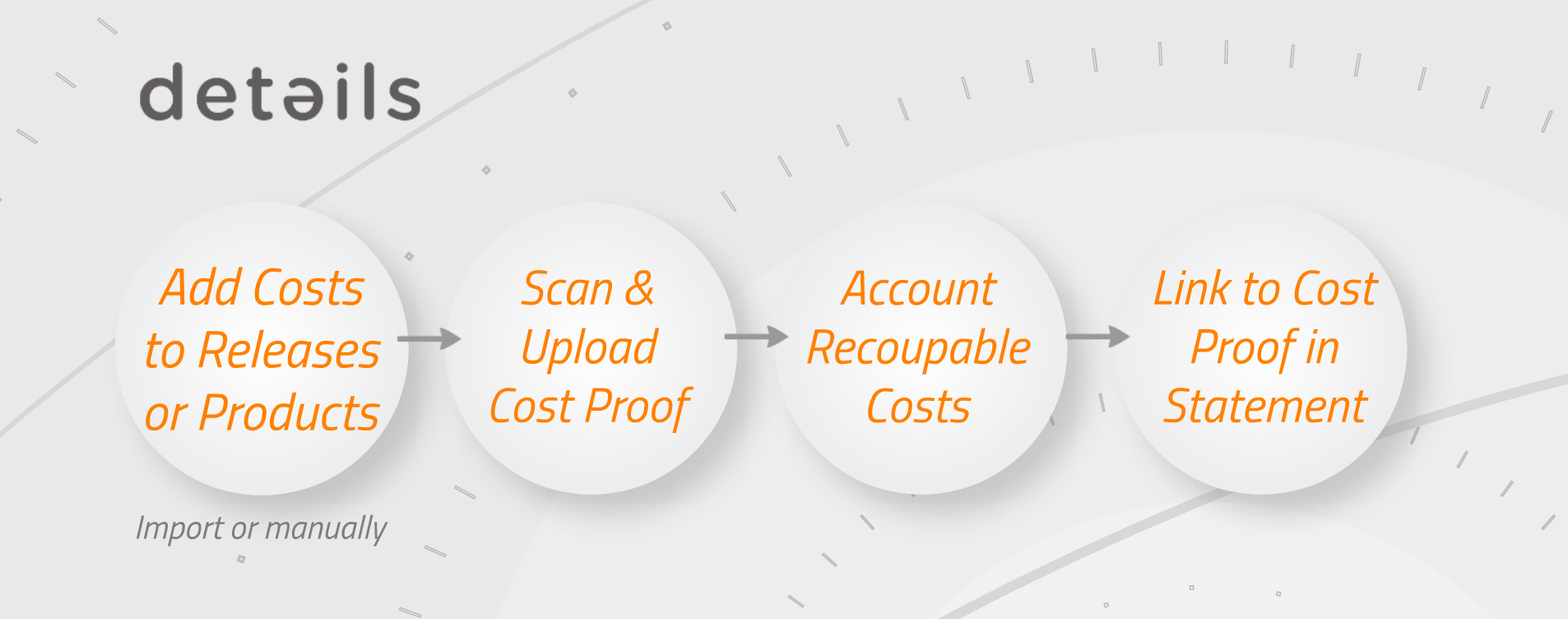
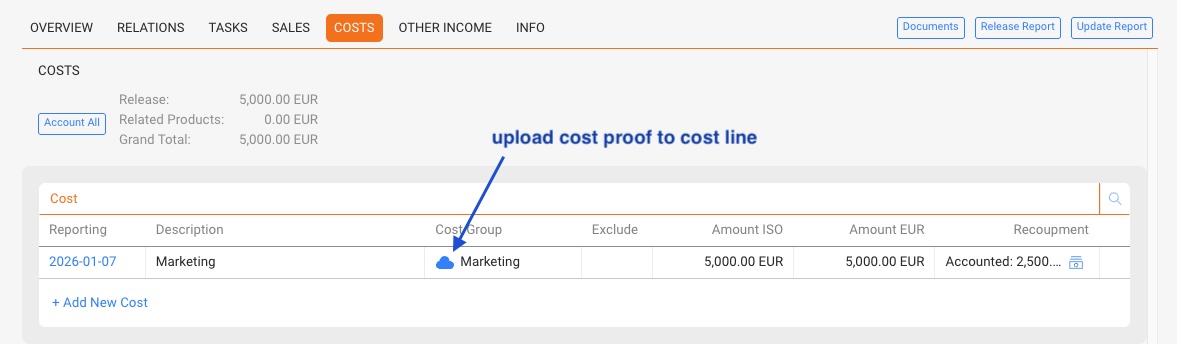
Details allows you to upload cost proofs toRELEASES – Costs and PRODUCTS – Costs.

Those proofs may be for internal documentation only or may be made available in the Royalty Statements.

To do this, proceed with the following simple steps:


On each COSTS tab you will find a cloud icon. By clicking the cloud you can upload any document or scan.


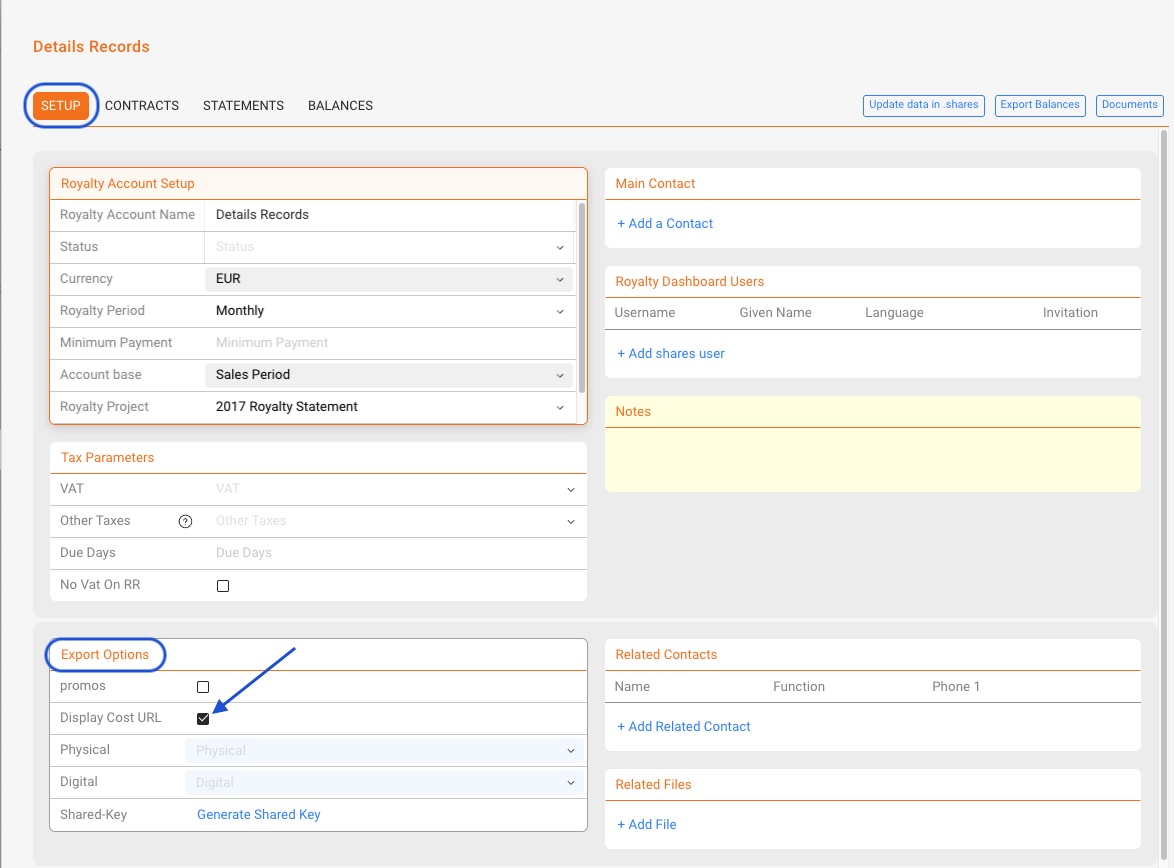
If you wish to share the uploaded cost proofs with your royalty partners, go to the selected Royalty Account / Setup tab and activate the “display cost URL” checkbox as on the screen below.


Explained: Price Codes & Product Prices

Table of contents

details offers a range of options to manage product prices. Some are more static, others more variable. Some are for buying, others for selling, and all can be used in royalty calculations or be affected by discounts in purchase orders and invoices.

Because prices affect multiple workflows (sales, royalties, logistics), it’s important to understand the basics before using automation with Price Codes.

Static Prices: PPD & Cost Price

For physical products, the two core fields on the OVERVIEW tab are:

  • PPD (Published Price to Dealer): A fixed selling price agreed with your dealers. PPD is also included in royalty settlements as Product PPD.
  • Cost Price: A fixed buying or manufacturing price, e.g. from a pressing plant. Useful for profit margin and cost control.

Both fields are typically stable over time. They are best used when prices are negotiated once and don’t change often.

Note: PPD is the gross dealer price before distribution margins, while PPU (shown in the SALES tab) is the net unit price after distribution fees.

Automating with Price Codes

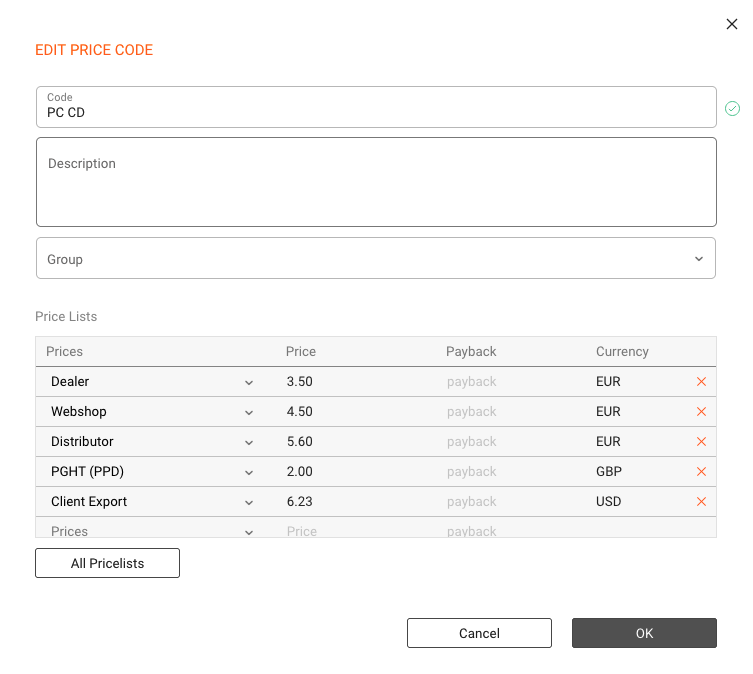
Price Codes allow you to standardize prices across many products. Instead of filling PPD and Cost Price manually every time, you assign a Price Code to a product and let it autofill the values.

Setup

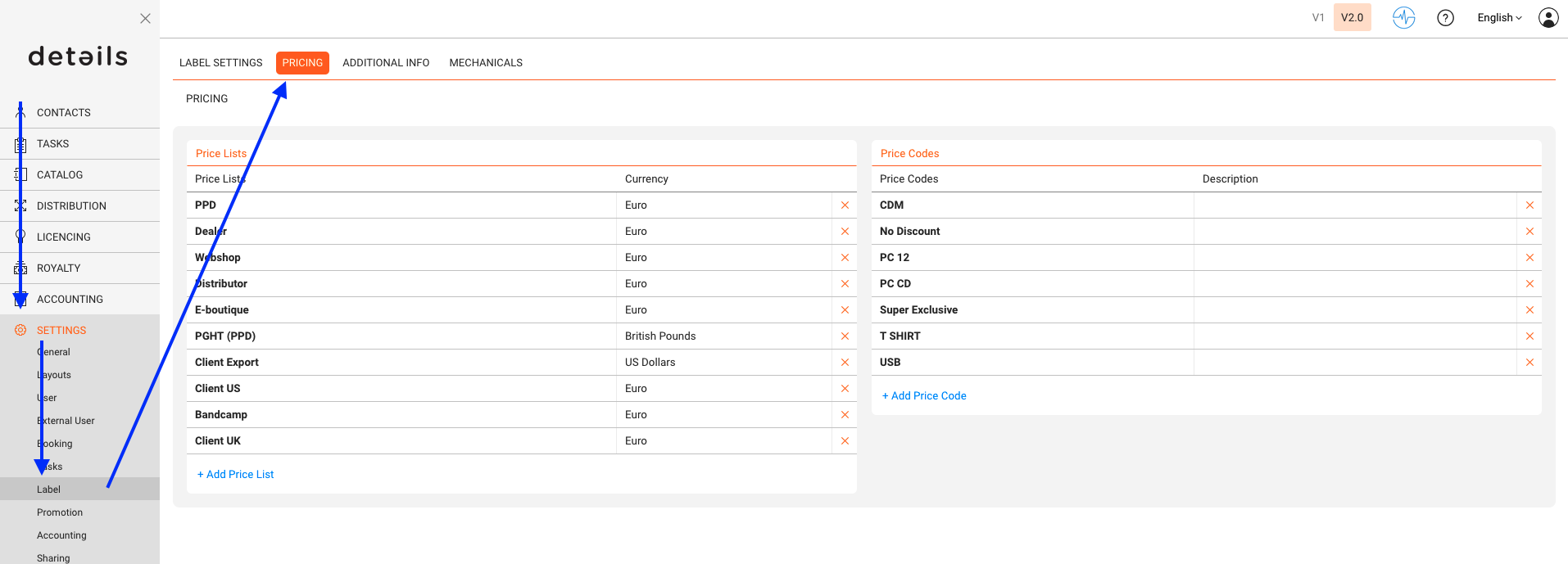
  1. Go to LABEL / SETTINGSPrice Codes.
  2. Create a new code with predefined PPD and Cost Price.
  3. Optionally add channel-specific or partner-specific variations.

Apply in Products

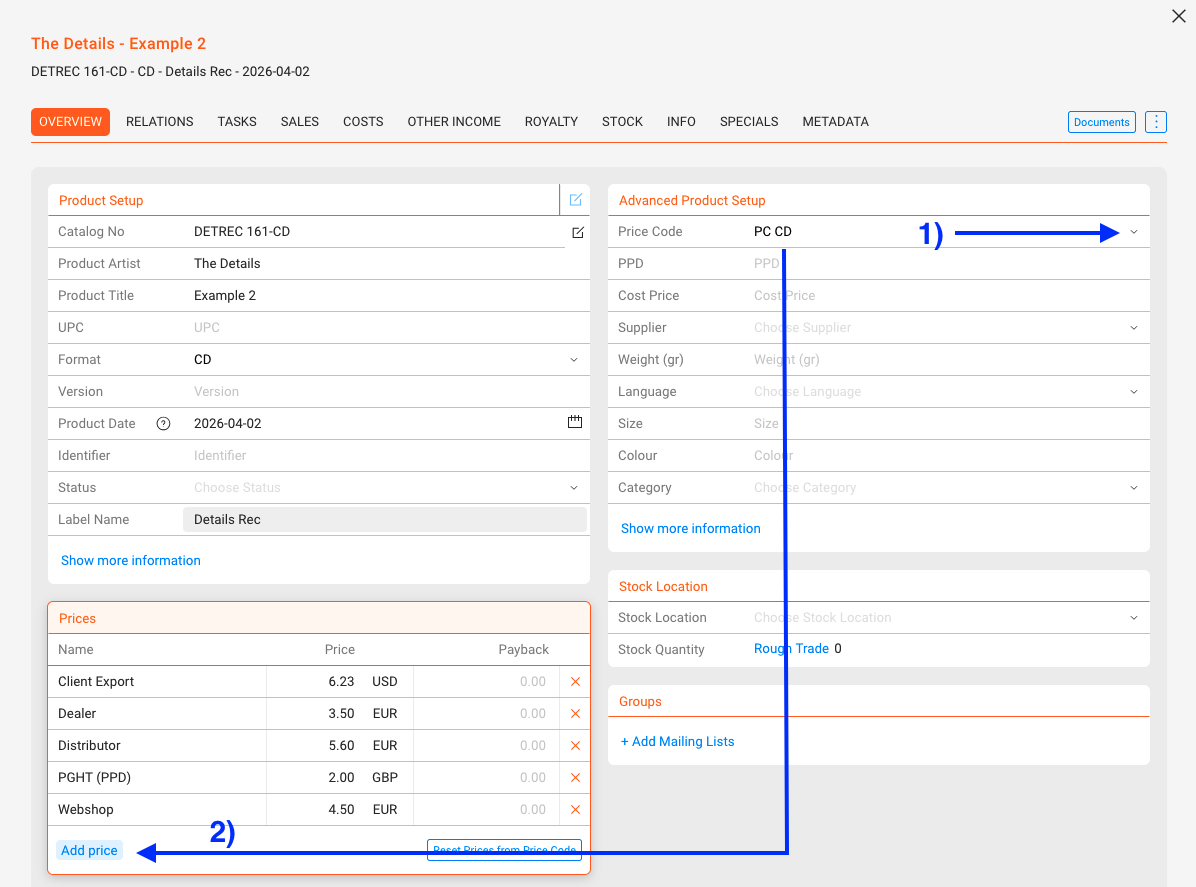
  1. Open the product’s OVERVIEW tab.
  2. Select the relevant Price Code in the Advanced Setup section.
  3. Click [ADD PRICE] to insert predefined values.
  4. Click [RESET PRICES FROM PRICE CODE] to overwrite manual entries.

Tip: You can still override single values manually. The Price Code link remains, so you can reset back to defaults at any time.

Best Practices

  • Keep your Price Codes list short and descriptive (e.g. “VINYL STD”, “CD JEWEL”).
  • Use Price Codes for formats with stable pricing. For ad-hoc cases, fill values manually.
  • Update Price Codes centrally when your label adjusts prices across the board.
  • Test a new Price Code on a few products before rolling it out to the full catalog.