Skip to content

Helpdesk

Recent Posts

  • How to log in to Details
  • Order Types Explained
  • How to Create a New Order
  • Add a QR Code to Your Invoice Layout (for SEPA Payment)
  • Configurer les prélèvements sociaux dans details

Recent Comments

    Tag: Edit User

    User Management & Profile Settings

    This article explains how to create, edit, and remove users, and how to manage the main profile settings available for each user.

    Note:
    Only users with Admin rights can access USER SETTINGS in the SETTINGS section.

    To control which modules and sections a user can see, refer to User Access & Permissions (Hide Module Sections) .

    ► CREATE A NEW USER

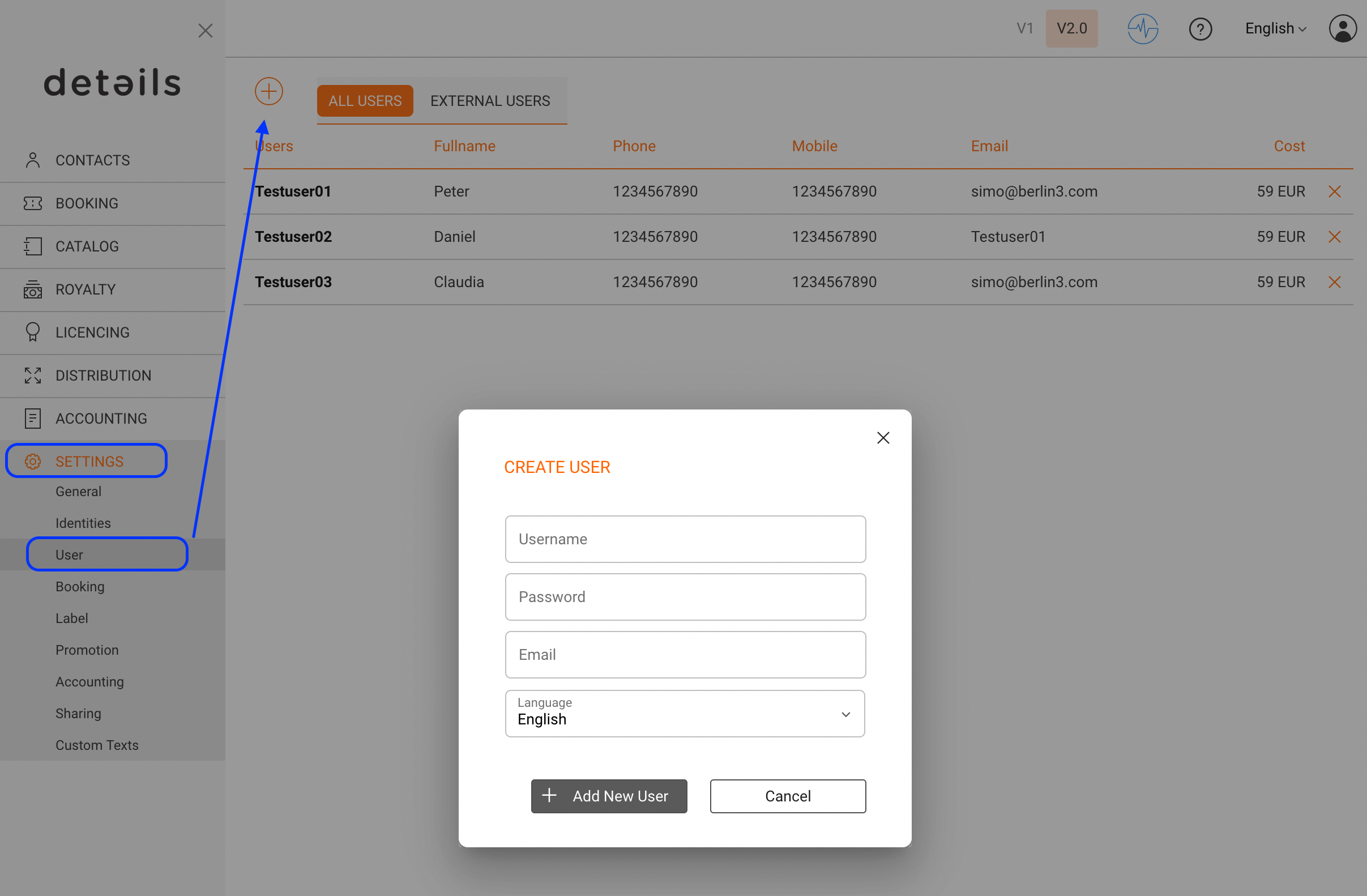
    As an administrator, you can manage users under SETTINGS / USERS.

    1. Go to SETTINGS / USERS.
    2. Click [+] in the top-right corner.
    3. Enter the required information: Username, Initial password, and Email address.

    The username is required to log in to the application. The email address is used for notifications and password reset links.

    create_users_v2.png

    ► EDIT AN EXISTING USER

    To edit a user:

    1. Go to SETTINGS / USERS.
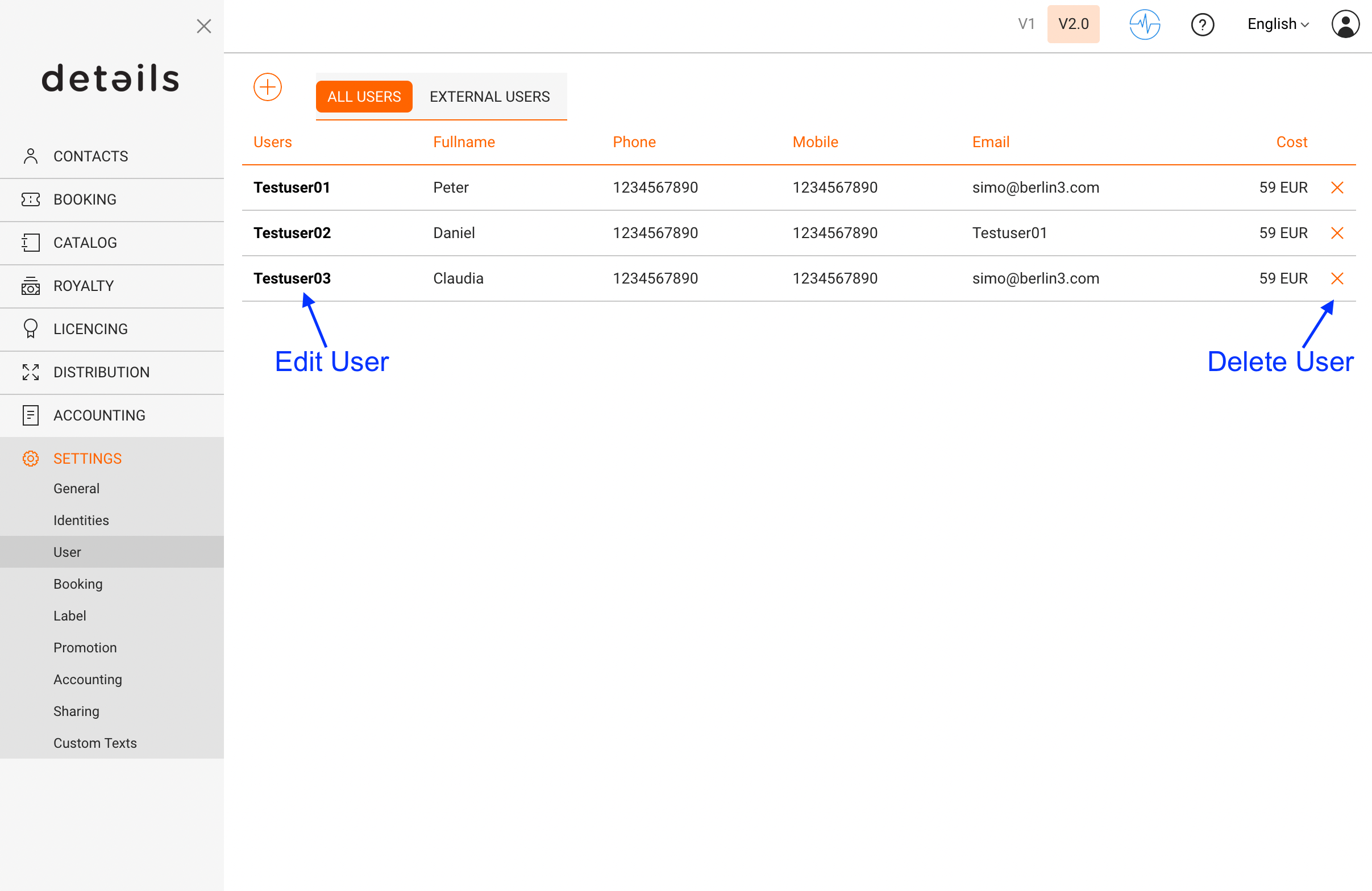
    2. Click on the name of the user you want to edit.

    user_overview_v2.png

    You can update the user s profile information and settings at any time.

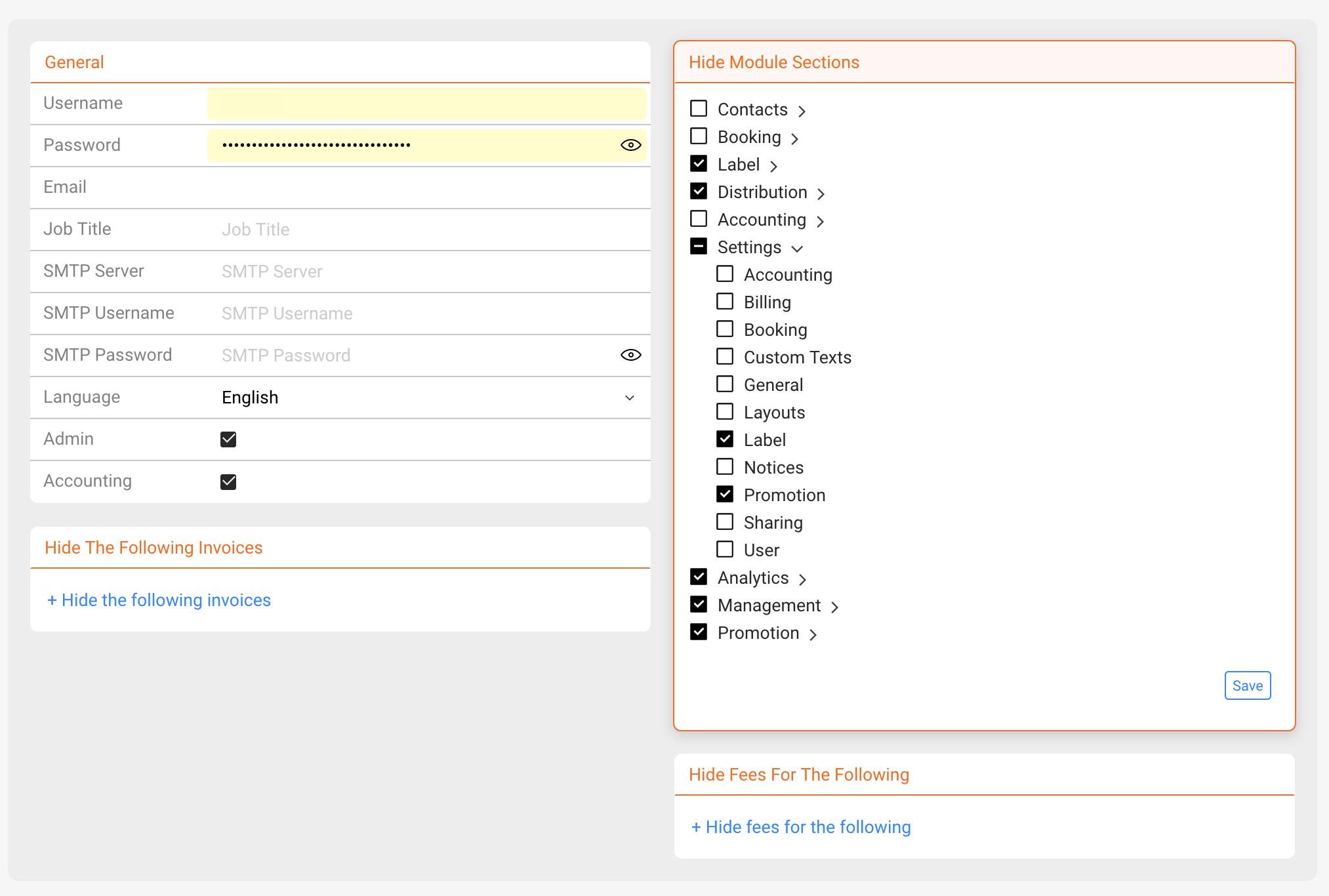
    ► USER PROFILE SETTINGS (FIELDS & FLAGS)

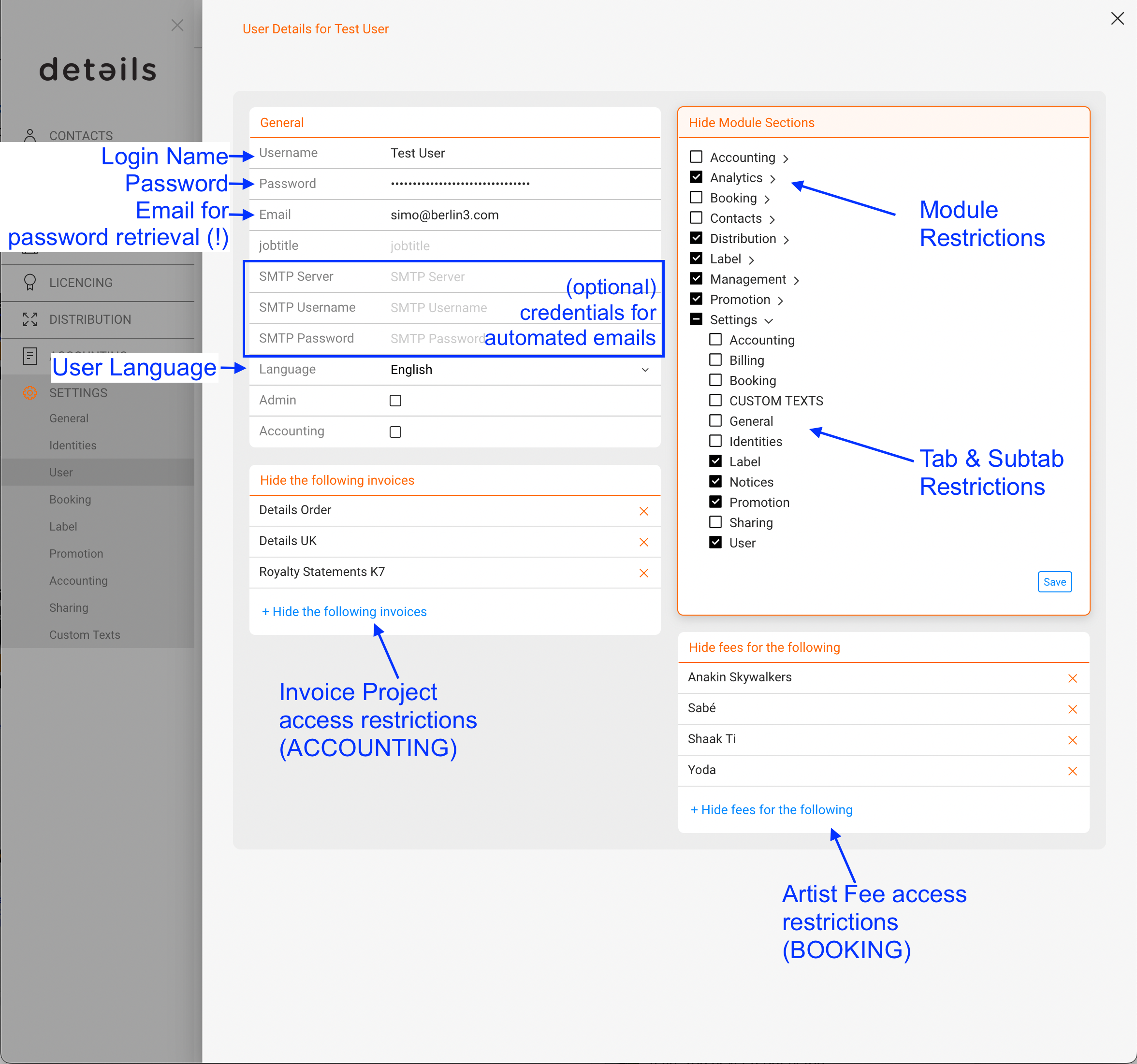
    Each user profile contains the following settings:

    • Username The login name used to access details. This field is essential.
    • Email The primary communication address.
      All notifications from details are sent here, including alerts, confirmations, reports, and password reset links.
    • Language Defines the interface language.
    • Job title Optional descriptive field.

    Optional email delivery settings:

    • SMTP server
    • SMTP username
    • SMTP password

    These settings are only required if emails should be sent through the user s own mail server.

    Administrative flags:

    • Admin Grants access to administrative areas, including USER SETTINGS.
    • Accounting Grants access to accounting-related data.

    Edit Users.png

    ► REMOVE A USER

    To remove a user:

    1. Go to SETTINGS / USERS.
    2. Click the [x] icon next to the user.

    Note:
    If a user has been active for more than 14 days within a billing month, the user can only be removed after the next billing cycle.

    User_Menue_V2.png

    Next step:
    Learn how to control module visibility and booking-only access in User Access & Permissions (Hide Module Sections) .
    Posted on June 30, 2026June 30, 2026Author detailsadminCategories SETTINGS, User SettingsTags Add User, Delete User, Edit User, Setting up Users, User, User Management, User Restrictions, UsersLeave a comment

    User Management & Profile Settings

    This article explains how to create, edit, and remove users, and how to manage the main profile settings available for each user.

    Note:
    Only users with Admin rights can access USER SETTINGS in the SETTINGS section.

    To control which modules and sections a user can see, refer to User Access & Permissions (Hide Module Sections) .

    ► CREATE A NEW USER

    As an administrator, you can manage users under SETTINGS / USERS.

    1. Go to SETTINGS / USERS.
    2. Click [+] in the top-right corner.
    3. Enter the required information: Username, Initial password, and Email address.

    The username is required to log in to the application. The email address is used for notifications and password reset links.

    ► EDIT AN EXISTING USER

    To edit a user:

    1. Go to SETTINGS / USERS.
    2. Click on the name of the user you want to edit.

    You can update the user s profile information and settings at any time.

    ► USER PROFILE SETTINGS (FIELDS & FLAGS)

    Each user profile contains the following settings:

    • Username The login name used to access details. This field is essential.
    • Email The primary communication address.
      All notifications from details are sent here, including alerts, confirmations, reports, and password reset links.
    • Language Defines the interface language.
    • Job title Optional descriptive field.

    Optional email delivery settings:

    • SMTP server
    • SMTP username
    • SMTP password

    These settings are only required if emails should be sent through the user s own mail server.

    Administrative flags:

    • Admin Grants access to administrative areas, including USER SETTINGS.
    • Accounting Grants access to accounting-related data.

    ► REMOVE A USER

    To remove a user:

    1. Go to SETTINGS / USERS.
    2. Click the [x] icon next to the user.

    Note:
    If a user has been active for more than 14 days within a billing month, the user can only be removed after the next billing cycle.

    Next step:
    Learn how to control module visibility and booking-only access in User Access & Permissions (Hide Module Sections) .
    Posted on April 20, 2026August 16, 2026Author detailsadminCategories User SettingsTags Add User, Delete User, Edit User, Setting up Users, User, User Management, User Restrictions, UsersLeave a comment
    Proudly powered by WordPress