In this article
Royalty scales allow you to apply different royalty rates as cumulative sales quantities or turnover reach specified thresholds.
In details, you can configure scales based on either the number of units sold (Quantity Scales) or the amount accumulated from the royalty calculation base (Turnover Scales).
This article explains how to configure both types of scale, how additional rates work, and how to handle contracts whose thresholds are expressed in cumulative royalties earned.
Key Guidelines
When setting up Quantity or Turnover Scales, follow these five rules:
-
Include relevant historical sales.
If the scale needs to include sales from before your use of details, enter the relevant historical quantity or turnover in the Base Quantity or Base Amount field. Only include history that is not already counted in details. For Turnover Scales, use the same royalty calculation base and contract item shares as the scale. -
Start with the first rate change.
Until the first threshold is reached, the standard rate from the Royalty Rates section applies. You do not need a scale entry at zero. -
Enter the correct start of each new scale.
For quantity thresholds, enter the first unit that receives the new rate. For example, if the first 1,000 units receive the base rate, the next scale starts at unit 1,001. For monetary thresholds, check the contractual boundary and how details applies it; do not automatically add a whole currency unit. -
Enter adjustments relative to the base rate.
Scale rate fields contain the percentage points to add to or subtract from the standard royalty rate. Each adjustment refers to the base rate, rather than the preceding scale. -
Use turnover amounts in Turnover Scale fields.
Turnover thresholds refer to the cumulative amount used as the royalty calculation base, taking contract item shares into account. They do not directly refer to royalties earned. If the contract defines thresholds in cumulative royalties, convert them into equivalent turnover thresholds first.
Quantity Scales (for Physical Products)
Quantity Scales are useful for physical products where the royalty rate changes according to the number of units sold.
For example, a contract for an album on CD, excluding vinyl, could specify:
| Cumulative CD units sold | Royalty rate |
|---|---|
| First 1,000 units | 5% |
| Units 1,001 to 5,000 | 8% |
| Unit 5,001 onwards | 10% |
How to Set Up Quantity Scales in details
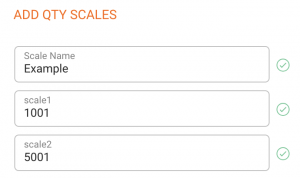
1. Define the Scale Thresholds
Identify the first unit that receives each new rate:
- Base rate: the first 1,000 units.
- Scale 1: starts at unit 1,001.
- Scale 2: starts at unit 5,001.
2. Assign the Royalty Rates
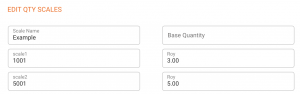
Set the standard royalty rate to 5% in the Royalty Rates section. Then enter the additional percentage points for each scale:
| Setting | Starting quantity | Additional rate | Effective royalty rate |
|---|---|---|---|
| Base rate | First unit | Not applicable | 5% |
| Scale 1 | 1,001 | +3 percentage points | 8% |
| Scale 2 | 5,001 | +5 percentage points | 10% |
The second scale uses +5 because 5% + 5 percentage points = 10%. Do not enter +2 simply because the previous scale was 8%.
3. Adjust the Base Quantity
This example assumes there were no previous sales outside details that need to count towards the scale.
If relevant sales occurred before your use of details, enter those quantities as the Base Quantity. Do not include quantities already recorded and counted in the application.
If the Base Quantity field is empty, no additional historical quantity is added to the sales recorded in details.
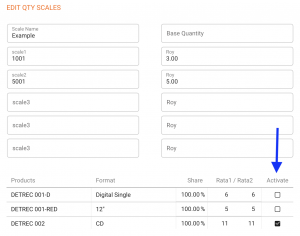
4. Select the Relevant Products
Select the products whose sales should contribute to the scale. In this example, select the relevant CD products and exclude vinyl.
Make sure the required products are selected so that details can identify which sales belong to the scale.
Turnover Scales (for Digital and Physical Products)
Turnover Scales are useful when royalty rates change according to the cumulative royalty calculation base rather than the number of units sold. They can apply to digital sales, physical sales, or a combination of the two.
You can configure one Turnover Scale per contract.
How to Set Up Turnover Scales
1. Determine the Turnover Thresholds
Identify the cumulative amounts that trigger each rate change. These thresholds track the cumulative scale base over time, rather than only the revenue from an individual accounting period.
The amounts entered in Turnover Scale fields refer to the royalty calculation base, not to royalties earned. Depending on the contract settings, this base may be Net Revenue, PPD multiplied by quantity, or a fixed price multiplied by quantity.
Contract item shares also affect the scale base. For example, if the applicable item share is 50%, €2,000 of underlying royalty-base revenue contributes €1,000 to the turnover accumulated by the scale.
If your contract expresses its thresholds in cumulative royalties earned, use the conversion method in the worked example below.
2. Assign Additional Royalty Rates
Set the standard royalty rate in the Royalty Rates section, then enter the adjustment relative to that rate at each threshold.
For example, assume a contract provides progressive digital royalties of 10% on the first €50,000 of the scale base, 12% on the next €50,000, and 15% on the amount above €100,000:
| Setting | Turnover boundary | Additional rate | Effective royalty rate |
|---|---|---|---|
| Base rate | Before the first boundary | Not applicable | 10% |
| Scale 1 | €50,000 | +2 percentage points | 12% |
| Scale 2 | €100,000 | +5 percentage points | 15% |
These figures identify the contractual turnover boundaries. When entering them, check how details applies the boundary and handles rounding. Do not automatically enter €50,001 or €100,001, as this introduces a whole-euro difference.
If several channels are included, the scale adjustment is added to the base rate applicable to each channel. For example, an adjustment of +2 percentage points produces a 12% rate for a channel with a 10% base rate and a 17% rate for a channel with a 15% base rate.
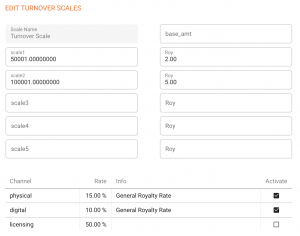
3. Activate the Relevant Channels
Select the distribution channels to which the Turnover Scale should apply. Check that the selected channels match the scope of the contract.
4. Account for Historical Turnover
If relevant turnover from before your use of details needs to contribute to the scale, enter it in the Base Amount field.
Use the same royalty calculation base and contract item shares as the scale. Do not enter historical royalties earned in this field, and do not add turnover that details already counts.
Understanding the Royalty Base
“Turnover” in a Turnover Scale is determined by the royalty base configured in the contract. It is not necessarily the total revenue shown on a sales statement.
- Net Revenue: the net revenue used by the royalty rule, including the deductions or adjustments configured for that rule.
- PPD: quantity multiplied by the applicable Published Price to Dealer, according to the selected settings.
- Fixed Price: quantity multiplied by the fixed price configured for the royalty calculation.
The applicable contract item share is also taken into account when calculating the amount that contributes to the scale.
Always check the configured royalty base and item shares before comparing turnover thresholds with imported sales totals.
Example: Net Revenue Royalties with Thresholds Based on Cumulative Royalties
Some contracts calculate royalties as a percentage of Net Revenue, but increase that percentage when cumulative royalties earned reach specified amounts.
These are two separate concepts:
- Royalty base: the amount to which the royalty percentage applies.
- Threshold basis: the amount that determines when the percentage changes.
Because Turnover Scales in details accumulate the royalty calculation base, contractual royalty thresholds must first be converted into equivalent turnover thresholds.
1. Start with the Contractual Terms
Assume a contract provides the following progressive rates:
| Cumulative royalties earned | Rate applicable to the next tranche of Net Revenue |
|---|---|
| Below €1,000 | 50% |
| From €1,000 to below €4,000 | 60% |
| From €4,000 to below €10,000 | 75% |
| From €10,000 onwards | 80% |
This example assumes:
- One applicable Net Revenue royalty rule.
- A 100% contract item share.
- No additional deductions or adjustments.
- Progressive rates: each new rate applies to the next tranche, without recalculating earlier royalties.
- Thresholds based on royalties earned, rather than amounts paid after advances or recoupment.
2. Convert the Royalty Thresholds into Turnover Thresholds
For each tranche, divide the additional royalties required by the royalty rate applicable to that tranche. Then add the resulting turnover to the preceding turnover threshold.
Turnover required for a tranche = additional royalties required ÷ applicable royalty rate
Use the rate as a decimal in the calculation: for example, 50% = 0.50.
First Threshold: €1,000 in Cumulative Royalties
The initial rate is 50%:
€1,000 ÷ 0.50 = €2,000 in cumulative Net Revenue
At this boundary, the royalty rate increases to 60% for the next tranche.
Second Threshold: €4,000 in Cumulative Royalties
The additional royalties required are:
€4,000 − €1,000 = €3,000
These royalties are earned at 60%:
€3,000 ÷ 0.60 = €5,000 in additional Net Revenue
The cumulative turnover threshold is:
€2,000 + €5,000 = €7,000
Third Threshold: €10,000 in Cumulative Royalties
The additional royalties required are:
€10,000 − €4,000 = €6,000
These royalties are earned at 75%:
€6,000 ÷ 0.75 = €8,000 in additional Net Revenue
The cumulative turnover threshold is:
€7,000 + €8,000 = €15,000
Do not divide every cumulative royalty threshold by the initial rate. After the first threshold, the additional royalties are earned at different rates.
3. Enter the Configuration in details
In the Royalty Rates section, set the standard rate to 50% and select Net Revenue as the royalty base.
Configure the Turnover Scale using the converted amounts:
| Scale | Contractual royalty threshold | Converted turnover threshold | Additional rate to enter | Effective rate |
|---|---|---|---|---|
| 1 | €1,000 | €2,000 | +10 | 60% |
| 2 | €4,000 | €7,000 | +25 | 75% |
| 3 | €10,000 | €15,000 | +30 | 80% |
The additional rates are percentage-point adjustments relative to the 50% base rate:
- 50% + 10 percentage points = 60%.
- 50% + 25 percentage points = 75%.
- 50% + 30 percentage points = 80%.
Activate the relevant distribution channel or channels. Leave the Base Amount empty if there is no additional historical turnover to include.
Keep full precision when calculating converted thresholds and round the final entries according to the supported currency precision. Check threshold comparison and rounding with a calculation that crosses a boundary.
4. Check the Result
At €10,000 in cumulative Net Revenue, the expected progressive royalties in this example are:
| Net Revenue tranche | Rate | Royalties |
|---|---|---|
| First €2,000 | 50% | €1,000 |
| Next €5,000 | 60% | €3,000 |
| Remaining €3,000 | 75% | €2,250 |
| Total: €10,000 | €6,250 |
The 75% rate applies only to the revenue in its tranche. It does not apply retrospectively to all €10,000.
When Does the Conversion Need Further Review?
The conversion depends on the contractual royalty calculation matching the base accumulated by the scale. Review it if:
- The contract applies rate increases retroactively.
- Several royalty rules or different channel rates contribute to the same royalty threshold.
- The contractual threshold includes different products, channels, or periods from those included in the scale.
- Deductions, adjustments, or contract item shares affect the royalty and scale bases differently.
- The threshold refers to amounts paid, recouped, or remaining after advances, rather than royalties earned.
Contract item shares: with a 50% item share, €4,000 of underlying Net Revenue contributes €2,000 to the scale base. Distinguish the underlying revenue from the share-adjusted amount accumulated by the scale. Do not automatically apply the share again to a threshold already expressed in that adjusted base.
Summary
-
Choose the appropriate scale.
Use Quantity Scales for thresholds based on units and Turnover Scales for thresholds based on the cumulative royalty calculation base. -
Enter the start of each rate change.
The standard rate applies before the first scale. For quantity scales, enter the first unit receiving the new rate. For turnover scales, check monetary boundaries and rounding. -
Enter rate adjustments relative to the base rate.
A base rate of 50% with an adjustment of +25 percentage points produces an effective rate of 75%. -
Check the royalty base and contract item shares.
Turnover can be based on Net Revenue, PPD multiplied by quantity, a fixed price multiplied by quantity, or another configured base. Contract item shares affect the amount accumulated by the scale. -
Convert royalty-based thresholds before entering them.
If the contract defines progressive thresholds in cumulative royalties earned, calculate the equivalent cumulative turnover tranche by tranche. -
Include relevant history once.
Historical Base Quantity or Base Amount entries should cover only amounts that need to count towards the scale and are not already counted in details. -
Select the relevant products or channels and verify the result.
Test a calculation that crosses a threshold and confirm the rate changes, cumulative history, and rounding before finalising the configuration.