This article explains how to configure Tax Types and Tax Groups in details. You can define VAT, withholding, or deduction rates and apply them to invoices, cost invoices, and royalty accounts.
Tip: Go to SETTINGS / ACCOUNTING / TAXES to manage all Tax Types and Tax Groups. Rates can be positive for VAT or negative for deductions.
Create a Tax Type
Overview
A Tax Type defines a single tax rate used throughout details. This can be a standard VAT rate, a reduced VAT rate, or a withholding rate.
Steps
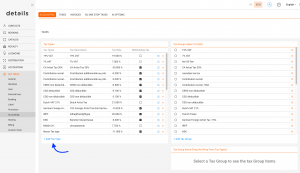
- Go to SETTINGS / ACCOUNTING / TAXES.
- Click [+] to add a new Tax Type.
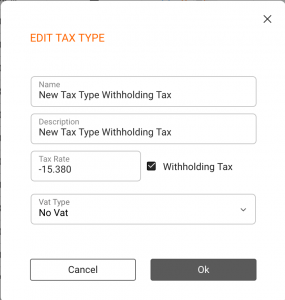
- Enter a clear name, such as VAT 20% or Withholding 15%.
- Set the Rate:
- Use a positive value for an added tax, for example 20.
- Use a negative value for a deduction, for example -15.
- Select a VAT Type, if relevant:
- VAT1 — full VAT rate.
- VAT2 — reduced VAT rate.
- no VAT — VAT is not applicable.
Note: The VAT Type field is only used in countries with multiple VAT levels. Once created, Tax Types are available throughout the accounting modules.
Create a Tax Group
Overview
A Tax Group combines multiple Tax Types into one logical unit. This is useful for complex deductions, such as withholding plus solidarity contributions, or other bundled tax rules.
Steps
- Go to SETTINGS / ACCOUNTING / TAXES.
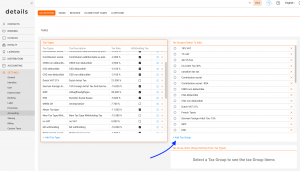
- Click [+] to add a new Tax Group.
- Enter a name for the group. If the group contains only one Tax Type, you can reuse the same name.
- Drag and drop the relevant Tax Types into the Tax Group Items box.
Tip: You can group positive and negative taxes together to display combined totals on invoices.
Use Tax Groups in details
Once created, Tax Groups are available in multiple areas of details:
- Invoices — apply VAT or combined taxes.
- Cost Invoices — record deductions from incoming invoices.
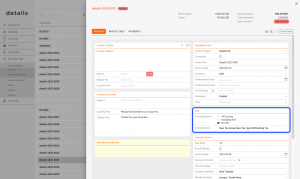
- Royalty Accounts — configure automatic withholding-tax calculations.
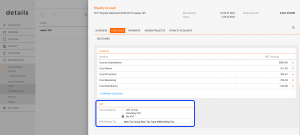
Configuration des prélèvements sociaux — France
Contexte
En France, certains revenus, notamment les droits voisins ou revenus assimilés, peuvent être soumis à des prélèvements sociaux à précompter sur les royalties et à reverser à l’URSSAF.
La composition et le taux global applicables dépendent de la situation fiscale de l’ayant droit et des règles en vigueur pour l’année concernée. Vérifiez toujours les taux auprès de votre expert-comptable.
Exemple de ventilation applicable en 2025, pour un total de 18,6 % :
- CRDS non déductible : -0,500 %
- CSG déductible : -6,800 %
- CSG non déductible : -3,800 %
- Prélèvement de solidarité : -7,500 %
Important : Chaque taux doit être créé comme un Tax Type distinct, avec une valeur négative et le VAT Type réglé sur no VAT.
Étape 1 : Créer les Tax Types
- Aller dans SETTINGS / ACCOUNTING / TAXES.
- Créer un Tax Type pour chaque ligne de prélèvement.
- Entrer chaque taux sous forme de valeur négative, par exemple -6.800.
- Sélectionner no VAT comme VAT Type.
Étape 2 : Créer le Tax Group
- Créer un nouveau groupe, par exemple 2025 Prélèvements Sociaux.
- Ajouter tous les Tax Types correspondants au groupe.
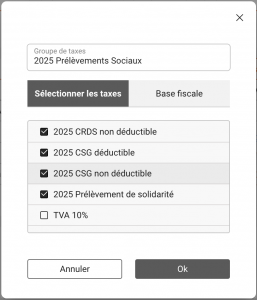
Étape 3 : Appliquer le groupe à l’ayant droit
- Ouvrir la fiche de l’ayant droit.
- Aller dans l’onglet CONFIGURATION.
- Dans Paramètres fiscaux, sélectionner le groupe sous Autres Charges.
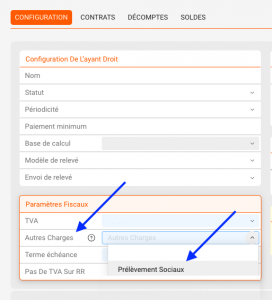
Résultat : Lors du calcul des royalties, les prélèvements sociaux sont automatiquement déduits du montant brut et affichés distinctement sur le relevé.
Edit or Remove Tax Types
You can edit existing Tax Types and Tax Groups at any time in SETTINGS / ACCOUNTING / TAXES.
- Editing a Tax Type or Tax Group updates future calculations.
- Deleting a Tax Type or Tax Group removes it from the available selection menus while keeping existing invoice data intact.
Tip: Review your tax configuration regularly whenever tax laws, contribution rates, or VAT rates change.
Summary
| Element | Description |
|---|---|
| Tax Type | Defines one tax rate. A positive value adds tax, while a negative value applies a deduction. |
| Tax Group | Combines one or more Tax Types for complex or bundled tax rules. |
| VAT Type | Defines the applicable VAT category: VAT1, VAT2, or no VAT. |
| Configuration location | SETTINGS / ACCOUNTING / TAXES |