Overview of the BOOKING Tab – PROMOTERS
Author: detailsadmin
Booking – Venues
Overview of the BOOKING Tab – VENUES
Booking – Reports
Overview of the BOOKING Tab – REPORTS
Booking – FAQ
Here you can find useful help articles, setup guides, calendar instructions, and frequently asked questions for working with details.
If you have suggestions on how we should improve our service or application, please let us know here.
General Help
Booking and Artist Guides
Templates and Documents
Invoices, Money and Payments
Calendar Help
How to add external calendars to details
How to add details calendars to other calendars
- Google Calendars
- iCal Calendars
- Another details system for sharing artists with other agencies
- Auto Sync Problem in Google Calendar
Tasks and Updates
Some older help links were originally hosted on Zendesk. They have been converted here to the new helpdesk URL format.
How to add external ICal calendars to Details
Follow these Steps to add external ICal calendars to Details (either ICal calendar suscriptions or local ICal):::From your current ICal suscriptions::
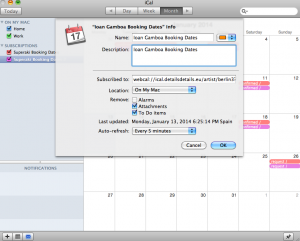
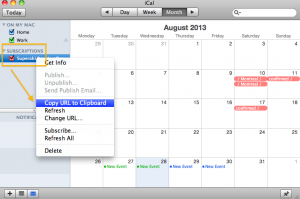
*Open your ICal – go to your current Calendar subscriptions on the left – choose one and click-right with the mouse to show the preferences – Choose: Copy URL to clipboard or ‘Get info’ to get the link
*Add this link to Details
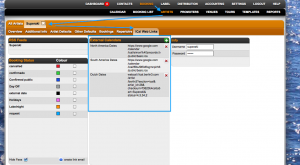
*You will see the external dates on Details: 24 hours later.
::From your local ICal Calendar in your computer::
*To add it on Details, first it needs to be published on an online server like: http://icalx.com/
*You need to create an account on Icalx.com
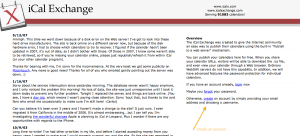
*Copy the public link that appears in Icalx
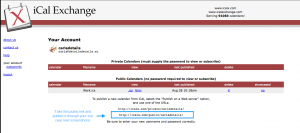
*Go to your ICal, click on Calendar (general Ical options on top), click on Publish
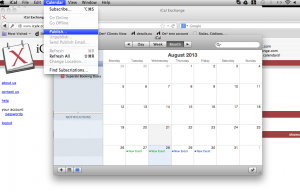
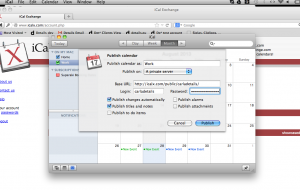
*Select: Publish on a private server and add the copied Url (from screenshot 2) in the Base URL section. Select other options as you wish. Then click on the ‘Publish’ button
*When the calendar is published, you receive the final ICal url
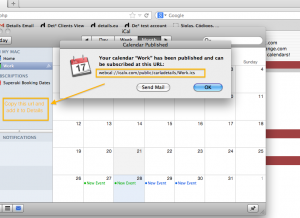
*Copy this link and add it to Details – Artist profile – Ical web links
*You will see the external dates on Details: 24 hours later.
How to add Details Calendars to Google Calendars
Follow these Steps to add Details Calendars to Google Calendar:1. Go the the ‘Artist profile’ – Web ICal Links section
2. Take the steps to create a Link – choose the info you want to be seen in that link
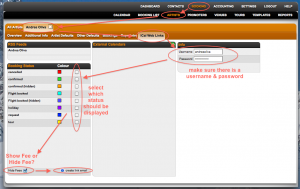
3. When the link is created, you have to pick the link you receive in the email (### iCal Feed ###).
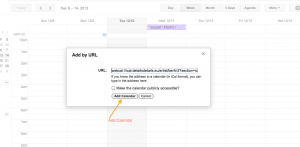
4. You copy paste this link to your Google Calendar
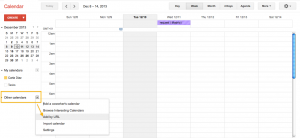
5. Add Calendar, without making it public
How to add external ICal calendars to Details: from ICal subscriptions
::From your current ICal suscriptions::
*Open your ICal – go to your current Calendar subscriptions on the right – choose one and click-right with the mouse to show the preferences – Choose: Copy URL to clipboard or ‘Get info’ to get the link
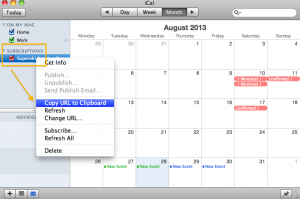
*Add this link to Details
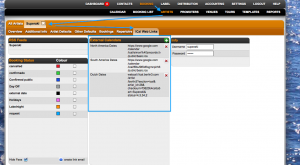
*You will see the external dates on Details: 24 hours later.
How to add external ICal calendars to Details: from your local ICal (computer)
::From your local ICal Calendar in your computer::
*To add it on Details, first it needs to be published on an online server like: http://icalx.com/
*You need to create an account on Icalx.com
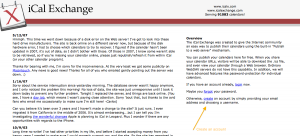
*Copy the public link that appears in Icalx
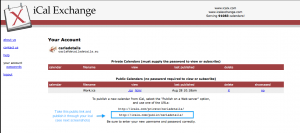
*Go to your ICal, click on Calendar (general Ical options on top), click on Publish
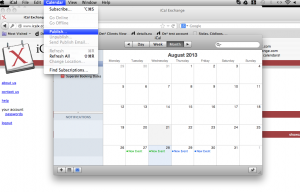
*Select: Publish on a private server and add the copied Url (from screenshot 2) in the Base URL section. Select other options as you wish. Then click on the ‘Publish’ button
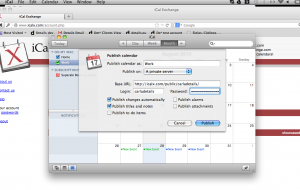
*When the calendar is published, you receive the final ICal url
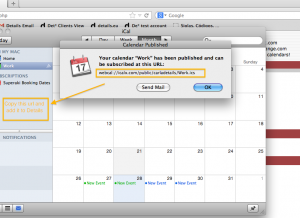
*Copy this link and add it to Details – Artist profile – Ical web links
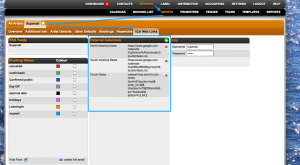
*You will see the external dates on Details: 24 hours later.
How to add external ICal calendars to Details: from a Google Calendar
For more informations on google calendars, please visit the Google Help Center
1. From a Google Calendar go to the calendar you want to share and click on Settings and sharing.
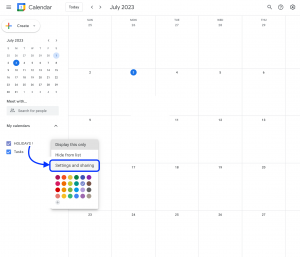
2. Click on Calendar Settings and tick the “Make available to public” checkbox.
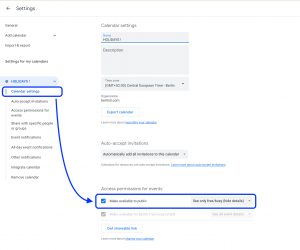
3. Then choose the Integrate calendar tab and copy the “Public address in iCal format” link.
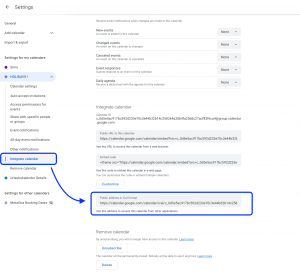
4. Paste this exact link on the Artist defaults – ICal links – External Calendars>section.
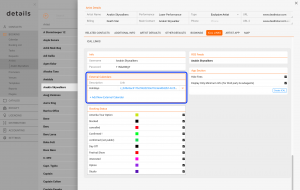
How to add Details Calendars to: ICal Calendars
1. To create the iCal-link for an artist go to BOOKING / ARTISTS / select an artist / iCal Links.
* Make sure there is a username and secure password
* Select which status should be displayed to the recipient of the link.
* If you want to hide money infos, check the top box on the right.
* If you want to display basic infos like date, city and location only, check the lower box on the right (this is great if you are working with sub agencies who should just see if an artist has bookings/options) If this box is not checked, ALL informations from a show will be displayed here such as fees, drivers, restaurant, hotels etc. -> the ical is not only a overview of the future bookings but can be used as the itinerary!
Note: the iCal-links are created with current selection “on the fly”,
i.e. they will be created again every time you click, meaning that your selections don’t need to be saved! IMPORTANT: If you change the password / user, the ical links will NOT be updated anymore.
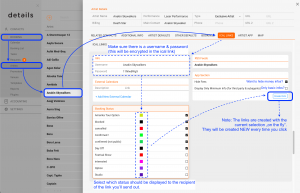
2. Open ICal and click on the ‘Subscriptions’ section with the right mouse.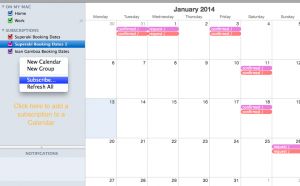
3. Add the created link to the Ical.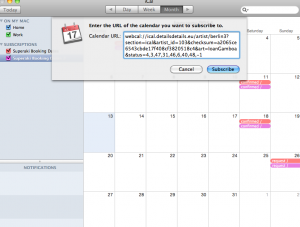
4. Edit the ‘Settings’ of the Calendar Subscriptions as required (auto-refresh, attachments..)