Bandcamp can send your data to details directly, so nobody has to download and convert report files any more. There are two connections for this, called APIs, and each one brings in something different:
- Your sales (Sales Report API): once a month, all your Bandcamp sales, digital and physical, arrive as a sales statement in DISTRIBUTION / IMPORTS. Your royalties are calculated on these statements. This is what this article covers.
- Your orders (Merch Orders API): each physical or merch order arrives in DISTRIBUTION / ORDERS with the buyer and the delivery address, so you can pack and ship it.
For more on this, seethe article : Importing Bandcamp orders (Merch Orders API).
In short: Add your Bandcamp access in SETTINGS / SHARING under API configurations. Then create an import setup with the DSS Bandcamp on your Bandcamp account, one per band or label and per channel. details then imports your Bandcamp sales every month. To import a month right away, click Perform.
► Overview
You connect your Bandcamp account once. Each import setup then tells details which band or label to import, whether the setup is for digital or physical sales, and how to handle deductions, refunds and VAT. details imports the sales of every active setup once a month on its own. You can also import a month yourself at any time. Once imported, a Bandcamp statement works like any other statement: you check the matching and use it for royalties.
Context: Orders and sales statements answer different questions. An order tells your warehouse what to send to whom. A sales statement tells you how many units of which release sold at what price, which is what royalties are calculated on. That is why the sales import doesn’t keep the names or addresses of your buyers.
► Where to find this in details
- Bandcamp API setup: SETTINGS / SHARING, box API configurations.
- Bandcamp import setups:
DISTRIBUTION / ACCOUNTS, open your Bandcamp account, box Import Setup. - Bandcamp statement imports: DISTRIBUTION / IMPORTS.
► Step-by-Step
Connect Bandcamp
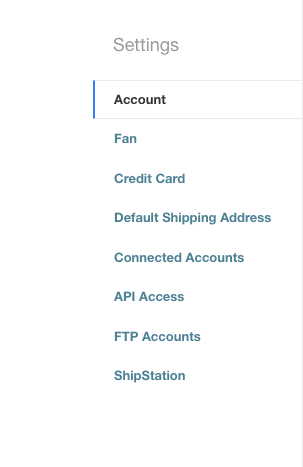
- In your Bandcamp account, go to Settings → API Access and copy your Client ID and Client Secret.
- In details, go to SETTINGS / SHARING.
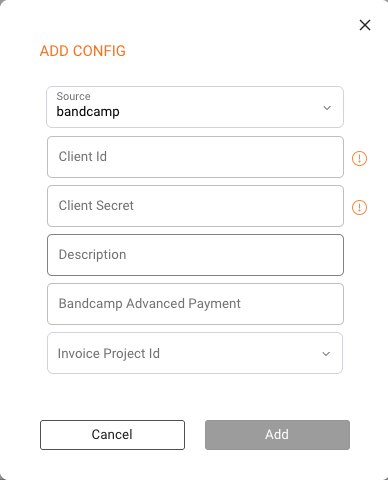
- Under API configurations, click Add Config.
- Set Source to bandcamp and enter the Client ID and Client Secret. The other fields are not needed for the import.
- Click Add.
Tip: If you can’t see API Access in your Bandcamp settings, email support@bandcamp.com and ask them to switch it on for your account. They usually answer quickly.
Create the import setups
- Go to DISTRIBUTION / ACCOUNTS and open your Bandcamp account.
- In the Import Setup box, click + Add New or edit an existing setup.
- In the DSS column, select Bandcamp.
- Open the setup and enter a start date and an end date. details only imports sales between these two dates.
- Under Band / label, select the band or label whose sales you want to import. The list comes from Bandcamp and can take a few seconds to load.
- Under Cost group (for refunds), select a cost group. This field is required.
- For a physical setup, also choose the VAT option and any deductions (see below).

You need one setup per band or label and per channel. A label that sells downloads and vinyl on Bandcamp needs a digital setup and a physical setup.
Important: The currency of the setup must be the currency of your Bandcamp sales. If they differ, details stops the import.
Import a month yourself
- Click Perform next to the setup.
- Choose the month and click Run Bandcamp import.
- details fetches the sales in the background. This can take a few minutes. The new statement then appears in DISTRIBUTION / IMPORTS.
- Open the statement and match any lines that are still unmatched before you use it for royalties.
► Tips / Expert Notes
Refunds
A refund with a quantity is booked as a return of that item. A refund without a quantity is booked as a cost line in the cost group you chose in the setup.
Deductions on physical sales
Physical setups have optional deductions. They lower the amount used to calculate artist royalties. Enter them in the currency of the setup.
- Deduction per package: a flat amount per order, for example for packing and handling. It is split equally over the items in the order. A deduction of 2.50 on an order with two records takes 1.25 off each record.
- PPU deduction (per unit): a flat amount for every unit sold. A deduction of 1.00 on three units takes off 3.00 in total.
- Distribution Fee: a percentage, set in the usual fee fields of the setup.
You can use the fee and the flat deductions together. details takes off the percentage first and the flat amounts after that. A returned item gives its deduction back.
Matching physical products
By default, details matches physical sales by catalog number and package name. If your Bandcamp packages carry SKUs that match your products, tick Use only SKU as identifier.
VAT on physical sales
For physical setups, choose an option under VAT included in prices (if Bandcamp adds no tax). It only affects sales where the price already contains the VAT. Sales where Bandcamp shows the tax separately, and sales outside the EU, stay as they are.
- I am a “Kleinunternehmer”: choose this if your business uses the German small business VAT exemption (Kleinunternehmerregelung). No VAT is taken out of the price. The German tax office explains the exemption here in English.
- OSS not required (below threshold): for EU buyers, details takes the VAT of your own country out of the price, using the rates of the invoice project and the format of the product.
- OSS: details takes the VAT of the buyer’s country out of the price, using the rate valid on the sale date.
Context: Within the EU, sales of goods to private buyers in other countries are taxed in your own country until all such sales together pass 10,000 EUR a year (without VAT, across all your shops, not per shop). Above that, the buyer’s country’s VAT applies, and OSS is the optional way to report it in one place. Choosing OSS in details only changes how the VAT is taken out of your sales. It does not register you or file anything. The European Commission explains the threshold and OSS here.
Good to know
- Not sure which VAT option fits your business? Ask your tax advisor first, or write to label_team@details.eu and we’ll go through the setup with you.
- If the Band / label list stays empty, check the Client ID and Client Secret in SETTINGS / SHARING.
- A month that is already imported for a setup is not imported a second time.
- To stop the monthly import for a setup, untick Active in the Import Setup box.